This chapter uses a story-driven approach to show how dbatools simplifies administering SQL Server logins and database users. It emphasizes preventing connectivity issues for business users and applications, then walks through practical, repeatable patterns you can apply in daily operations. Along the way, it covers reading error logs to diagnose problems, creating and managing logins and users, repairing orphaned users, synchronizing logins across Availability Group replicas, exporting and source-controlling security, and tracing access gained through nested Active Directory groups.
The troubleshooting workflow starts by using Get-DbaErrorLog to pinpoint login failures, then creating the required principals with New-DbaLogin and New-DbaDbUser as needed. It demonstrates verifying database principals with Get-DbaDbUser, detecting orphaned users with Get-DbaDbOrphanUser, and fixing them with Repair-DbaDbOrphanUser—particularly relevant after migrations or failovers that desynchronize SIDs. To prevent recurrences, the chapter schedules a SQL Agent job that uses Copy-DbaLogin to regularly synchronize logins across Availability Group replicas, ensuring new or changed logins are consistently deployed without manual intervention.
For governance and recovery, the chapter advocates exporting logins, users, and permissions nightly with Export-DbaLogin and committing the results to source control to establish an auditable history and an easy rollback path when “it worked yesterday.” It then shows how to audit and visualize permissions with Get-DbaUserPermission and the ImportExcel module, highlighting elevated roles and role memberships for quick review. Finally, it demonstrates using Find-DbaLoginInGroup to reveal how a user gained access via nested Active Directory groups, rounding out an end-to-end, automated approach to managing, auditing, and explaining SQL Server security.
Figure 9.1. Export Login File
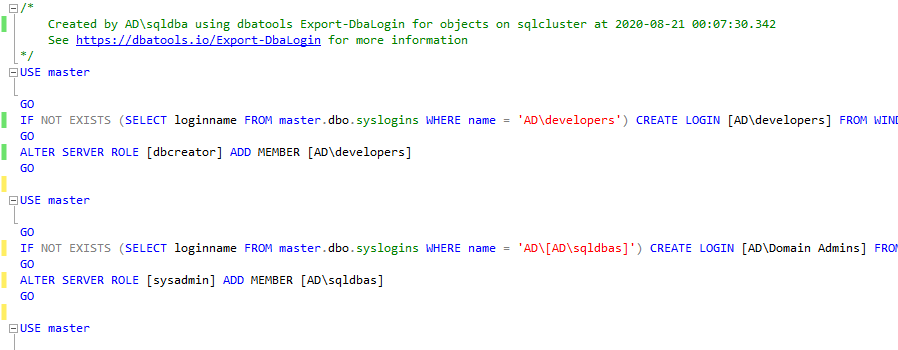
Figure 9.2. Comparing SQL Login Permissions
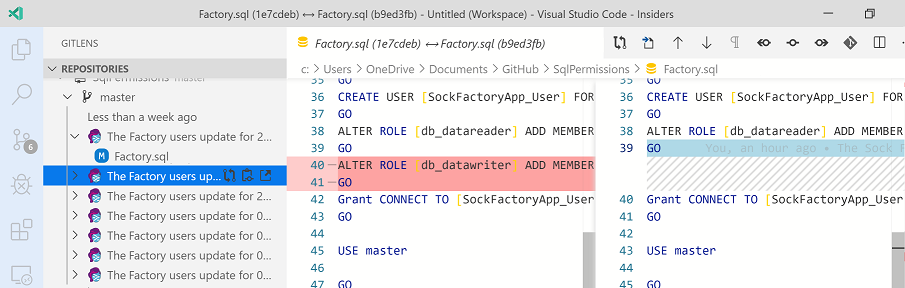
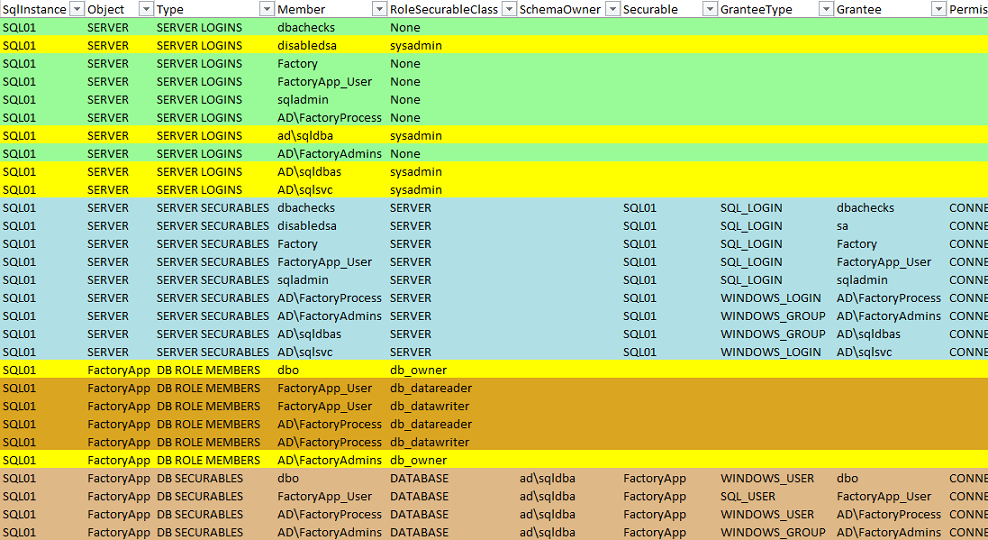
Figure 9.3. Listing Permissions
Hands-on Lab
With this lab, you’ll reinforce what you’ve learned in this chapter.
- Read the Error Log on your local instance to familiarize yourself with the output
- Create a new SQL login
- Create a new database user
- Export the users on your instance to a file
- Set up a local git repository and save the output of
Export-DbaLogin
- Get all of the user permissions on your instance and export them to an Excel Sheet
FAQ
How can I quickly see why a login failed when the app only shows a generic error?
Query the SQL Server Error Log for recent entries.
Get-DbaErrorLog -SqlInstance SQL01 -After (Get-Date).AddMinutes(-5) |
  Select LogDate, Source, Text
What’s the easiest way to create a new login, and how do SQL vs. Windows logins differ?
Use New-DbaLogin. It auto-detects the type: SQL logins prompt for a password; Windows logins do not.
# SQL login (prompts for password)
New-DbaLogin -SqlInstance SQL01 -Login Factory

# Windows login (no password prompt)
New-DbaLogin -SqlInstance SQL01 -Login 'ad\FactoryAdmins'
How do I add the same login to many servers at once (and avoid multiple password prompts)?
Supply a credential once and reuse it across instances.
$servers = Get-DbaRegisteredServer
$cred    = Get-Credential  # user: factoryuser1, enter password once
New-DbaLogin -SqlInstance $servers -Login $cred.UserName -SecurePassword $cred.Password
I created a login, but the app still can’t open the database. What’s next?
Create or verify the database user and its mapping.
# Check if the user exists
Get-DbaDbUser -SqlInstance SQL01 -Database WideWorldImporters | Select Name

# Create a user mapped to the login (if missing)
New-DbaDbUser -SqlInstance SQL01 -Database WideWorldImporters -Login Factory -Username Factory
How do I find orphaned users after a restore or AG failover?
Look for users without matching SIDs using Get-DbaDbOrphanUser.
Get-DbaDbOrphanUser -SqlInstance SQL01
How do I fix orphaned users?
Repair them with Repair-DbaDbOrphanUser (all databases by default).
Repair-DbaDbOrphanUser -SqlInstance SQL01
How can I prevent orphaned users in Availability Groups?
Sync logins across replicas on a schedule using Copy-DbaLogin. The common pattern is to enumerate replicas and copy logins between them (excluding system logins). Note: this sync adds/updates; it doesn’t remove extra logins. See Get-Help Copy-DbaLogin -Full for update/replace options.
How do I back up logins/users/permissions for audit or recovery?
Export them as T-SQL files with Export-DbaLogin (great for nightly jobs and diffing).
# Default: writes to Documents\DbatoolsExport
Export-DbaLogin -SqlInstance SQL01
The export includes SIDs, password hashes (for SQL logins), default DB/language, role memberships, and server/database permissions. Local service accounts are skipped.
Can I put login exports under source control to track changes over time?
Yes. Export then commit to a Git repo on a schedule.
$date = Get-Date
$path = "$home\sourcerepo\SqlPermission"
$file = "Factory.sql"

Export-DbaLogin -SqlInstance SQL01 -Path $path -FilePath $file
Set-Location $path
git add $file
git commit -m "Factory logins update $date"
How do I see who has what permissions and who gained access via nested AD groups?
Summarize effective permissions:
Get-DbaUserPermission -SqlInstance SQL01 -Database WideWorldImporters
Find nested AD group paths for a specific user:
Find-DbaLoginInGroup -SqlInstance SQL01 -Login 'ad\bmiller'
Optional: export to Excel with the ImportExcel module and add conditional formatting for easier review.

 Learn dbatools in a Month of Lunches ebook for free
