Registered Servers provide a built-in, no-cost way to inventory and organize SQL Server estates, supporting grouping, authentication, and aliases across Database Engine, Analysis Services, Integration Services, and Reporting Services. By storing connection definitions you can run multi-server queries and standardize how you target instances. dbatools integrates tightly with this feature so you can pipe the inventory directly into PowerShell commands, making it simple to execute tasks across all or selected instances—an approach that’s invaluable for day-to-day operations and audits alike. Three repository types are supported: Local Server Groups, Azure Data Studio connections, and Central Management Server.
Each repository offers distinct advantages. Local Server Groups are flexible, support numerous authentication methods, and securely store credentials (encrypted in a local RegSrvr.xml file), but they aren’t shared across DBAs. Azure Data Studio connections are cross-platform and can surface in SQL Server Management Studio when present; credentials are stored securely per user and machine, though MFA-based connections aren’t automated via dbatools’ Registered Servers and default to Windows Authentication. Central Management Server stores inventory centrally in msdb for team use, excels with Windows/AD authentication, and targets Database Engine instances; while SSMS limits its authentication choices, dbatools sidesteps this by allowing alternative credentials on any command. You can combine these sources, filter by groups, and easily direct commands to just the instances you need.
The chapter shows practical ways to build and manage an estate: organize servers by environment, department, version, edition, or location; include servers in multiple groups; and bulk-load complex hierarchies from CSV. dbatools streamlines administration with commands to get, add, copy, export, import, move, and remove registered servers and groups, supports nested folders, and enables bulk operations that would be tedious in the GUI. For migrations and disaster recovery, you can copy inventories between CMS instances or export/import them to disk. You can also connect with specific credentials and then register that connection, creating a fast, repeatable, and auditable workflow for managing large SQL Server estates.
Figure 8.1. Registered Servers in Management Studio 18
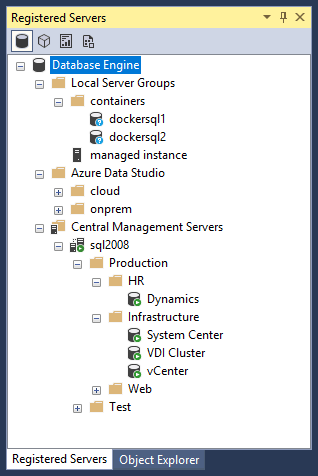
Figure 8.2. New Server Registration in Local Server Groups
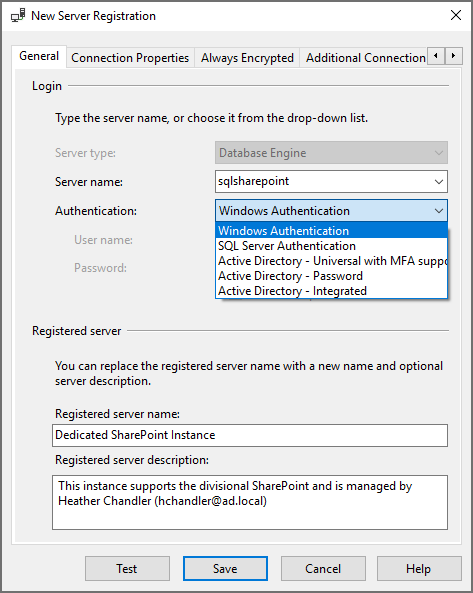
Figure 8.3. Multiple RegSrvr.xml files on one machine. dbatools uses the highlighted location.
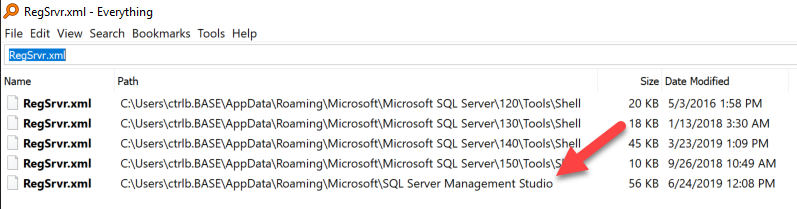
Figure 8.4. Register a connection in Azure Data Studio
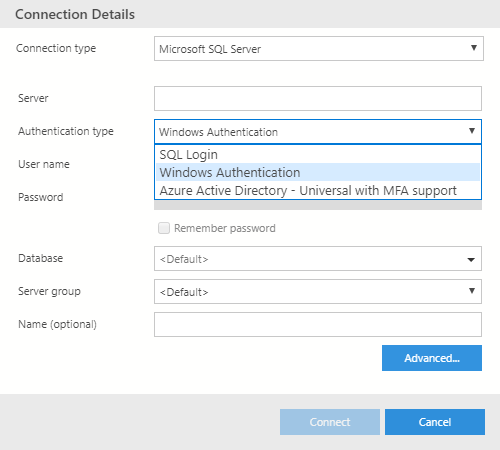
Figure 8.5. Register a Central Management Server in SSMS
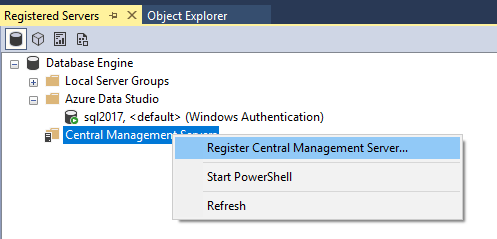
Figure 8.6. New Server Registration in Central Management Server
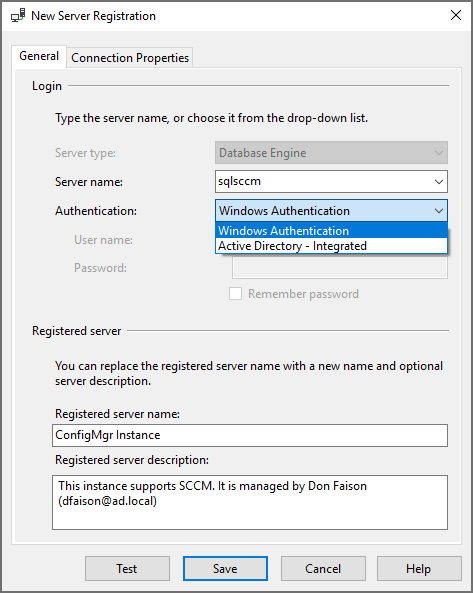
Figure 8.7. Screenshot of the SSMS equivalent of listing the preceding code
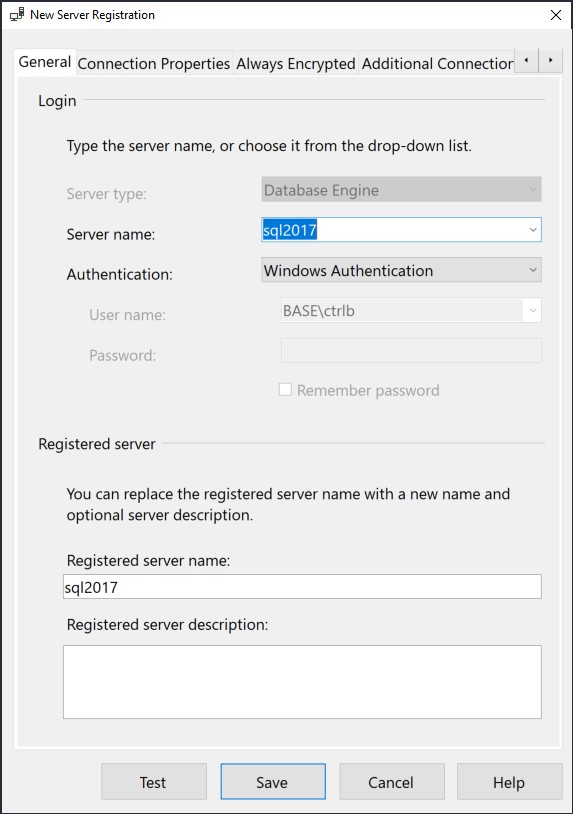
Figure 8.8. Screenshot of the SSMS equivalent of the preceding code

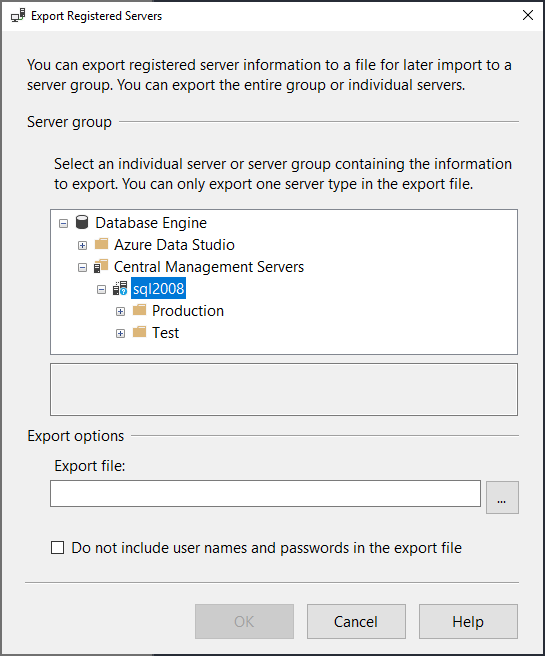
Figure 8.9. Exporting Central Management Server in SSMS.
Hands-on Lab
Lets use what you have read about in this chapter to accomplish the following tasks
- Add a couple servers to Local Server Groups
- Find all of the jobs currently running in your estate using
Get-DbaRegServerandGet-DbaRunningJob
FAQ
What are Registered Servers and why use them with dbatools?
Registered Servers is a built-in inventory feature of SQL Server that lets you group and store connection info, then run actions against many instances at once. With dbatools, you can pipe that inventory (from SSMS/ADS/CMS) straight into commands, making multi-server automation simple and repeatable.Which Registered Server repositories are supported?
dbatools supports all three: - Local Server Groups (per-user, local, flexible credentials) - Azure Data Studio (cross-platform connections surfaced in SSMS 18+) - Central Management Server (central, shared inventory for Database Engine) Each can be used as a -SqlInstance source for dbatools commands.How do I run a query or command against every instance in my inventory?
Pipe your registered servers into the desired command. For example:Get-DbaRegServer | Invoke-DbaQuery -Query 'SELECT @@VERSION'You can swap in other dbatools commands (backups, checks, audits, etc.) the same way.
Where are Local Server Groups stored and are credentials safe?
Local Server Groups are saved in RegSrvr.xml under your user profile (AppData). Passwords are encrypted in that file. SSMS 18 standardized the location; if you don’t see recent changes, upgrade SSMS so it uses the modern path.How does Azure Data Studio integrate with Registered Servers in SSMS?
If ADS is installed and you’ve saved a connection, SSMS 18+ shows those under the Azure Data Studio node. ADS writes a settings.json under $home\AppData\azuredatastudio, and credentials are stored encrypted in the OS credential store. Note: MFA-based ADS connections won’t work headless in dbatools; they’ll fall back to basic Windows auth.What is Central Management Server (CMS) and how do I use it with dbatools?
CMS stores a shared, central list of Database Engine instances (data lives in msdb). SSMS only supports Windows/AD auth there, but dbatools lets you attach alternative creds at run time:$cred = Get-Credential sqladmin Get-DbaRegServer -SqlInstance cmsServer | Backup-DbaDatabase -SqlCredential $credTarget CMS with -SqlInstance.
How should I organize groups, and can I target specific groups?
Common patterns include by environment (Prod/Test), department, version, edition, or location. You can filter when running commands:# Include a group Get-DbaRegServer -SqlInstance cms -Group 'Test\Dev' # Exclude a group Get-DbaRegServer -SqlInstance cms -ExcludeGroup 'Test\Dev'Nested groups use backslashes (e.g., Prod\HR).
How do I add servers, import from CSV, or preserve credentials?
- Quick add to Local Server Groups:Add-DbaRegServer -ServerName sql01- Add to CMS with a group (auto-creates if missing):
Add-DbaRegServer -SqlInstance cms -Group 'OnPrem\Accounting' -ServerName sql01- Bulk import from CSV (supports ServerName, Name, Description, Group):
Import-Csv .\regservers.csv | Import-DbaRegServer -SqlInstance cms- Preserve alt auth by connecting first:
Connect-DbaInstance -SqlInstance 'host,1433' -SqlCredential sqladmin |
  Add-DbaRegServer -Description 'Container for tests'
How do I migrate or back up CMS registered servers?
Copy, export, and import support CMS scenarios:# Copy CMS entries to a new server Copy-DbaRegServer -Source oldcms -Destination newcms # Export to XML, then import elsewhere Export-DbaRegServer -SqlInstance oldcms -Path C:\temp Import-DbaRegServer -SqlInstance newcms -Path C:\tempThis is handy for upgrades and disaster recovery.
How do I move or remove registered servers and manage groups?
- Move a server (or many) to a new group:Move-DbaRegServer -Name 'Web SQL Cluster' -Group 'HR\Prod' Get-DbaRegServer | Where-Object Name -match HR | Move-DbaRegServer -Group 'HR\Prod'- Remove servers (with optional confirmation suppression):
Remove-DbaRegServer -ServerName sql01
Get-DbaRegServer -ServerName sql01,sql2016 | Remove-DbaRegServer -Confirm:$false
- Manage groups:
Add-DbaRegServerGroup, Get-DbaRegServerGroup, Move-DbaRegServerGroup, Remove-DbaRegServerGroupTip: CMS can’t register itself directly; use a slightly different name (FQDN/port) or Get-DbaRegServer -IncludeSelf.

 Learn dbatools in a Month of Lunches ebook for free
