This chapter moves from discovering SQL Server instances to systematically inventorying them. It explains why a current, centralized inventory is essential: it enables reporting without granting direct instance access, accelerates migration and upgrade planning by revealing feature usage, and supports audits and security hardening. With a reliable inventory, DBAs can answer ad‑hoc questions about hosts, instances, and databases, while also establishing a baseline for capacity planning, trend analysis, and troubleshooting.
The authors show how to automate data collection at scale with dbatools. Key tasks include identifying installed and in-use features across Windows hosts with Get-DbaFeature; determining exact version, service pack, and cumulative update levels with Get-DbaBuildReference and validating patch compliance with Test-DbaBuild; and gathering host details via Get-DbaComputerSystem and Get-DbaOperatingSystem (cores, memory, virtualization, OS version, uptime, and more). Database insights come from Get-DbaDatabase, which returns status, recovery model, sizes, collations, owners, and last backup times, plus filters for system vs. user databases and backup recency checks (such as -NoFullBackupSince and -NoLogBackupSince). Estate-wide ownership discovery with Find-DbaUserObject helps with out‑processing and security reviews. Together, these commands support incident response, compliance, and day‑to‑day administration.
Finally, the chapter demonstrates consolidating results into a central database by piping each command’s output to Write-DbaDataTable, creating a living inventory of features, builds, computer systems, operating systems, databases, and user-owned objects. Scheduled runs keep the inventory current, enabling fast answers and organization-wide reporting without touching production instances. The guidance concludes with a practical division of labor: use PowerShell and dbatools to collect data across the estate, then rely on SQL to transform, relate, and analyze that data for robust compliance checks, baselining, capacity planning, and operational dashboards.
Figure 7.1. SQL Server Discovery Report and location
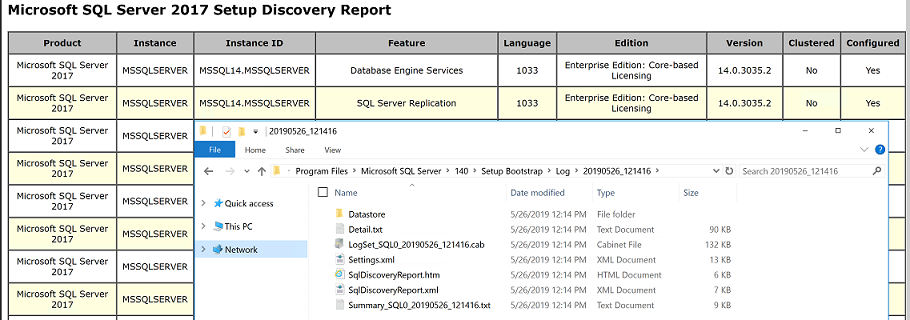
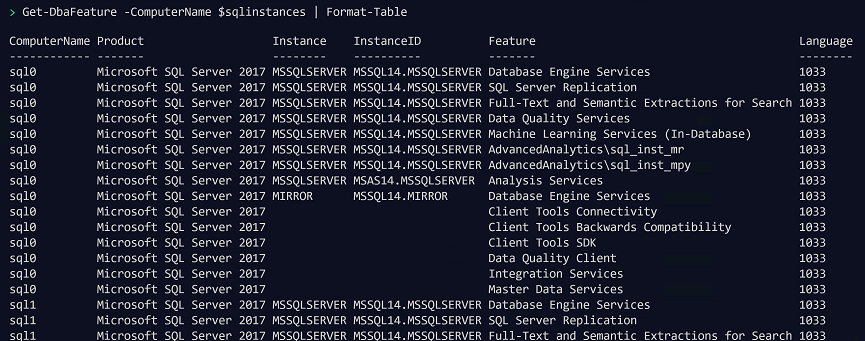
Figure 7.2. Results returned as objects instead of a webpage
Hands-on Lab
Let’s practice what you just read about in this chapter.
See if you can complete the following tasks:
- Test compliance of multiple instances against the latest build available
- Search for objects owned by 'sa'
Unsure of the answers? You can check your work at dbatools.io/answers.
FAQ
What is a SQL Server inventory and why should I keep one?
An inventory centralizes key details about your hosts, instances, and databases so you can answer questions and produce reports without granting broad instance access. It streamlines planning for migrations and upgrades (by showing which features are used), supports audits, and creates a baseline to spot trends, capacity needs, and recent changes.How can I discover which SQL Server features are installed across my servers?
You can run the built‑in SQL Server Discovery Report, but it’s manual per host. With dbatools, useGet-DbaFeature -ComputerName <hosts> to remotely gather feature usage from many Windows servers in one go.How do I find the exact build, SP/CU level, and support status for an instance?
UseGet-DbaBuildReference -SqlInstance <instance>. It returns version/build, SP/CU, KBs, support end date, and match type. Keep its reference data current with Get-DbaBuildReference -Update (or by updating the dbatools module).How do I check if my instances are on a compliant patch level (e.g., latest CU)?
RunTest-DbaBuild -SqlInstance <instances> -Latest (or target a specific level). The output includes a Compliant flag plus current and target builds, making noncompliant servers easy to spot.Which commands help me inventory host hardware quickly during an incident?
UseGet-DbaComputerSystem -ComputerName <host> to see logical processors, total memory, model, and hyper‑threading. It’s great for fast triage when you need to confirm a server’s resource profile.How do I capture detailed Windows OS information for my SQL hosts?
Get-DbaOperatingSystem -ComputerName <host> returns OS version/edition, last boot time, timezone, PowerShell version, and more. This helps with compliance, lifecycle tracking, and licensing discussions.What’s the easiest way to list databases and filter what I see?
Start withGet-DbaDatabase -SqlInstance <instance>. Narrow results with -Database (one or many names), -ExcludeSystem (user DBs only), or -ExcludeUser (system DBs only). Useful properties include status, recovery model, size, collation, owner, and last backup times.How can I find databases with missing or stale backups?
Use backup-aware filters onGet-DbaDatabase: -NoFullBackup or -NoFullBackupSince (Get-Date).AddDays(-N) for fulls, and -NoLogBackup or -NoLogBackupSince for log backups. Databases in SIMPLE recovery are automatically excluded from log‑backup checks.How do I identify database owners and objects owned by specific users (e.g., for offboarding)?
Find databases by owner withGet-DbaDatabase -SqlInstance <instances> -User <domain\user>. Inventory object ownership across instances with Find-DbaUserObject -SqlInstance <instances>, and optionally filter by Owner using Where-Object.What’s a simple pattern to store my inventory in a central database?
Create a central DB (e.g.,New-DbaDatabase -SqlInstance <config> -Name DBAEstate), then pipe inventory commands into Write-DbaDataTable -AutoCreateTable (e.g., features, builds, host/OS, databases, user objects). Schedule it regularly, and consider transforming the staging-like tables into a relational model in SQL for reporting.
 Learn dbatools in a Month of Lunches ebook for free
