This chapter shows how to move from merely inspecting SQL Server environments with PowerShell to persisting results where DBAs are most comfortable—tables in SQL Server. It starts by emphasizing the PowerShell pipeline: shaping output with Select-Object, chaining multiple commands, and quickly exporting to files such as CSV, JSON, or XML. While file exports are convenient, the chapter highlights the advantages of storing data in a database for reliable availability, backup, and downstream reporting in tools like Power BI or SSRS.
The core of the chapter focuses on reliably writing data to SQL Server tables. It contrasts two primary import patterns for CSVs: Import-DbaCsv, which streams large files efficiently and can auto-create tables, and Import-Csv piped to Write-DbaDataTable, which is intuitive and fast for smaller sets. You learn to query results with Invoke-DbaQuery, inspect and validate schema with Get-DbaDbTable, and use Get-Member to understand how incoming types influence auto-created columns. Practical guidance covers when to pre-stage tables for precise data types, how to avoid RBAR-style slowdowns with large imports, and how to diagnose and fix truncation errors by checking maximum field lengths and adjusting column definitions. The same approach works beyond CSVs—any PowerShell object stream (including dbatools commands, Get-Process, or cloud resources from the Az module) can be written directly to SQL Server or Azure SQL Database with suitable data types inferred automatically.
Finally, the chapter shows how to copy existing table data between instances with Copy-DbaDbTableData, recommending PowerShell splatting for readable, reusable parameter sets. It notes that AutoCreateTable expedites setup but only copies data and basic columns, not indexes, constraints, or filegroup settings—so pre-create destination tables when you need full fidelity. Taken together, these patterns form a repeatable toolkit: shape any PowerShell output, choose the right import strategy, validate and control schema, and persist results to SQL for durable, queryable, and report-ready data.
Figure 5.1. Piping commands
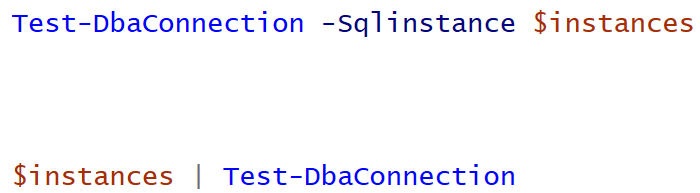
Figure 5.2. The data types of the CSV
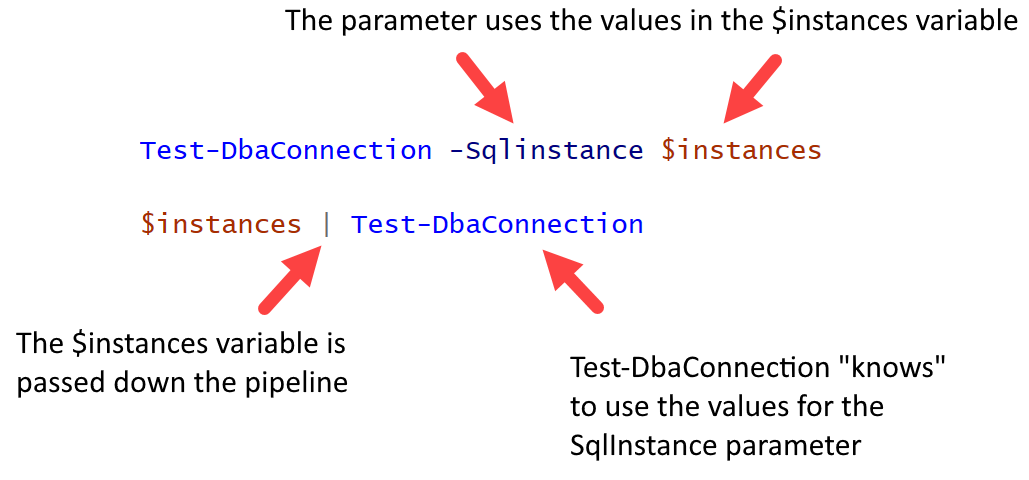
Figure 5.3. The data types of the Database object
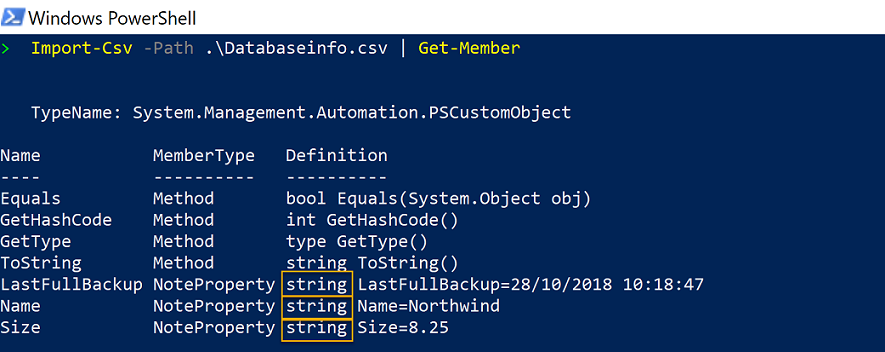
Figure 5.4. Copy-DbaDbTableData with parameters, conventional syntax
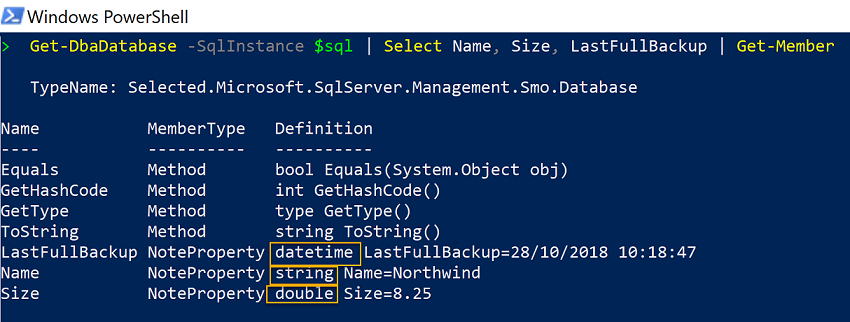
Figure 5.5. Copy-DbaDbTableData with parameters, splatting syntax

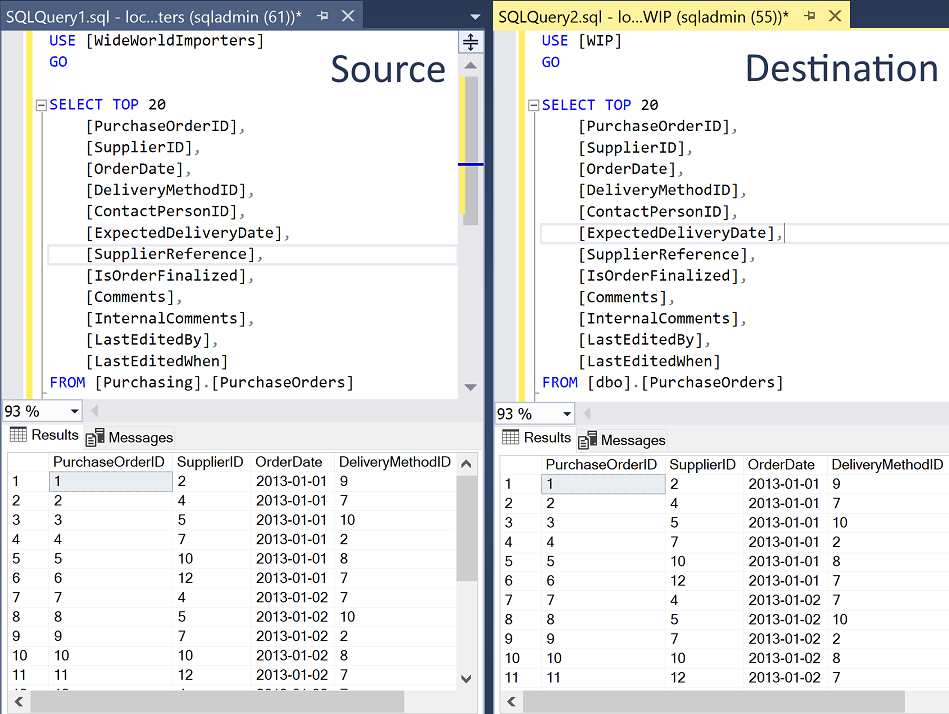
Figure 5.6. Comparing the data
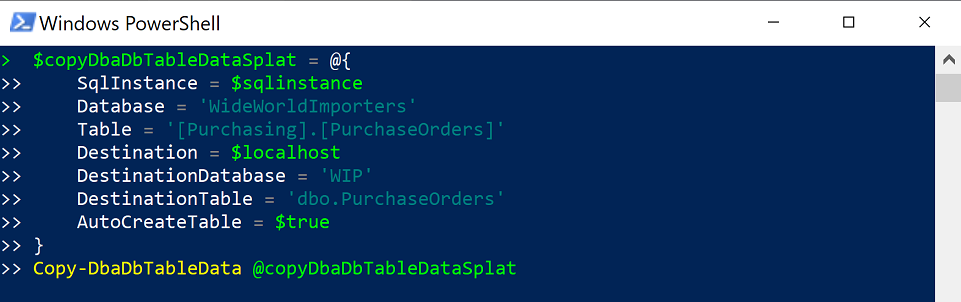
Figure 5.7. Incomplete table definitions may be created when using AutoCreateTable
Hands-on Lab
- Copy a table from one database to a WIP database on your local instance, using both
-AutoCreateTableand a pre-created table
- Gather the SQL logins from a SQL Server to a database table with Get-DbaLogin
- Gather the services information into a table with Get-Service
- Gather the file information into a table with Get-ChildItem
- Add the information about the SQL Services for an instance into a table
- Find a CSV on your machine and import it into a table
- Get the information about the tables in a database and import it into a table
FAQ
How does the PowerShell pipeline help me write to SQL Server?
The pipeline passes objects from one command to the next, so you can gather, shape, and store data in a single line. Example:Get-DbaDatabase -SqlInstance SQLDEV01 -ExcludeSystem | Select Name, Size, LastFullBackup | Write-DbaDataTable -SqlInstance SQLDEV01 -Database tempdb -Table Databases -AutoCreateTableWhen should I use Import-DbaCsv vs. Import-Csv with Write-DbaDataTable?
UseImport-DbaCsv for larger CSVs (streaming, low memory, fast bulk load). Use Import-Csv piped to Write-DbaDataTable for smaller datasets or when you need to transform objects in the pipeline before loading.What are quick ways to save PowerShell output to files (CSV, JSON, XML)?
- CSV:... | Export-Csv -Path .\out.csv -NoTypeInformation- JSON:
... | ConvertTo-Json | Out-File .\out.json- XML:
... | ConvertTo-Xml | Out-File .\out.xmlTo view a file:
Get-Content .\out.csv. On Windows, copy to clipboard with ... | clip.How can I control data types when creating target tables?
Write-DbaDataTable infers data types from the input objects. CSVs (via Import-Csv) are strings, so you may get nvarchar(MAX). For precise types, precreate the table with T‑SQL, or feed strongly typed objects (e.g., Get-DbaDatabase outputs doubles and datetimes).Why did AutoCreateTable make everything nvarchar(MAX) from my CSV?
BecauseImport-Csv produces string properties. -AutoCreateTable uses the input object’s property types. To avoid this, precreate the table with proper types or convert properties to typed values before loading.How do I fix “String or binary data would be truncated” during import?
Increase the destination column width to accommodate the longest incoming value. Find max lengths by converting to a DataTable (e.g.,Import-Csv ... | ConvertTo-DbaDataTable) and scanning each column’s max length, then ALTER TABLE ... ALTER COLUMN ... accordingly. After adjusting, rerun the import.How do I run SQL from PowerShell and work with the results?
UseInvoke-DbaQuery: $q = "SELECT * FROM dbo.Table"; $r = Invoke-DbaQuery -SqlInstance SQLDEV01 -Database db -Query $q. Results are objects you can pipe or inspect. Prefer double quotes for T‑SQL strings; multi-line strings are supported.What’s the easiest way to import multiple CSV files at once?
Get-ChildItem and pipe to Import-DbaCsv: Get-ChildItem E:\csv\*.csv | Import-DbaCsv -SqlInstance SQLDEV01 -Database tempdb -AutoCreateTable. If you don’t specify -Table, the file’s base name becomes the table name. See Get-Help Import-DbaCsv for delimiters and header options.Can I write non-dbatools command output (e.g., Get-Process or Azure VMs) to a table?
Yes. Any PowerShell objects can be piped toWrite-DbaDataTable. Examples:-
Get-Process | Select -Last 10 | Write-DbaDataTable -SqlInstance SQLDEV01 -Database tempdb -Table Processes -AutoCreateTable-
Connect-AzAccount; Get-AzVM -Status | Write-DbaDataTable -SqlInstance SQLDEV01 -Database tempdb -Table AzureVMs -AutoCreateTableUse
Select-Object -ExpandProperty to flatten nested properties.How do I copy a table and its data between servers?
UseCopy-DbaDbTableData. Splatting keeps it readable: define parameters in a hashtable and call Copy-DbaDbTableData @splat. Note: -AutoCreateTable creates a basic table; it does not copy indexes, constraints, or filegroup settings. Precreate the table if you need those.
 Learn dbatools in a Month of Lunches ebook for free
