This chapter explains how to get dbatools installed safely and reliably, and why that process teaches you the same skills you need for installing any PowerShell module. It starts with practical prerequisites and environmental considerations, then walks through execution policy and repository trust, how module auto-loading works, and why code signing matters. It concludes with preferred and alternative installation paths, ways to discover commands and documentation, and simple approaches to keeping dbatools up to date.
On requirements, dbatools is designed to work across a broad range of SQL Server versions and operating systems, with full support on modern Windows and substantial coverage on macOS and Linux. PowerShell 5.1 or later is recommended for performance and security; PowerShell 7+ (Core) runs most but not all commands. Many commands don’t require PowerShell on the target SQL Server at all, but OS-level tasks do rely on PowerShell Remoting (WS-Management over ports 5985/5986). Typical connectivity also involves the SQL Database Engine port (commonly 1433) and, for a small subset of tasks, WMI (135) and SMB (139/445). The chapter clarifies that execution policies are a safety mechanism, not a security boundary, and suggests RemoteSigned (or a process-scoped Bypass for advanced scenarios), explains policy precedence, and highlights the value of signed software and trusted publishers.
For installation, the preferred method is the PowerShell Gallery via PowerShellGet: set an appropriate execution policy, mark the PSGallery as Trusted with Set-PSRepository to avoid repetitive prompts, then install for all users (as Administrator) or for the current user only. Offline environments can use Save-Module on an internet-connected machine and copy the module into a folder on PSModulePath; zip-based installs from source are also possible but are unsigned and require a directory rename. The chapter shows how PowerShell’s module auto-loading and PSModulePath make commands readily available, offers guidance for finding and learning commands (Get-Command, Find-DbaCommand, Get-Help), cautions against loading dbatools alongside SQLPS/SqlServer in the same session, and recommends routine updates via Update-Module (or Update-Dbatools when not using the Gallery).
Figure 2.1. Configuration Manager, note the instance is offline but can still be modified
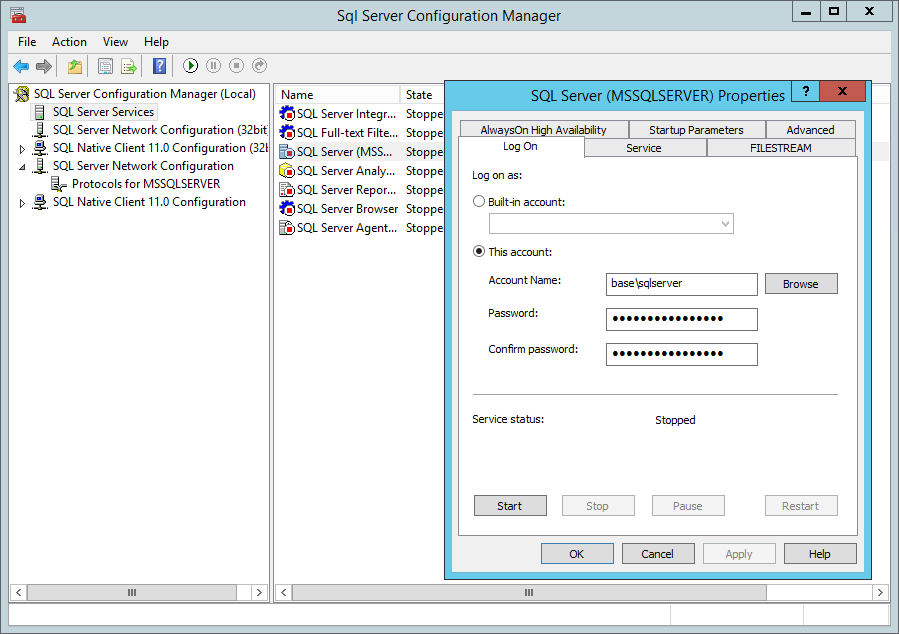
Figure 2.2. Trusted Sites
Figure 2.3. Microsoft’s PowerShell Gallery
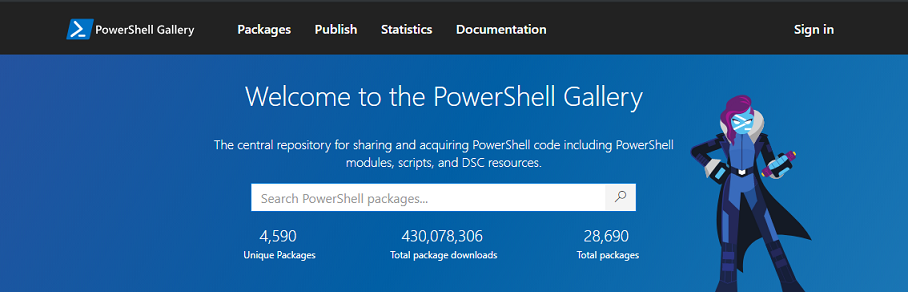
Figure 2.4. The publicly available code signing certificate from dbatools
Figure 2.5. dbatools in temp directory
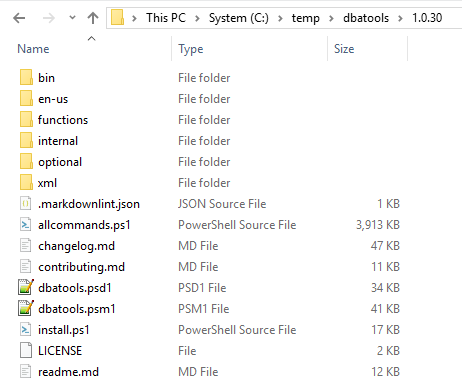
Figure 2.6. Twitter poll results
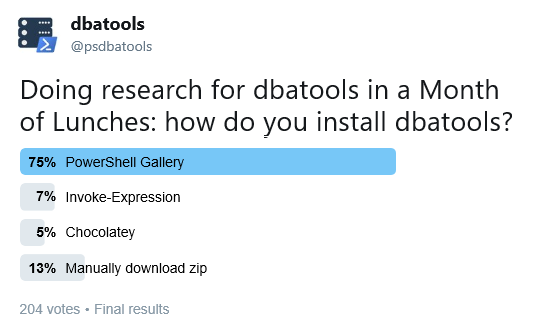
Figure 2.7. Unzipped directory, placed in valid modules path. Note the directory structure.
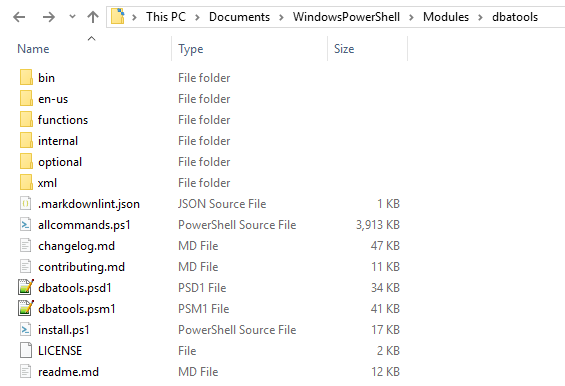
Figure 2.8. dbatools.io/commands, supporting both search and categories
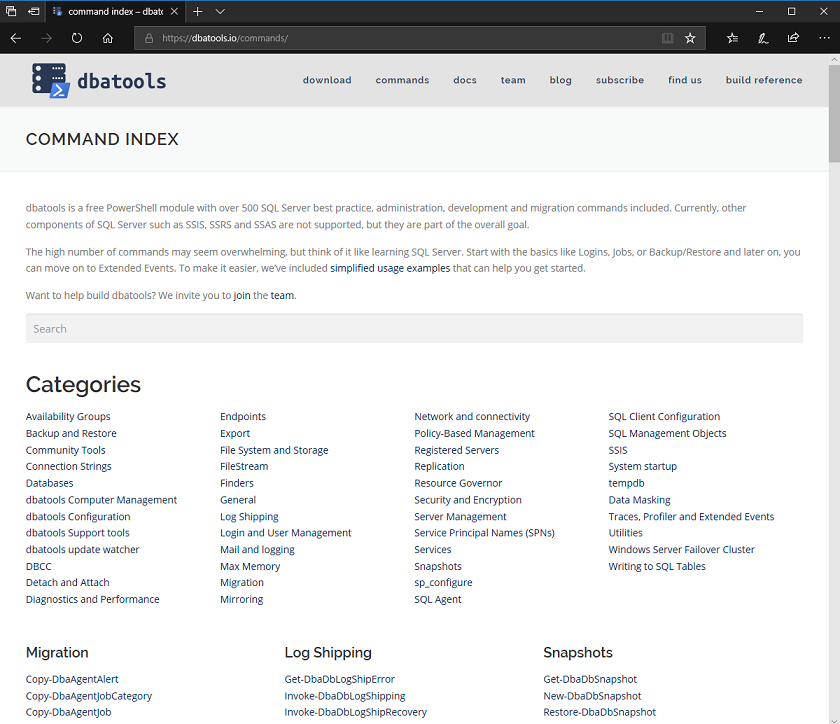
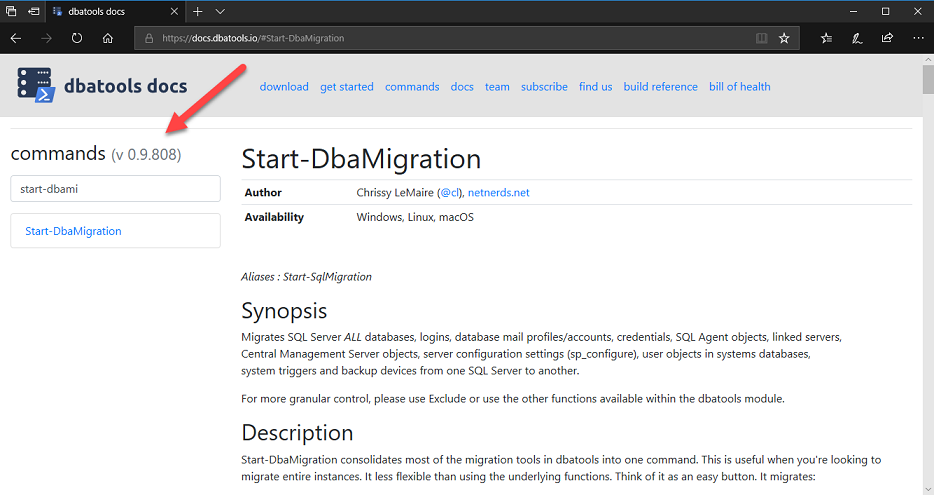
Figure 2.9. docs website. Note that the most recent version can be found in the upper-left.
Hands-on Lab
Let’s practice what you just read in this chapter.
- Find all commands that have
DbaRegin their name.
- Using
Get-Help, find examples for the command Install-DbaInstance.
FAQ
What are the minimum requirements to use dbatools?
Server: Supports SQL Server 2000 (~75% of commands), 2005 (~90%), 2008/2008 R2 (~93%), and 2012+ (100%). Azure SQL on VMs is supported as per the SQL version; containers/Kubernetes are ~75% (assuming Linux inside the container). SQL Server 7 isn’t supported.Target server: PowerShell isn’t required for about 75% of commands; commands that touch the OS (for example, Get-DbaDiskSpace) require PowerShell Remoting enabled.
Workstation: Windows 7/8/10/11 and Windows Server 2008 R2+ support 100% of commands. macOS and Linux support about 78%. PowerShell 5.1+ is recommended; PowerShell (Core) runs ~75% of commands.
Do I need to install dbatools on every SQL Server?
No. Like SSMS/ADS, dbatools is best installed on DBA workstations and a minimal set of servers that run scheduled tasks or SQL Agent jobs. Centralize administration whenever possible.Which network ports must be open for dbatools to work?
- SQL Database Engine: 1433 (supports custom ports too)- WS-Management (PowerShell Remoting): 5985 (HTTP) or 5986 (HTTPS)
- SQL WMI: 135
- SMB: 139
- SMB over IP: 445
Most commands rely on 1433; remoting-based commands use 5985/5986.
What are SQL WMI and WS-Management and why do they matter?
- SQL WMI is what SQL Server Configuration Manager uses. It lets you read/change certain SQL Server settings even if the instance is offline. Example: Update-DbaServiceAccount.- WS-Management is the protocol behind PowerShell Remoting (Invoke-Command, Enter-PSSession). It’s secure (admin-only by default, single port, encrypted session) and is required for commands that operate against the OS.
What is PowerShell Execution Policy and what should I set to install dbatools?
Execution Policy is a safety feature that helps prevent accidental script execution. Common defaults: Restricted (Windows client), RemoteSigned (Windows Server), Unrestricted (Linux/macOS). To install and run dbatools comfortably, set RemoteSigned for your user: Set-ExecutionPolicy -ExecutionPolicy RemoteSigned -Scope CurrentUser. Note: Group Policy can override this. Advanced users sometimes use Bypass for the current process only.How do I handle trust and signing when installing from the PowerShell Gallery?
First, trust the PowerShell Gallery to avoid repeated prompts: Set-PSRepository -Name PSGallery -InstallationPolicy Trusted. The first time you use PowerShellGet, you may be prompted to install the NuGet provider—answer Yes. dbatools is digitally signed; with stricter policies (e.g., AllSigned), you may be prompted to trust the dbatools publisher when importing—choose Run once (R) or Always run (A) as appropriate.How do I install dbatools for all users vs just my account?
- All users (requires elevation): run PowerShell as Administrator, then Install-Module -Name dbatools. This installs under C:\Program Files\WindowsPowerShell\Modules and makes it available to all accounts (including SQL Agent).- Current user only (no elevation): Install-Module -Name dbatools -Scope CurrentUser. This installs under $Home\Documents\WindowsPowerShell\Modules and limits availability to your account.
How can I install dbatools offline or without direct internet access?
- Recommended (PowerShell Gallery offline): on an internet-connected machine, run Save-Module -Name dbatools -Path C:\temp. Move the dbatools folder to a path listed in the destination machine’s $Env:PSModulePath (for example, C:\Program Files\WindowsPowerShell\Modules or $Home\Documents\WindowsPowerShell\Modules).- Zip from GitHub (dbatools.io/zip): download, unzip, rename dbatools-master\dbatools-master to dbatools, and place it in a PSModulePath folder. Caveats: this copy isn’t digitally signed, and you must rename the folder correctly.

 Learn dbatools in a Month of Lunches ebook for free
