This chapter focuses on making SQL Server Agent a reliable automation hub for DBAs who manage many instances. It explains how Agent underpins scheduled operations such as backups, maintenance, imports, and monitoring, and how to gather information across your estate, locate specific jobs, and review results and history. While Agent exists on both Windows and Linux, the chapter emphasizes that Windows is where it excels for automation because of its stronger support for external processes and PowerShell, which is central to the workflows discussed.
A key takeaway is to run PowerShell through the Operating System (CmdExec) subsystem rather than the PowerShell job step. The PowerShell step uses the older sqlps host, which can conflict with modules like dbatools, restrict module loading, and introduce version unpredictability; CmdExec reliably invokes powershell.exe or pwsh.exe and avoids these limitations. To run jobs with the right permissions, use SQL Server Credentials and Agent Proxies so steps can execute under dedicated service accounts aligned to least privilege. Store PowerShell as .ps1 files on disk (shared or local), ensure the proxy account can access all required resources, place files in cluster-accessible locations when needed, and manage scripts through source control and deployment pipelines.
The chapter’s practices improve robustness and supportability. Use default parameter values to make scripts chatty and deterministic (for example, verbose output, no interactive prompts, consistent error behavior) and ensure Agent reflects failures by wrapping operations in try/catch and returning proper exit codes; enable exceptions for dbatools to surface real errors. Enhance diagnostics by including step output in job history, pruning msdb history to avoid bloat, and optionally capturing transcripts to files with unique names. If anti-malware or signing policies interfere, set the execution policy to bypass within the job step. Finally, enrich job descriptions with operational details so teams can quickly troubleshoot and maintain dependable, predictable automation.
Figure 18.1. Good ol' SQL Server Agent
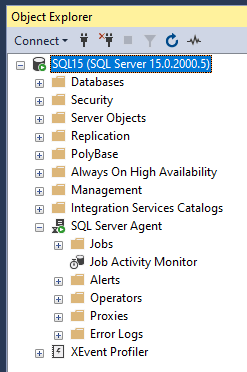
Figure 18.2. A list of SQL Agent subsystems on Windows, including PowerShell
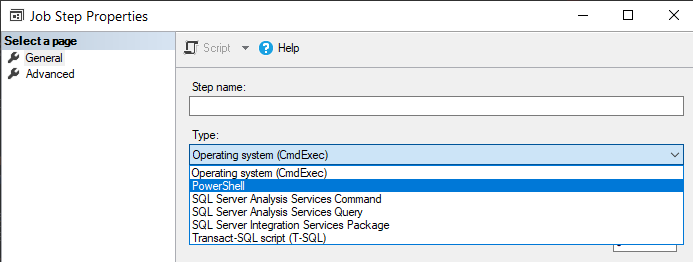
Figure 18.3. SQL Agent on Linux has strong support for replication, but little else.
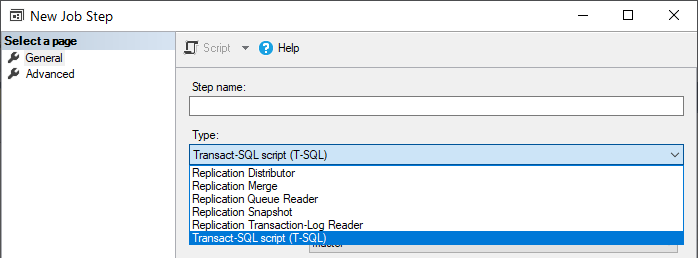
Figure 18.4. Installing dbatools in a directory that is available in the default path and accessible to all users
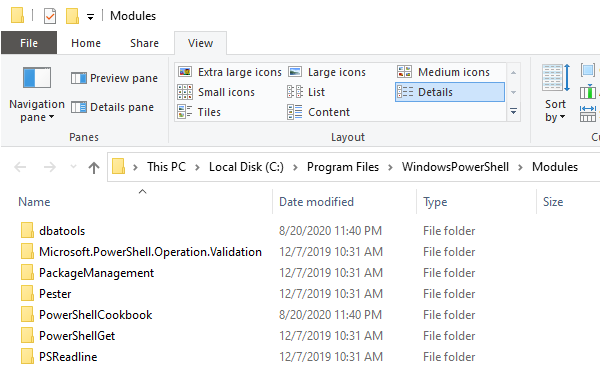
Figure 18.5. A sample SQL Server Credential
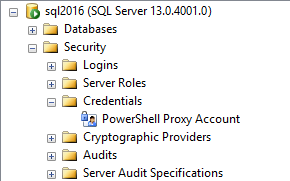
Figure 18.6. Creating a SQL Server Credential with the Active Directory account "ad\powershell"
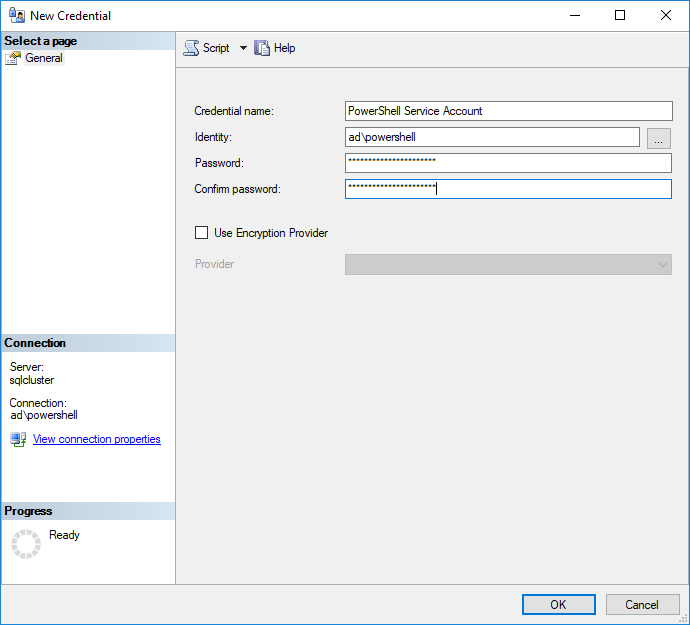
Figure 18.7. A SQL Server Agent Proxy
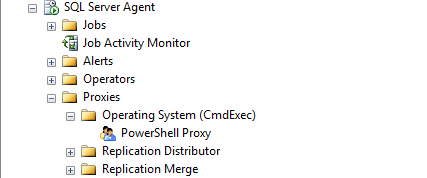
Figure 18.8. The drop down list for "Run as:" contains both the default SQL Server Agent Service Account credential, and a user-created credential.
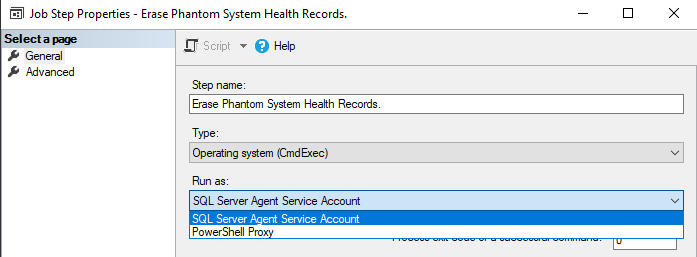
Figure 18.9. This Proxy account is associated with the PowerShell Credential and enabled only for CmdExec
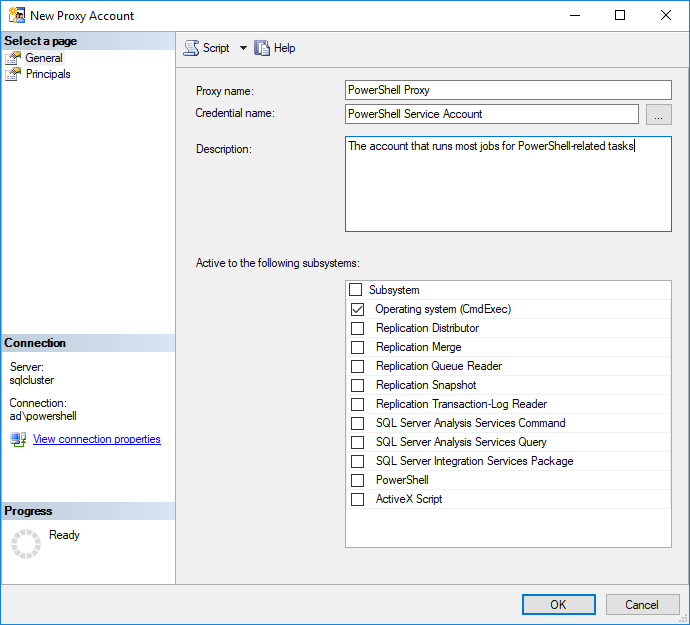
Figure 18.10. A SQL Agent Job Step with the Run as PowerShell Proxy and the PowerShell Command for the Database Restore script
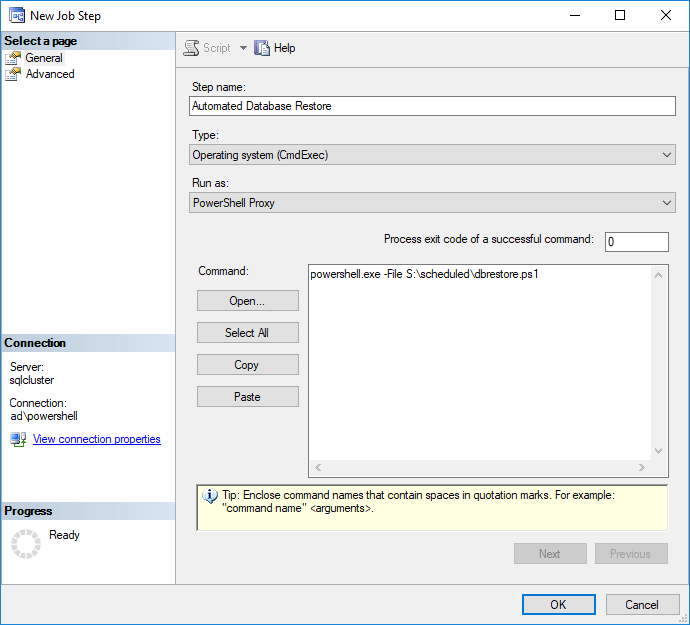
Figure 18.11. The description for the SQL Agent Job should include information to help the team quickly support it
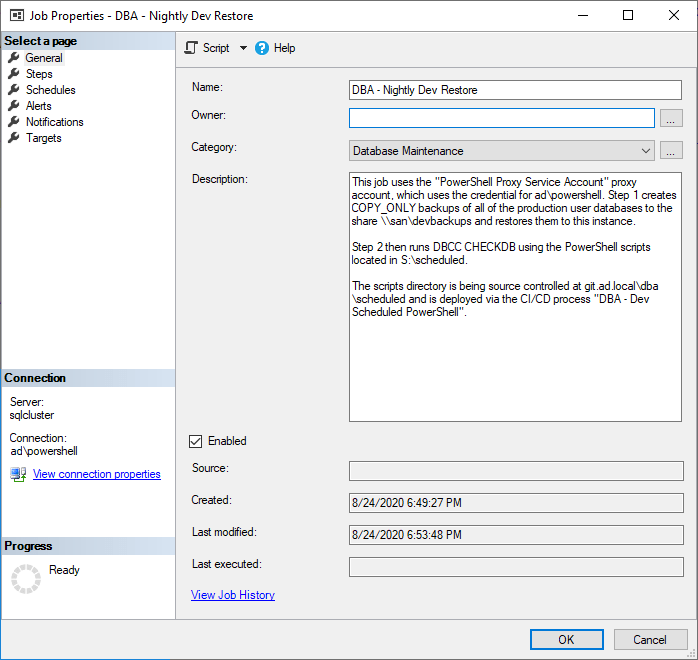
Figure 18.12. Actually not as successful as it appears
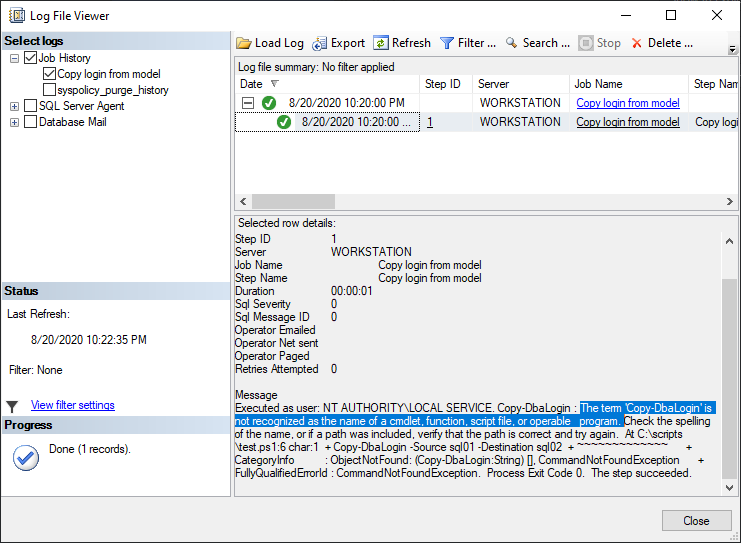
Figure 18.13. This job now fails as expected
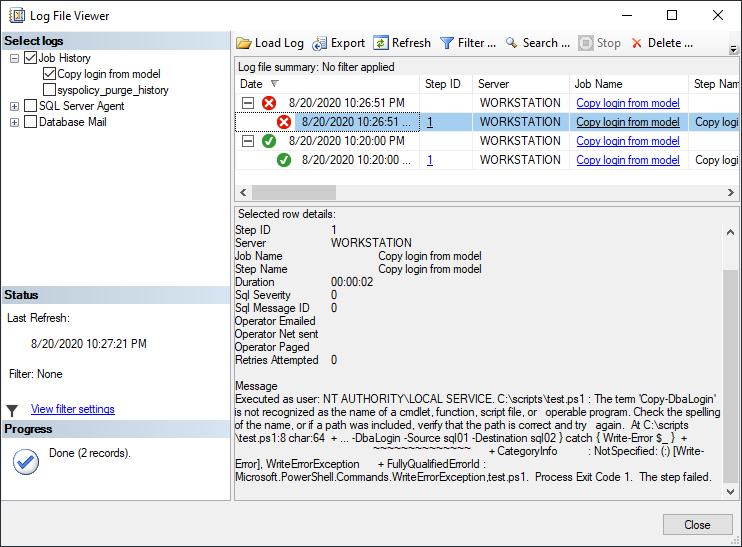
Figure 18.14. Check step in output history being set in each step
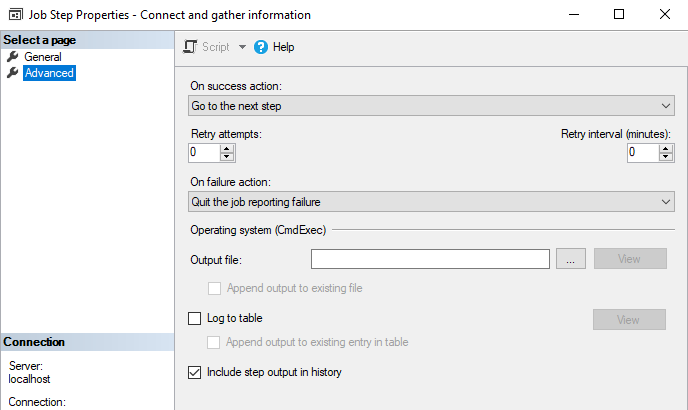
Figure 18.15. Detailed logging as seen in SQL Server Managment Studio 17
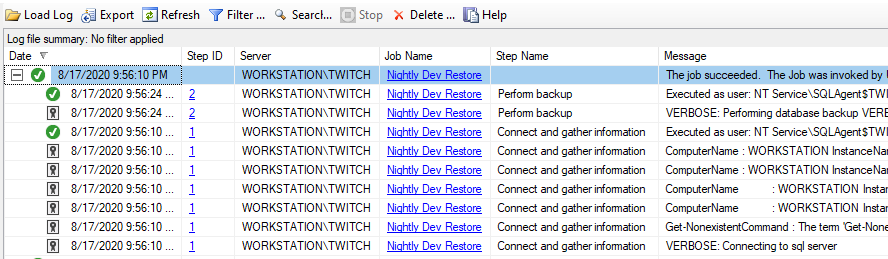
Figure 18.16. Using the Agent Engine properties to delete old records
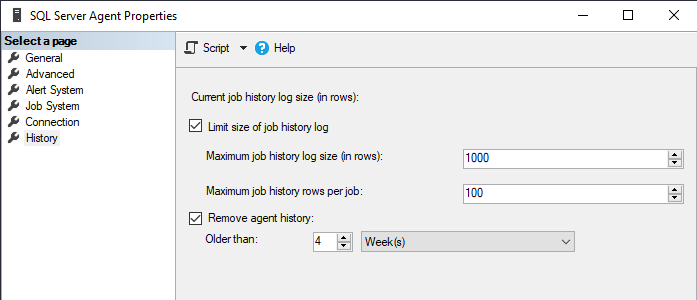
Figure 18.17. Sample output of Start-Transcript
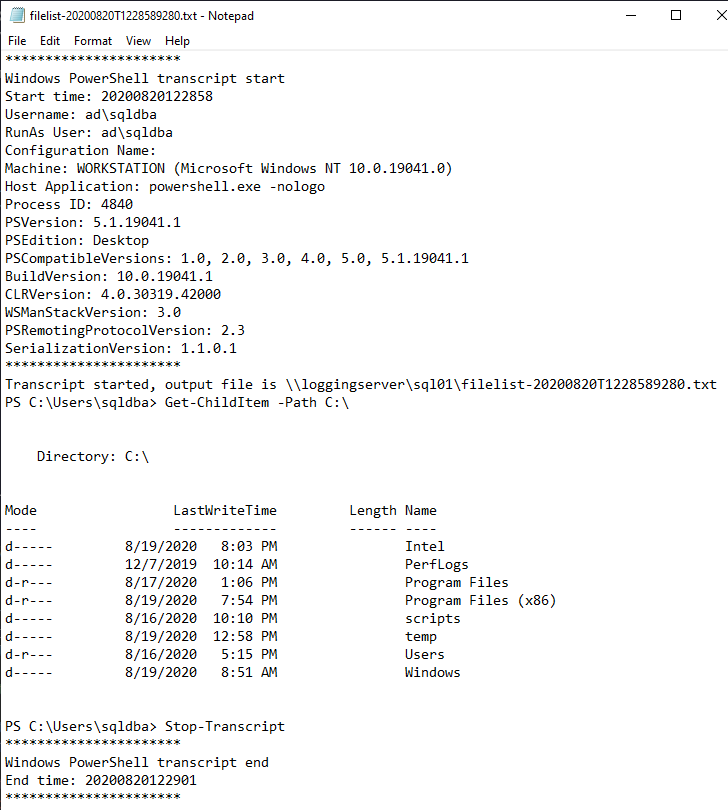
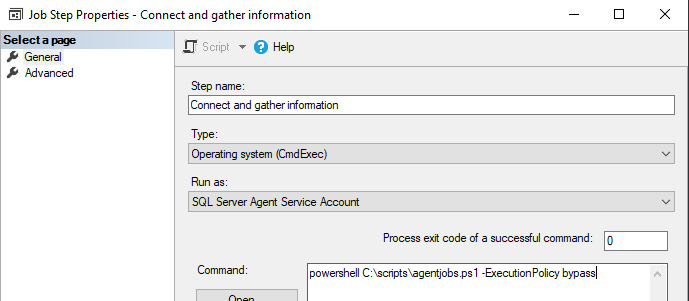
Figure 18.18. The Execution Policy has been set to Bypass within a Job Step
Hands-on Lab
Try the following tasks
- Create a basic SQL Server Agent task with a CmdExec Subsystem that runs a PowerShell script which performs
Get-ChildItem C:\
- Add extra logging by setting
Include Step Output in Historyon the Job Step
FAQ
What’s the recommended job step type for running dbatools in SQL Server Agent?
Use an Operating System (CmdExec) job step that calls powershell.exe (Windows PowerShell) or pwsh.exe (PowerShell 7). It’s more reliable, uses the machine’s predictable PowerShell version, and avoids the limitations of the Agent’s PowerShell subsystem.Why shouldn’t I use the SQL Agent PowerShell job step with dbatools?
The PowerShell step type runs in the legacy sqlps.exe host with the SQLSERVER PowerShell provider, which conflicts with dbatools and often blocks external module loading. Versions also vary with SQL Server, making behavior inconsistent.How do I prepare SQL Agent to run PowerShell/dbatools scripts securely?
Typical setup steps:- Create a Windows-based login in SQL Server for the service account.
- Create a SQL Server Credential for that account.
- Create a SQL Agent Proxy mapped to the Credential and enable it for CmdExec.
- Ensure the account can access the PowerShell script, required shares, SQL instances, and the dbatools module.
- Store your code in a .ps1 file.
- Create the Job and CmdExec step that calls powershell.exe or pwsh.exe.
What is a SQL Server Credential and when should I use one?
A Credential stores authentication info for resources outside SQL Server. Use it so jobs can run as a dedicated domain account with only the permissions they need (for shares, other domains, Azure, etc.), and to avoid Kerberos double-hop issues.What is a SQL Agent Proxy and how does it relate to CmdExec steps?
A Proxy lets a job step run under an alternate security context. After creating a Credential, create a Proxy and enable it for the CmdExec subsystem. Then set “Run as” to that Proxy in the job step. Make sure the Proxy account has permissions to all required resources.Where should I store the PowerShell script files used by Agent jobs?
Store scripts on disk (local to the instance) or on a central share that all target servers can access. Keep scripts in source control and deploy them via CI/CD. For failover clusters, store scripts in a location accessible from all nodes.How do I write the CmdExec command to run my PowerShell script?
Example: powershell.exe -File S:\scheduled\MyTask.ps1 (or pwsh.exe for PowerShell 7). If execution policy interferes (e.g., AV or signing issues), add -ExecutionPolicy Bypass in the command for that step.How do I make the Agent job fail when the PowerShell script fails?
- At the top of your script set helpful defaults, e.g.:
$PSDefaultParameterValues["*-Dba*:EnableException"] = $true; $PSDefaultParameterValues["*:ErrorAction"] = "Stop" - Wrap work in try/catch and return an exit code:
[Environment]::Exit(1)on failure and[Environment]::Exit(0)on success. - Validate results (don’t just rely on “no error”); exit with failure if outcomes aren’t as expected.
How can I improve logging for PowerShell steps run by Agent?
- In each job step’s Advanced properties, check “Include step output in history.”
- Use Start-Transcript in your script to write detailed logs to files (optionally with -NoClobber).
- Maintain msdb job history via Agent properties or dbatools’ Set-DbaAgentServer (limit MaximumHistoryRows and MaximumJobHistoryRows).
Which default parameter values are useful for scheduled dbatools scripts?
Common choices:- Verbose = $true (more detail for troubleshooting)
- Confirm = $false (avoid prompts)
- EnableException = $true (for dbatools cmdlets)
- ErrorAction = Stop (for non-dbatools commands)
$PSDefaultParameterValues["*-Dba*:EnableException"] = $true
 Learn dbatools in a Month of Lunches ebook for free
