This chapter explains how to install and update SQL Server on Windows from the command line using dbatools, emphasizing why automation matters for modernization, standardization, and security. By replacing manual, GUI-driven steps with scripts, teams gain faster deployments, fewer mistakes, consistent configurations, and simpler maintenance, all while shrinking outage windows. The authors also highlight how automation naturally encourages testing practices and aligns DBAs with DevOps culture.
For installing, the focus is on using Install-DbaInstance, which simplifies both local and multithreaded remote deployments, auto-generates sensible configuration (including optimized tempdb), and supports remote execution from a central workstation. Because remote installs in a domain can be affected by Kerberos double-hop, the chapter outlines practical remedies such as enabling delegation or copying and mounting media, noting delegation is required for many non-engine scenarios. To keep credentials safe, it recommends setting service accounts after installation with Update-DbaServiceAccount and considers managed service accounts for maximum security. Installs can be customized through a configuration file, a PowerShell hashtable, or built-in parameters to control features, paths, collation, authentication, and administrators, with configurations saved to source control. Post-install actions—like security hardening, migrations, maintenance solutions, and availability groups—are likewise automatable to maintain consistency.
For updating, Update-DbaInstance enables remote, large-scale patching with minimal interaction, can auto-detect what each instance needs, and lets you target specific instances or versions. Companion commands such as Get-DbaKbUpdate and Save-DbaKbUpdate streamline discovering and caching installers, and the updater can accept either a specific file or a directory of patches. The chapter underscores the security importance of timely patching, noting common blockers such as fear of breaking systems and the tedium of manual processes; it counters these with test environments, virtualization, and automation to boost confidence and cadence. Overall, dbatools makes installs and patching fast, repeatable, and secure, reducing operational risk while improving DBA efficiency and satisfaction.
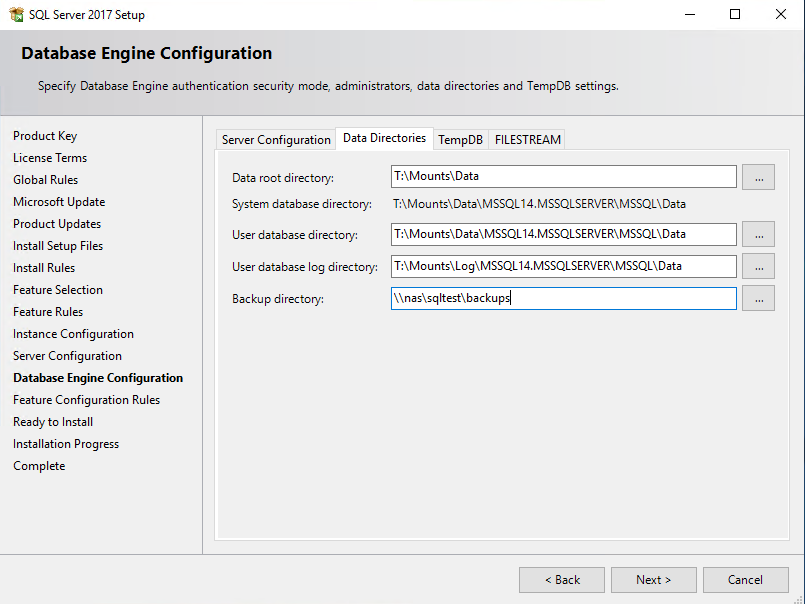
Figure 13.1. Several commonly modified attributes as seen in the GUI. Whatever you usually change here, you’ll want to change in your automated install.
Hands-on Lab
Use what you have read about in this chapter by trying the following tasks:
- Test what would happen if you performed an install using the
-WhatIfparameter
- Do the same with updating a remote instance
- Get some examples for Update-DbaInstance using
Get-Help
FAQ
What’s the preferred way to automate SQL Server installs on Windows with dbatools?
Use Install-DbaInstance. It focuses on ease-of-use and remote installs, generates a ConfigurationFile.ini for you (including optimized tempdb settings), supports multithreaded installs (up to 50 at once), and is more flexible and simpler than SysPrep or manually driving setup.exe with a config file.What are the main benefits of automating SQL Server installs?
- Standardization and compliance- Faster, more consistent deployments with fewer mistakes and one-offs
- Easier maintenance and less downtime (e.g., no data on C:)
- Time savings, better quality, and higher team satisfaction
- Source-controlled install configs and on-demand installs (e.g., via CI/CD)

 Learn dbatools in a Month of Lunches ebook for free
