10 Building Web-Based UI using Gradio
This chapter introduces Gradio as a fast, Pythonic way to turn machine learning functions into interactive web apps, emphasizing how developers can showcase models without front-end expertise. It explains the high-level Interface API—where you bind a Python function to inputs and outputs—along with default UI behavior (submit/clear/flag) and how data flows from widgets to functions and back. Beyond local demos, it covers sharing apps temporarily via Gradio’s share servers and making them reliably public by deploying to Hugging Face Spaces.
Readers learn practical configuration and customization: installing and launching apps, setting titles and components, enabling user feedback with flagging (including custom labels and CSV logging), protecting apps with authentication (inline credentials or custom auth functions), and exposing services by choosing host/port for local or network access. The chapter then surveys key components and patterns—Textbox customization, Audio processing with NumPy arrays, Image handling via NumPy or PIL, curated example inputs, selection widgets like Dropdown and Slider, managing multiple outputs, and organizing multiple demos with TabbedInterface—illustrating how to assemble polished, multi-modal interfaces with minimal code.
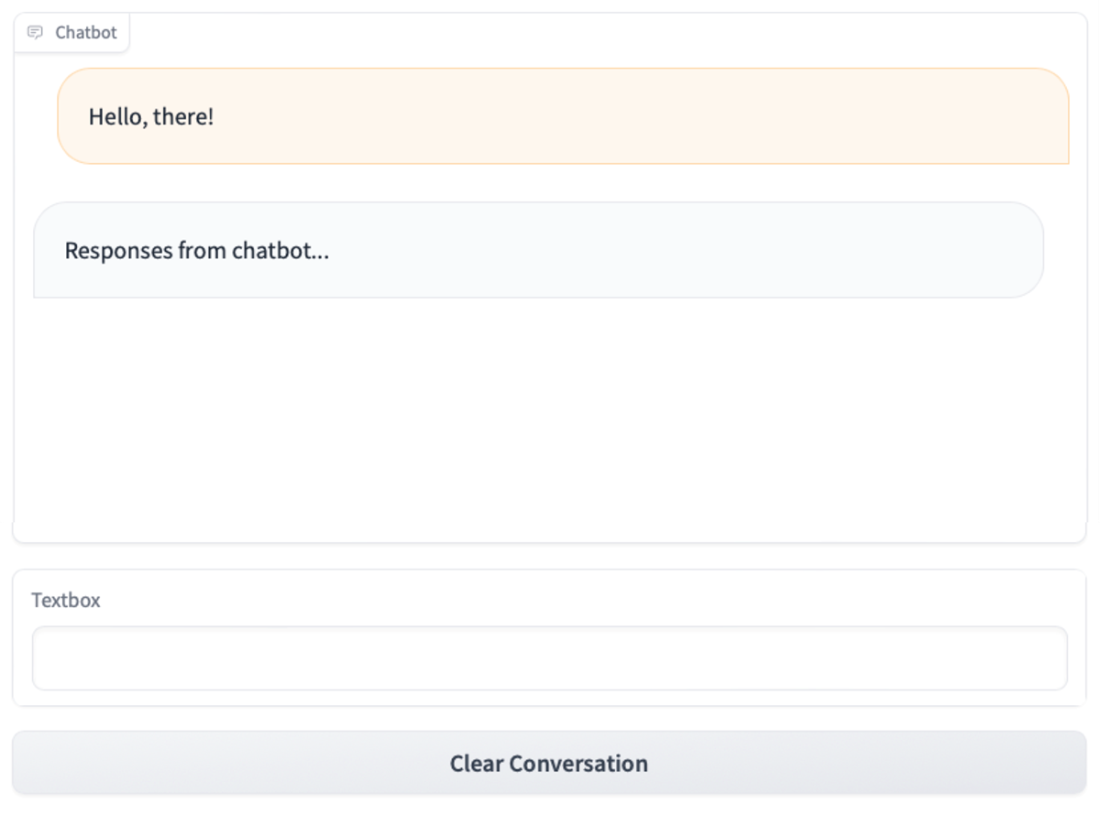
Finally, the chapter builds a conversational UI using the lower-level Blocks API to create bespoke layouts and event-driven behavior. A Chatbot component displays the dialogue, a Textbox captures user messages sent on submit/Enter, and a handler appends user and assistant turns to chat_history before clearing the input. A “Clear Conversation” button wires a click event to reset the interface, demonstrating how Blocks coordinates components, inputs/outputs, and events. Swapping in an actual model or LLM completes a production-ready chatbot that feels natural to use.
The Gradio application with one single input and one single output
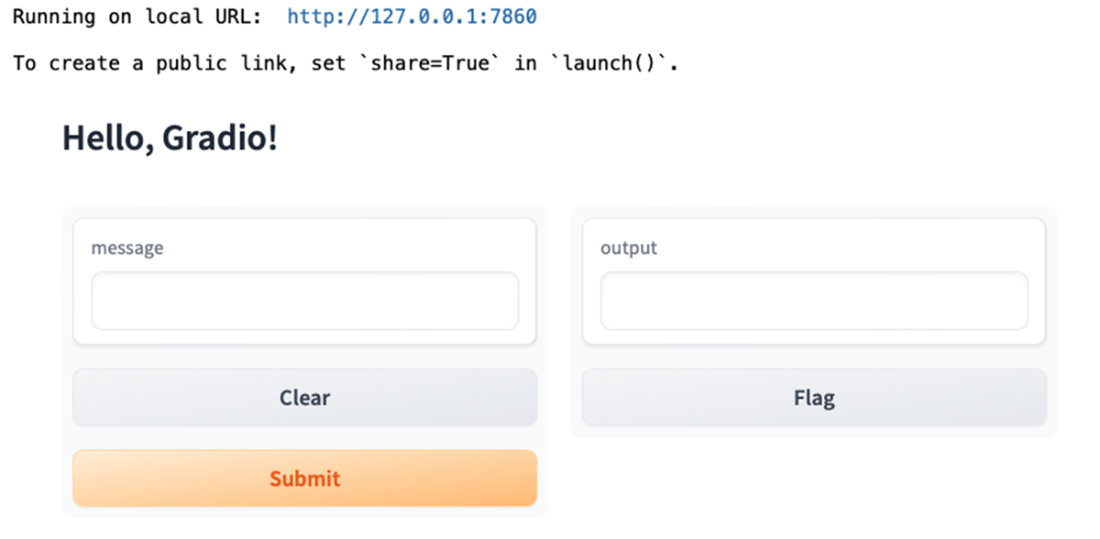
The various components of your Gradio application
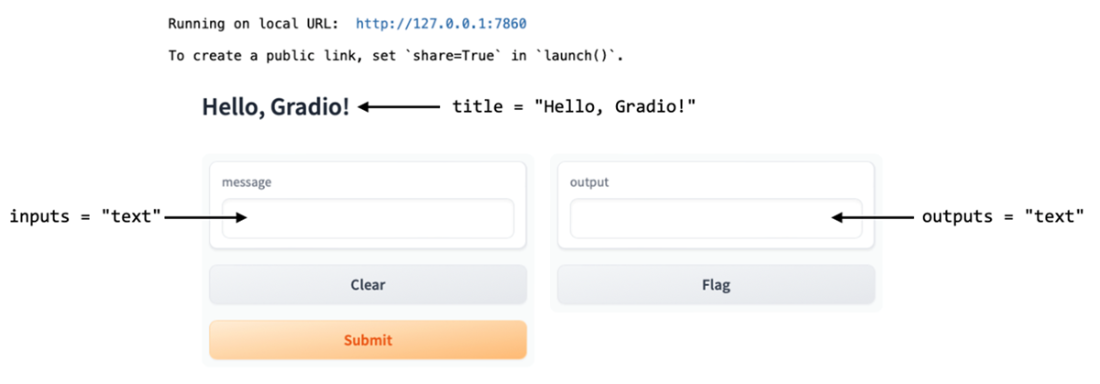
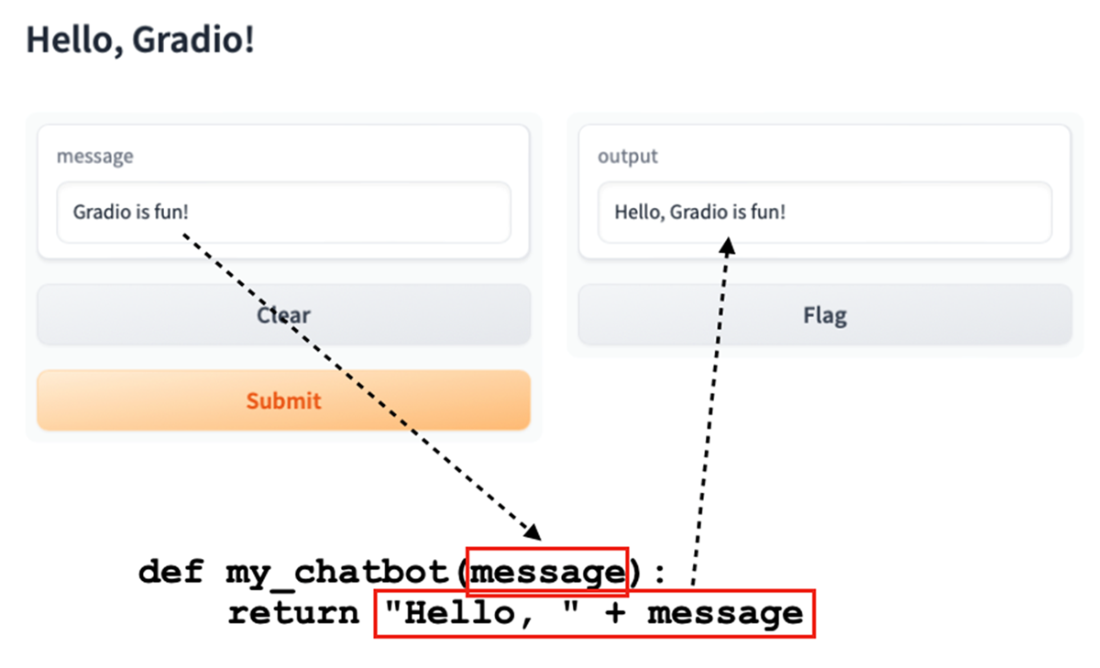
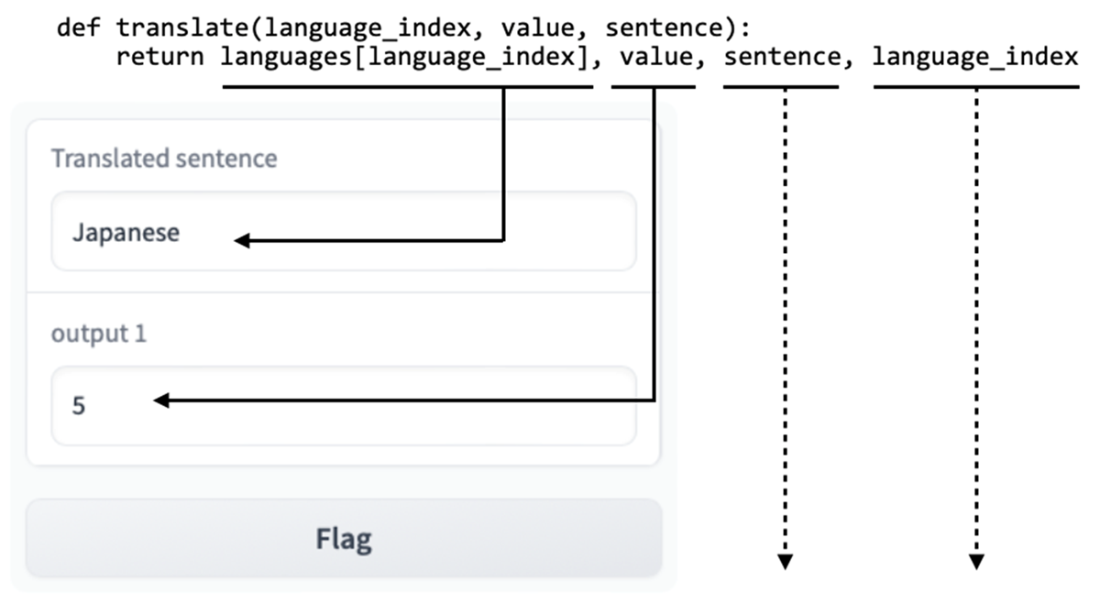
How values are passed in from the inputs to the bounded function and returned to the outputs
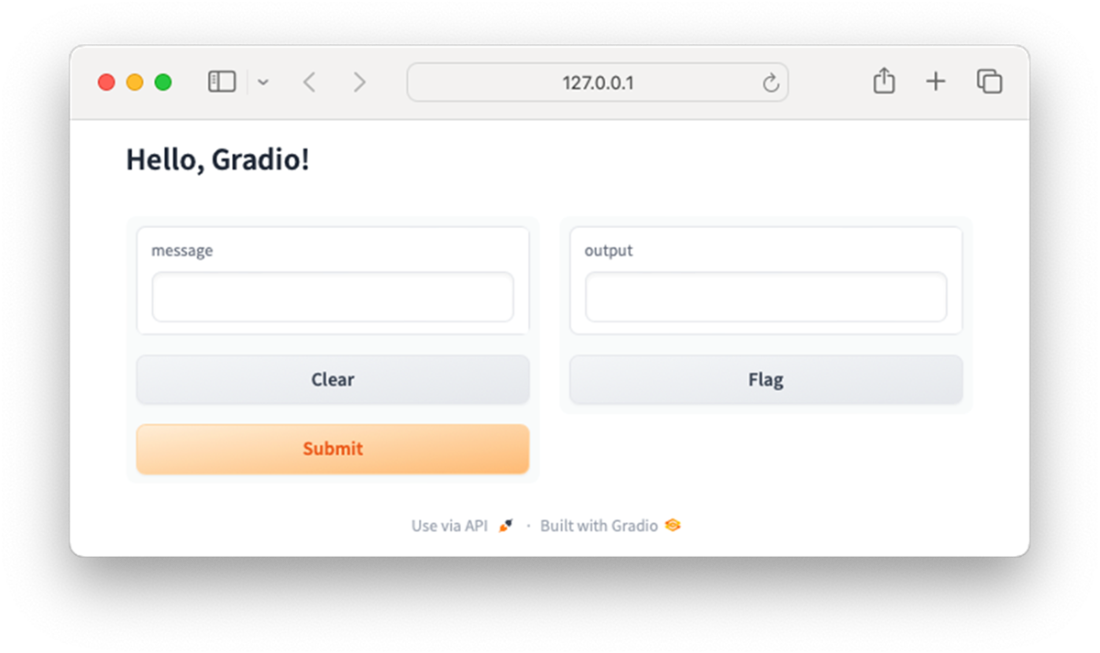
Displaying the Gradio app in a new browser window
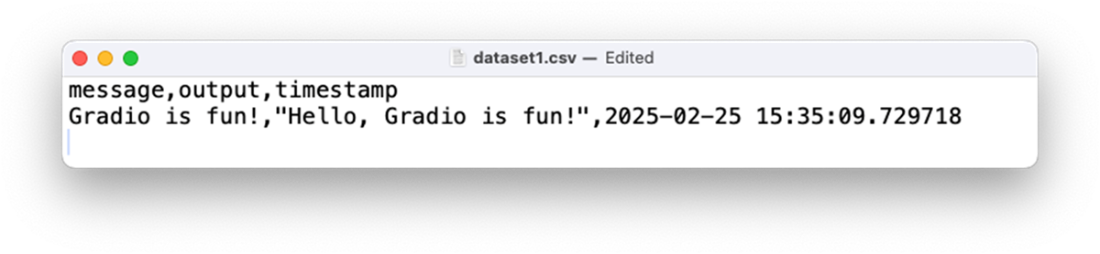
Viewing the content of log.csv
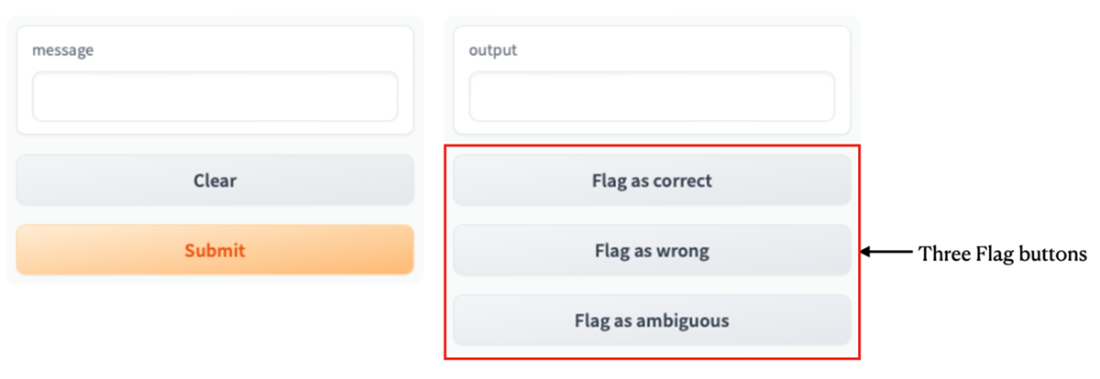
The three flagging options
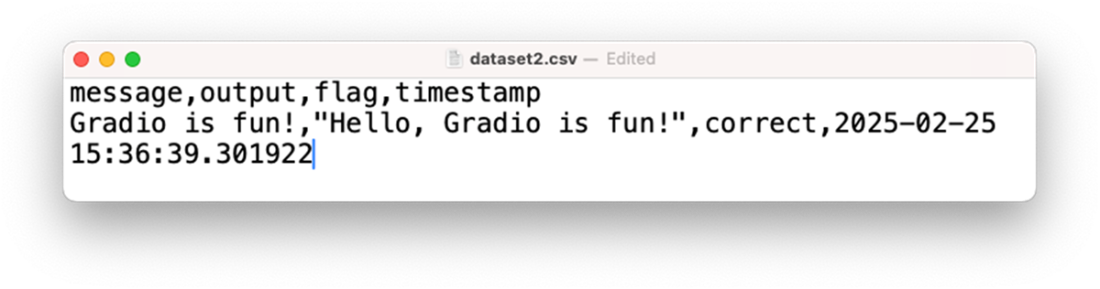
Viewing the content of log.csv
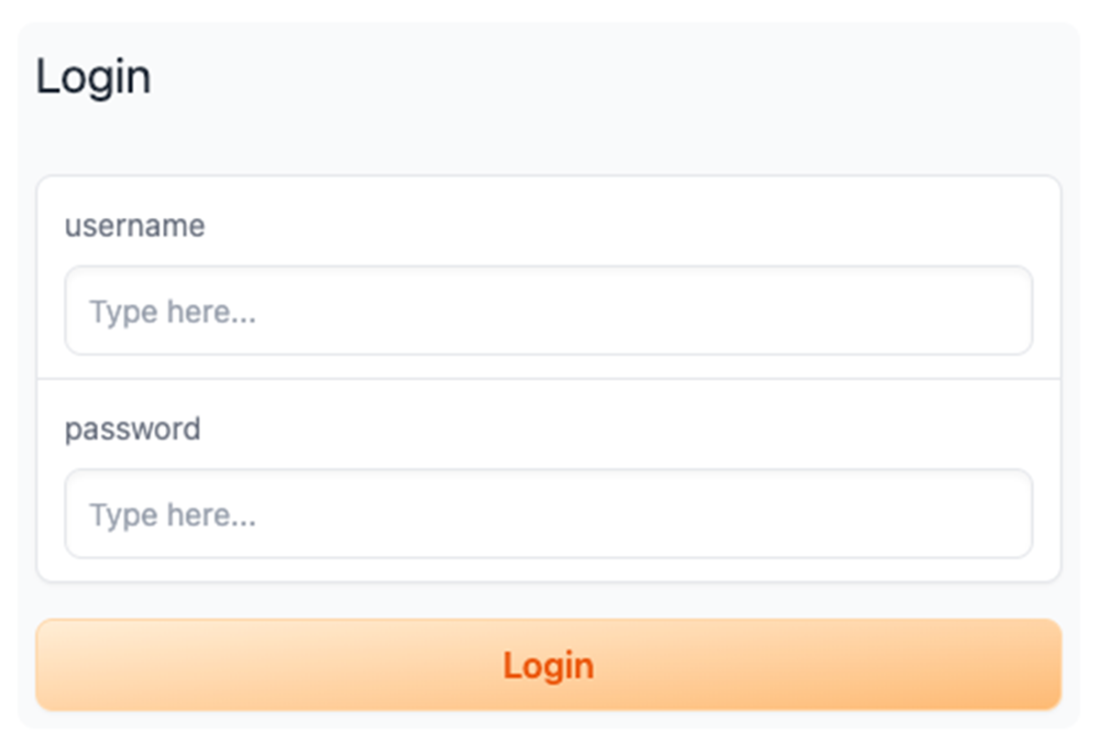
Prompting the user to login before using the application
Viewing the content of log.csv
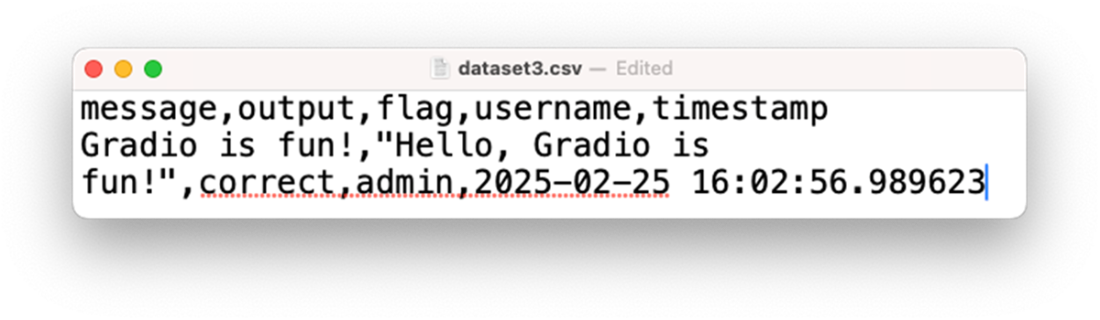
A public link will be created for your Gradio application

The Gradio application hosted on HuggingFace Spaces
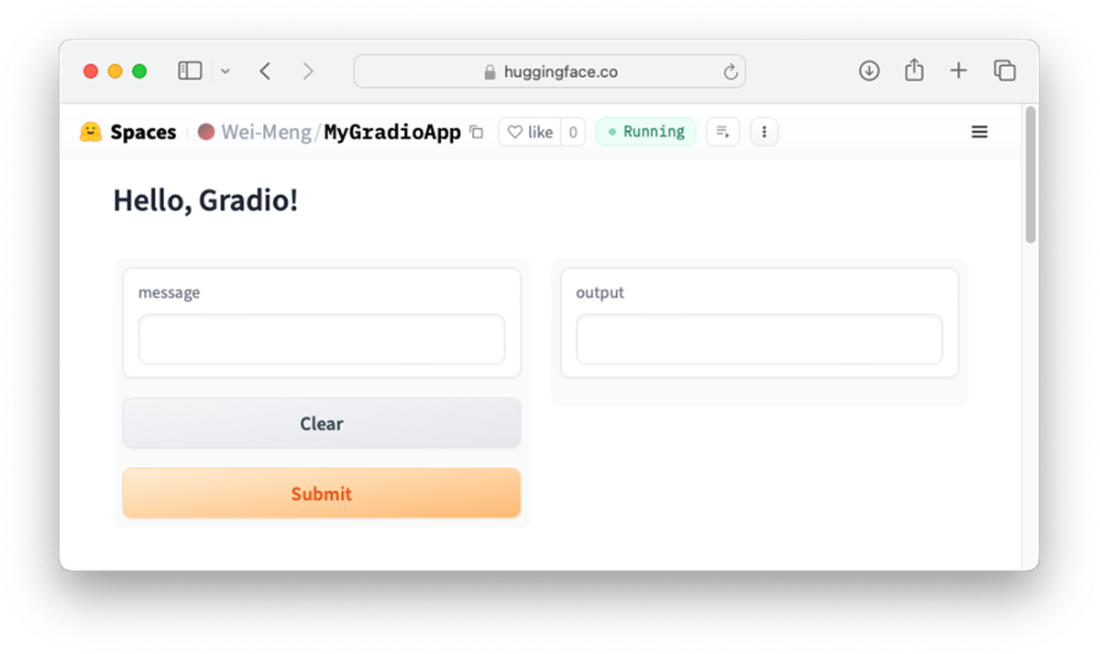
Configuring the Textbox component
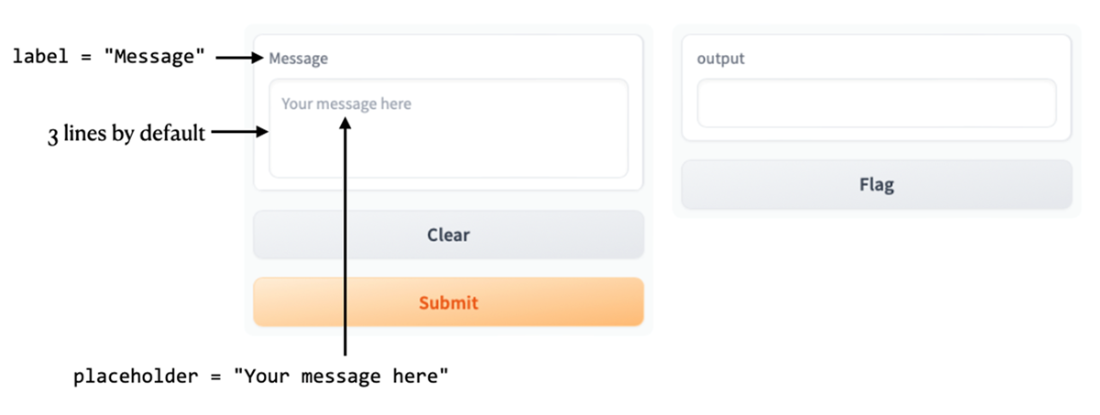
Submitting the text and obtaining the output
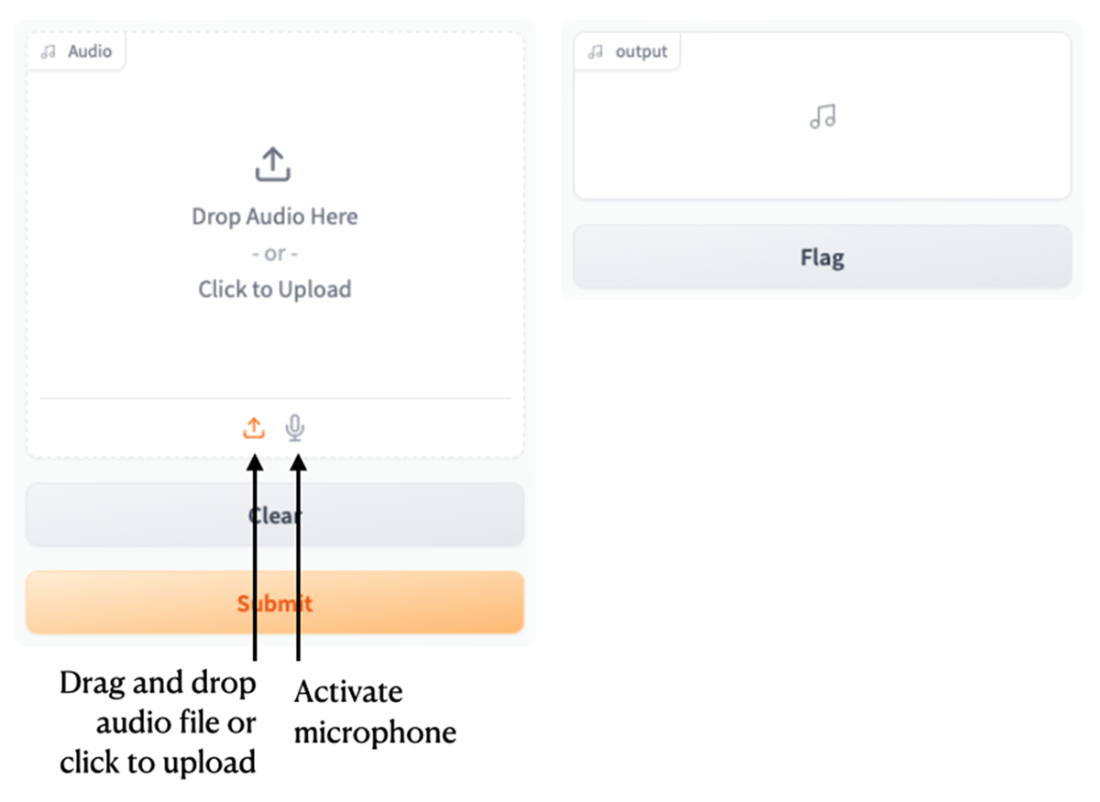
You can drag and drop an audio file, or record from your microphone
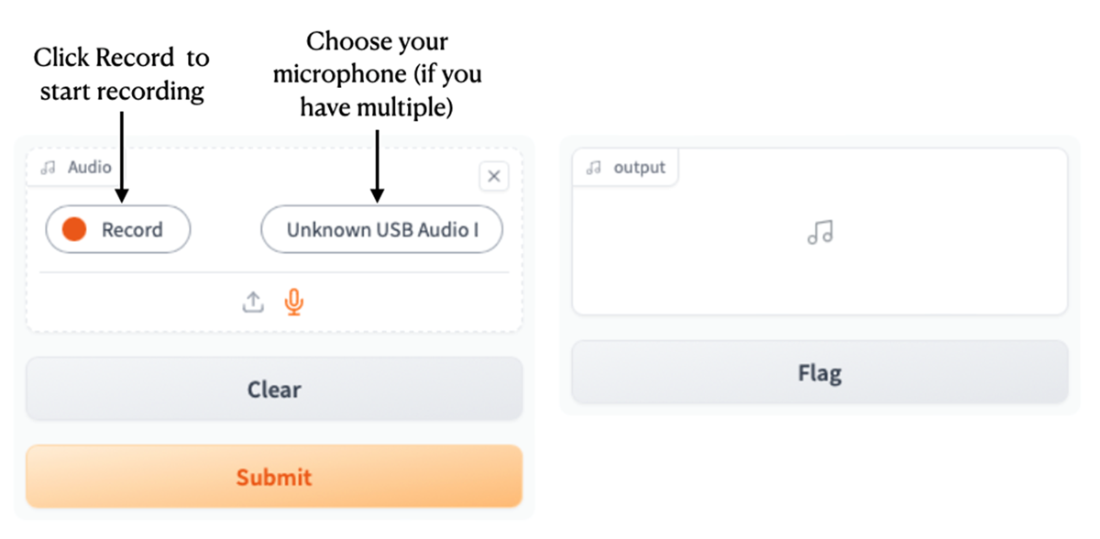
Choosing your microphone and recording the audio
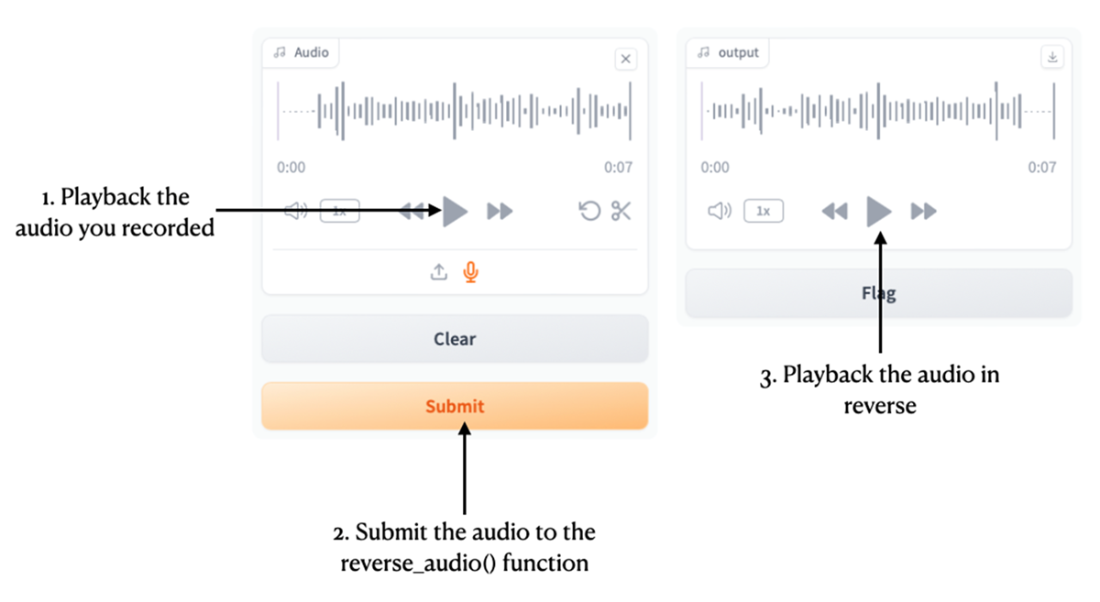
You can playback the original recording, as well as playback the reversed audio
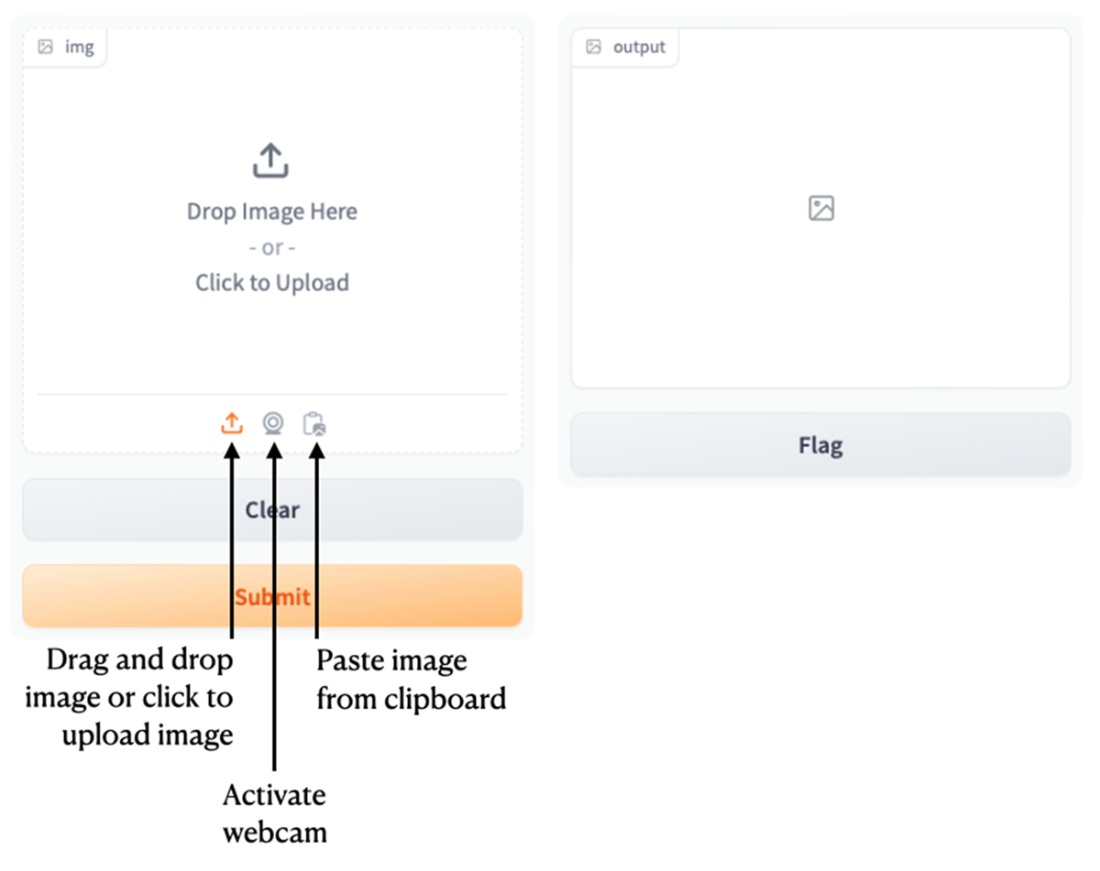
Using the Image component in Gradio
Converting an image to gray scale
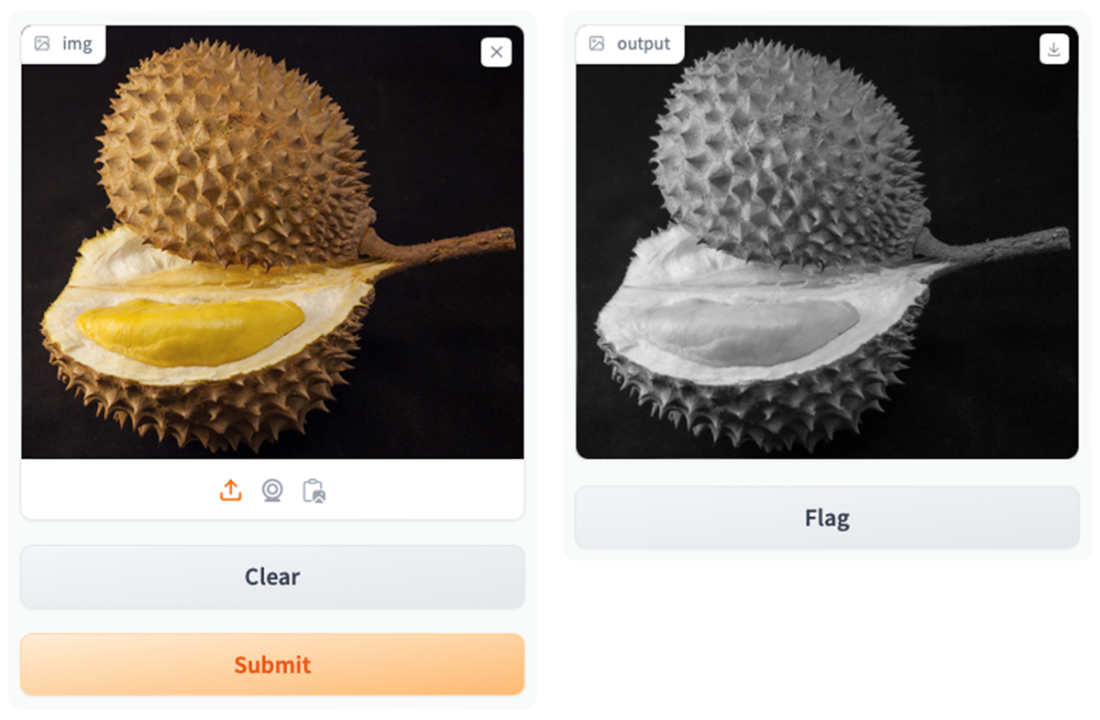
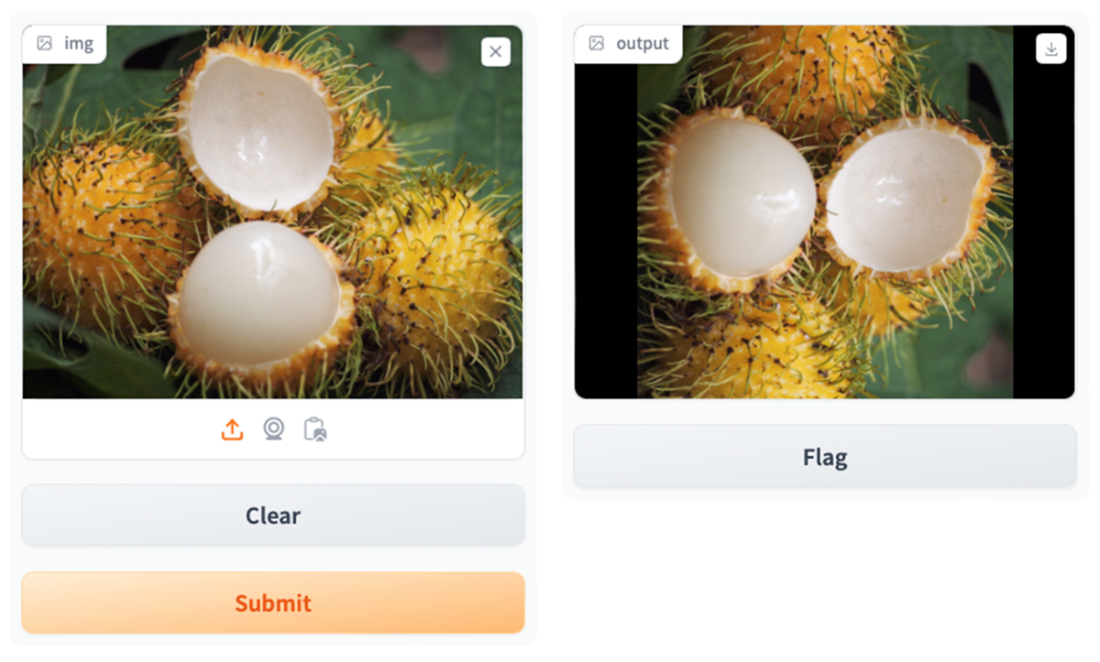
Rotating the image 90 degrees clockwise
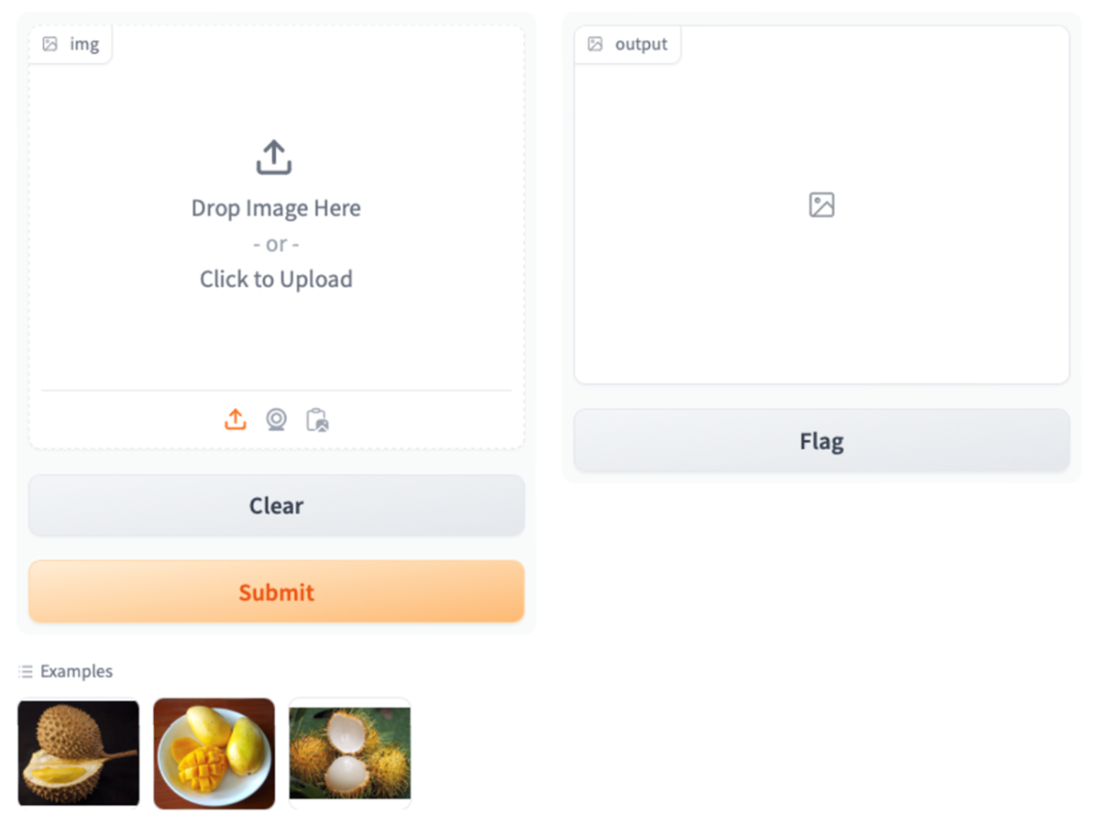
Besides using your own images, you can now select one of the example images provided
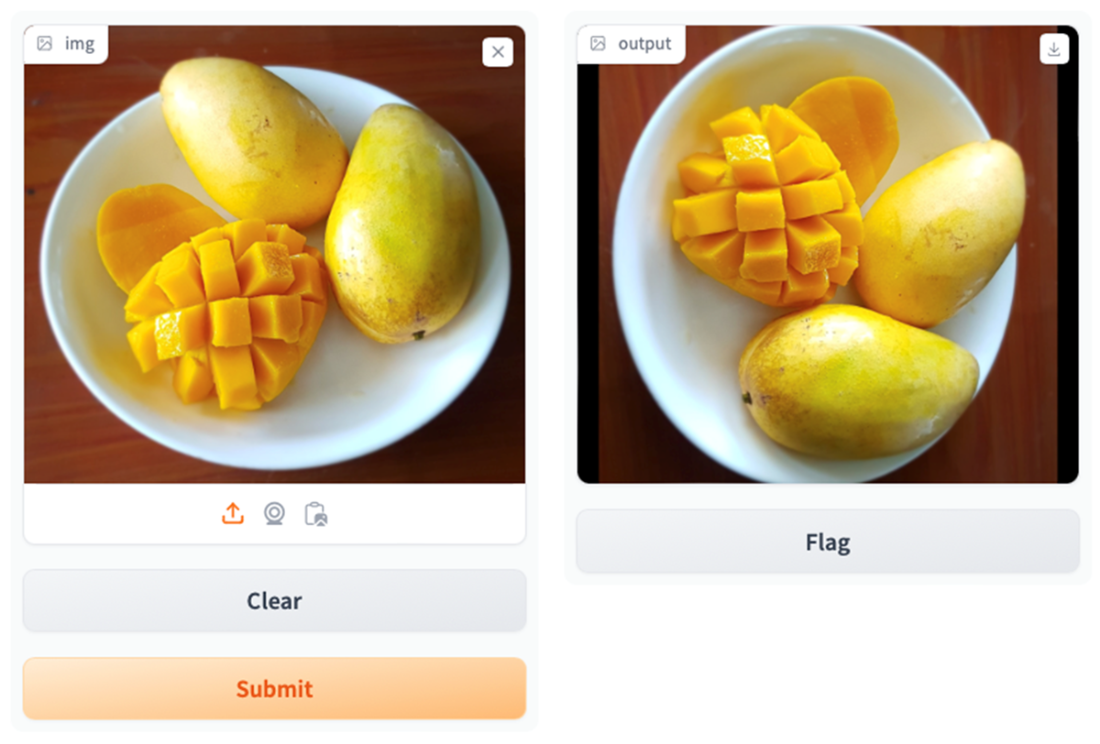
Selecting an example image and rotating it 90 degrees clockwise
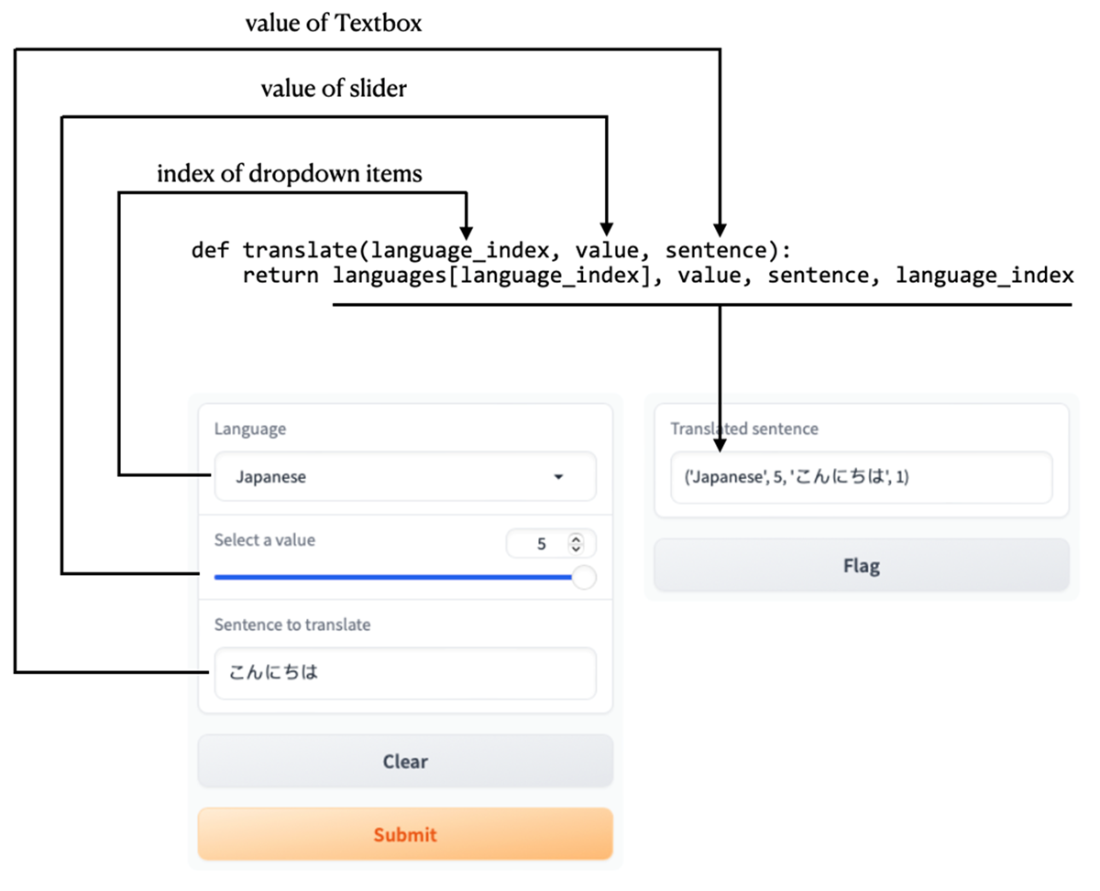
Using the Dropdown, Slider, and Textbox components for the inputs and outputs
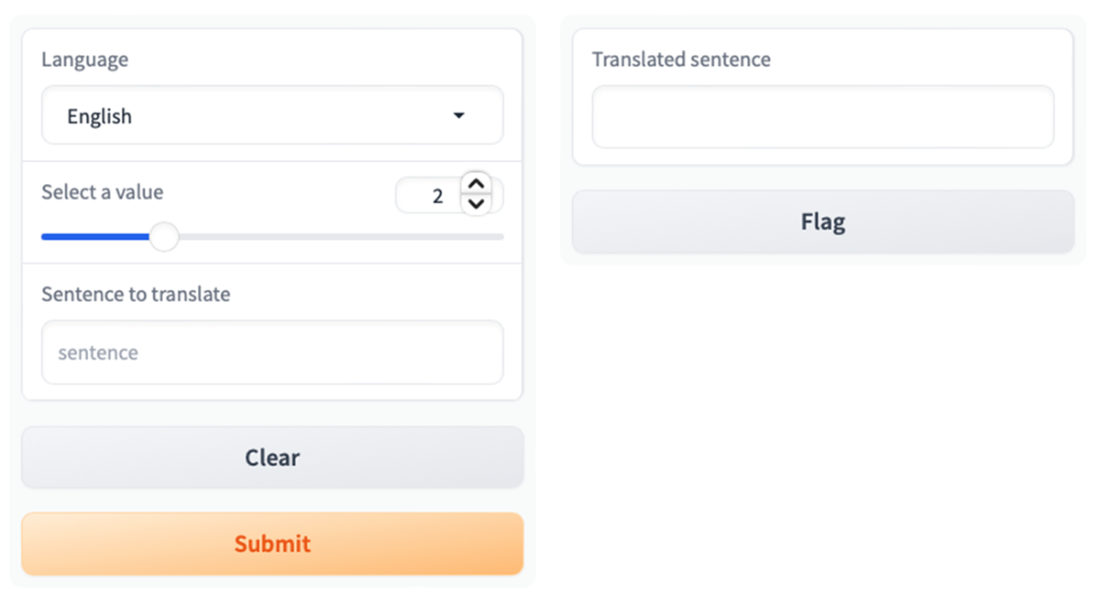
Submitting the selected values and obtaining the output
There are two components in the output now
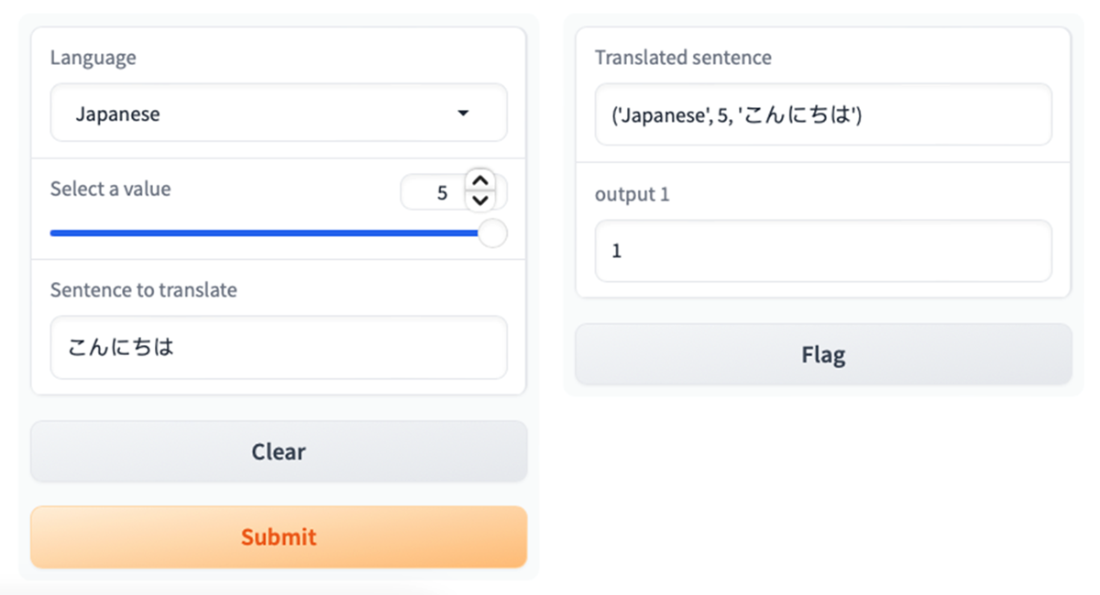
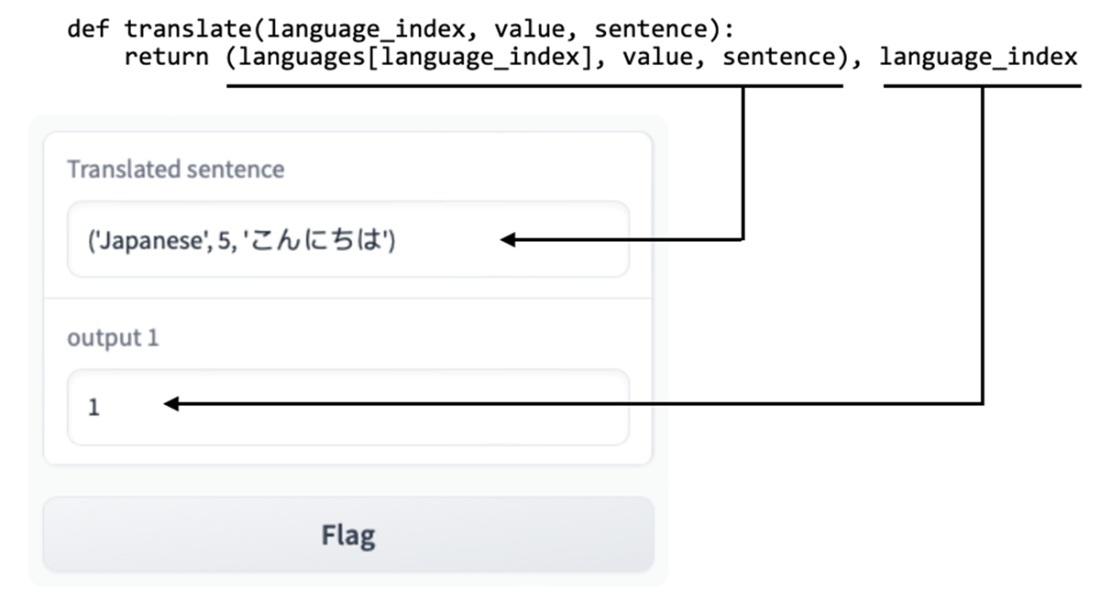
Wrapping the values in a tuple to send to one output
Returning values will be dropped if they are not properly formed
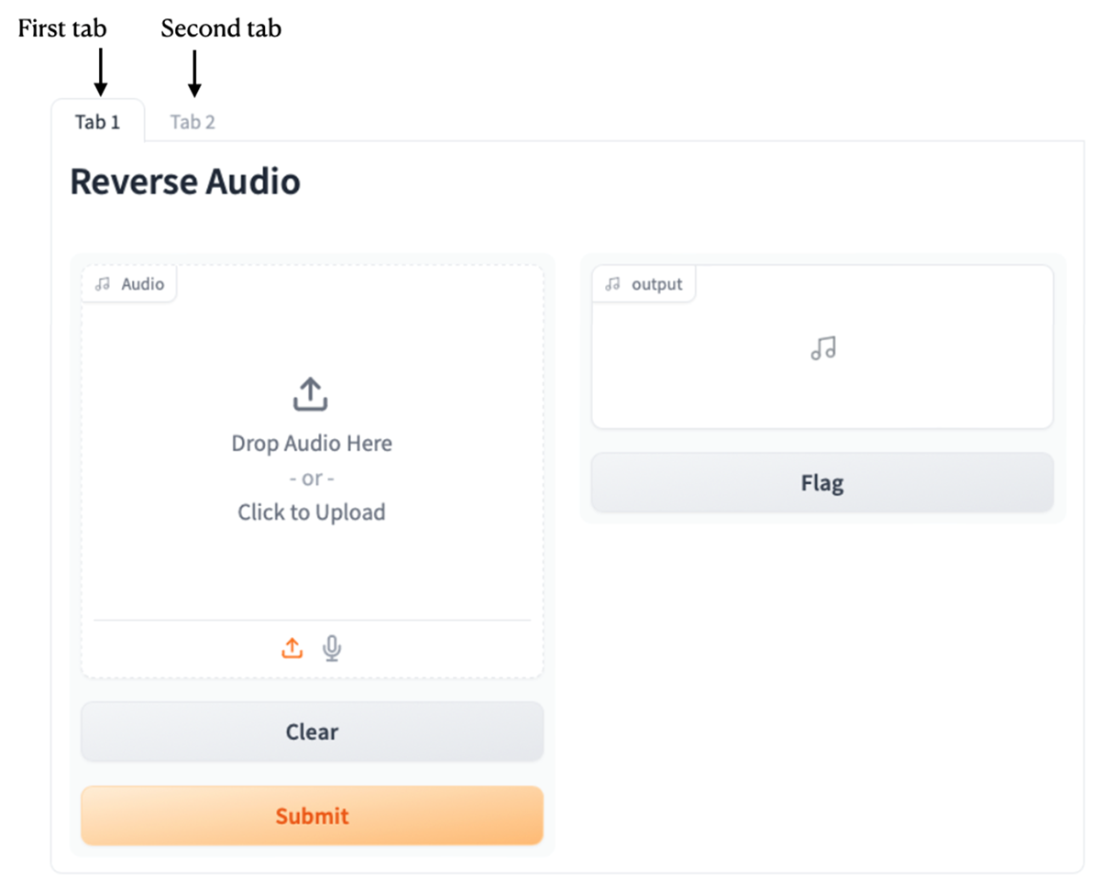
The first tab of the Gradio application
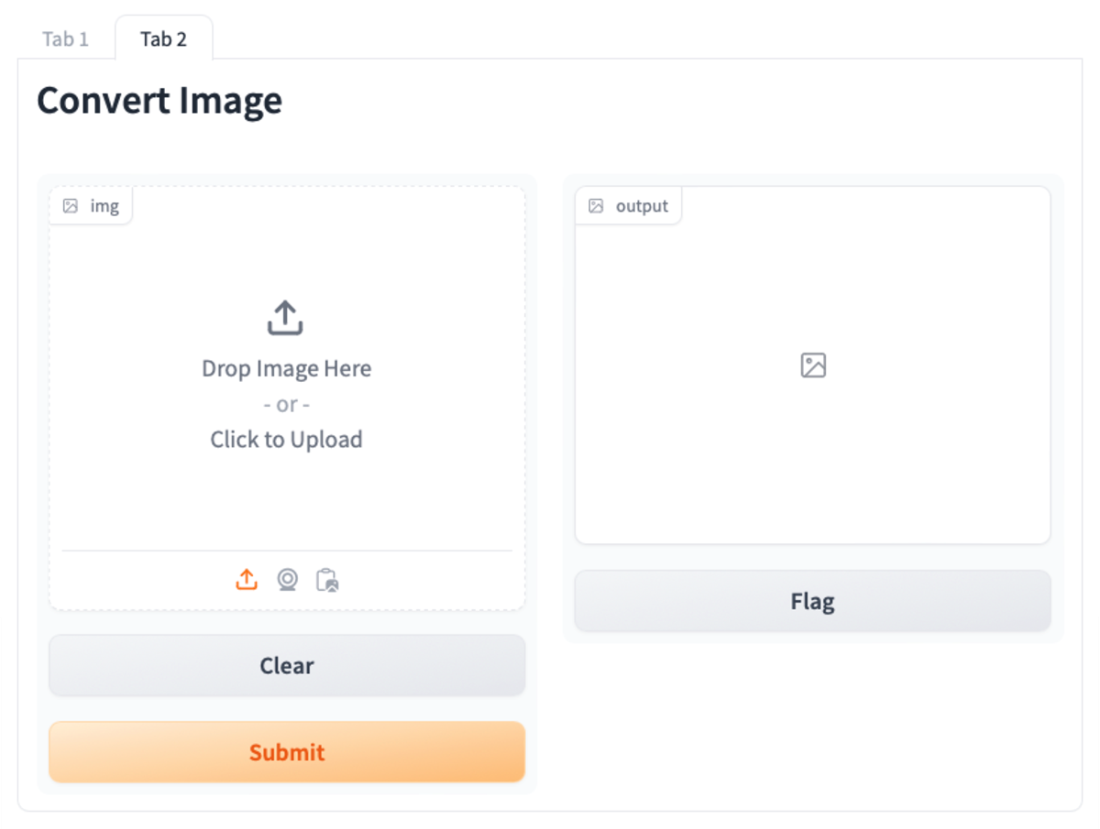
The second tab of the Gradio application
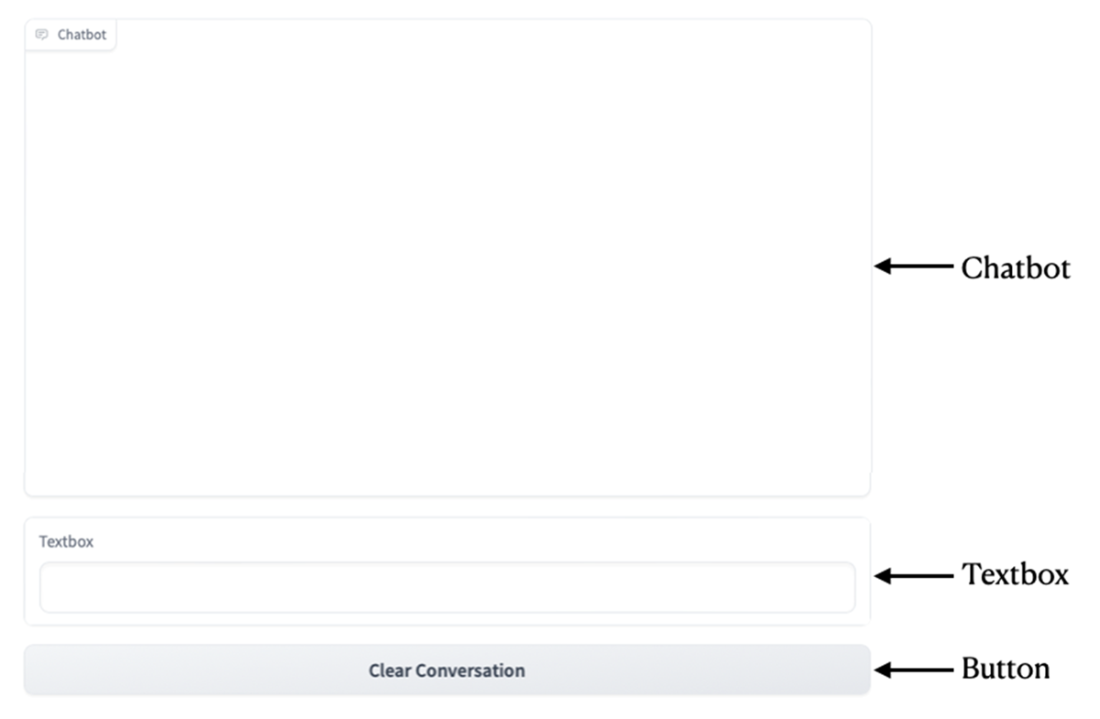
The components used for our chatbot UI
Typing a message in the Textbox and sending it to the Chatbot component
Summary
- To build a simple Gradio application, you can use the Interface class. The Interface class is Gradio’s main high-level class that allows you to build a web UI with just a few lines of code.
- The Textbox component allows users to send text content to the Gradio application.
- The Audio component allows users to send audio streams to the Gradio application.
- The Image component allows users to send images (as NumPy array or PIL image) to the Gradio application.
- You can implement authentication for your Gradio application using the auth parameter in the launch() method.
- The Flag option logs messages in the log.csv file.
- You can share the Gradio application with your users on the local network or create a shared link to share with other internet users.
- You can deploy your Gradio application on HuggingFace Spaces.
- You can group multiple interfaces using the TabbedInterface class.
- To create chatbot UI, use the Blocks class together with other Gradio components.

 Hugging Face in Action ebook for free
