4 I/O Laboratory
This chapter introduces how apps and users talk to each other through input and output, and shows how that conversation drives what software does. It begins with everyday examples, distinguishes input from output, and notes common input and output devices (including touch screens that do both). The goal is to build confidence collecting text from a user, showing it on screen, and recovering gracefully when things go wrong.
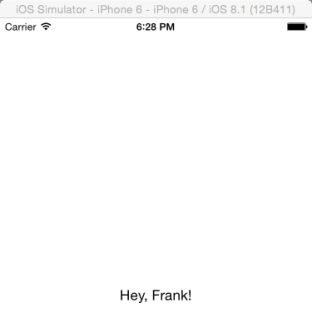
You first extend a simple app to produce output by changing a label via code. That involves declaring an IBOutlet for a UILabel and setting its text in viewDidLoad. Running the app before wiring the label causes a runtime exception (nil outlet), which leads to an important lesson: compile-time errors stop code from building, while exceptions crash at runtime. The fix is to connect the storyboard control to the outlet in Interface Builder; once linked, the label updates correctly, and you learn that Interface Builder applies initial values first and your code can override them afterward.
Next, you add input with a UITextField and a UIButton, create an IBOutlet to read what the user types, and write an IBAction that copies that text into the label when the button is pressed. You also practice the two kinds of connections: controls to IBOutlets (for data) and buttons to IBActions (for events). The chapter wraps with hands-on challenges—Concatenate (combine or add two inputs) and Greeting Generator (build a simple personalized greeting)—plus review questions that reinforce input/output concepts, outlets vs. actions, and basic debugging skills.
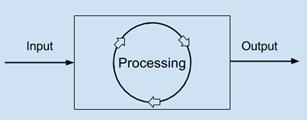
A computer takes input, does the processing and gives output.
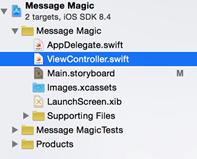
It’s in the pane on the left-side of Xcode in the Project Navigator. After you click, you’ll see the code in the main panel. That’s where you’ll add new code.
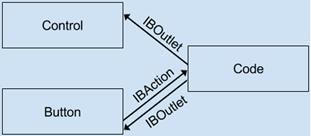
Controls must be linked to the code through IBOutlets. This is how we can use the code to make the label control’s text change. A Label is a control. A Button, Text Field and Text View are also controls.

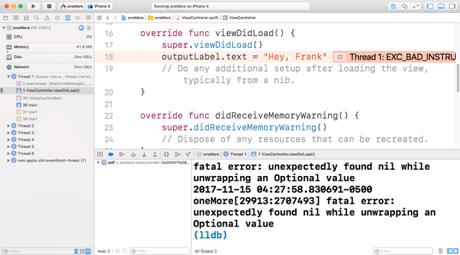
The exception you receive when you run Message Magic for the first time
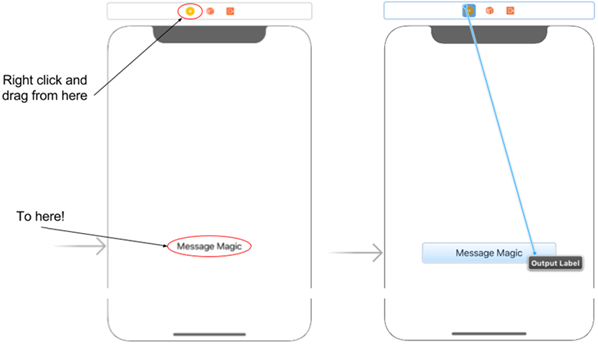
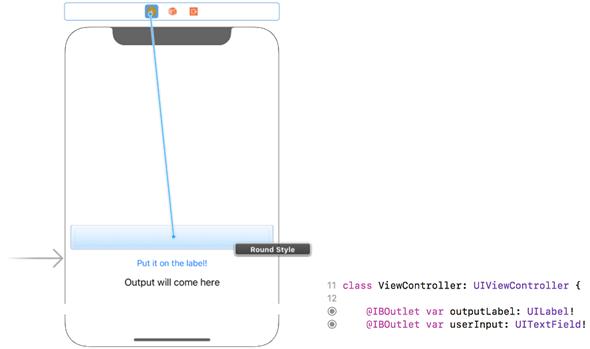
Connect the UILabel to the IBOutlet. Right-click and drag to connect your Label to IBOutlet.
Select “outputLabel” as the IBOutlet to connect to. Remember outputLabel? You added this variable to the ViewController.swift file.
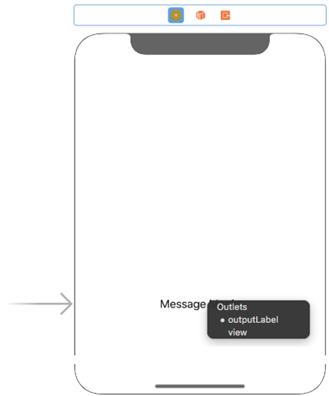
The main Screen
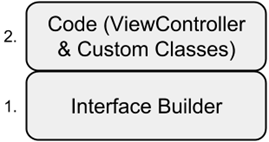
The sequence of the execution of IB and code is controlled by Xcode priority levels. The IB (Interface Builder) is executed first. Your code is executed after the IB loads, so, if you make a change in your code to a control that was already in the IB, it will be overridden by your code.
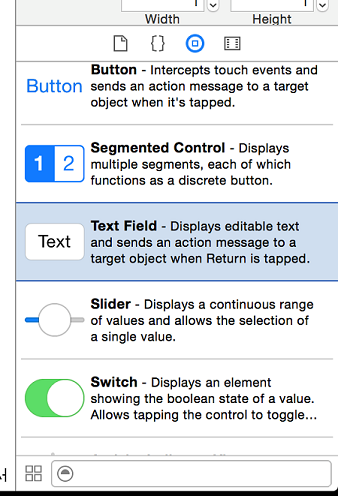
Getting a text field from the object explorer
Connecting the TextField to its IBOutlet
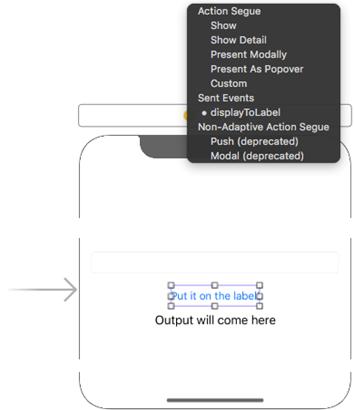
Selecting which IBAction to link the button with
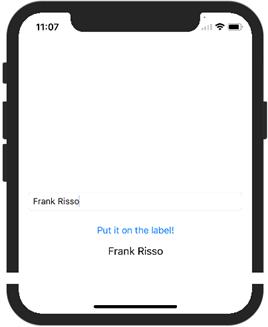
Running the Catch & Throw app
Controls and buttons must be linked to the code
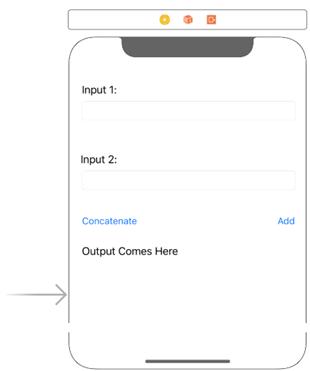
The UI you need to make
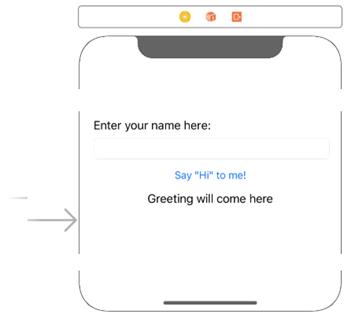
Greeting Generator UI
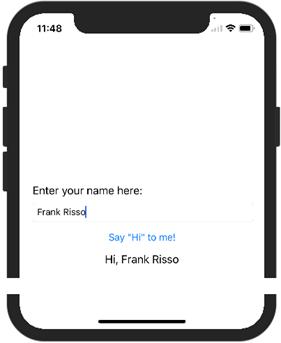
The “Greeting Generator” app in action!
FAQ
What do “input” and “output” mean in an iOS app?
Input is anything the user provides to the app (typing, tapping, swiping, speaking, etc.). Output is how the app responds to that input (showing text, playing a sound, changing screens, printing, etc.).What are input and output devices? Can a device be both?
Input devices include keyboards, mice, touch screens, cameras, and microphones. Output devices include screens/monitors, speakers, and printers. Some devices, like touch screens, are both input and output.Why does my app crash with “unexpectedly found nil while unwrapping an Optional” after I set label text?
Because your UILabel outlet (for example,outputLabel: UILabel!) isn’t connected yet, it’s nil at runtime. Force-unwrapping a nil outlet crashes. Fix by connecting the UILabel in Interface Builder to the IBOutlet, then run again.What’s the difference between an error and an exception?
• Error: A mistake the compiler can catch before running (typos, missing brackets, type mismatches). The app won’t build/run until it’s fixed. • Exception: A crash that happens while the app is running (runtime), often due to nil outlets or invalid operations.What is a compiler?
The compiler translates the Swift code you write into machine code that the device can run.What is an IBOutlet and why do I need it?
An IBOutlet is a variable in your code that links a UI control from Interface Builder (like a UILabel or UITextField) to Swift. You need it so your code can read from or change that control at runtime.How do I connect a UILabel (or UITextField) to its IBOutlet?
In Main.storyboard, Control-drag (or right-click-drag) from the yellow View Controller icon to the label/text field, then choose the outlet name (for example,outputLabel or userInput) from the pop-up list.What is an IBAction and how do I link a button to it?
An IBAction is a function that runs when a UI control (usually a button) triggers it. Create a function like@IBAction func displayToLabel() { ... }, then Control-drag from the button to the View Controller and select that action to link them.Why don’t we usually create IBOutlets for UIButtons?
Buttons typically don’t store data you need to read later; you just need to react when they’re tapped. That’s what an IBAction is for. You can add an outlet for a button if you need to change its title or state from code, but it isn’t required.Why does the label text I set in Interface Builder get replaced by text from code?
Interface Builder settings load first, then your code (for example, inviewDidLoad()) runs and can override those settings. So if you set outputLabel.text = "Hey, Frank" in code, it will replace the IB text.
 Hello Swift! ebook for free
