Overview

2 Create Your First App

This chapter guides you through building your very first iOS app while introducing the big ideas you’ll use throughout the book. You set up Xcode, learn what a user interface is and why it matters, and see how to run and test apps on either a real device or the simulator. Along the way, you follow a milestone-focused journey that keeps things simple, hands-on, and encouraging for beginners.

You start by creating a new Single View project, filling in basic project details, and saving your work. Next, you get oriented to Xcode’s main areas—Navigator, Stage, Inspectors, Libraries, and the Toolbar—then open Main.storyboard to design the screen. You pick a preview device size, drag a Label onto the view, center it using alignment guides, and change its text to “Hello World!”. To test, you choose a simulated device and press Run; you also learn what the simulator can’t emulate (like camera, microphone, accelerometer, and gyroscope) and see the optional steps for running on a physical iPhone or iPad.

With the basics working, the chapter expands your UI skills. You explore common controls (labels, buttons, text fields, switches, and text views), and use the Attributes inspector to adjust text color, backgrounds, fonts, alignment, and more. You learn simple navigation with segues by presenting another screen modally, then practice by building small interfaces and a multi-screen quiz. The chapter wraps up with practical design guidelines: keep text legible, prefer system fonts, use color consistently, make good use of screen space, and focus on features most users will actually need.

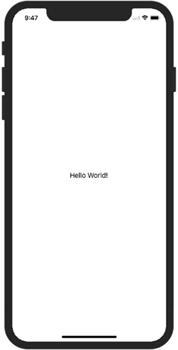
Your first app will display the words “Hello World!” on a blank screen. You can test your app on a simulator if you don’t have an iDevice.
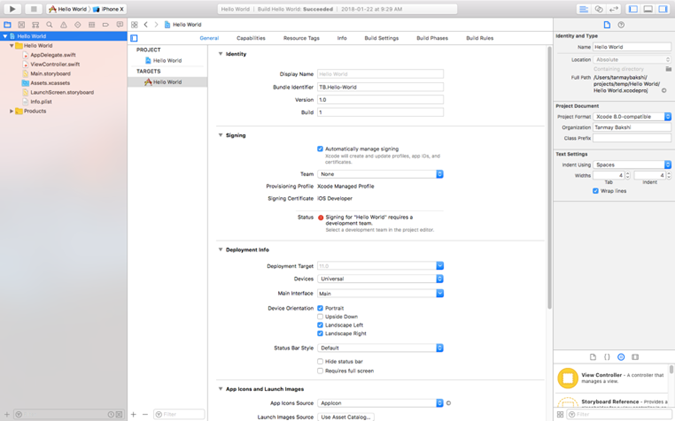
The General tab of your Xcode Project
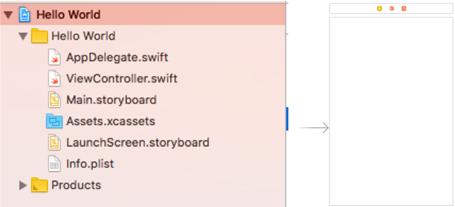
The view controller in the main storyboard. The rectangle you see when you open the storyboard is called your ViewController. It allows you to control what you see on screen.
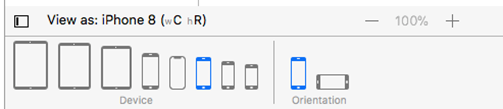
Click this to view different screen sizes

A selection of screen sizes
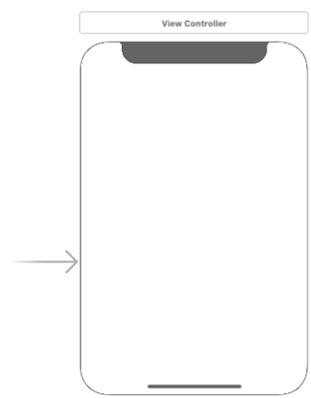
The iPhone X in the ViewController
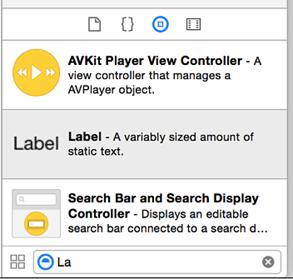
The Libraries panel stores objects and controls for your app.
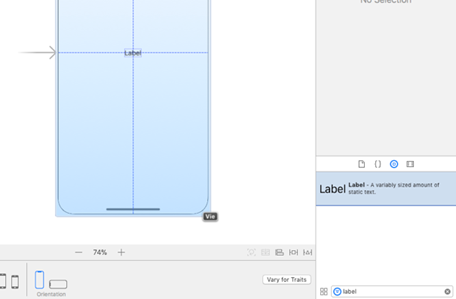
  Drag a label onto your screen.
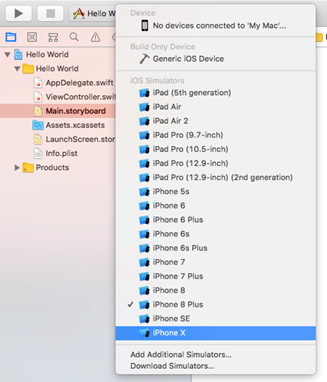
Press this button to choose the device you want to simulate

Choose the device you want to simulate from the popup menu.
► “Clip this to run your app in the simulator.” Figure 2.11  Click the play button to run the app in the simulator.
Figure 2.11  Click the play button to run the app in the simulator.

  The simulator window opens with your app running in it.
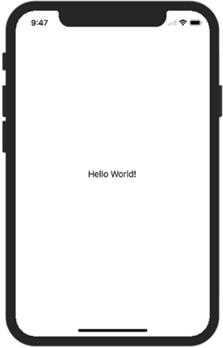
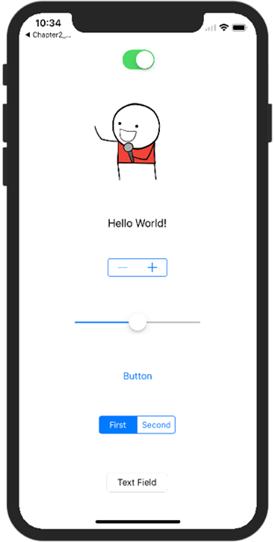
A UI (user interface) is anything the user sees or that you can interact with. This is your app’s UI, but I added a bunch of controls to the UI to make it a silly app. These are just a few of the UI elements you could add.
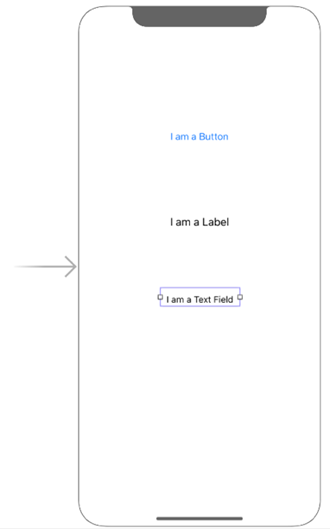
Try to make this app, with a button, a label, and a text field on the screen.
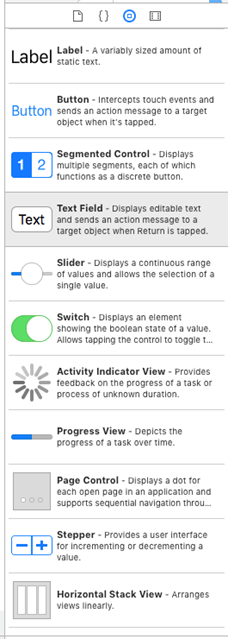
   You’ll find many of the UI interface elements in the same place in Xcode. They’re in the Object library, on the bottom right of Xcode.
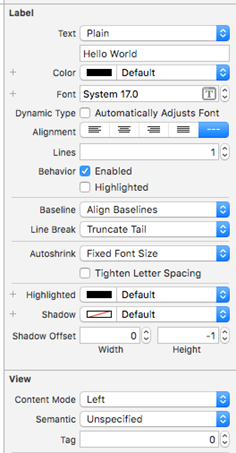
  The attributes inspector
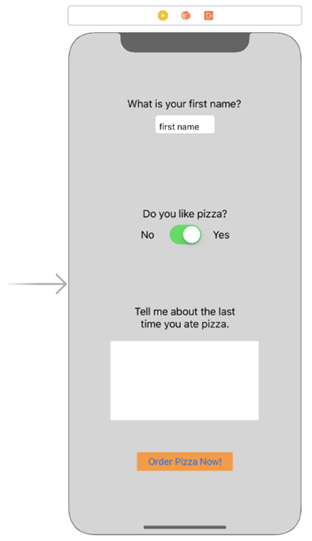
Here are some things you can do with other controls in your app. Can you make these?
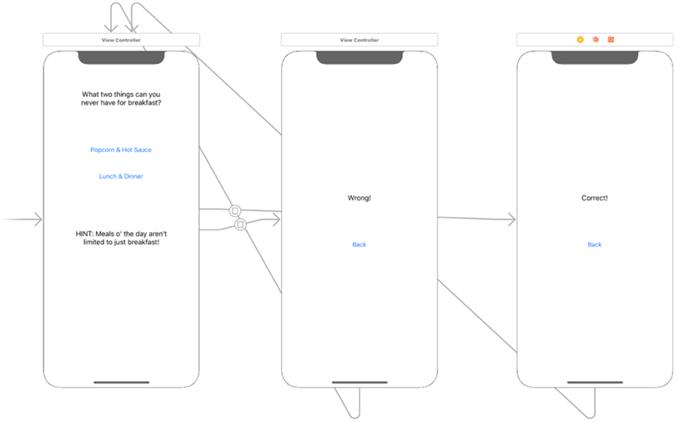
The UI with three screens for the Segues app.
Segues application in action
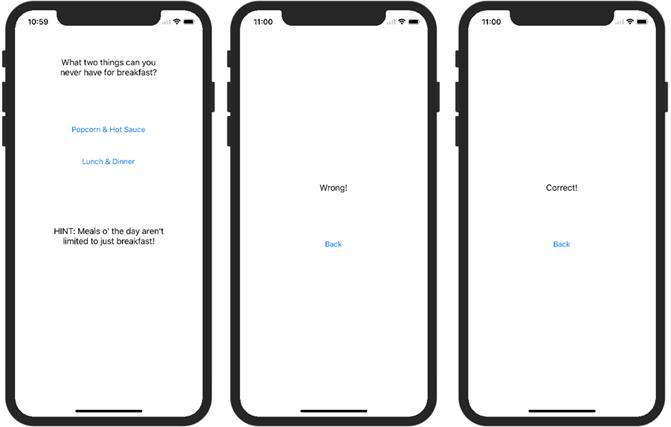
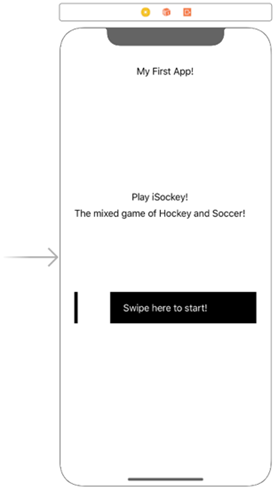
Try to create this app.
   Test your App-Knowledge

  1. You create an app that uses the camera on an iPhone. Why can’t you test the camera function with the simulator?
  2. What is the purpose of the iOS Human Interface Guidelines?
  3. Download the “Bad App” example from our website and try your best to make it follow the rules of a good UI! [THIS EXAMPLE IS NOT AVAILABLE YET]
  4. What is a UI and where is the Attributes Inspector?

FAQ

How do I create my first “Hello World” app in Xcode?Open Xcode → Create a new project → iOS → Single View Application → set Product Name (e.g., “Hello World”) and Language = Swift → save the project. Open Main.storyboard, drag a Label onto the view, center it, double‑click it, and change its text to “Hello World!”. Click the Play button to run.
What are a storyboard, a view, and a view controller?A storyboard is where you lay out the screens of your app. A view is the screen the user sees. A view controller manages that screen’s content and behavior; in Main.storyboard, the rectangle you edit is the View Controller’s view.
How do I change the design-time screen size (device) in Interface Builder?In the storyboard, find “View as: …” at the bottom and click it. Choose the device you want to design for (e.g., iPhone 8, iPhone X, iPad). The canvas resizes to match that device.
How do I add and center a label on the screen?Open the Object Library (bottom-right), search for “Label”, then drag it onto the view. Drag it until the two dotted blue alignment guides (vertical and horizontal) appear—this centers it. Double‑click the label to edit its text.
How do I run and stop my app in the simulator?At the top of Xcode, choose a simulator device next to the Play button, then click Play to build and run. A simulator window opens with your app. Click the Stop square button in Xcode to stop it.
What is the simulator, and what are its limitations?The simulator runs your iOS app on your Mac for quick testing. It does not fully simulate hardware like the accelerometer, gyroscope, camera, microphone, proximity sensor, or Touch ID. Multi‑touch gestures are limited (use the mouse for basic actions).
Can I run the app on my iPhone or iPad? What do I need?Yes. Sign in to Xcode with your Apple ID (creates a free developer profile), connect your device via Lightning, select your device as the run target, and click Play. If prompted about provisioning, click “Fix Issue” and choose your Apple ID; allow any code‑sign/keychain prompts.
What is a user interface (UI) and why does it matter?The UI is everything the user sees and interacts with: text, images, buttons, sliders, sounds, etc. Good UI design makes your app clear, usable, and enjoyable.
How can I change text colors, backgrounds, and fonts?Select a control (label, button, text field), open the Attributes Inspector (right panel), then change properties like Text Color, Font and size, Alignment, Shadow, or Background color. To change the whole screen’s background, select the view (empty area) and set its Background color there.
How do I create multiple screens and move between them (segues)?Add another View Controller from the Object Library. Put a Button on the first view, then Control/Right‑drag from the button to the second view and choose a segue type (e.g., Present Modally). Add a Back button on the second view and create a segue back to the first.

pro $24.99 per month

  • access to all Manning books, MEAPs, liveVideos, liveProjects, and audiobooks!
  • choose one free eBook per month to keep
  • exclusive 50% discount on all purchases
  • renews monthly, pause or cancel renewal anytime

lite $19.99 per month

  • access to all Manning books, including MEAPs!

team

5, 10 or 20 seats+ for your team - learn more


choose your plan

team

monthly
annual
$49.99
$499.99
only $41.67 per month
  • five seats for your team
  • access to all Manning books, MEAPs, liveVideos, liveProjects, and audiobooks!
  • choose another free product every time you renew
  • choose twelve free products per year
  • exclusive 50% discount on all purchases
  • renews monthly, pause or cancel renewal anytime
  • renews annually, pause or cancel renewal anytime
  • Hello Swift! ebook for free
choose your plan

team

monthly
annual
$49.99
$499.99
only $41.67 per month
  • five seats for your team
  • access to all Manning books, MEAPs, liveVideos, liveProjects, and audiobooks!
  • choose another free product every time you renew
  • choose twelve free products per year
  • exclusive 50% discount on all purchases
  • renews monthly, pause or cancel renewal anytime
  • renews annually, pause or cancel renewal anytime
  • Hello Swift! ebook for free
choose your plan

team

monthly
annual
$49.99
$499.99
only $41.67 per month
  • five seats for your team
  • access to all Manning books, MEAPs, liveVideos, liveProjects, and audiobooks!
  • choose another free product every time you renew
  • choose twelve free products per year
  • exclusive 50% discount on all purchases
  • renews monthly, pause or cancel renewal anytime
  • renews annually, pause or cancel renewal anytime
  • Hello Swift! ebook for free
