This chapter introduces Apple Watch development with WatchKit by framing the Watch as a companion to the iPhone: a quick, glanceable “second display” that relies on the iOS app for heavier work. You’re guided to start a project in Xcode using the “iOS App with WatchKit App” template and reminded that every Watch app ships alongside an iOS app. Key differences from standard iOS development are highlighted, including the use of watch-specific UI classes (such as WKInterfaceLabel), the awake lifecycle method in place of viewDidLoad, and designing for two watch sizes with simple, focused interactions.
To make these ideas concrete, the chapter walks through building a Number Guessing Game for Apple Watch. The interface consists of two labels (for the current guess and status) and three buttons (+, −, and Make Guess). In code, two integers track the target number and the current guess; the target is randomly set between 1 and 120 during initialization in awake. IBActions for the buttons update the guess label as you increment or decrement, and the Make Guess action compares the guess to the target to display “Too Little!”, “Too Much!”, or “Correct!” in the status label. You connect IBOutlets and IBActions in Interface.storyboard, just as you would on iOS, but using WatchKit controls.
Finally, the chapter shows how to run the app on the Apple Watch simulator by changing the run target to the WatchKit App and selecting a watch size. While deploying to a physical Apple Watch takes extra steps, simulator testing is straightforward and lets you try the game immediately. The chapter closes with practice prompts—comparing iOS and watchOS development, adding features like counting attempts or bounding guesses, and thinking through optimal guessing strategies—reinforcing the core concepts of building and running a simple, responsive Watch app.
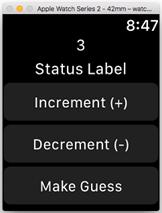
The final “Number Guessing Game” app in action!
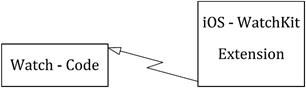
The relationship between iOS and watchOS apps.
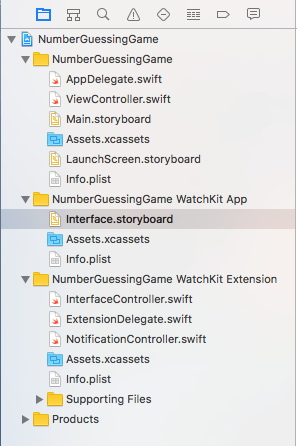
The second (and final) step to showing your WatchKit development files. Figure 13.3 The first step to showing your WatchKit development files
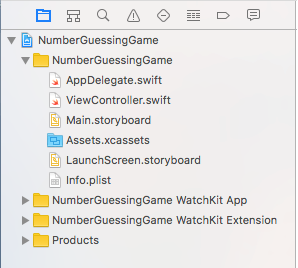
Figure 13.3 The first step to showing your WatchKit development files
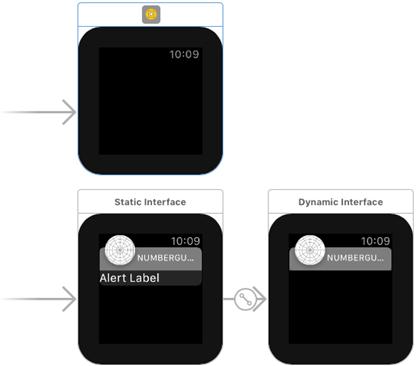
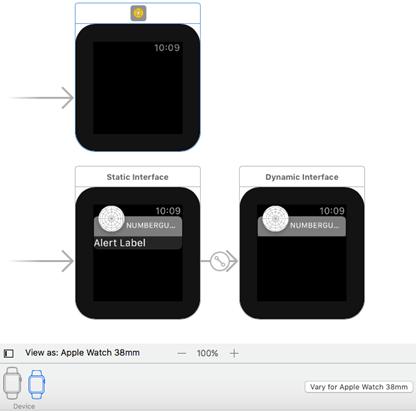
The 3 views you will see in the “Interface.storyboard” file.
The 2 screen sizes of the Apple Watch. 38mm is the default size.
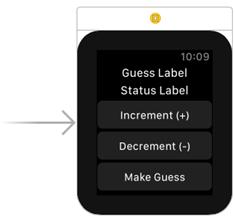
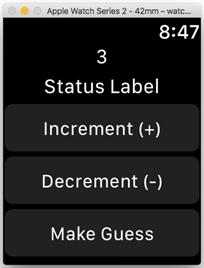
The final UI for the Number Guessing Game app.
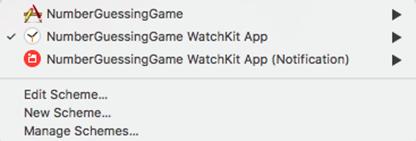
Changing the Run Target
Changing the Run Target
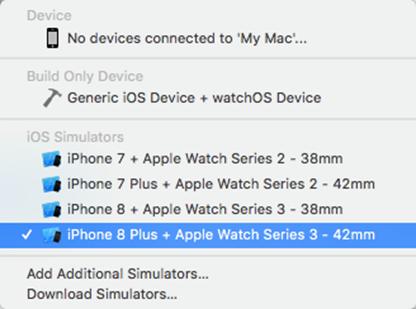
Choosing the Apple Watch simulator
The final, running application!
FAQ
What is a WatchKit app and why does it need an iOS app?Apple Watch apps are companions that rely on an iPhone for heavier tasks like networking and storage. Apple requires a host iOS app plus a WatchKit Extension that powers the watchOS UI.How do I create a new Apple Watch project in Xcode?Start a new project and choose watchOS > iOS App with WatchKit App. Xcode creates three parts: the iOS app, the WatchKit App (storyboard/resources), and the WatchKit Extension (code).Where does my Watch-specific code live?In the WatchKit Extension, typically in InterfaceController.swift (a WKInterfaceController subclass). Don’t put Watch code in the iOS app’s ViewController.swift.Which storyboard and UI components should I use?Edit Interface.storyboard inside the WatchKit App target. Use WatchKit controls such as WKInterfaceLabel and buttons; layout the two labels (guess/status) and three buttons (+, −, Make Guess).How do I preview different Apple Watch sizes?In the storyboard, use the “View As” control (bottom-left) to switch between 38mm and 42mm watches so you can design for the size you prefer.What replaces viewDidLoad on watchOS?awake(withContext:) is the watchOS equivalent. Initialize your UI and state there (for example, set up the random target and initial label text).How does the Number Guessing Game work?The app picks a random number from 1–120. You adjust your current guess with +/−, then tap Make Guess to see “Too Little!”, “Too Much!”, or “Correct!” until you match the target.How do I connect IBOutlets and IBActions in WatchKit?Open the Assistant editor for Interface.storyboard, then Control-drag from labels/buttons to your @IBOutlet and @IBAction in InterfaceController.swift—just like on iOS.How do I run the Watch app on the simulator?Select the WatchKit App as the run target, choose an Apple Watch simulator (size you want), and press Run. Your app launches in the watchOS simulator.How can I extend the game (limit range and count tries)?Clamp currentGuess between 1 and 120 in increment/decrement, and track attempts with a counter you increase on Make Guess; when correct, display the number of tries.
pro $24.99 per month
access to all Manning books, MEAPs, liveVideos, liveProjects, and audiobooks!


 Hello Swift! ebook for free
