12 SpriteKit -Fun Animation Time
This chapter offers a gentle, confidence-building introduction to SpriteKit, Apple’s framework for fast, interactive 2D graphics and simple game-style experiences. It explains how SpriteKit differs from UIKit: instead of drag-and-drop storyboards, you place and style elements entirely in code using sizes, colors, and coordinates. The tone sets expectations for a bit more typing and light math, while keeping the focus on getting a first graphics-based app up and running.
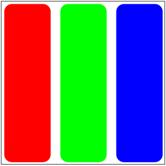
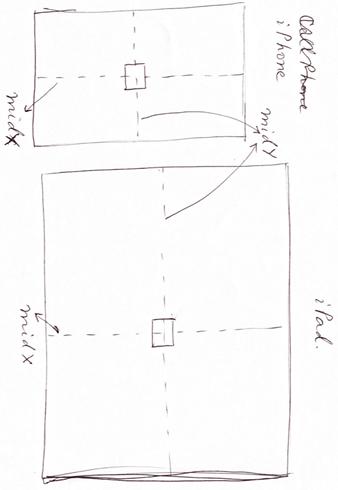
Before coding, the chapter grounds you in how screens work: images are grids of tiny pixels whose colors come from mixing red, green, and blue values. With more pixels packed into the same space, you get sharper detail. Building on that, it introduces the coordinate system used to position content, with the origin at the bottom-left and values increasing up and to the right. Because devices have different screen sizes, you use properties like midX and midY to place things reliably in the center on any iPhone.
With these basics in place, you build a mini SpriteKit app called Drag the Square. You create a square as an SKShapeNode, place it at the center, color it, and add it to the scene in didMove (SpriteKit’s counterpart to viewDidLoad). Interactivity comes from handling touchesBegan and touchesMoved to read the user’s touch location and move the square accordingly, producing an immediate, tactile result. The chapter wraps with an optional “Christmas Tree” practice project that extends the same ideas—coordinates, nodes, and simple math—into a playful, self-directed challenge.
Some colorful pencils

A magnified pixel.
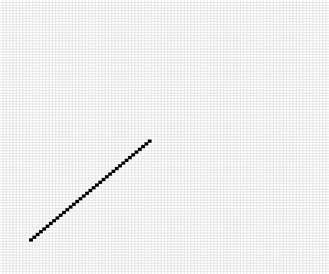
A 100x100 grid depicting pixels that have been illuminated in a way that represents a straight line.
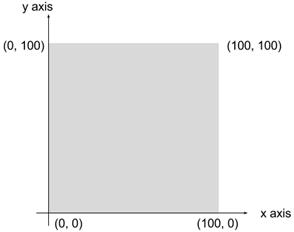
A square, to explain the coordinate system.
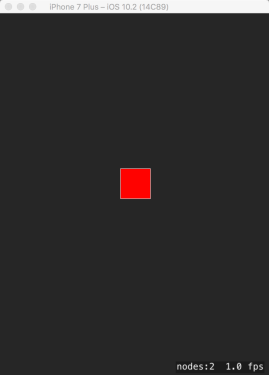
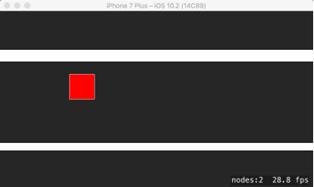
The starting screen of the “Drag the Square” App!
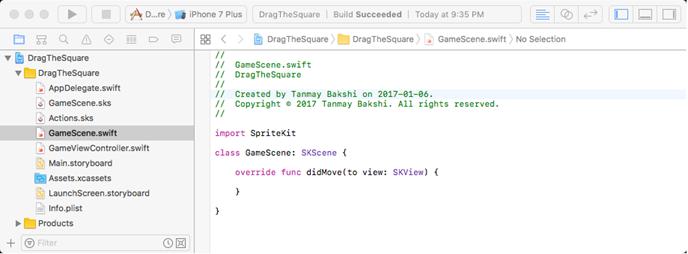
The GameScene.swift File
Moving the square across the screen
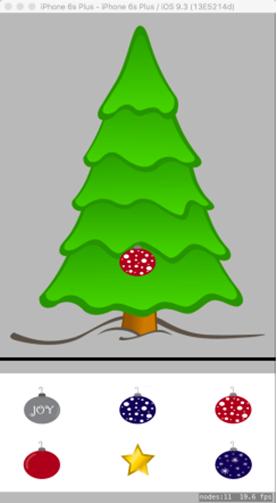
The “My Christmas Tree” App, with an ornament on the tree.
Check your app knowledge
What is a pixel, and how does it create a particular color on screen?
Where is the (0, 0) point of an SKSpriteNode, and where is the (0, 0) point of an SKScene?
How can you create a square 20px by 20px?
If you have 3 squares, how can you center one, and have 2 squares, one 20 pixels to the left, and one 20 pixels to the right of it? Again, when building this application, download the blank template from the book’s
The code for this application can be found in the folder “Chapter12_DragTheSquare”, inside the folder called “Hello-Swift-Code-master” that you downloaded from Github. If you haven’t downloaded the code from Github, you can click on the following link to get all the code: https://github.com/tanmayb123/Hello-Swift-Code/archive/master.zip. It should be downloaded only once for all chapters.
In the app “Drag the Square!”, we have put the same code in 2 places, first in the “touchesBegan” function, and second in the “touchesMoved” function. Reason out why the same code has been put in 2 places. If you want to know what that code was, here it is:
Refer back to the app “Drag the Square”, and modify it so when a user is dragging the square (while their finger is on screen), the square is yellow, but as the user releases their finger, the square should snap back to the center position, and should become red.
If you’re not allowed to use “midX” and “midY”, how would you create an app that creates a small 60x60 square of your choice of color exactly in the middle of your device’s screen?
FAQ
What is SpriteKit and what is it used for?
SpriteKit is Apple’s 2D graphics framework for building animated, game-like apps. It provides scenes, nodes (sprites/shapes), physics, and rendering optimized for smooth animations like bouncing balls or characters moving across the screen.How is SpriteKit different from UIKit?
UIKit focuses on standard app interfaces (buttons, tables, Auto Layout, storyboards). SpriteKit targets real-time 2D graphics and animation. You build your UI by placing nodes via code (positions, sizes, colors); there’s no storyboard-based drag-and-drop layout in SpriteKit.What is a pixel and how do RGB values make colors?
A pixel (“picture element”) is a tiny square on the screen. Each pixel’s color is defined by red, green, and blue (RGB) components, each from 0–255. Different combinations create different colors (for example, 255,0,0 is red; 255,255,0 is yellow).Why should I understand pixels and screen resolution?
It helps you: (1) appreciate how much detail a screen can show, and (2) position and size graphics precisely, since your scene is effectively a grid of pixels/points where you draw and place shapes.How does the 2D coordinate system work in SpriteKit?
Think of the screen as a grid: (0,0) at the bottom-left; x increases to the right and y increases upward. A point like (100,100) is 100 units to the right and 100 units up from the origin.How do I position a node at the center of any screen?
Use the scene’s frame midpoints and set the node’s position:node.position = CGPoint(x: frame.midX, y: frame.midY). This centers it regardless of device size.How do I create and show a colored square with SpriteKit?
Create an SKShapeNode rectangle, set its position and color, then add it to the scene:let square = SKShapeNode(rectOf: CGSize(width: 60, height: 60)) square.position = CGPoint(x: frame.midX, y: frame.midY) square.fillColor = .red addChild(square)
How do I make a node follow my finger?
Handle touches and move the node to the touch location:override func touchesBegan(_ touches: Set<UITouch>, with event: UIEvent?) {
let location = touches.first!.location(in: self)
square.position = location
}
override func touchesMoved(_ touches: Set<UITouch>, with event: UIEvent?) {
let location = touches.first!.location(in: self)
square.position = location
}
 Hello Swift! ebook for free
