Containers isolate processes rather than virtualizing whole systems, so limiting what a container can use or do is central to reducing risk. This chapter surveys the remaining isolation features and security integrations you can apply: resource allowances for memory, CPU, and devices; inter-process communication and shared memory controls; user identities and permissions (including user namespaces and UID/GID remapping); Linux capability tuning and, when necessary, fully privileged containers; and stronger confinement via seccomp, AppArmor, and SELinux. The goal is to run software with only the resources and access it needs, acknowledging that Docker and its best practices continue to evolve.
Resource controls keep misbehaving or attacked software from exhausting a host. Memory limits (-m/--memory) cap usage but are not reservations; monitor real consumption with docker stats and expect out-of-memory failures if limits are exceeded. CPU can be constrained proportionally with --cpu-shares (effective only under contention), absolutely with --cpus (CFS quota), or pinned to specific cores with --cpuset-cpus to reduce context switching. Device access is opt-in via --device mappings. For inter-process communication, each container gets its own IPC namespace; share memory primitives across containers only when needed using --ipc container:, recognizing the security trade-offs of sharing IPC or the host’s IPC.
Run processes with the least privilege possible. Prefer non-root users (set by image metadata or --user), understand how entrypoints may change the effective user, and remember that volume file permissions reflect host UIDs/GIDs; mounting the Docker socket effectively grants root. User namespace remapping maps container root to an unprivileged host ID range, reducing impact on the host while preserving container behavior on shared filesystems. Fine-tune OS permissions by dropping or adding Linux capabilities (--cap-drop/--cap-add) and reserve --privileged for exceptional administrative tasks. Strengthen confinement with --security-opt for custom seccomp profiles and LSMs (AppArmor/SELinux). Build use-case-appropriate containers: start with tight isolation, then justify only the minimal relaxations needed for applications, high-level services, or rare low-level administrative jobs, always pairing resource controls with least-privilege access.
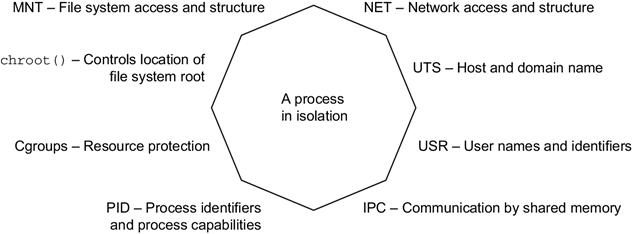
Eight-sided containers
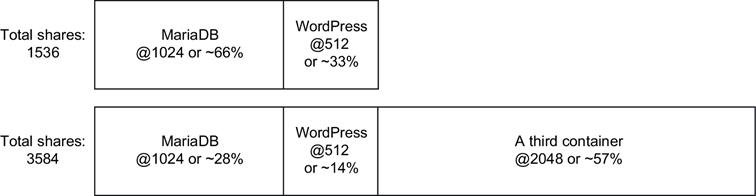
Relative weight and CPU shares
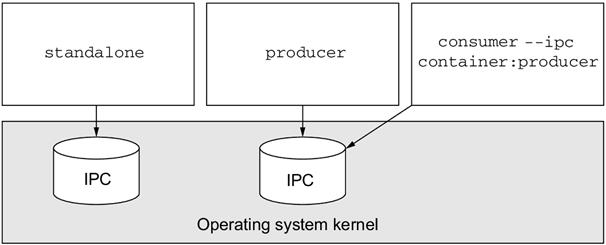
Three containers and their shared memory pools. Producer and consumer share a single pool.
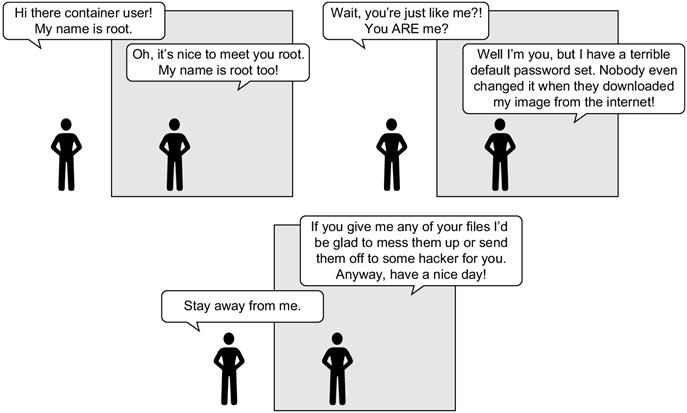
Root vs. root—a security drama
Summary
This chapter introduced the isolation features provided by Linux and talked about how Docker uses those to build configurable containers. With this knowledge, you will be able to customize that container isolation and use Docker for any use case. The following points were covered in this chapter:
Docker uses cgroups, which let a user set memory limits, CPU weight, limits, and core restrictions as well as restrict access to specific devices.
Docker containers each have their own IPC namespace that can be shared with other containers or the host in order to facilitate communication over shared memory.
Docker supports isolating the USR namespace. By default, user and group IDs inside a container are equivalent to the same IDs on the host machine. When the user namespace is enabled user and group IDs in the container are remapped to IDs that do not exist on the host.
You can and should use the -u option on docker container run and docker container create to run containers as non-root users.
Avoid running containers in privileged mode whenever possible.
Linux capabilities provide operating system feature authorization. Docker drops certain capabilities in order to provide reasonably isolating defaults.
The capabilities granted to any container can be set with the --cap-add and --cap-drop flags.
Docker provides tooling for integrating easily with enhanced isolation technologies like seccomp, SELinux, and AppArmor. These are powerful tools that security conscious Docker adopters should investigate.
FAQ
What does “limiting risk with resource controls” mean in Docker?It means using Docker and Linux features to prevent misbehaving software from exhausting system resources or gaining unnecessary privileges. This chapter focuses on setting memory/CPU/device limits, sharing container memory safely, running as non-root, tuning Linux capabilities, and integrating stronger isolation tools like seccomp, AppArmor, and SELinux.How do memory limits work and how do I set them?Use the -m/--memory flag on docker container run/create (for example, --memory 256m). Units: b, k, m, g. Memory limits are not reservations—they cap usage but don’t guarantee availability. If a container exhausts memory it may error or OOM; Docker won’t mitigate beyond any restart policy you set. Use docker stats to size limits with real workloads; remember swap can affect behavior.What’s the difference between --cpu-shares, --cpus, and --cpuset-cpus?- --cpu-shares: Relative weight used only when there’s CPU contention (for example, 1024 vs 512).
- --cpus: Absolute CPU quota via CFS (for example, --cpus 0.75 caps to 75% of one core across periods).
- --cpuset-cpus: Pin to specific cores to reduce context switches or isolate workloads (for example, --cpuset-cpus "0,2" or "0-2").
Use shares to prioritize, cpus to hard-cap, and cpuset to control placement.How can a container access host devices safely?Grant explicit device access with --device HOST_PATH:CONTAINER_PATH (repeatable for multiple devices). Example: --device /dev/video0:/dev/video0 for a webcam. Treat device exposure as an authorization decision; only mount what’s required and avoid exposing sensitive devices unnecessarily.Why didn’t two containers see each other’s shared memory and how do I fix it?Each container gets its own IPC namespace by default, so shared memory primitives (queues, semaphores, shm) are isolated. To share, start a container in the IPC namespace of another with --ipc container:. Sharing with the host (--ipc=host) is possible but discouraged due to security risk.Should I run as root in a container? How do I control the run-as user?Avoid root unless strictly necessary. Check an image’s default user via docker inspect .Config.User or run a probe command with --entrypoint "" (for example, whoami). Override at runtime with --user (name or uid:gid), for example --user nobody or --user 10000:20000. Note entrypoints can change users; prefer explicit --user.How do container users interact with host files in volumes?UIDs/GIDs are shared numerically with the host. Root inside the container (uid 0) is root on the host for file permissions on mounted volumes. A non-root user may get “permission denied” reading host files owned by root. Solutions:
- Pre-chown/chmod host directories to the intended uid:gid.
- Run the container with matching --user uid:gid.
Caution: mounting /var/run/docker.sock grants API control equivalent to host root; only do this for trusted tools.What is user namespace remapping and when should I use it?User namespaces map container uids/gids to an unprivileged range on the host (configured via Docker’s userns-remap and /etc/subuid,/etc/subgid). Container uid 0 becomes an unprivileged host uid (for example, 5000), reducing risk if a container breaks out or touches host-mounted files. It strengthens isolation but may conflict with features like SELinux or privileged containers; consult Docker’s security docs for compatibility and per-container overrides.What are Linux capabilities and how do I add/drop them?Capabilities are fine-grained privileges checked by the kernel for gated syscalls. Docker drops many by default and keeps a minimal safe set. Adjust per container:
- Drop with --cap-drop (for example, --cap-drop net_raw).
- Add with --cap-add (for example, --cap-add sys_admin).
Use lowercase names (no CAP_ prefix). Prefer least privilege over running as root or privileged.When should I use --privileged or extra security options like seccomp, AppArmor, and SELinux?- --privileged grants all capabilities, device access, and shared memory access (network namespace still applies; combine with --net host if needed). Reserve for administrative tasks that truly require it.
- --security-opt lets you:
- Apply a custom seccomp profile (seccomp=/path/profile.json) or disable (seccomp=unconfined).
- Enforce no-new-privileges.
- Apply SELinux labels (label=user:, role:, type:, level:, or label=disable).
- Apply an AppArmor profile (apparmor=PROFILE).
Default seccomp blocks dozens of risky syscalls; start with defaults and tighten only as needed.
pro $24.99 per month
access to all Manning books, MEAPs, liveVideos, liveProjects, and audiobooks!

 Docker in Action, Second Edition ebook for free
