3 Software installation simplified
This chapter explains how Docker simplifies software installation by dividing it into three core concerns: identifying what you want to install, locating a trustworthy source to install from, and understanding how Docker stores and isolates that software at runtime. It builds on earlier concepts to show how images encapsulate software and metadata, and introduces layers as the building blocks that make image composition, sharing, and reuse efficient.
First, the chapter shows how images are identified with repository names and tags rather than raw IDs, enabling clear, predictable references such as user/repository:tag. Tags double as both precise version selectors and convenient aliases for configurations or release streams, giving image authors flexibility and users clarity. Next, it covers discovery and installation: working with registries via the command line (pull, run, login), using alternative registries without extra setup, loading and saving images as files with docker save and docker load, and building images from distributed Dockerfiles. It also highlights the trade-offs of each method, such as build time and dependency drift when installing from a Dockerfile, and outlines how Docker Hub helps users assess and obtain images.
Finally, the chapter demystifies how images work by introducing layers—independent filesystem deltas that compose into complete images. Docker downloads shared layers only once, which speeds installs and reduces storage when applications share dependencies. Users can inspect repositories and intermediate images, while containers see a unified filesystem courtesy of a union filesystem, combined with MNT namespaces and chroot for isolation. The approach offers strong benefits—deduplication, clearer dependency boundaries, and easy specialization—while noting limitations of union filesystems (e.g., extended attributes, memory-mapped files) and the role of storage drivers and volumes when workloads need different behavior.
Flow of topics covered in this chapter

Step 1—Software identification

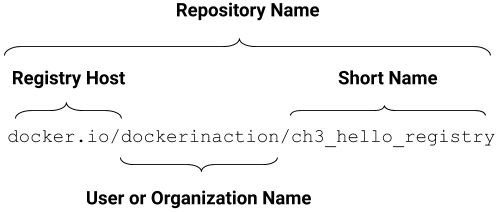
The Docker Image Repository Name
Step 2—Locating repositories

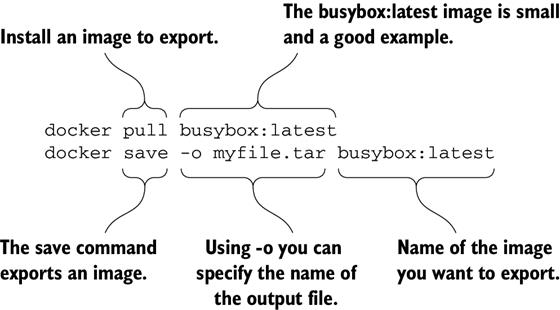
Parts of the pull and save subcommands
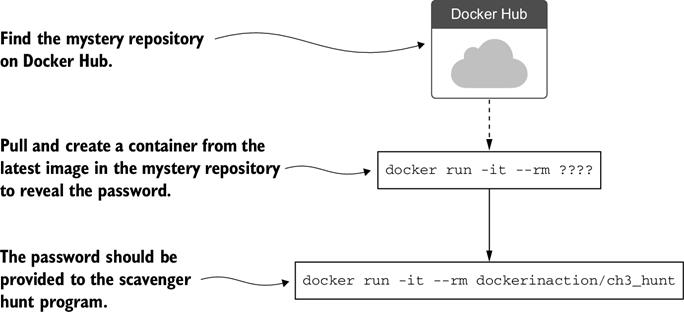
The steps required to complete the Docker Hub scavenger hunt. Find the mystery repository on Docker Hub. Install the latest image from that repository and run it interactively to get the password.
Step 3—Understanding how software is installed

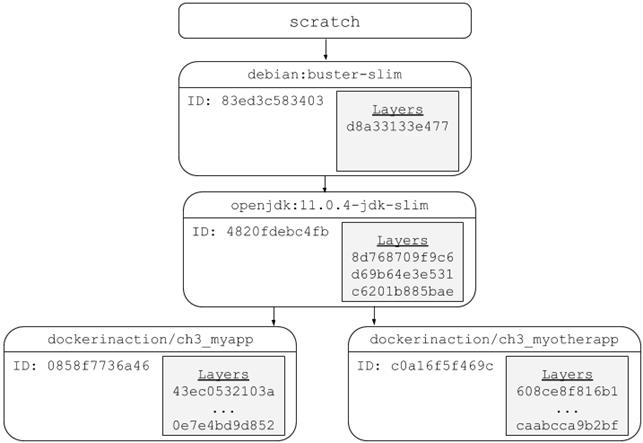
The full lineage of the two Docker images used in section 3.3.1
Summary
The task of installing and managing software on a computer presents a unique set of challenges. This chapter explains how you can use Docker to address them. The core ideas and features covered by this chapter are as follows:
- Human Docker users use repository names to communicate which software they would like Docker to install.
- Docker Hub is the default Docker registry. You can find software on Docker Hub through either the website or the docker command-line program.
- The docker command-line program makes it simple to install software that’s distributed through alternative registries or in other forms.
- The image repository specification includes a registry host field.
- The docker load and docker save commands can be used to load and save images from TAR archives.
- Distributing a Dockerfile with a project simplifies image builds on user machines.
- Images are usually related to other images in parent/child relationships. These relationships form layers. When we say that we have installed an image, we are saying that we have installed a target image and each image layer in its lineage.
- Structuring images with layers enables layer reuse and saves bandwidth during distribution and storage space on your computer and image distribution servers.
FAQ
How do I identify a specific Docker image to install?
You identify images with a repository name and a tag, in the formname:tag. For example, nginx:latest refers to the nginx repository and its latest tag. While every image has a unique ID, users typically work with named repositories and tags because they’re predictable and expressive.What is a named repository and how is its name structured?
A named repository is a bucket of related images. Its full name follows the pattern[REGISTRYHOST:PORT/][USERNAME/]NAME. Example: docker.io/dockerinaction/ch3_hello_registry means the image is on Docker Hub (docker.io), under user dockerinaction, with repository name ch3_hello_registry. Tags (like :v1 or :latest) select specific image versions.How do tags work, and what are best practices for using them?
Tags uniquely identify images within a repository and can act as aliases. One image can have many tags (for example, multiple Java 11 tags may point to the same image). Versioned tags (like11.0.5) are stable references; moving tags (like 11 or latest) advance over time. Choose fixed versions when you need repeatability; use moving tags when you want the newest compatible release.How can I find and install images from Docker Hub using the command line?
Docker Hub is the default registry (docker.io). Use docker pull REPO[:TAG] to download an image or docker run to pull and start a container in one step. For private repositories, authenticate with docker login (and docker logout when finished). You can also browse and search on https://hub.docker.com.How do I use alternative registries instead of Docker Hub?
Prefix the repository with the registry host, following[REGISTRYHOST:PORT/][USERNAME/]NAME[:TAG]. Example: docker pull quay.io/dockerinaction/ch3_hello_registry:latest. Some registries require authentication (use docker login REGISTRYHOST). Remove images with docker rmi when done.How do I move or install images as files?
Usedocker save -o myimage.tar REPO[:TAG] to export an image as a TAR file, and docker load -i myimage.tar to import it on another system. This is useful when you can’t (or don’t want to) use a registry. Note: the archive is a standard TAR; you can choose any filename or extension.How do I build and install an image from a Dockerfile?
A Dockerfile describes how to build an image. Fetch the project (for example, via Git) and rundocker build -t myrepo/myimage:tag PATH. Pros: transparency and easy integration with source control/CI. Cons: builds can be slow and dependencies may drift over time, making results less predictable than pulling a prebuilt image.What are image layers, and why do they matter?
Most images are composed of layers—stacked filesystem changes. Layers can be shared across images, so Docker downloads and stores common layers only once. This speeds installs and saves space. For example, two apps based on the same OpenJDK image share its layers; the second app pulls only its small, unique layer.Why do I see <none> images when I run docker images -a?
Those are untagged (intermediate) images/layers, often created during builds or when tags are removed. They don’t have a repository:tag name. Refer to them by their IMAGE ID (the short 12-character form is shown for convenience) if you need to inspect or remove them.How does Docker isolate a container’s filesystem, and what are the pros and cons of union filesystems?
Docker combines a union filesystem (to merge layers) with Linux MNT namespaces andchroot to give containers an isolated root filesystem. Benefits: shared layers reduce downloads and storage, dependencies are cleanly separated, and it’s easy to create specialized images. Limitations: some storage drivers lack features (for example, SELinux xattrs), copy-on-write can complicate mmap(), and certain workloads may need volumes. Check your storage driver with docker info and select one via --storage-driver if needed.
 Docker in Action, Second Edition ebook for free
