Overview

2 Running software in containers

This chapter builds a practical foundation for running software in containers with Docker. It walks through creating both detached (daemon) and interactive containers, using a simple but realistic monitoring setup composed of an NGINX web server, a mailer, and a watcher agent. Along the way, it covers essential commands and workflows—running and naming containers, attaching/detaching terminals, listing and inspecting running containers, viewing logs (and the pitfalls of unbounded log growth), stopping/restarting services, and using exec for ad‑hoc commands—so you can verify behavior and iterate confidently while keeping container output and lifecycle under control.

With the basics in place, the chapter explains how Linux PID namespaces isolate processes so each container sees its own PID 1 and process list, improving security and eliminating many software conflicts (for example, port and file clashes) by scoping resources per container. It then tackles scaling and coordination concerns you hit as you run more containers: flexible identification via auto‑generated names and unique IDs (including truncated IDs and CID files), understanding container states (created, running, restarting, exited), and respecting dependency order when starting services. These ideas are applied to expand the single site into a small “farm” architecture while avoiding metaconflicts at the Docker layer.

The chapter then shows how to make systems environment‑agnostic and resilient. It uses read‑only filesystems with targeted writable exceptions (such as volumes and tmpfs) and environment variable injection to configure software like WordPress cleanly, decoupling it from specific hosts and co‑deployed services (for example, database host, credentials, and per‑site database names). To increase durability, it introduces restart policies with exponential backoff, clarifies the implications of the restarting state, and demonstrates when to prefer lightweight init systems or entrypoint/startup scripts to supervise child processes and validate preconditions. It closes with cleanup best practices—stopping/removing containers, understanding signal differences, using auto‑removal for short‑lived tasks, and composing quick commands to reclaim resources—so experimentation doesn’t leave behind stray state.

The three containers that you’ll build in this example
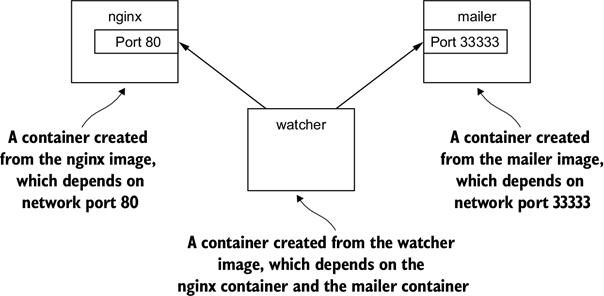
A fleet of web server containers and related monitoring agents
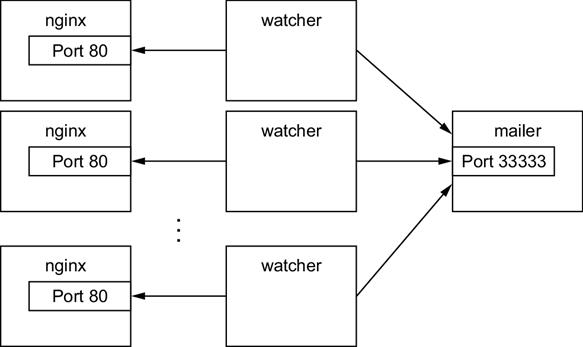
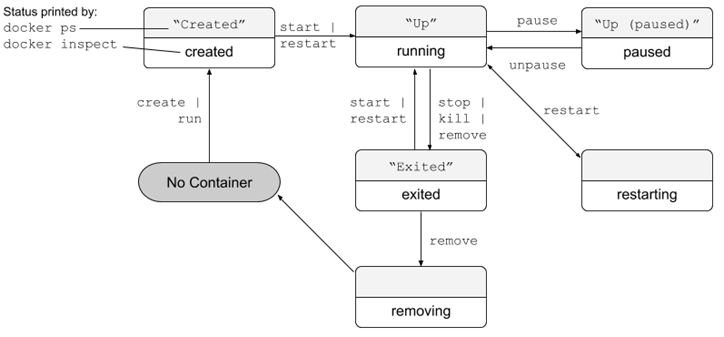
The state transition diagram for Docker containers
A screenshot of a cell phone Description automatically generated
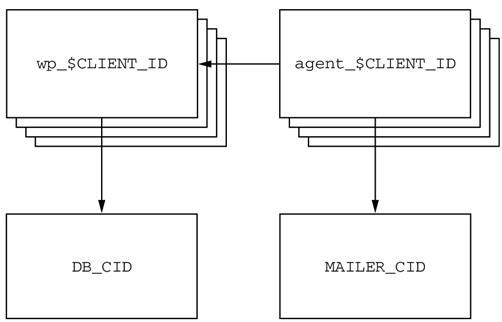
Each WordPress and agent container uses the same database and mailer.
   Summary

The primary focus of the Docker project is to enable users to run software in containers. This chapter shows how you can use Docker for that purpose. The ideas and features covered include the following:

  • Containers can be run with virtual terminals attached to the user’s shell or in detached mode.
  • By default, every Docker container has its own PID namespace, isolating process information for each container.
  • Docker identifies every container by its generated container ID, abbreviated container ID, or its human-friendly name.
  • All containers are in any one of four distinct states: running, paused, restarting, or exited.
  • The docker exec command can be used to run additional processes inside a running container.
  • A user can pass input or provide additional configuration to a process in a container by specifying environment variables at container-creation time.
  • Using the --read-only flag at container-creation time will mount the container file system as read-only and prevent specialization of the container.
  • A container restart policy, set with the --restart flag at container-creation time, will help your systems automatically recover in the event of a failure.
  • Docker makes cleaning up containers with the docker rm command as simple as creating them.

FAQ

What’s the difference between detached and interactive containers, and when should I use each?Detached containers (--detach or -d) run in the background without an attached terminal. They’re ideal for daemons/services (for example, NGINX). Interactive containers (-it) keep stdin open and allocate a TTY so you can interact with terminal apps (for example, a shell). When using --tty, you can detach without stopping the container via Ctrl-P then Ctrl-Q; later, reattach with docker attach or open a fresh session with docker exec -it CONTAINER sh.
How do I list containers and view their output?Use docker ps to list running containers and docker ps -a to include created/stopped containers. View logs with docker logs CONTAINER and follow them live with docker logs -f CONTAINER. Logs capture what the process writes to stdout/stderr and are not rotated by default, so they can grow over time.
How do I stop, restart, or check the state of a container?- Stop/start/restart: docker stop CONTAINER, docker start CONTAINER, docker restart CONTAINER - Check state: docker ps (friendly state) or docker inspect --format "{{.State.Running}}" CONTAINER (true/false) - docker ps -a shows created, running, paused, restarting, or exited containers.
What is the PID namespace in Docker and why does it matter?Each container gets its own PID namespace so processes see only PIDs inside that container (each has its own PID 1). This isolates processes across containers and the host, improving security and reducing conflicts. If needed, you can share the host PID namespace with --pid host (for system administration scenarios) and then see all host processes from inside the container.
How should I handle container dependencies and start order?Start containers in reverse dependency order (providers first, dependents later). For example, start a web server before a monitoring agent that links to it, otherwise Docker cannot inject connection details. Circular dependencies aren’t supported by container linking.
What’s the best way to identify and reference containers at scale?- Names: human-friendly but must be unique; rename with docker rename if needed. - IDs: globally unique, long hex strings; many commands accept the first 12 chars. - Getting IDs: docker run/create prints the ID; docker ps --latest -q (or -l -q) returns the last container; use --no-trunc to see full IDs. - CID files: write a new container’s ID to a known path with --cidfile to share with scripts and other containers (Docker won’t overwrite an existing CID file).
How do I inject configuration into containers (e.g., WordPress + MySQL)?Use environment variables with --env or -e. You can verify them with the env command in a container. WordPress supports variables like WORDPRESS_DB_HOST, WORDPRESS_DB_USER, WORDPRESS_DB_PASSWORD, and WORDPRESS_DB_NAME, which let you point to an external database and give each site its own DB without rebuilding images or editing files.
How can I make a container’s filesystem read-only but still allow required writes?Start with --read-only to make the root filesystem immutable. Then add precise write exceptions: - Bind or anonymous writable mount for required paths (for example, -v /run/apache2/). - Temporary in-memory space (for example, --tmpfs /tmp) for scratch files. If unsure what’s being written, compare changes with docker diff CONTAINER to discover paths the app modifies.
How do I make containers more resilient to failures?Set a restart policy when creating containers with --restart: - no (default), on-failure, on-failure:N, or always Docker uses exponential backoff between restart attempts. Note: during “restarting,” you can’t run docker exec inside the container. For multi-process apps or ones that spawn children, consider a lightweight init system (for example, supervisord, runit, tini) or robust startup scripts to supervise and restart processes inside the container.
What’s the recommended way to clean up containers and free resources?List all containers with docker ps -a, then remove unused ones with docker rm CONTAINER (only after stopping them). docker rm -f CONTAINER forces removal (sends SIGKILL); docker stop sends SIGHUP to allow graceful cleanup. For ephemeral runs, use --rm so containers self-delete on exit. Bulk cleanup example: docker rm -vf $(docker ps -a -q).

pro $24.99 per month

  • access to all Manning books, MEAPs, liveVideos, liveProjects, and audiobooks!
  • choose one free eBook per month to keep
  • exclusive 50% discount on all purchases
  • renews monthly, pause or cancel renewal anytime

lite $19.99 per month

  • access to all Manning books, including MEAPs!

team

5, 10 or 20 seats+ for your team - learn more


choose your plan

team

monthly
annual
$49.99
$499.99
only $41.67 per month
  • five seats for your team
  • access to all Manning books, MEAPs, liveVideos, liveProjects, and audiobooks!
  • choose another free product every time you renew
  • choose twelve free products per year
  • exclusive 50% discount on all purchases
  • renews monthly, pause or cancel renewal anytime
  • renews annually, pause or cancel renewal anytime
  • Docker in Action, Second Edition ebook for free

choose your plan

team

monthly
annual
$49.99
$499.99
only $41.67 per month
  • five seats for your team
  • access to all Manning books, MEAPs, liveVideos, liveProjects, and audiobooks!
  • choose another free product every time you renew
  • choose twelve free products per year
  • exclusive 50% discount on all purchases
  • renews monthly, pause or cancel renewal anytime
  • renews annually, pause or cancel renewal anytime
  • Docker in Action, Second Edition ebook for free
choose your plan

team

monthly
annual
$49.99
$499.99
only $41.67 per month
  • five seats for your team
  • access to all Manning books, MEAPs, liveVideos, liveProjects, and audiobooks!
  • choose another free product every time you renew
  • choose twelve free products per year
  • exclusive 50% discount on all purchases
  • renews monthly, pause or cancel renewal anytime
  • renews annually, pause or cancel renewal anytime
  • Docker in Action, Second Edition ebook for free