11 Scaling and Deploying Dask
This chapter moves from prototyping on a single machine to running Dask at production scale on a cluster. It explains how Dask’s architecture cleanly separates the client, notebook server, scheduler, and workers, and emphasizes that most code written earlier in the book runs unmodified on a cluster. The motivation is faster, more reliable execution of larger workloads under time constraints, with Docker providing reproducible environments and cloud infrastructure supplying elastic resources.
The chapter demonstrates building a small but complete Dask Distributed setup on AWS using EC2/ECS for compute, EFS for shared storage, and ECR for container images. It covers creating keys, provisioning an ECS cluster, opening essential firewall rules, mounting a shared filesystem, and pushing three Docker images (scheduler, worker, notebook). Task definitions and services are used to run each role, and a lightweight service discovery approach writes the scheduler’s address to a shared file so workers and the notebook can auto-connect. The result is a scalable cluster where instance counts map directly to the number of workers, enabling rapid expansion or contraction.
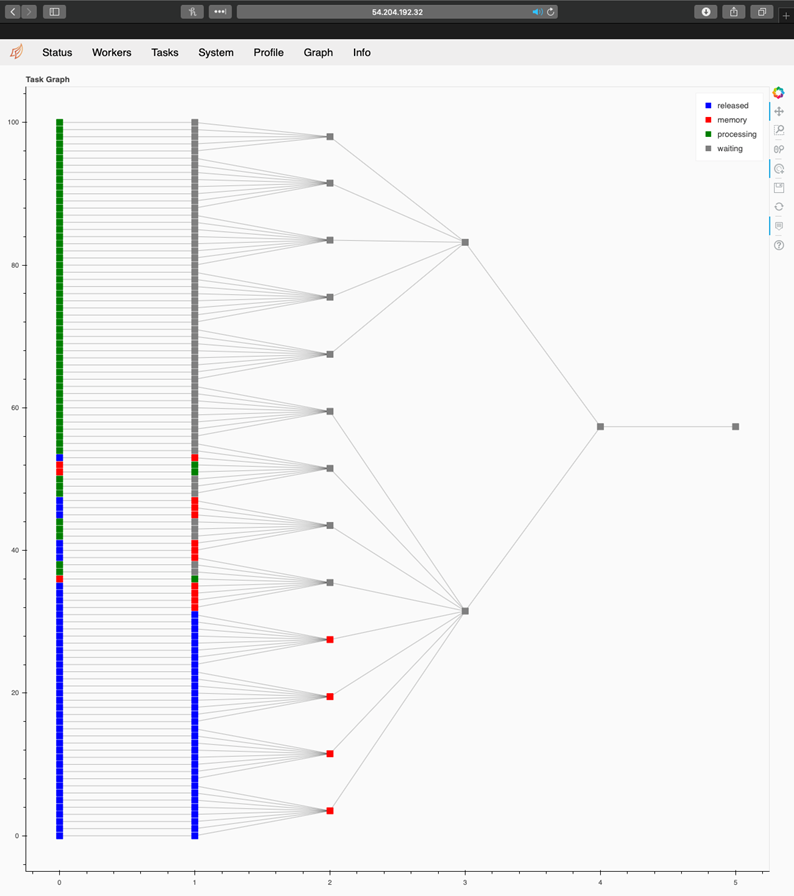
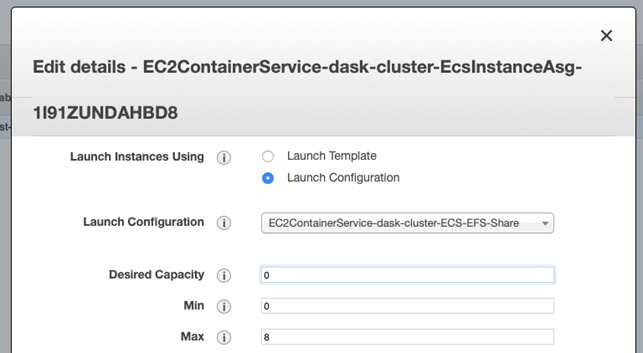
Once deployed, the workflow uses the Distributed Client to route computations to the cluster and accesses shared datasets by mounting EFS inside containers (for example, exposing /efs as /data). The chapter illustrates running a sentiment-classification example and monitoring it via the Dask dashboard—inspecting workers, memory pressure, task queues, task streams, and a real-time DAG view to diagnose bottlenecks. It concludes with practical cost management: pausing the cluster by reducing the auto scaling group’s desired capacity to zero, and removing ECR images to avoid storage charges, while noting Free Tier limits and how to safely restart later.
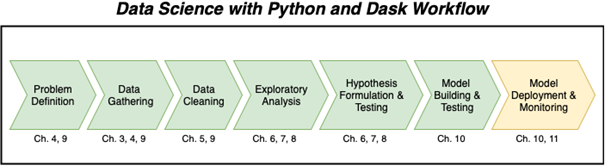
This chapter will cover the last element of the workflow: deployment and monitoring
An architecture diagram of our Dask Distributed cluster

The AWS Console home screen

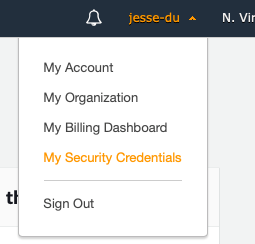
Account control menu
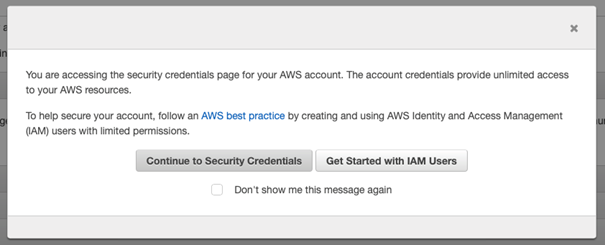
Security warning message
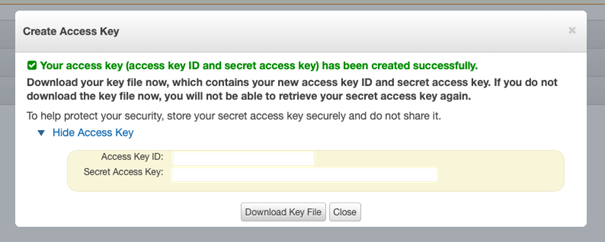
Create Access Key dialog box
Navigate to the EC2 dashboard
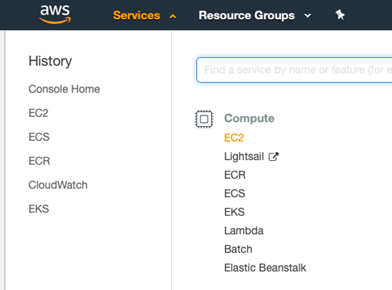
Navigating to the Key Pair view
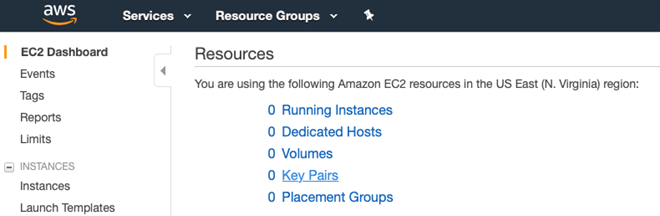
Select Create Key Pair
The Amazon ECS cluster management screen

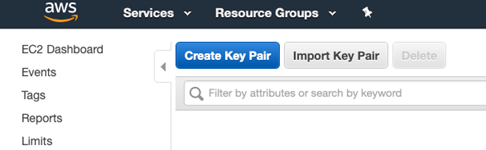
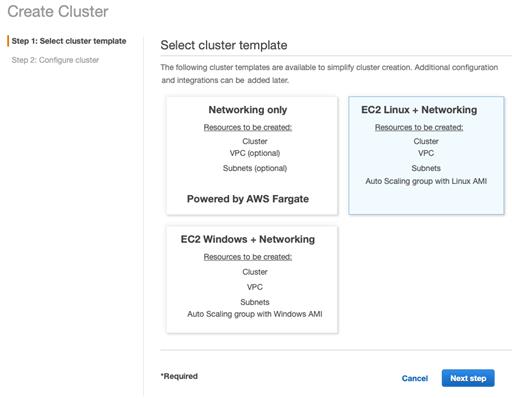
ECS create cluster wizard step 1
Cluster configuration settings

Cluster status window showing the newly built cluster

EC2 Dashboard menu showing Security Group configuration

An example security group for the ECS cluster
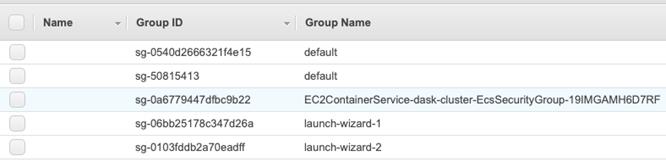
Inbound firewall rules
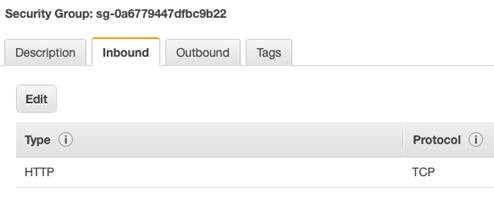
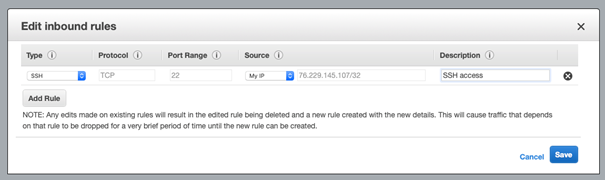
Example SSH firewall rule
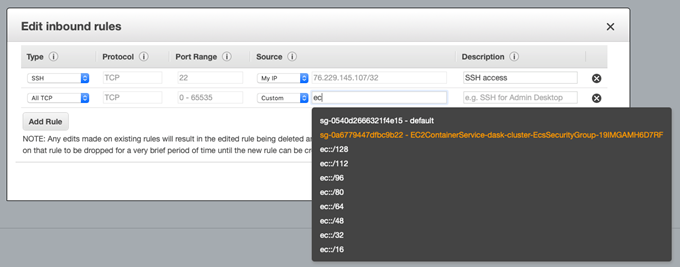
Creating an inbound rule from a security group
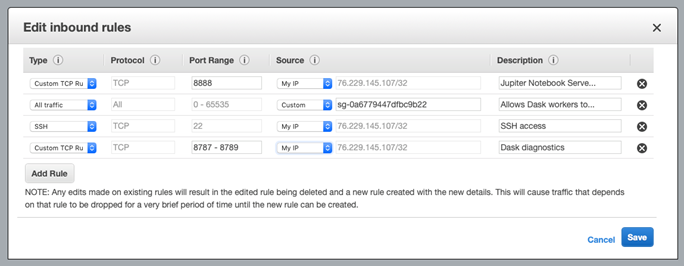
Firewall rules for Jupyter and Dask diagnostics
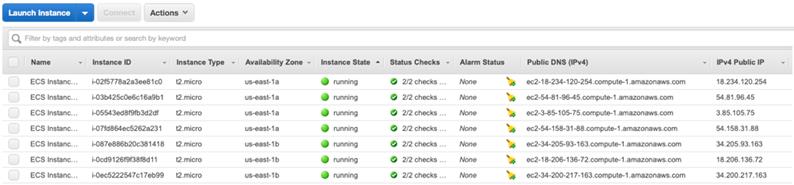
A list of all running EC2 instances
Successful connection to an EC2 instance

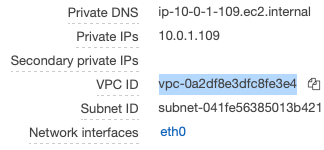
VPC ID in EC2 Instance Manager
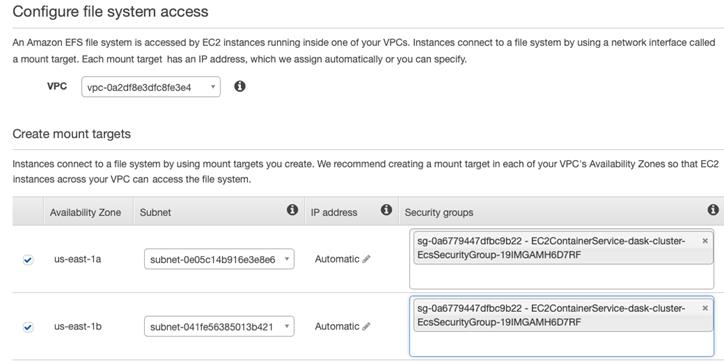
File system access configuration in EFS
DNS name of EFS

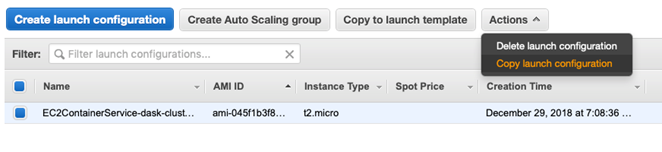
The Launch Configurations Manager
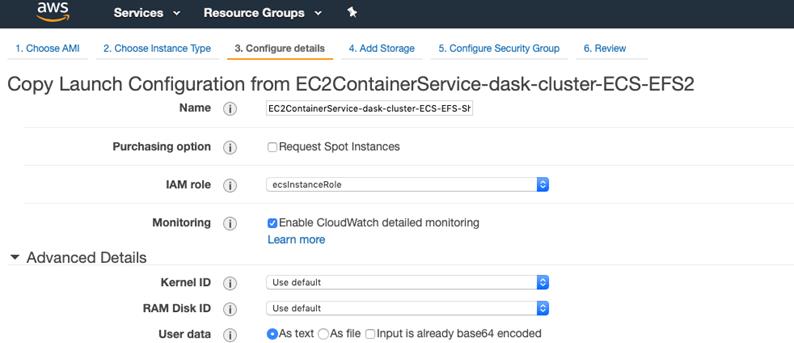
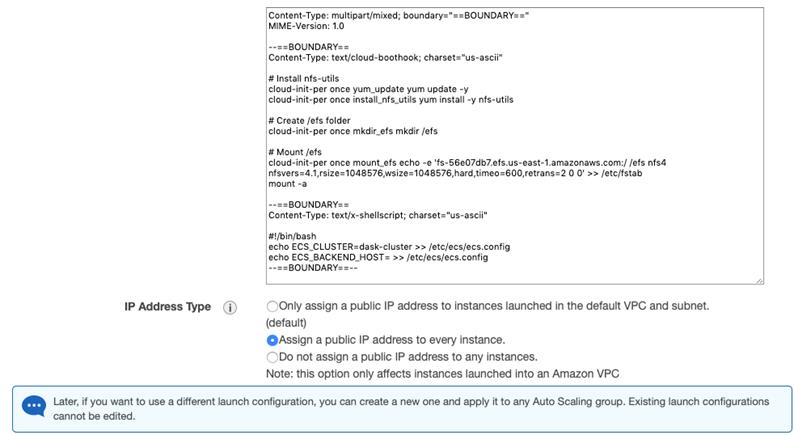
Launch configuration details
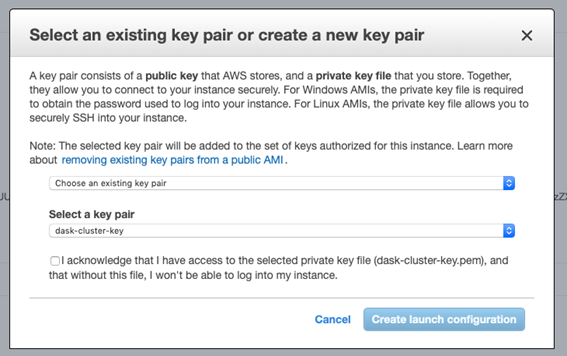
Confirmation of key pairs
Auto Scaling Group Manager
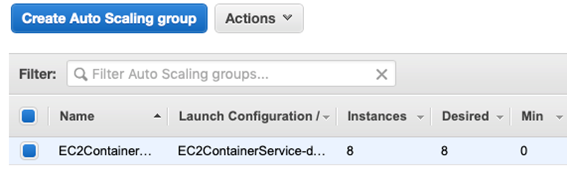
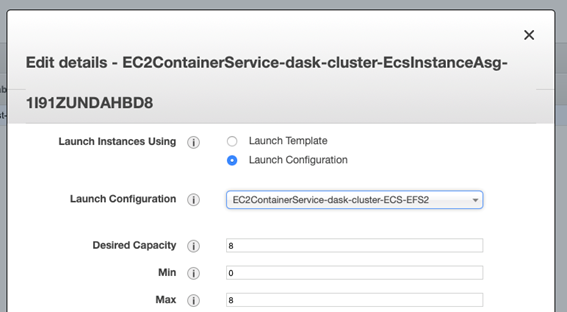
Auto Scaling Group configuration
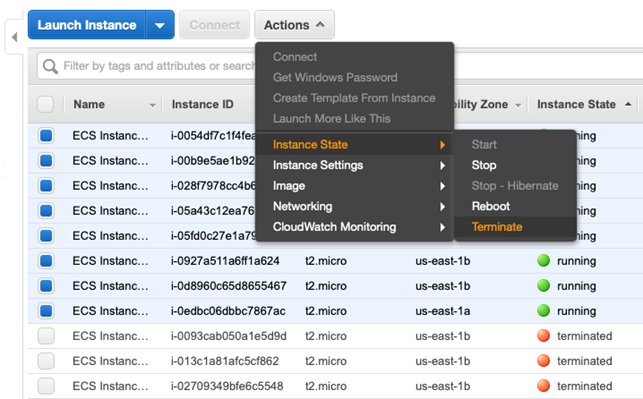
Cycling out EC2 instances to apply new launch configurations
Using SCP to upload the data

Extracting the uploaded data

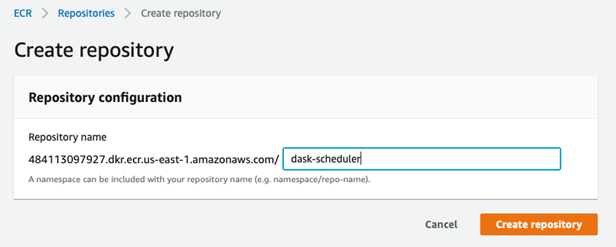
Creating an ECR repository
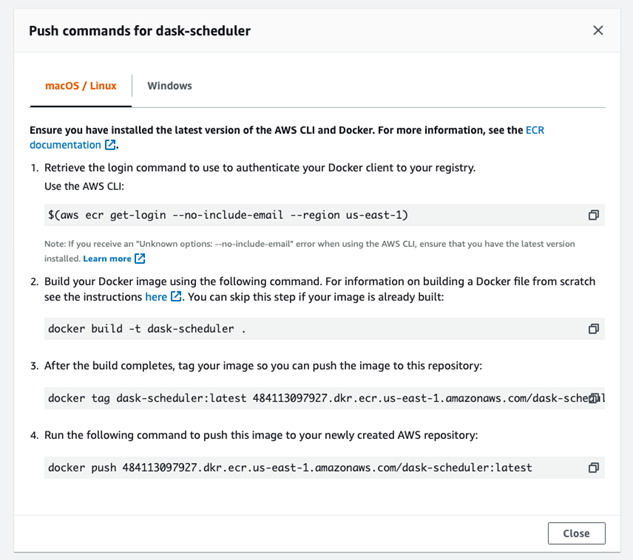
Docker push commands for dask-scheduler
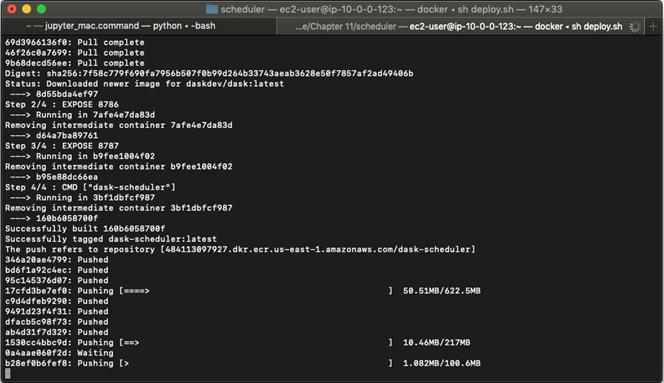
Building the dask-scheduler image
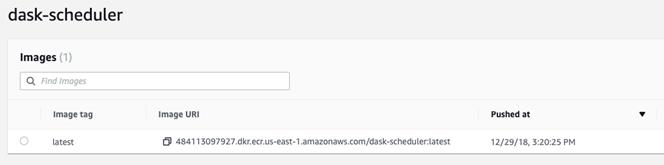
Verifying the image exists in ECR
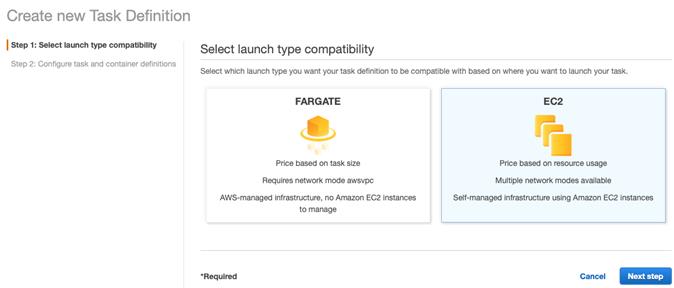
Selecting a launch type compatibility for the scheduler image
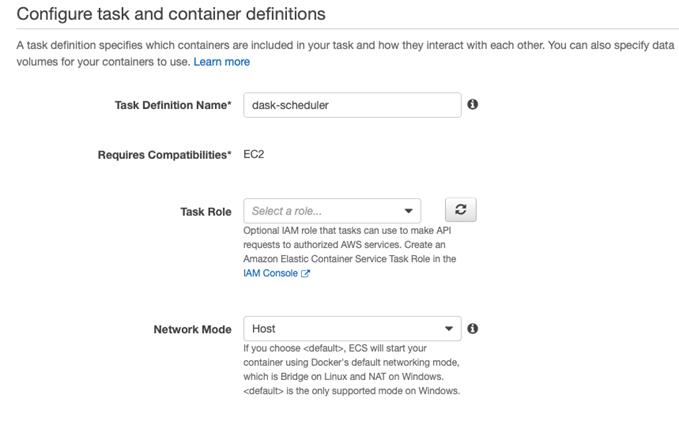
Task definition configuration
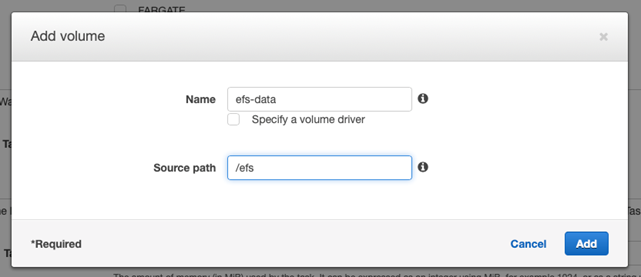
Volume configuration
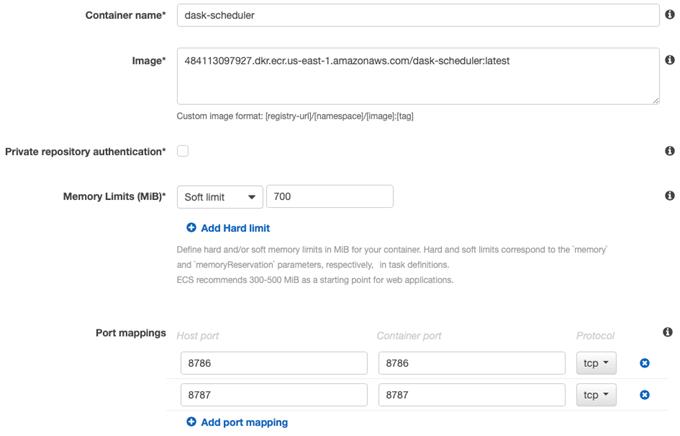
Container configurations for dask-scheduler
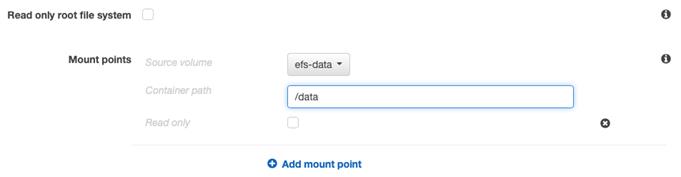
Mount point configuration
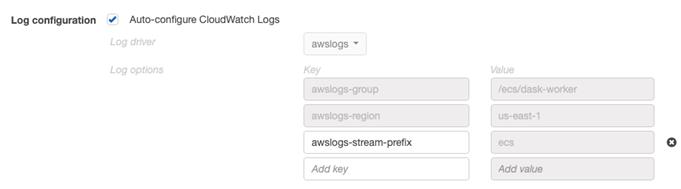
Logging settings
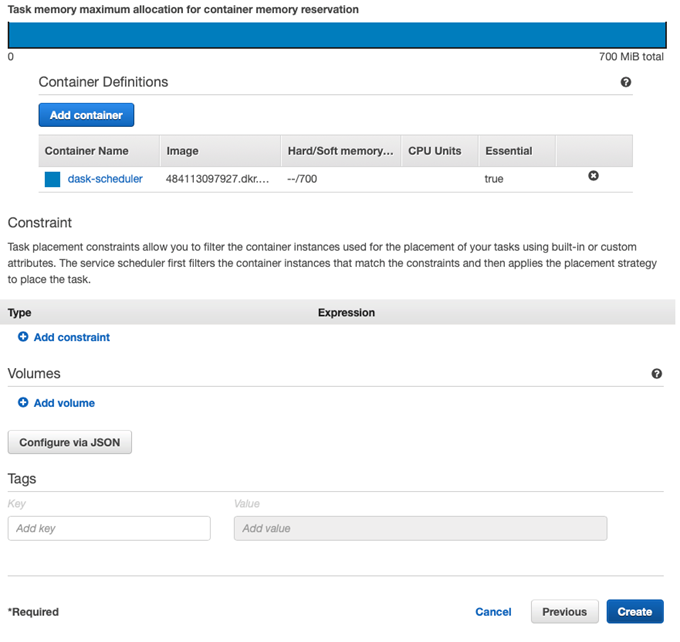
Complete container configuration
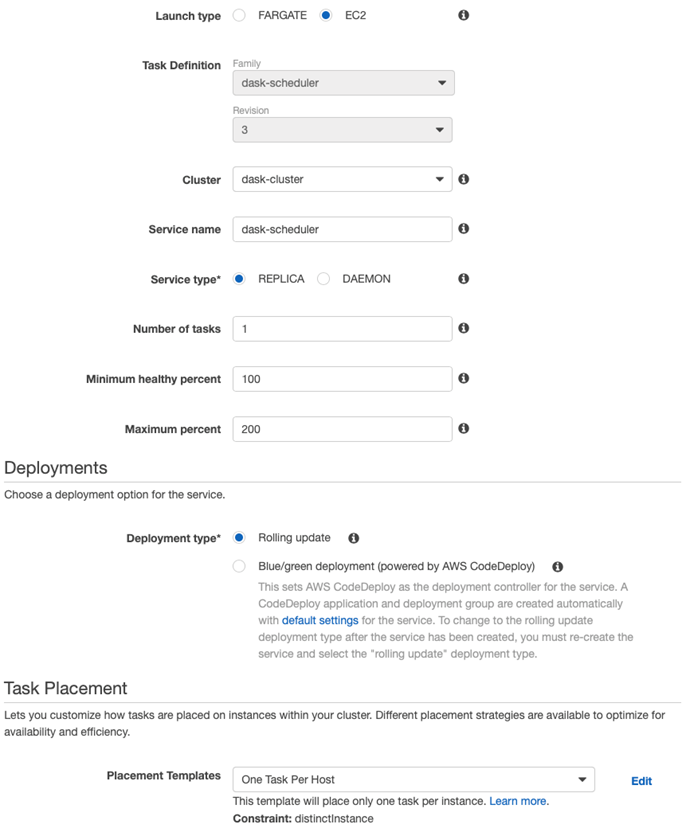
Service configuration for dask-scheduler
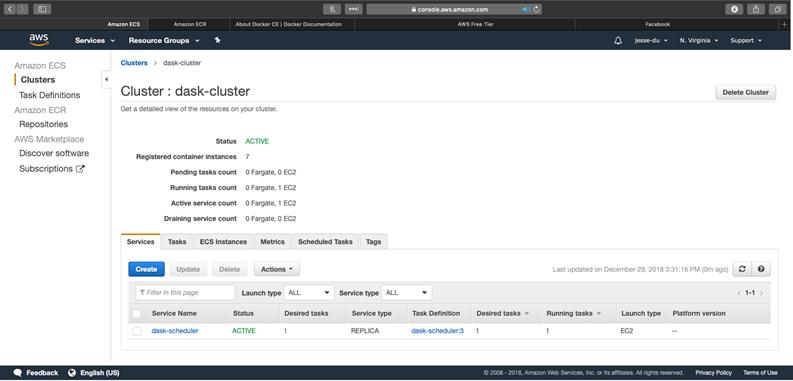
Status of dask-cluster
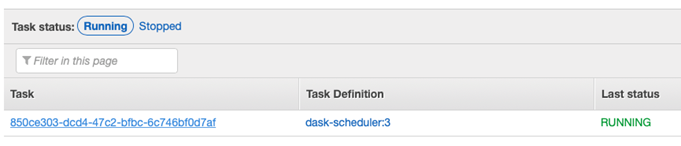
Example of a running task
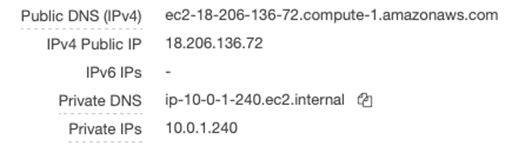
Example IP and DNS information of an EC2 instance
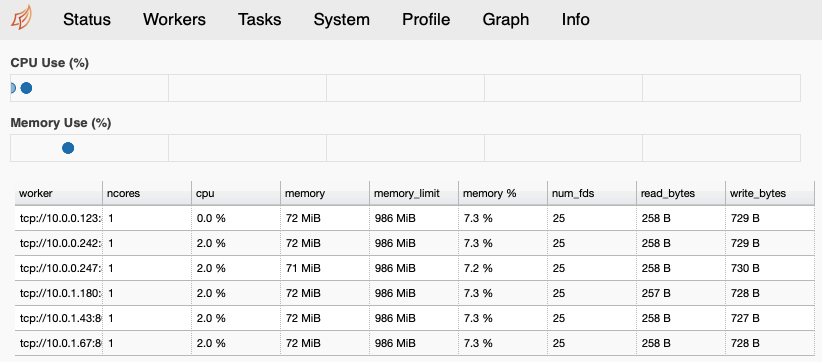
Dask cluster worker status
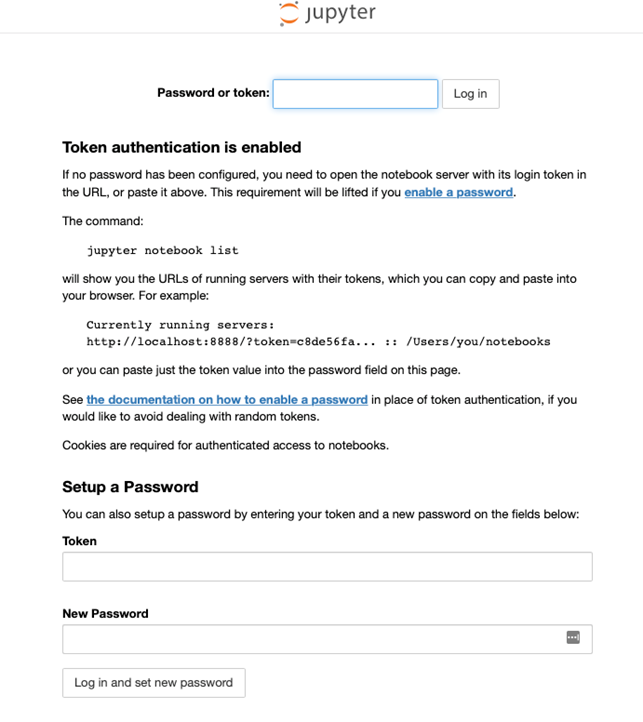
Jupyter login screen
Task logging screen

The Jupyter Lab window
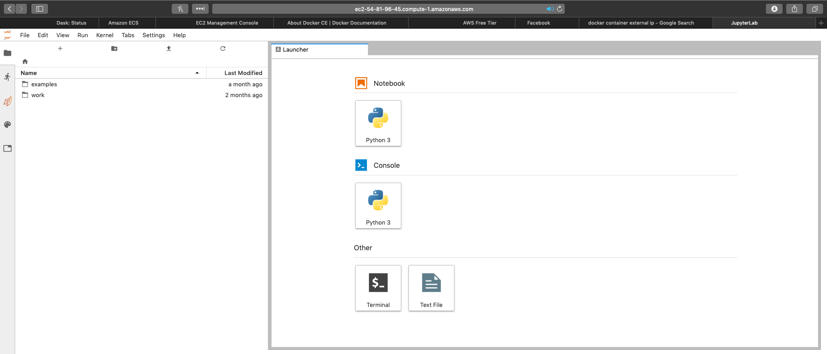
Uploading a notebook to the Jupyter Notebook server

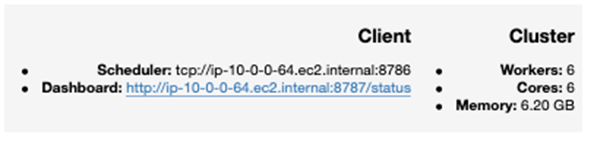
Client statistics for the cluster
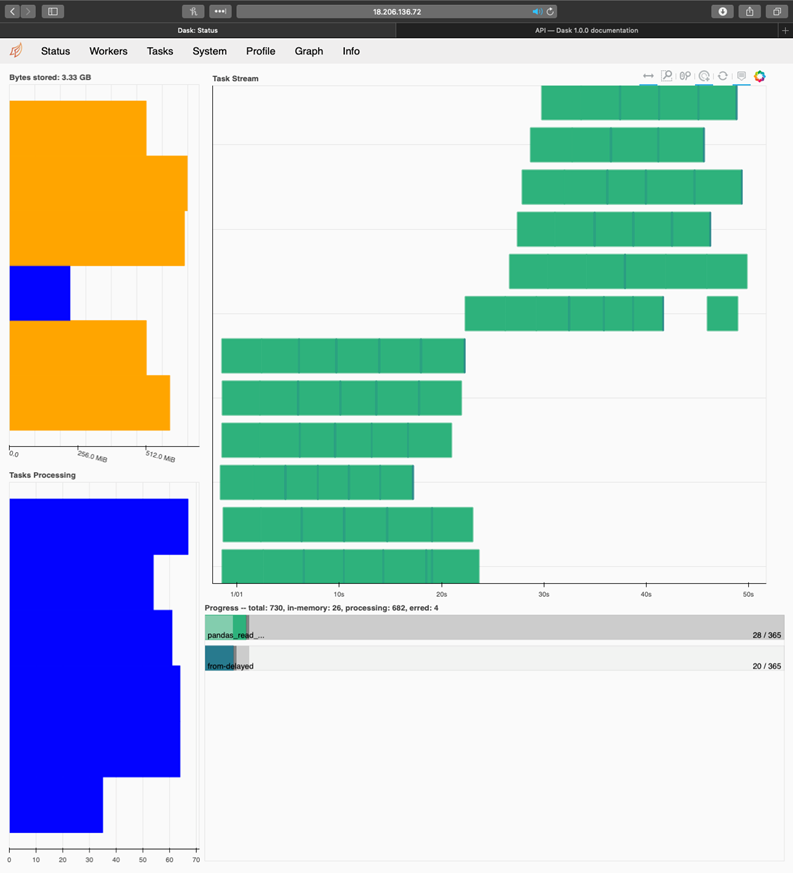
An example of the Dask diagnostics page
Real-time DAG view
Shutting down the EC2 auto scaling group
Summary
In this chapter you learned
- How to set up a Dask cluster on Amazon AWS using Docker and ECS
- How to execute Dask jobs on a distributed cluster
- How to monitor job execution and identify problems
- How to clean up the Dask cluster on Amazon AWS
FAQ
When should I use Dask cluster mode instead of local mode?
Use cluster mode when a single machine becomes a bottleneck for memory or CPU, or when you need faster turnaround in production. Local mode runs everything on one machine and is great for prototyping; cluster mode spreads work across many machines so jobs finish sooner. Your Dask code generally does not change—Dask makes the scheduler choice (local vs cluster) transparent.What are the main components of a Dask Distributed deployment and their roles?
- Scheduler: Coordinates the work, hands out tasks to workers, and tracks dependencies.- Workers: Execute tasks and hold data in memory/disk as needed.
- Jupyter Notebook server: Your interactive front-end to submit jobs and explore results.
- Client: The Python object (in your notebook/app) that talks to the scheduler and submits work.
Which AWS services does the reference architecture use, and why?
- EC2: Virtual machines that host Docker containers for scheduler, workers, and notebook.- ECS: Orchestrates Docker containers across EC2 instances (no manual per-VM setup).
- ECR: Private Docker registry to store your built images (scheduler/worker/notebook).
- EFS: Shared file system mounted on every EC2 instance so all containers see the same data.
- IAM: Grants ECS/EC2 permissions (instance role for ECS agents).
- CloudWatch Logs: Centralized logs for containers (e.g., Jupyter token, service debugging).
What networking and security group rules are required?
- Allow SSH (port 22) from your IP to log into EC2 instances.- Allow all TCP within the ECS cluster security group so scheduler/workers can talk.
- Open Jupyter: TCP 8888 from your IP.
- Open Dask diagnostics: TCP 8787–8789 from your IP.
- Use the EC2 public DNS name/IP to reach notebook (8888) and dashboard (8787) from your browser.
How do I provide shared storage to all workers and containers?
Use Amazon EFS and mount it on each EC2 instance at /efs via the launch configuration’s user data (installs nfs-utils, updates /etc/fstab, mounts on boot). In ECS task definitions, mount the host path /efs into containers at /data. Upload datasets once (e.g., scp to any instance and move to /efs) and all containers will see them at /data.How do workers and notebooks discover the scheduler’s address without hardcoding IPs?
A simple file-based service discovery is used: when the scheduler starts, it writes its hostname to an .scheduler file on EFS. Worker and notebook containers read this file on startup and point to the scheduler accordingly. Ensure the scheduler service starts before workers and notebook.How do I build, push, and run the Docker images for scheduler, workers, and notebook?
- Create three ECR repositories: dask-scheduler, dask-worker, dask-notebook.- For each image: docker build, tag with the ECR Image URI, docker push (use ECR “View push commands”).
- Create ECS task definitions and services:
- Scheduler: Network mode Host; ports 8786 and 8787; mount /efs→/data; 1 task; one task per host.
- Workers: Map port 8000; mount /efs→/data; number of tasks equals desired workers (e.g., 6).
- Notebook: Network mode Default; port 8888; mount /efs→/data; 1 task.
- Use CloudWatch Logs for all to simplify troubleshooting.
How do I access the Dask dashboard and Jupyter Notebook?
- Dask dashboard: http://- Jupyter: http://
How do I run my code on the cluster and monitor jobs?
- In your notebook, create a Distributed Client (from dask.distributed import Client; client = Client()). The scheduler address is read from environment variables set by the container build.- Read data from /data (the container view of EFS).
- Use the Dask dashboard (Status, Workers, Graph) to watch memory pressure, task queues, task stream, and progress. If memory is tight (yellow bars), consider increasing partitions or reducing chunk sizes.
How do I scale, stop, and clean up to control costs (Free Tier tips)?
- Scale/stop EC2: In the Auto Scaling Group, set Desired Capacity to the number of instances you need, or to 0 to shut down. With 8 instances, you consume 8 instance-hours per clock hour; the EC2 Free Tier is 750 hours/month (~93 hours at 8 instances).- EFS: Free up to 5 GB; charges beyond that by GB-month.
- ECR: Free Tier is 500 MB/month; the three images are ~2 GB. Delete ECR repositories when done to avoid storage charges.
- To resume later, scale ASG back up and (if needed) rebuild/push images and recreate ECS services.

 Data Science with Python and Dask ebook for free
