2 First steps with AI-assisted coding
This chapter introduces practical, first steps with AI‑assisted coding by diving straight into GitHub Copilot. It sets expectations that the best way to learn is to experiment, and frames Copilot as an interactive “rubber duck” that not only listens but proposes solutions. The chapter explains at a high level what Copilot is—an AI pair‑programmer trained on large amounts of public code—why context is central to its usefulness, and how a continuous feedback loop shapes its suggestions. It also highlights that Copilot is available in popular IDEs, is a paid tool for most users, and that its assistance can quickly make developers more productive without replacing careful engineering judgment.
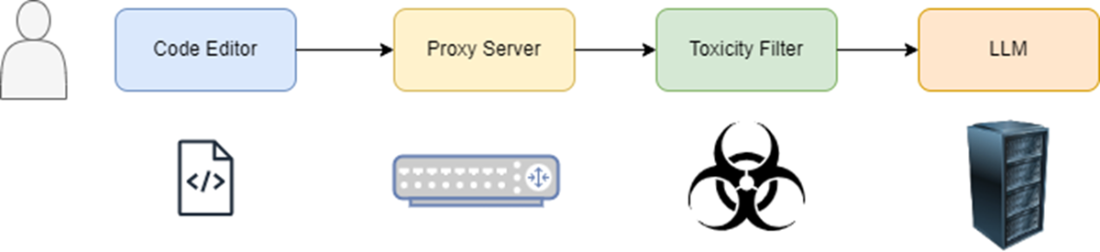
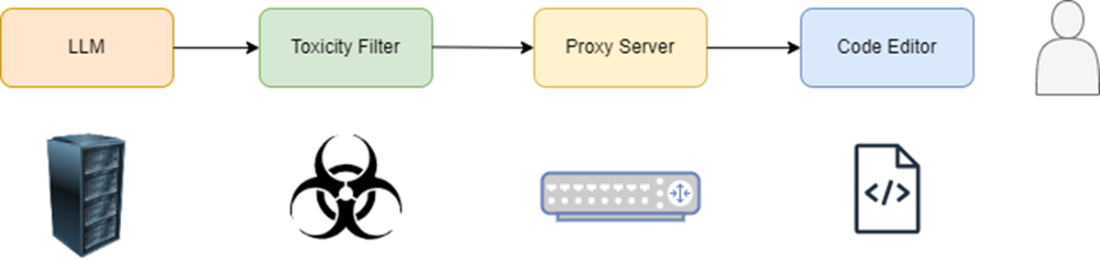
Readers learn how Copilot works end‑to‑end: prompts and surrounding code are sent with rich context (file contents, cursor position, open tabs, project structure), pass through safety and quality filters, are completed by the model, and then returned with additional outbound checks for toxicity, security, and code quality. The chapter covers key interaction modes—inline code completion, full code generation, language translation, debugging help, and documentation generation—plus the integrated chat experience that is aware of your workspace. It provides reusable prompt patterns for common tasks (finding errors, refactoring, generating boilerplate, adding tests, explaining code, and comparing options) and explains why techniques like Fill‑In‑the‑Middle improve relevance. Throughout, it underscores that results vary and must be reviewed, tested, and refined.
The chapter culminates in a hands‑on Python project that performs simple NLP to analyze word frequency from a public text. Using VS Code, a Python virtual environment, and Copilot, the reader incrementally builds the app: reading a file, normalizing and cleaning text, tokenizing, counting words, and visualizing the top terms with a bar chart in Matplotlib. Along the way, Copilot proposes completions from comments, helps refactor less efficient code, and even assists with performance comparisons between alternative implementations. The exercise reinforces good habits—isolated environments, explicit imports, adding an executable main entry point, installing dependencies—and the central lesson: Copilot accelerates routine work and exploration, but developers should validate, profile, and iterate to produce robust, maintainable code.
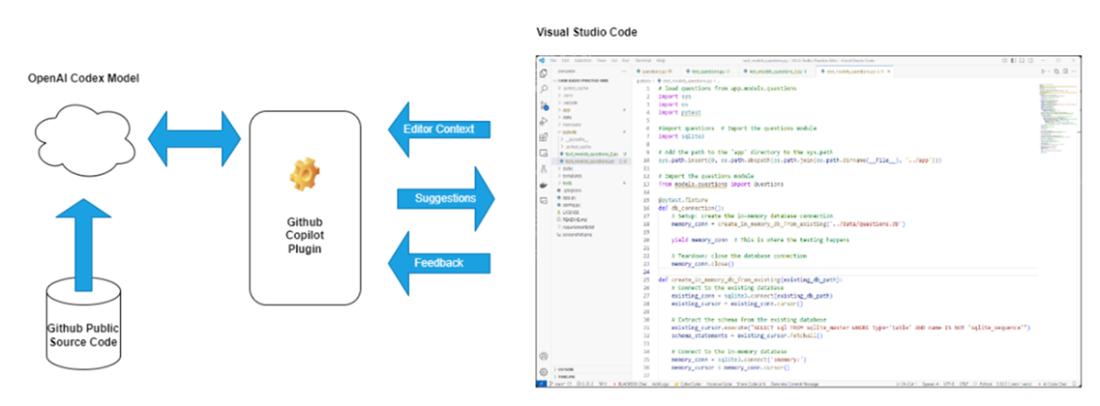
GitHub Copilot takes the code from your editor and analyzes it. It then sends suggestions back from the Codex model. Whether you choose to use those suggestions is fed back into the model for feedback.
The inbound flow to GitHub Copilot
Outbound flow from the LLM back to the code editor.
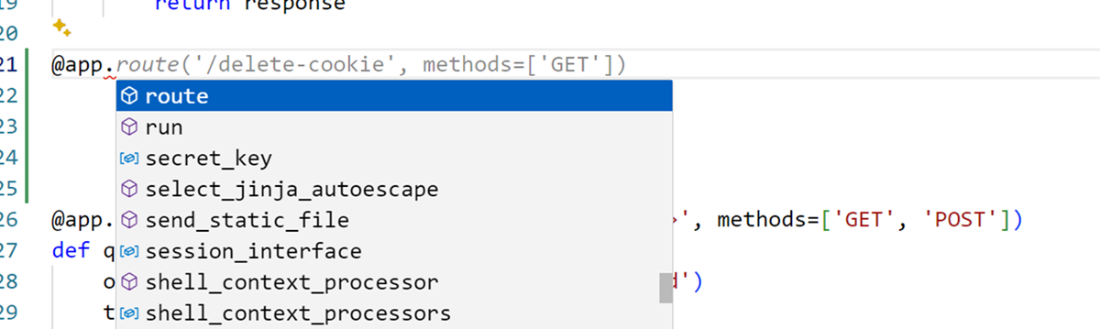
Copilot can suggest code completions as you type by analyzing comments or surrounding code for context.
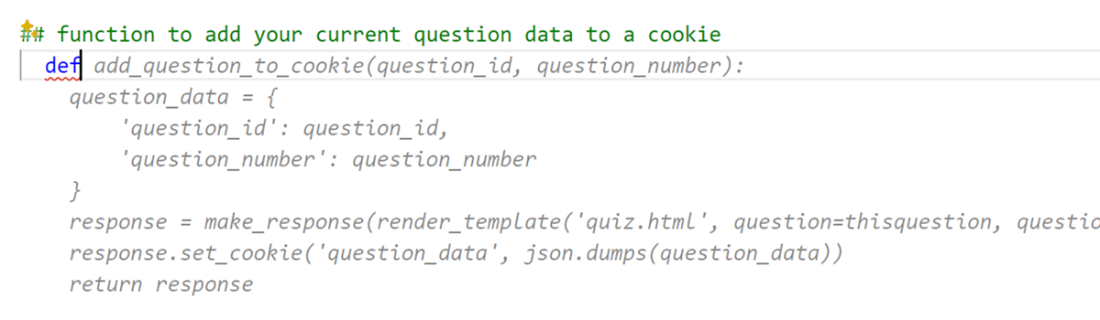
Copilot can generate entire functions or segments of code based on comments or partial code snippets.
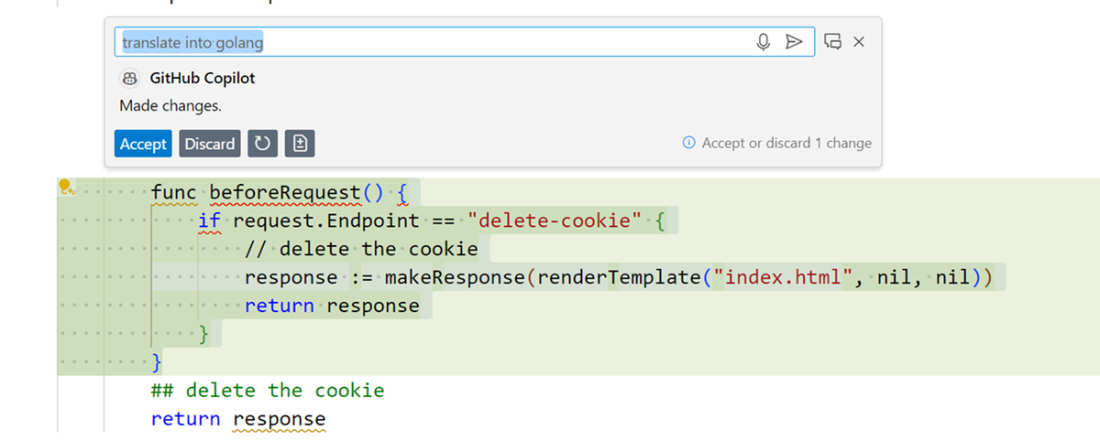
You can use Copilot to translate from one language to another. Here I have highlighted a section of Python code and asked Copilot to translate it into Go.
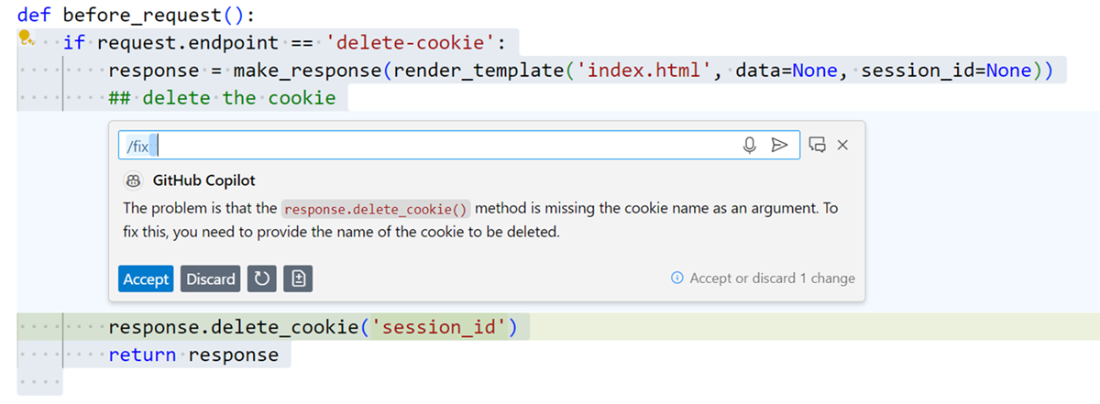
You can highlight a problematic section of code and get suggestions to fix it. You can either accept the answer and have the code inserted or discard it an attempt a fix of your own.
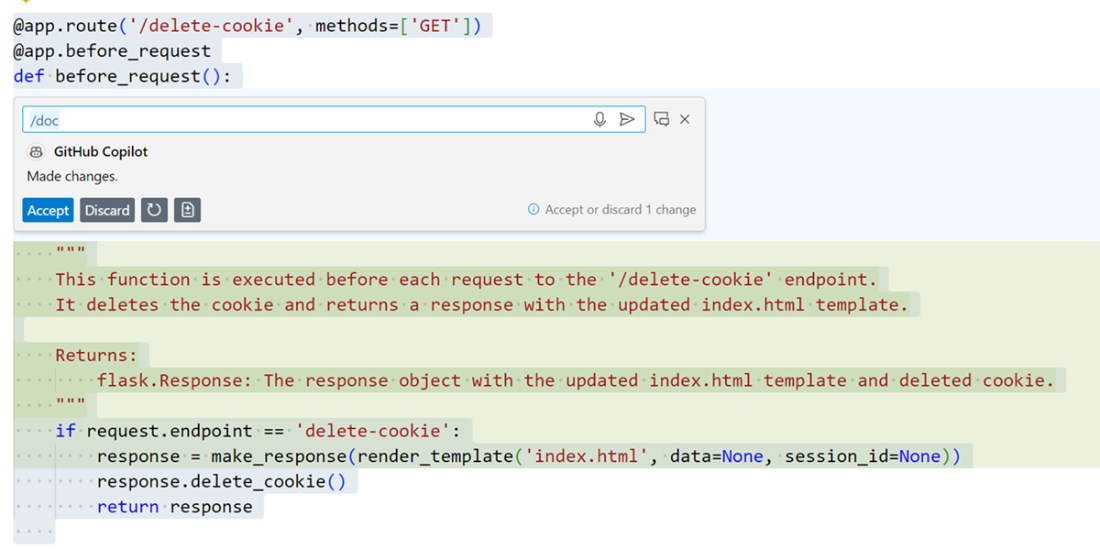
You can automatically generate comments and other code documentation with Copilot. This is one of my favorite features of the tool, as it saves a tremendous amount of time.
GitHub Copilot can perform many actions from a right click menu within your IDE.

Copilot has a traditional chat window interface within Visual Studio so you can carry out a “conversation” with the tool if needed.
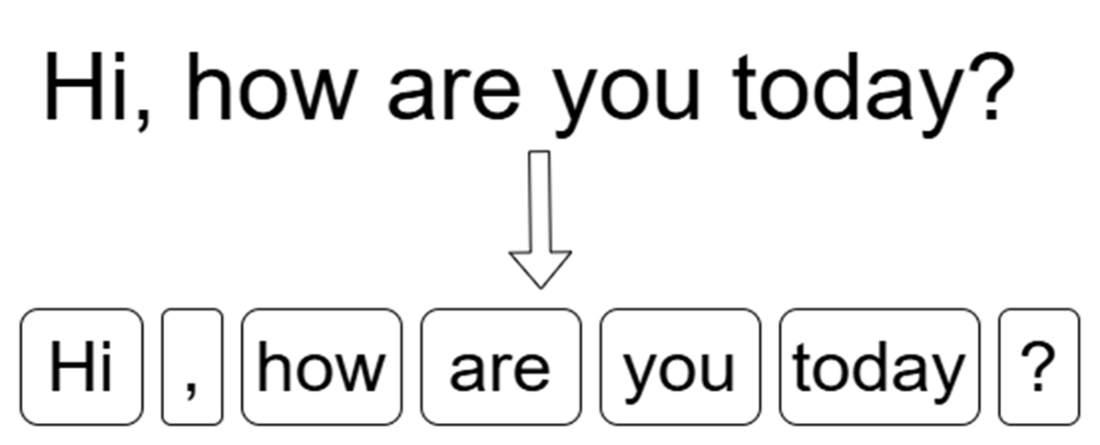
Word-based tokenization breaks whole words and punctuation into chunks that can be processed and analyzed.
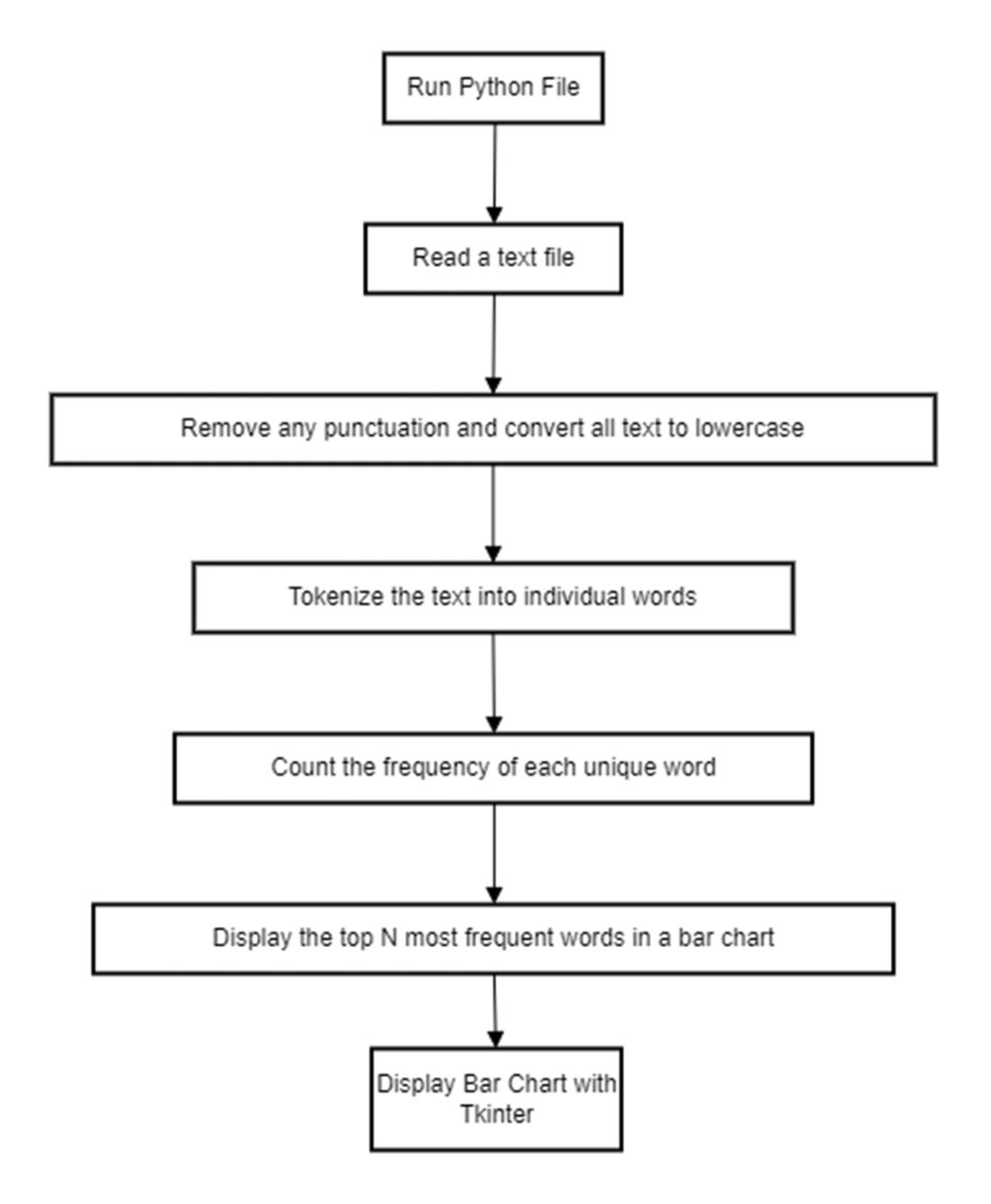
The workflow of our sample application
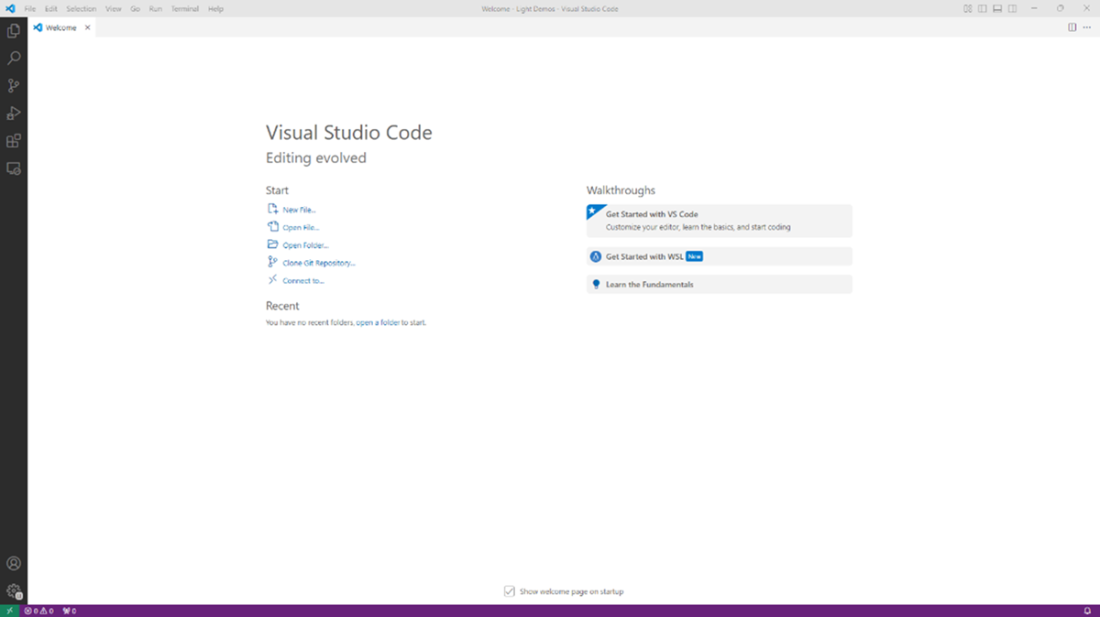
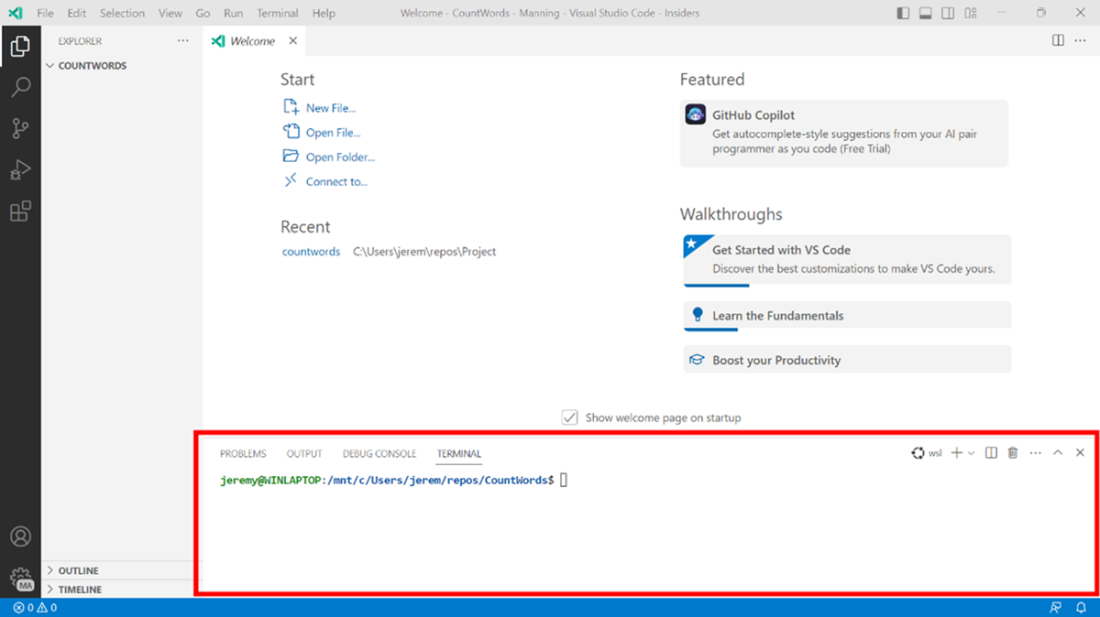
Visual Studio Code opened to a new folder.
Location of the Terminal Window
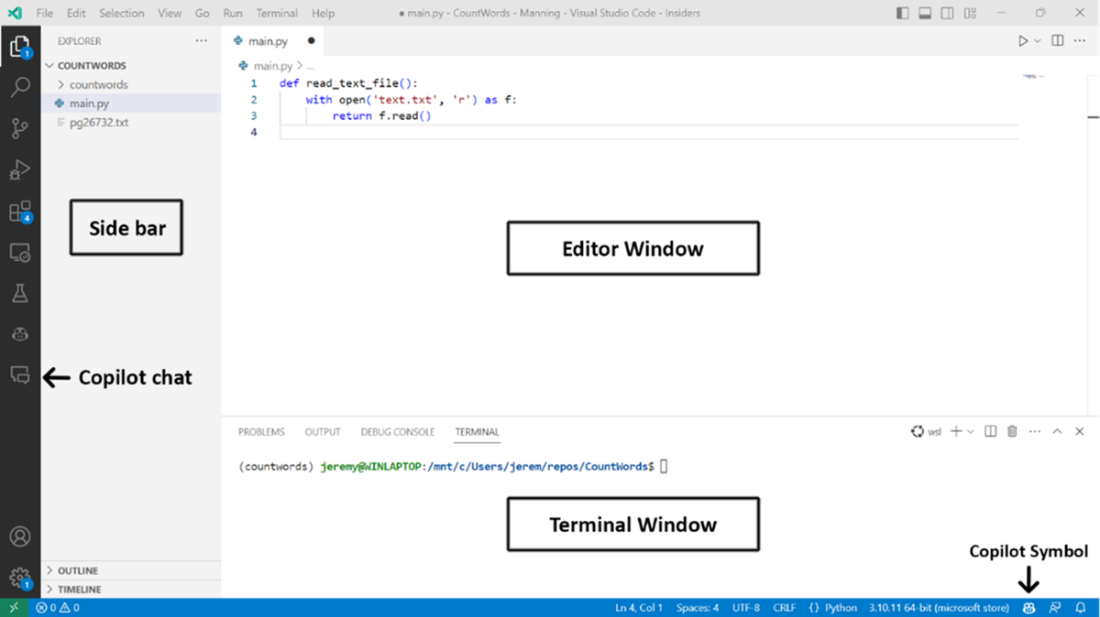
The Visual Studio Layout, showing Copilot is accessible in the activity bar, and the lower taskbar.
A terminal window showing an active Python environment.

A typical Copilot suggestion

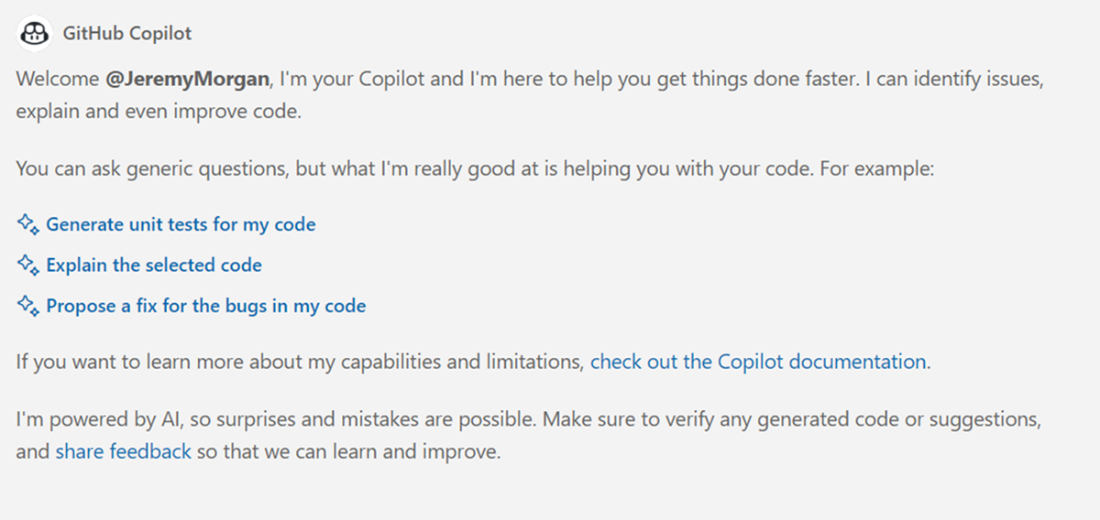
The GitHub Copilot Chat welcome screen
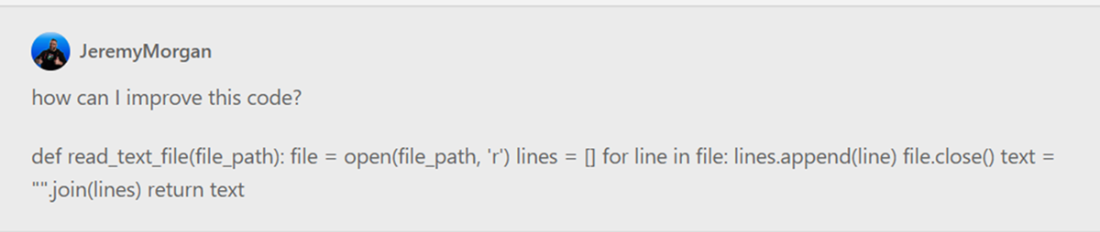
Prompt entered in Copilot Chat
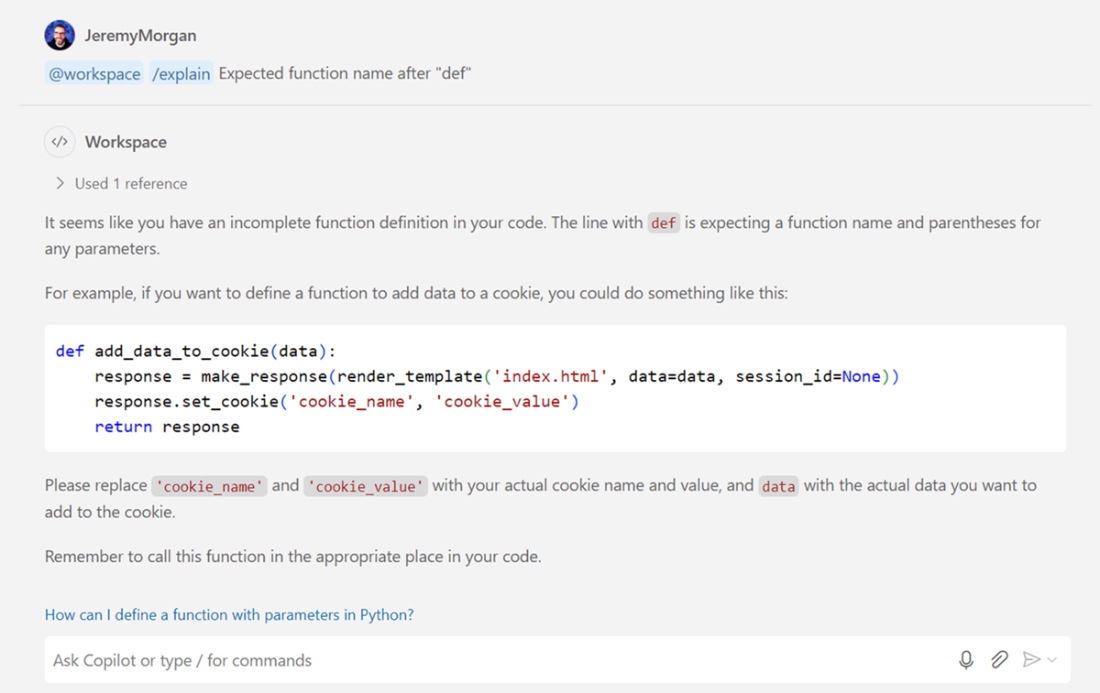
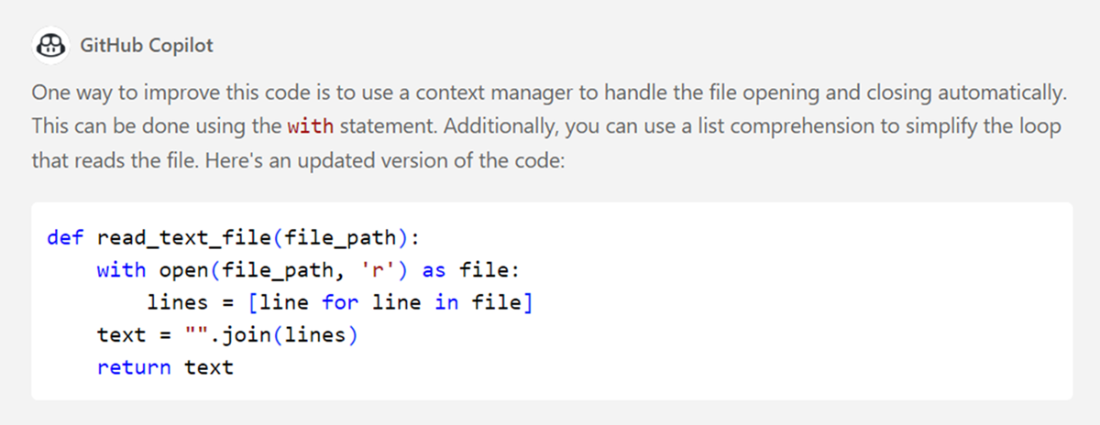
A response from Copilot Chat
The options are shown in the Copilot toolbar.

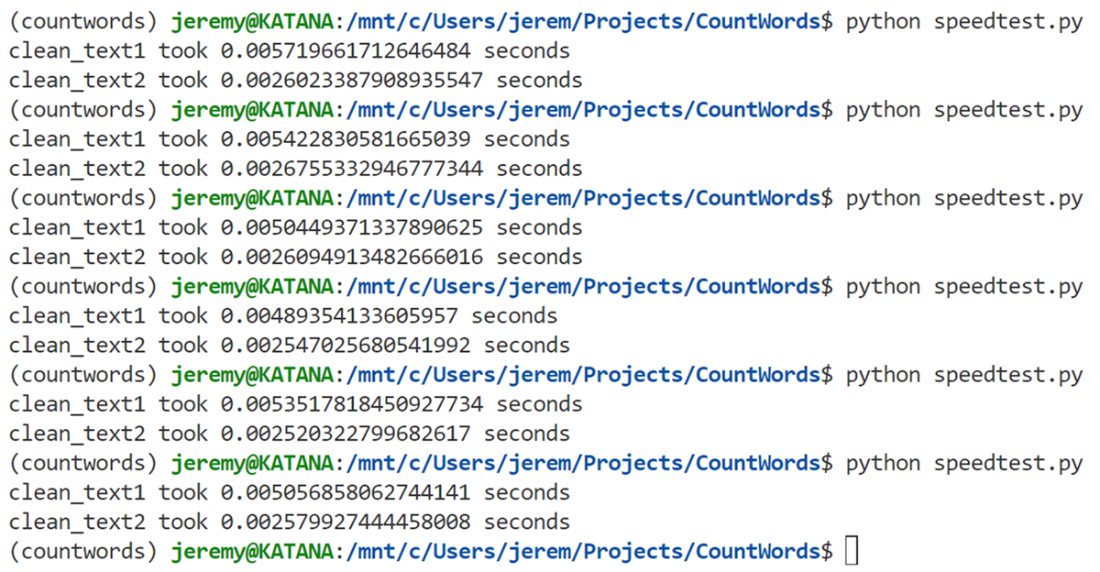
Output from our program
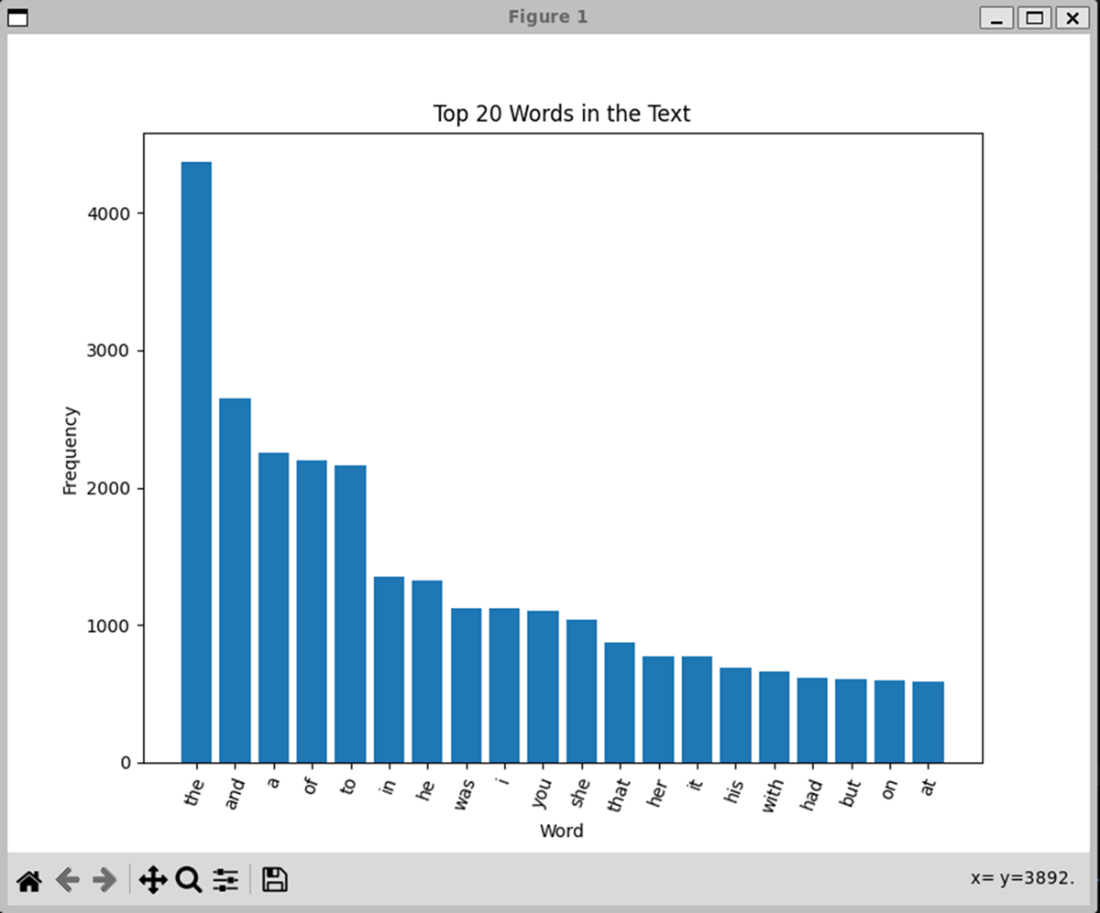
Our Matplotlib graph shows the top 20 words in the text file.
Summary
- Be as clear and descriptive as possible. Copilot evaluates comments and function names for suggestions. For example, connect_to_database is better than get_data.
- Use complete sentences and clear directions. For example, “Convert the text to lowercase” is better than “make lowercase.”
- Provide sufficient context when selecting code. You improve the results by selecting more than just the line of code with a problem. Surrounding text gives the request more context to work with.
- Don’t create large prompts. The idiom “Do one thing and do it well” applies to prompts. If they are too long and complex, they should be broken down to prevent errors.
- You can always try different prompts. If the prompt you use in the chat isn’t giving you what you want, you can get creative and try different things. Make a note of the prompts that serve you well.
- Chat with Copilot like a human. If you get stuck, try conversing like you would talk to a real person about the problem. This is what the model was designed for, and it works well.
- Always review and test generated code. As demonstrated with the text cleaning functions, Copilot's first suggestion may not be the most efficient or secure solution.
- Use Copilot's different interaction methods appropriately. Code completion works well for simple tasks, while chat is better for refactoring or understanding complex code.
- Remember that context matters. Copilot analyzes your entire workspace, so keeping related files open and organized can improve its suggestions.
- Don't be afraid to iterate. As shown in the text cleaning example, you can generate multiple solutions and test them to find the best one.
- Consider performance implications. While Copilot generates working code, you may need to profile and optimize it for your specific needs, as demonstrated in the punctuation removal comparison.
- Include proper error handling and edge cases. The example showed how adding UTF-8 encoding support could make the file reading more robust across different operating systems.

 Coding with AI ebook for free
