This chapter guides you through assembling a practical NES homebrew development environment on modern PCs so you can focus on game logic rather than tooling hurdles. It outlines the essential components—an emulator, a capable text editor, an assembler, and specialized graphics and audio tools—while noting platform differences across Windows, Linux, and macOS. With contemporary software, you can replicate and surpass the original hardware dev kits, benefiting from streamlined build, test, and debug workflows.
For running and debugging code, software emulation is the standard approach: it’s far more convenient than wiring a physical console, though final builds should still be validated on real hardware. Several mature emulators provide high accuracy and integrated debugging; a standout is Mesen for its tooling and active development, with alternatives such as FCEUX and iNES also covered. Options vary by platform, and macOS users can supplement availability with virtualization when needed.
On the editing side, modern IDE features like syntax highlighting and in-editor builds are emphasized, with Visual Studio Code and Sublime Text presented as cross‑platform choices complemented by 6502/ca65 extensions. For building, the community standard cc65 toolchain is recommended, with NESASM and ASM6 as alternatives. Asset creation is addressed through NES‑focused graphics editors suited to tiles, sprites, and CHR data, alongside other utilities that can help when sourcing or refining art. For audio, tracker-based tools are introduced: FamiTracker offers deep capability on Windows, while the more approachable, cross‑platform FamiStudio provides a solid workflow; both include playback engines that can be integrated into your game.
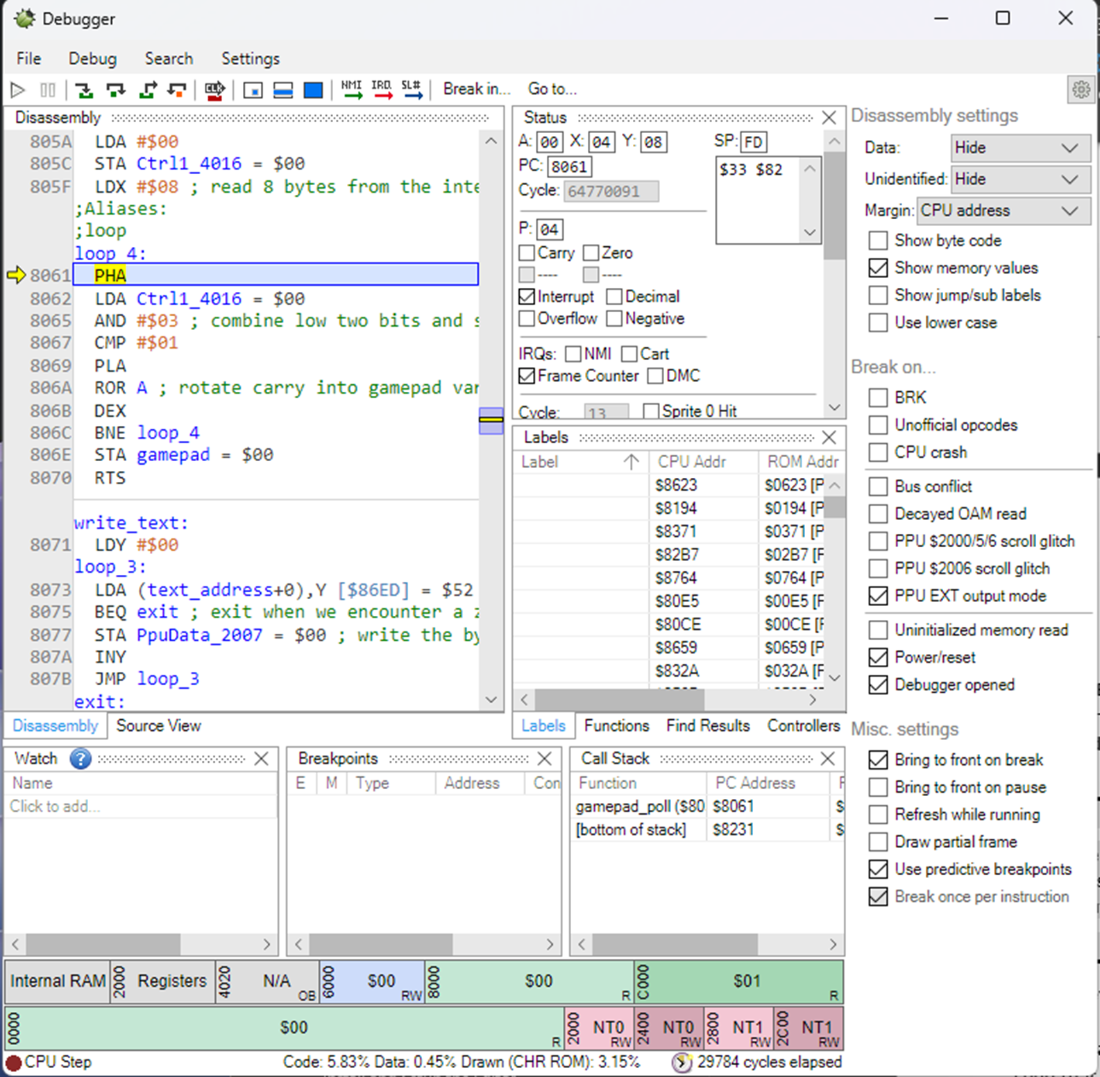
Mesen Debugger in Action
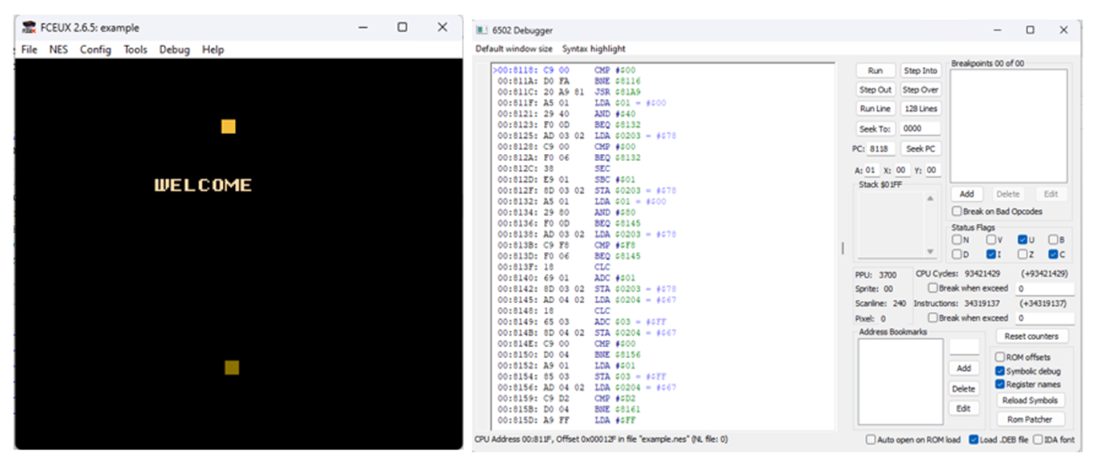
FCEUX running on Windows.
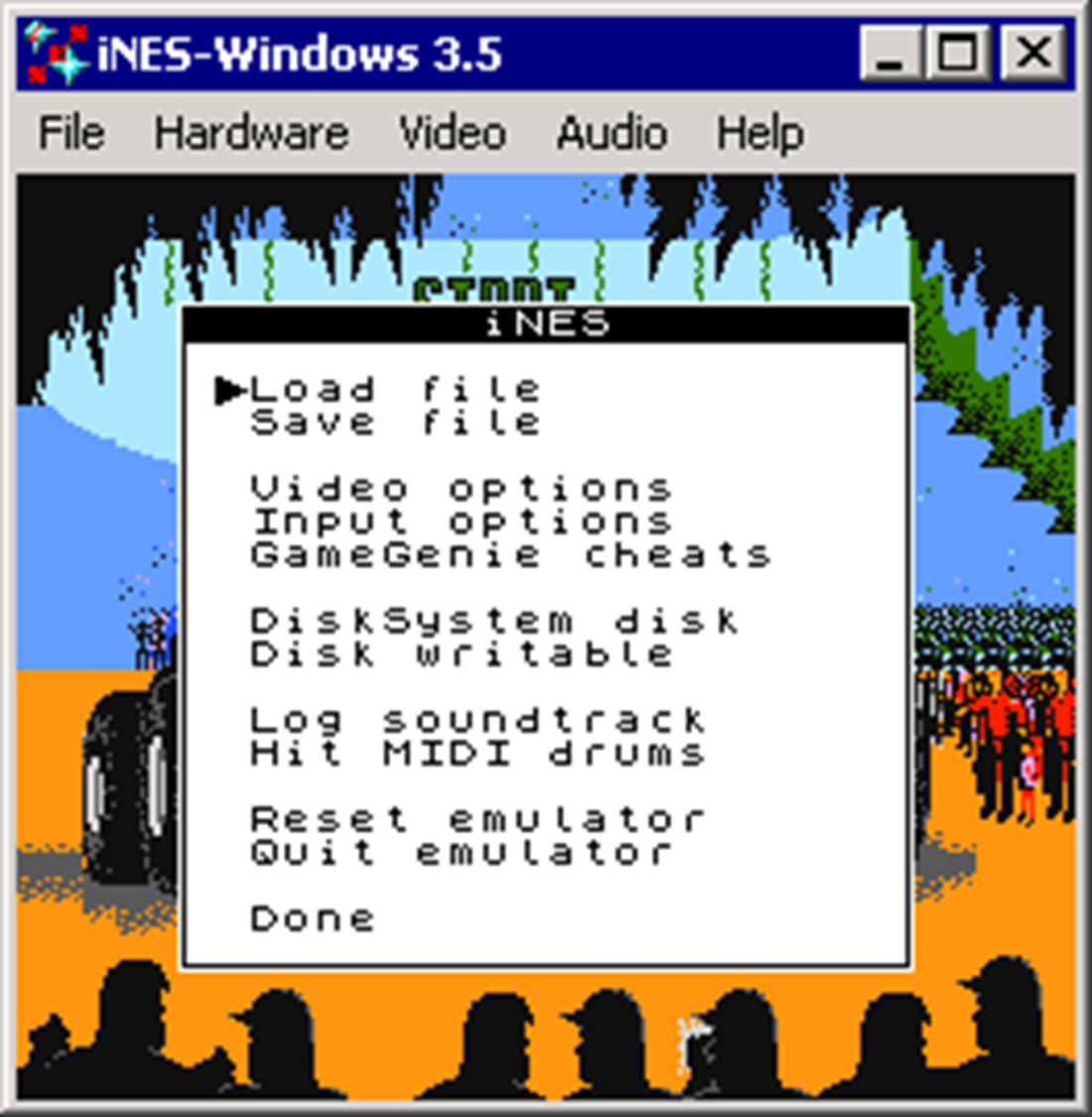
iNES Emulator Windows Version
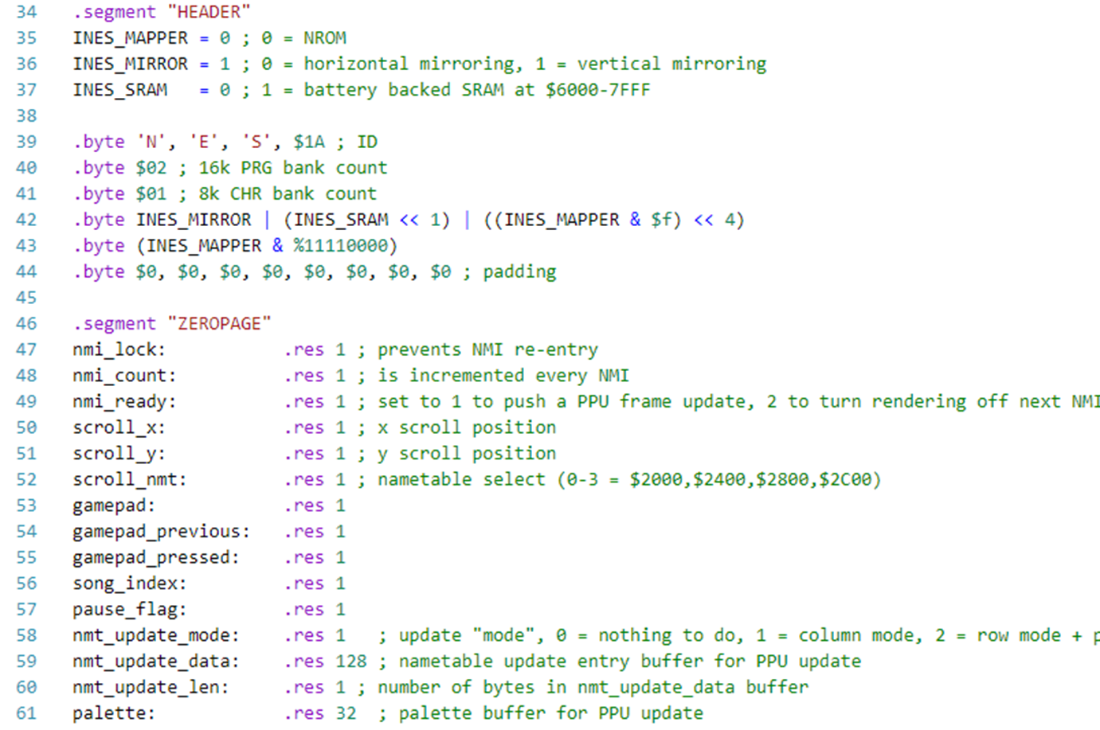
Source text formatting
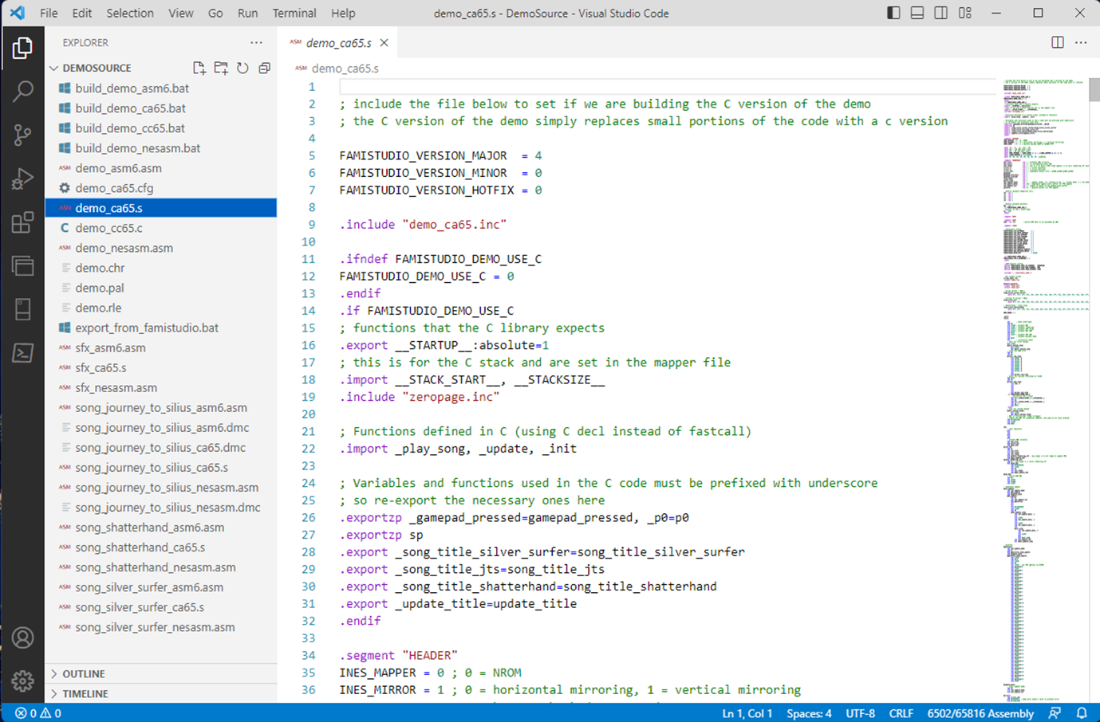
Visual Studio Code
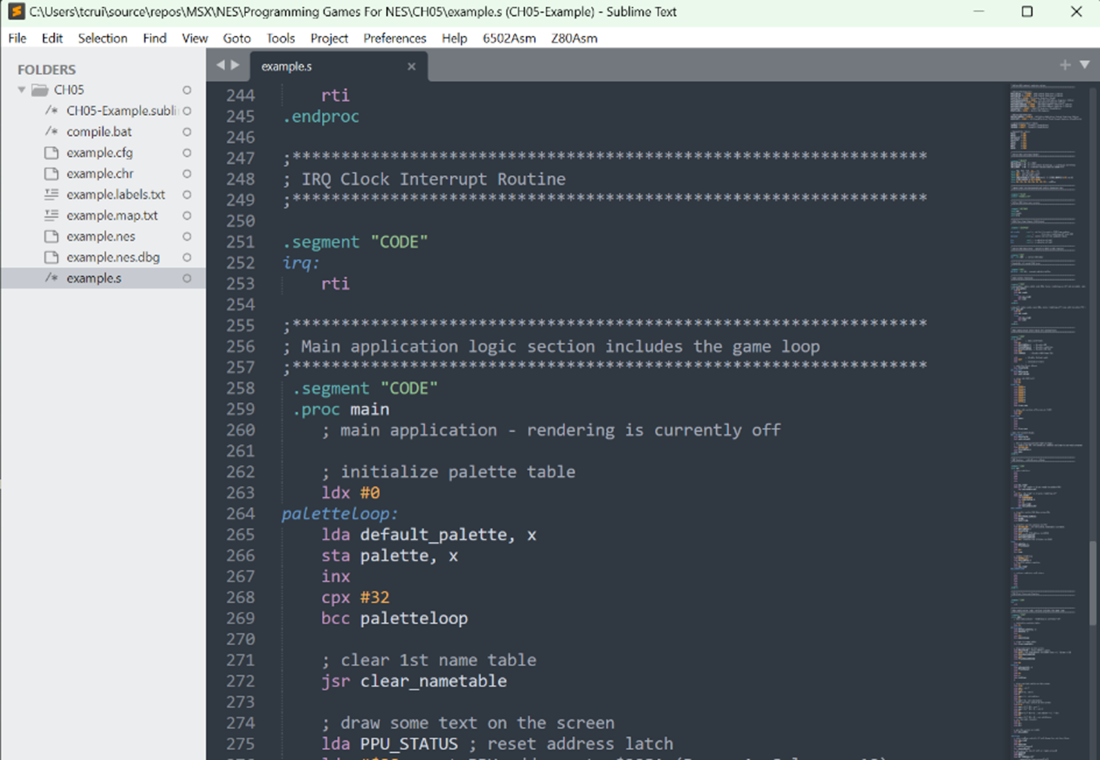
Sublime Text Editor
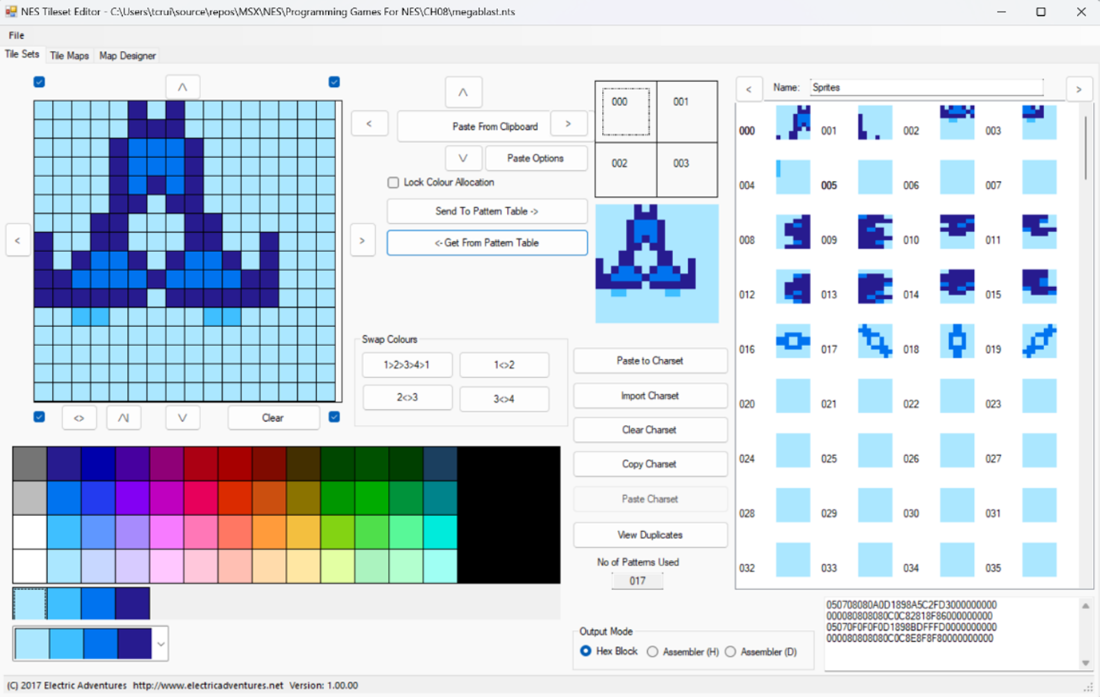
NES Tileset Editor
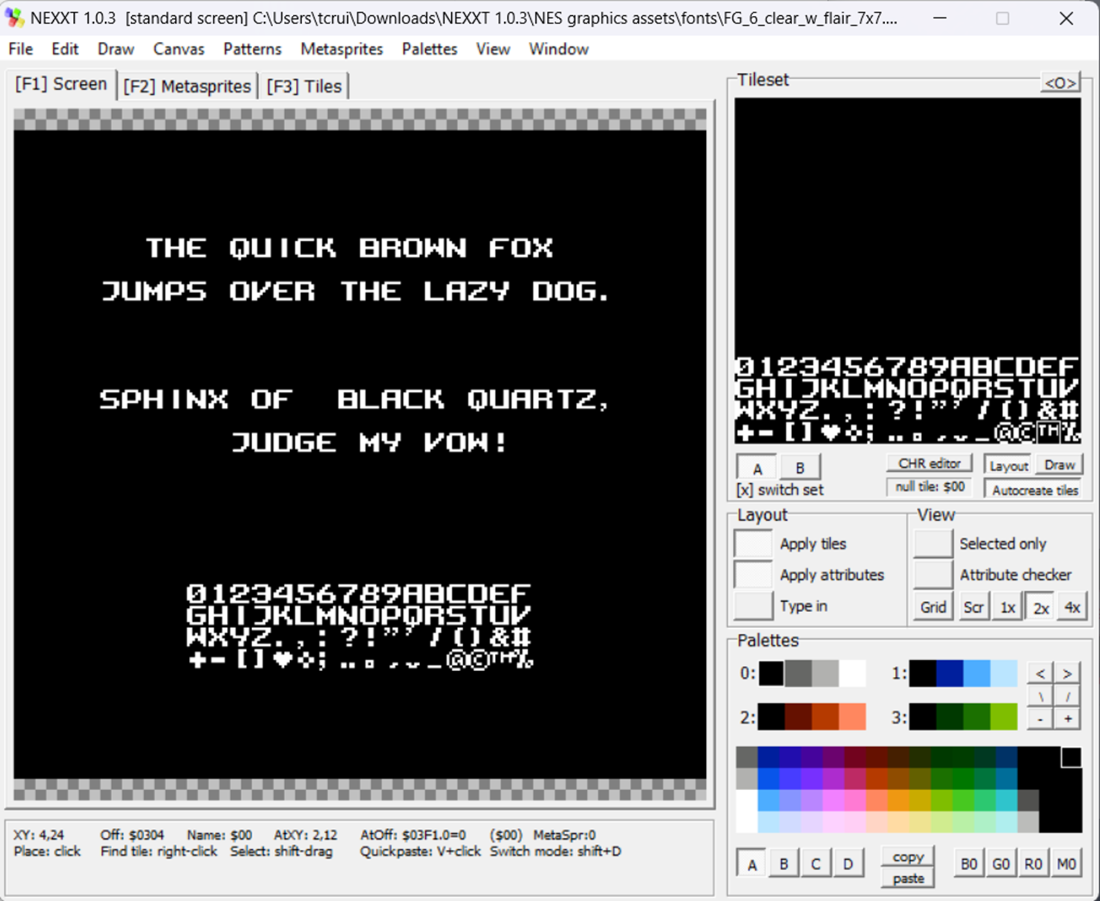
NEXXT Tile Editor in action
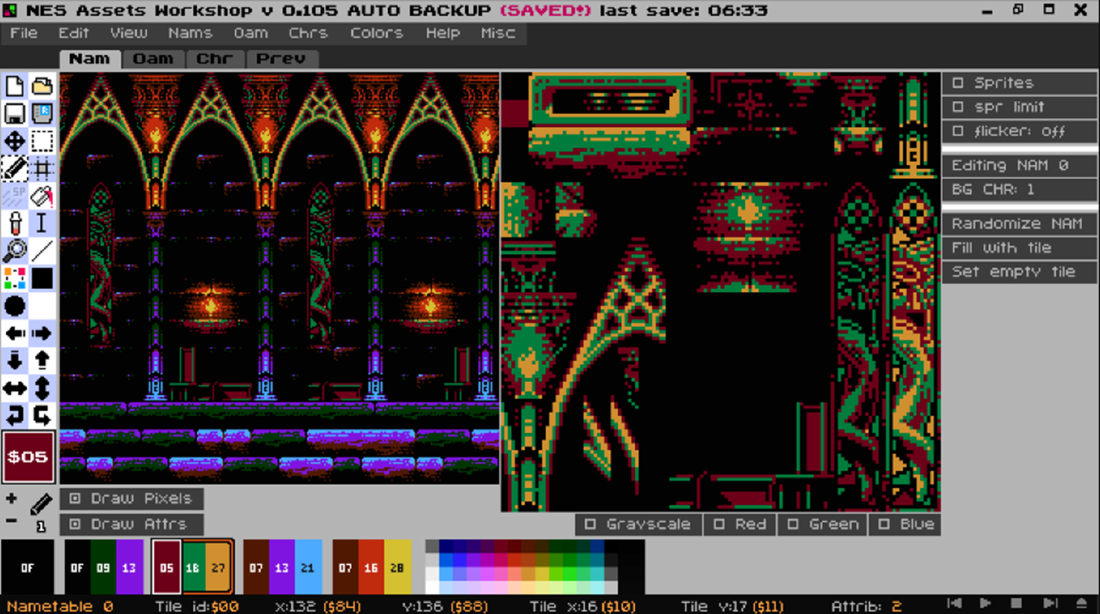
NES Assets Workshop in action
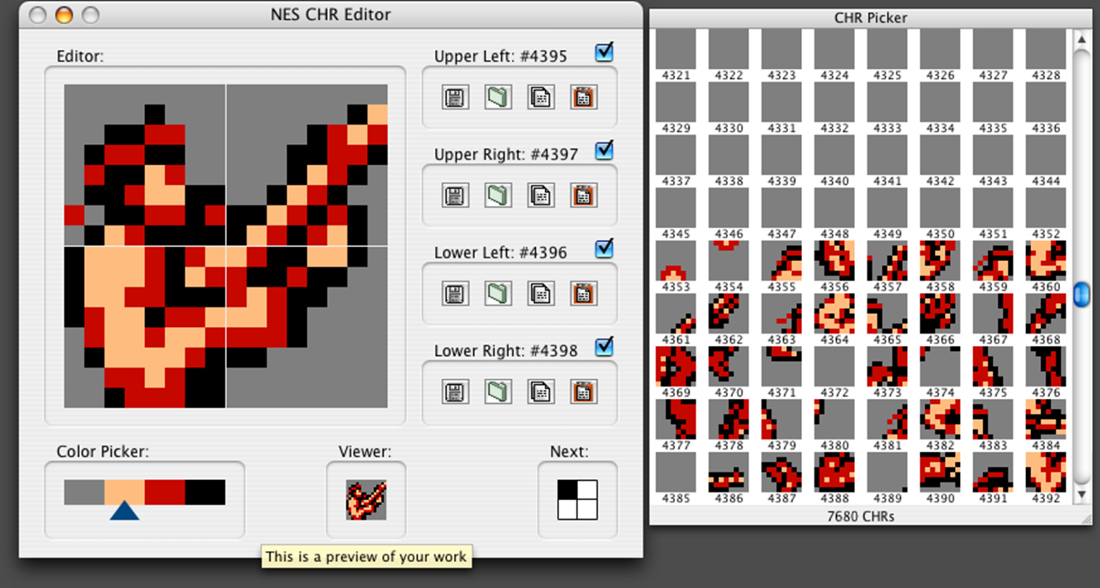
NES CHR Editor
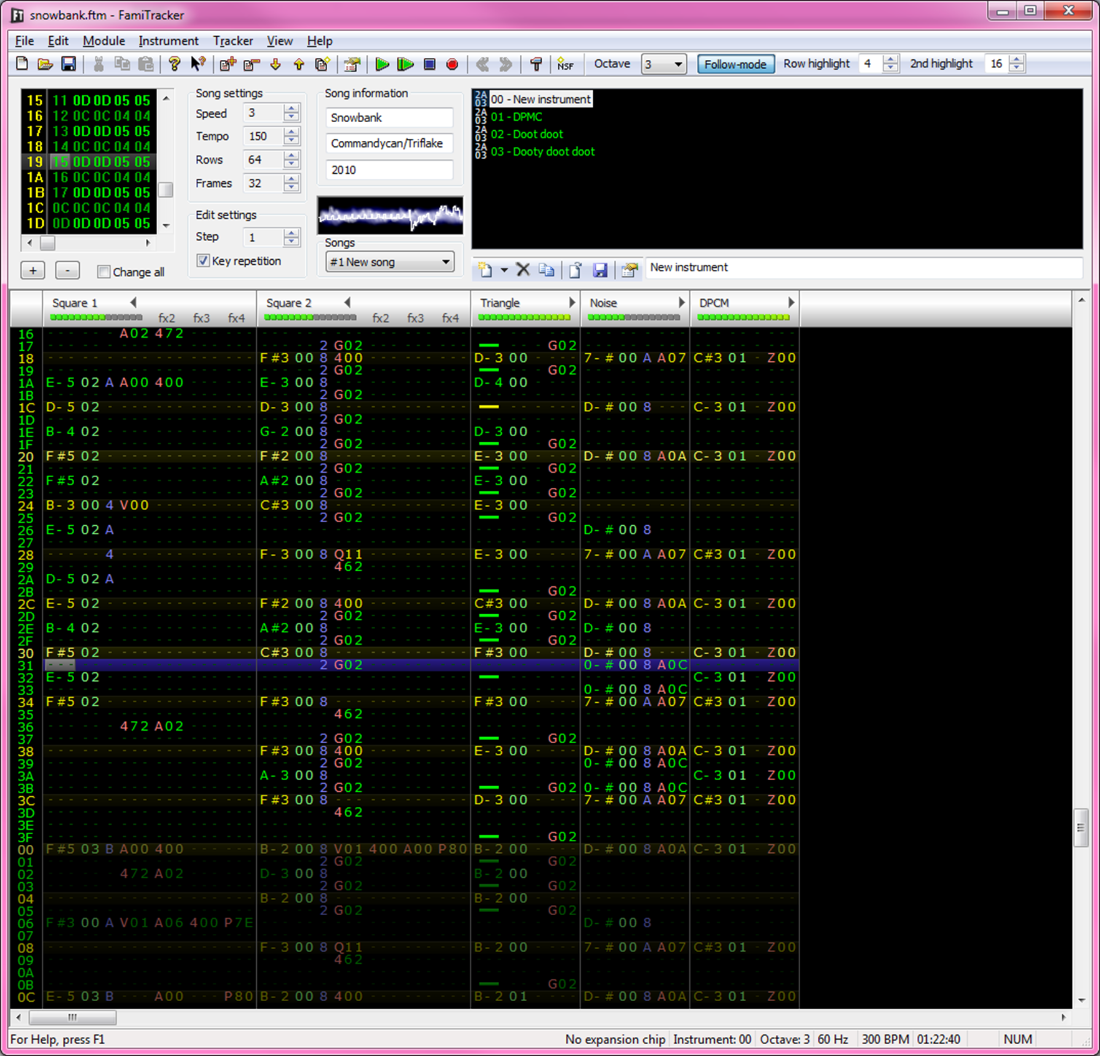
FamiTracker
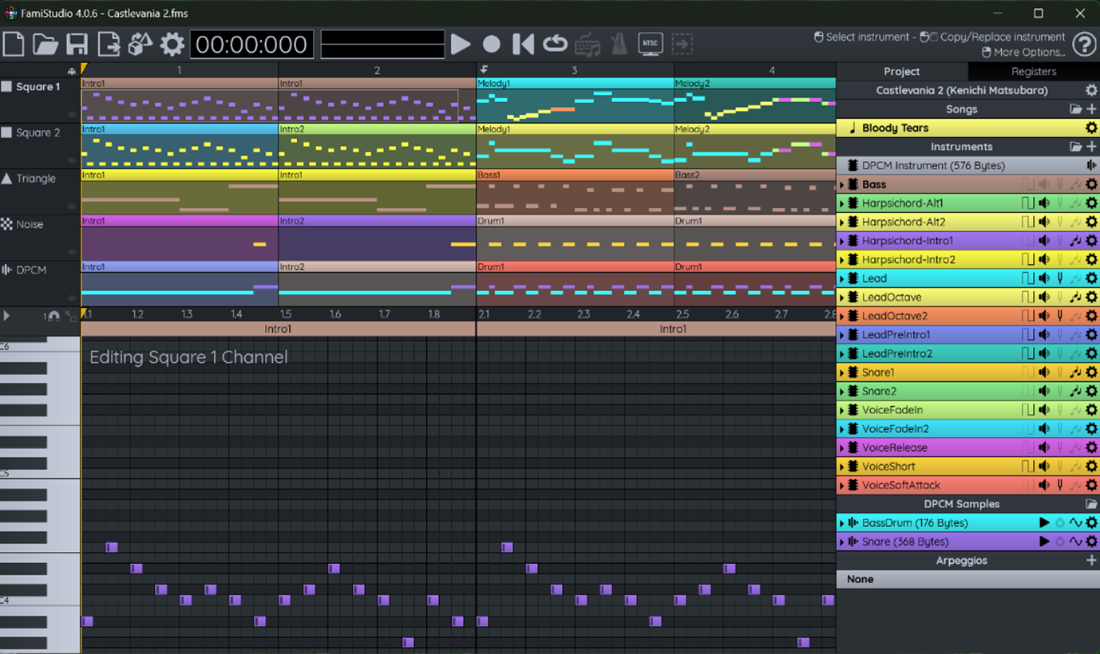
FamiStudio
Summary
In this chapter we have gone through the assemblers, text/code editors, graphic creation, and music creation tools that will enable you to set up your modern development computer ready to start making games for the NES. In later chapters, we will expand on each one of the tools and use them to put together our first game.
To be able to develop your own NES games on a modern desktop system you will need:
a text editor to edit the code.
an assembler to turn that code into a final ROM image.
a tool to create and edit tile and sprite graphics.
a tool to create and edit the sound effects and music your game will use.
There are several tools you can choose depending on your desktop platform.
more of the tools are available for Windows than on Linux or Mac platforms.
FAQ
What do I need to set up a basic NES development environment?You’ll need five things: an emulator to run and debug your game, a modern text editor with 6502 syntax highlighting, an assembler (cc65 is recommended), a graphics tool for tiles/sprites (CHR), and a sound/music tool plus a playback engine.Which NES emulator is recommended for development?Mesen is the author’s recommended choice for its high accuracy, built‑in debugger, and active development. It supports Windows and Linux. Learn more at https://www.mesen.ca/docs/index.html.I’m on macOS—what emulator should I use?FCEUX is a strong macOS option: https://fceux.com/web/download.html. You can also run the Windows version of Mesen on macOS using virtualization (UTM, VMware Fusion, or Parallels Desktop).Do I still need to test on real NES hardware?Yes. Emulators are very good but not perfect (especially for sound). For real‑hardware testing, SD‑based cartridge adapters like the EverDrive N8 are commonly used: https://krikzz.com/our-products/legacy/edn8-72pin.html.Why is a debugger important, and which emulators have one?A debugger lets you step through code, inspect registers/flags/memory, and track down bugs. Mesen, FCEUX, iNES, and BizHawk include debugging tools.Which text editors are recommended?Visual Studio Code (free) and Sublime Text (paid) are featured and available on Windows, Linux, and macOS. VS Code: https://code.visualstudio.com/. Sublime Text: https://www.sublimetext.com/.How do I get 6502 syntax highlighting (and builds) in VS Code?Install the “ca65 Macro Assembler Language Support (6502/65816)” extension by Cole Campbell: link. Ensure the cc65 “bin” folder is on your system PATH so VS Code can run the tools.Which assembler should I use?cc65 is strongly recommended and supports the NES: https://cc65.github.io/. Alternatives include NESASM (https://github.com/camsaul/nesasm) and ASM6 (https://github.com/parasyte/asm6).What tools can I use to create NES tiles and sprites?Options include NES Tileset Editor (Windows): link, NEXXT (Windows; Wine on macOS): link, NES Assets Workshop/NAW (Windows; Wine on macOS): link, and NES CHR Editor (macOS): link.How do I create and play music and sound effects?FamiTracker (Windows) is powerful: https://famitracker.org. FamiStudio (Windows/Linux/macOS) is more beginner‑friendly and includes a lightweight engine: https://famistudio.org/. Download the NES Sound Engine for FamiStudio and choose the CA65 version for use with cc65.
pro $24.99 per month
access to all Manning books, MEAPs, liveVideos, liveProjects, and audiobooks!

 Classic Game Programming on the NES ebook for free
