This chapter explains how adding sound effects transforms a silent NES homebrew into a more engaging experience, while introducing the console’s distinctive audio hardware and a practical, repeatable workflow. It walks through designing effects in FamiStudio, exporting them as data, integrating a compact music/SFX engine into the codebase, and triggering sounds in response to gameplay events like firing, collisions, and big explosions.
The NES Audio Processing Unit provides five channels—two pulse (square), one triangle, one noise, and one DMC for low-bit sampled audio—each with behaviors that shape the console’s iconic timbre. The pulse channels support duty cycle, envelopes, length, and sweep for dynamic tones; the triangle channel is suited to bass, with limited volume control; the noise channel’s randomized texture is ideal for crashes, rumble, and drum-like sounds; and the DMC can play short digital samples at a meaningful ROM cost. The APU runs on its own clock and length counters, letting hardware sustain notes while the CPU schedules changes, though many games also spend CPU cycles for richer results or use extra cartridge audio.
On the tooling side, the chapter constructs three effects in FamiStudio: a sharp laser “zap” using a sliding pulse note, a short “boom” on the noise channel with pitch variation, and a heavier “big boom” using sliding noise for scale. These are exported as assembler data and paired with the FamiStudio CA65 sound engine, configured with only the features needed (SFX support, multiple streams, pitch/volume/slide, etc.). Initialization occurs at startup, the engine is updated every frame in NMI, and a small helper function abstracts playing effects on specific channels, ensuring, for example, that the player’s zap (channel 0) doesn’t cut off explosions (channel 1). The result is a clean pipeline from authoring to in-game playback, with room to extend the library of sounds.
APU Pulse or Square Wave
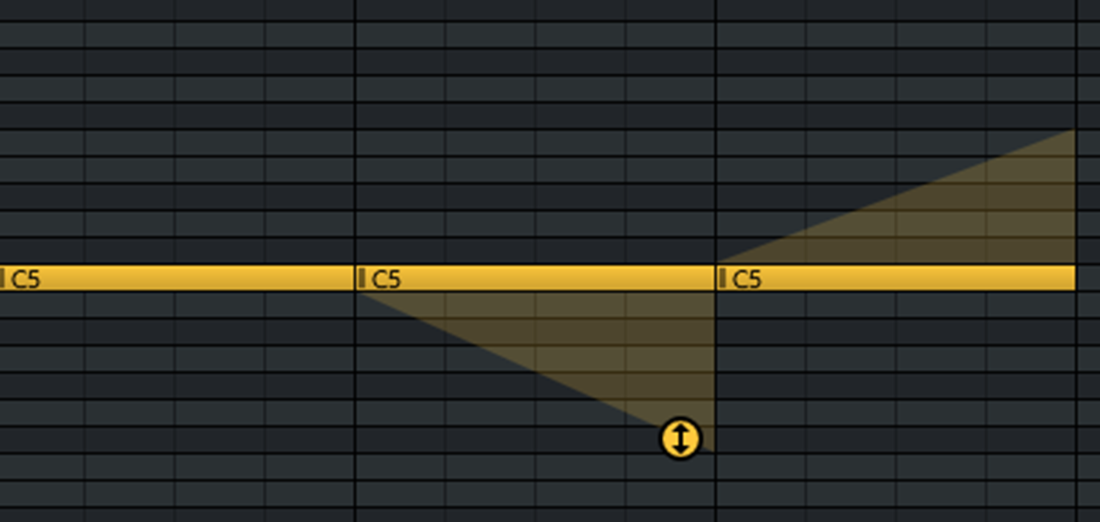
Normal, swept down, swept up notes.
APU Triangle Wave
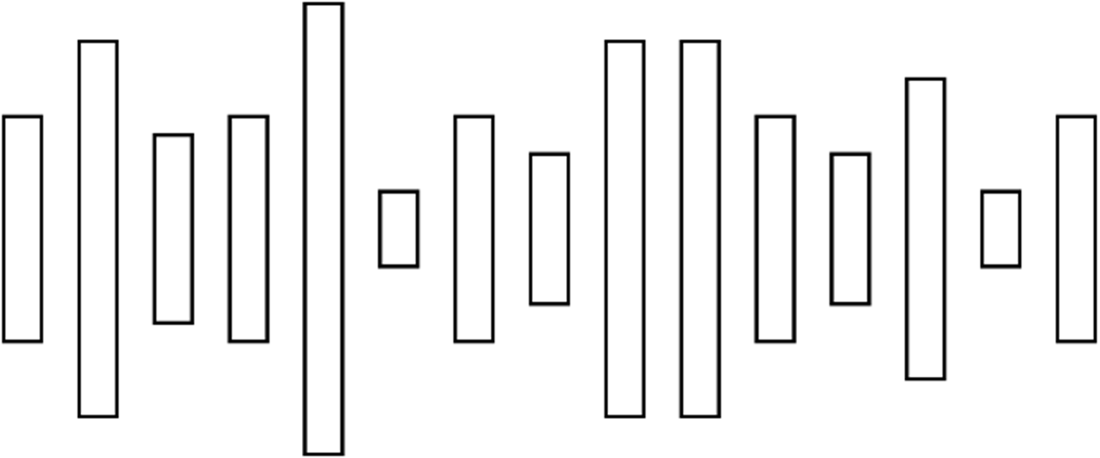
Noise Generator
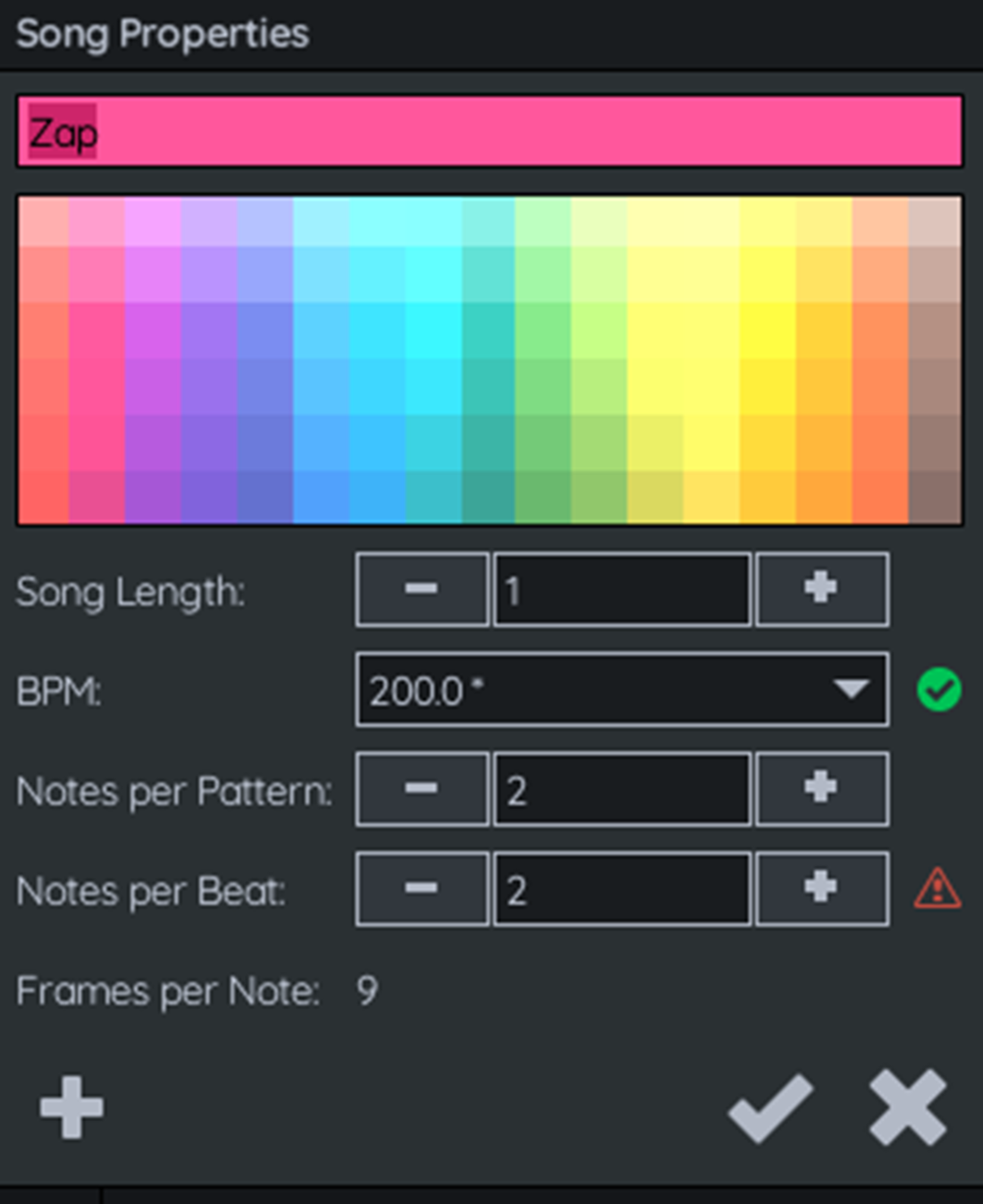
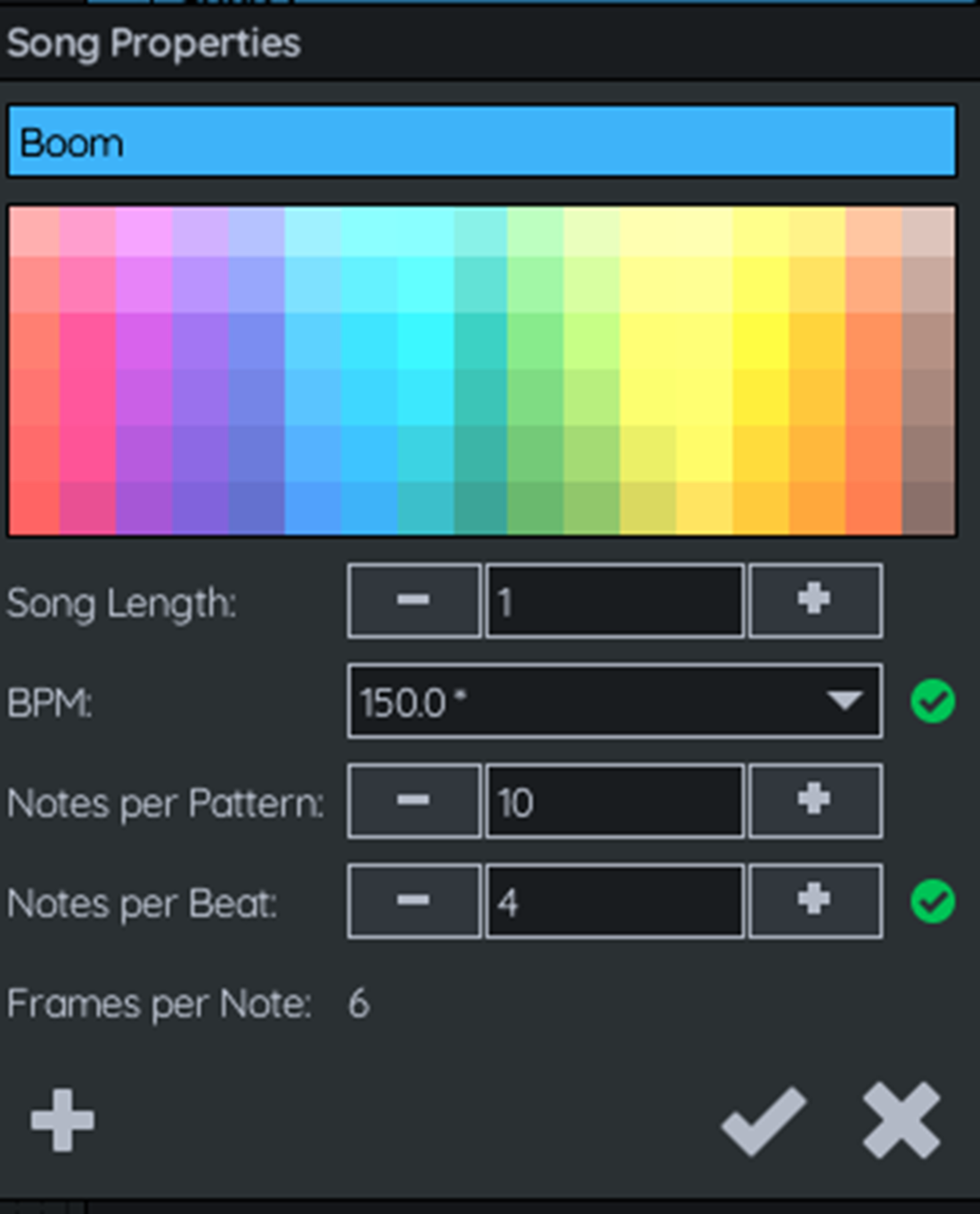
Entering the base values for our Zap sound.
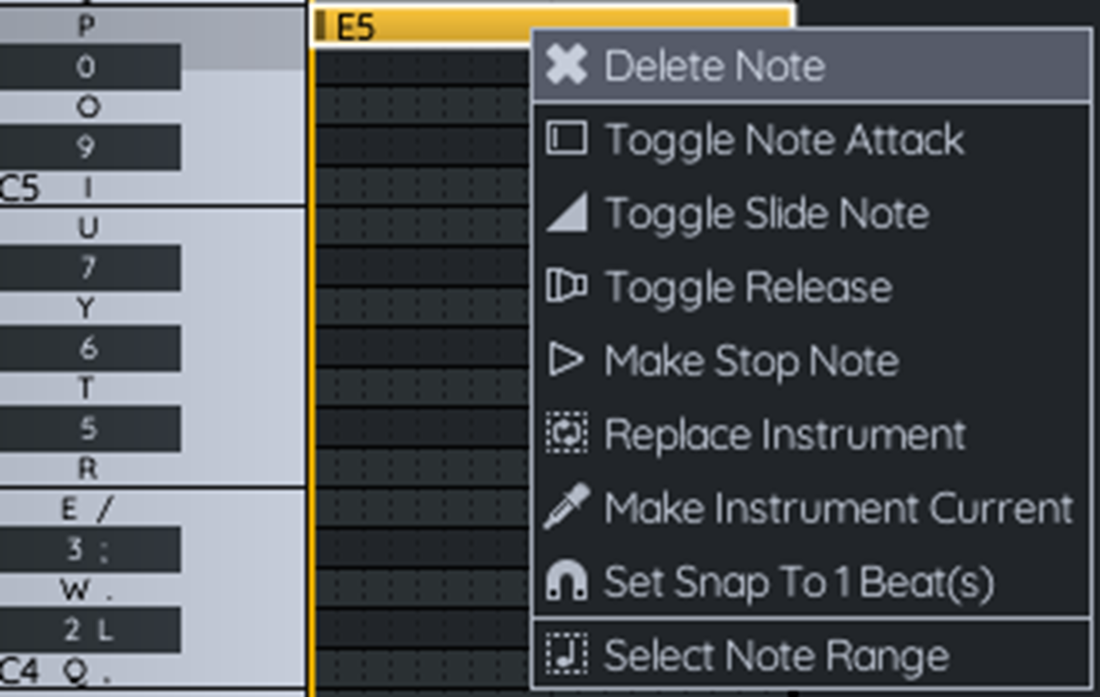
Adding a single note.
Toggle Slide Note
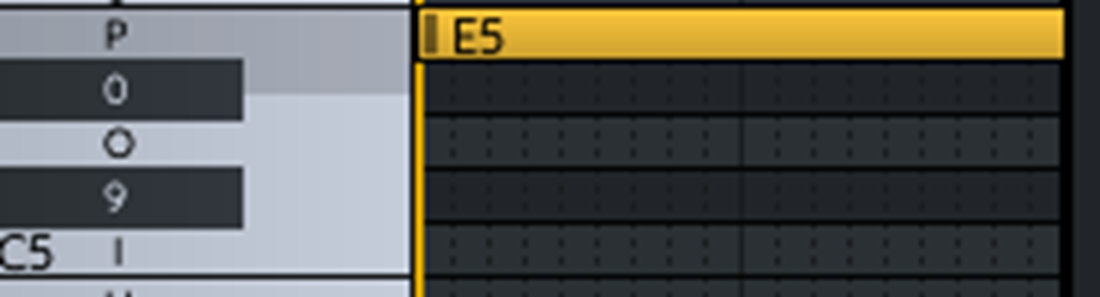
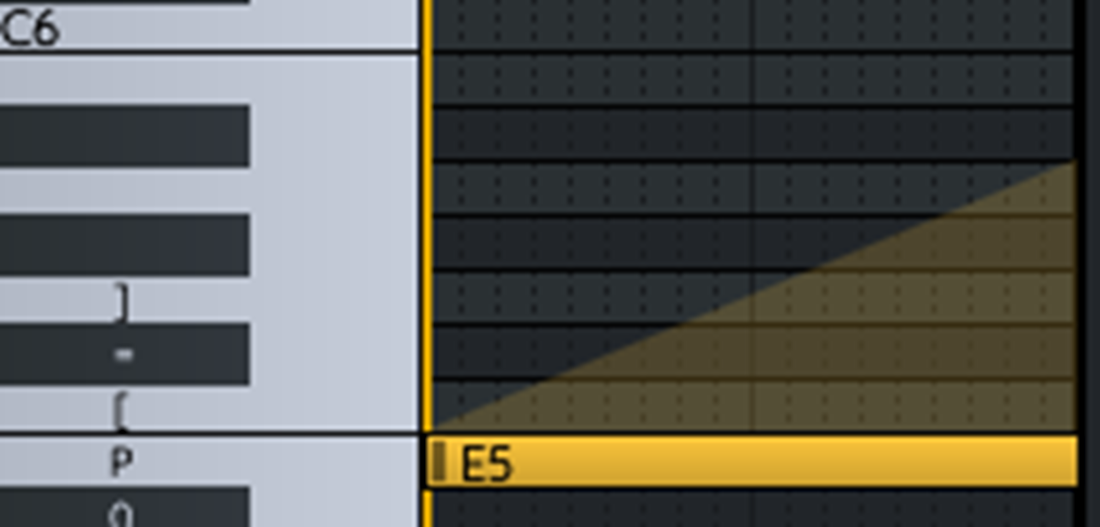
E5 Slide Note
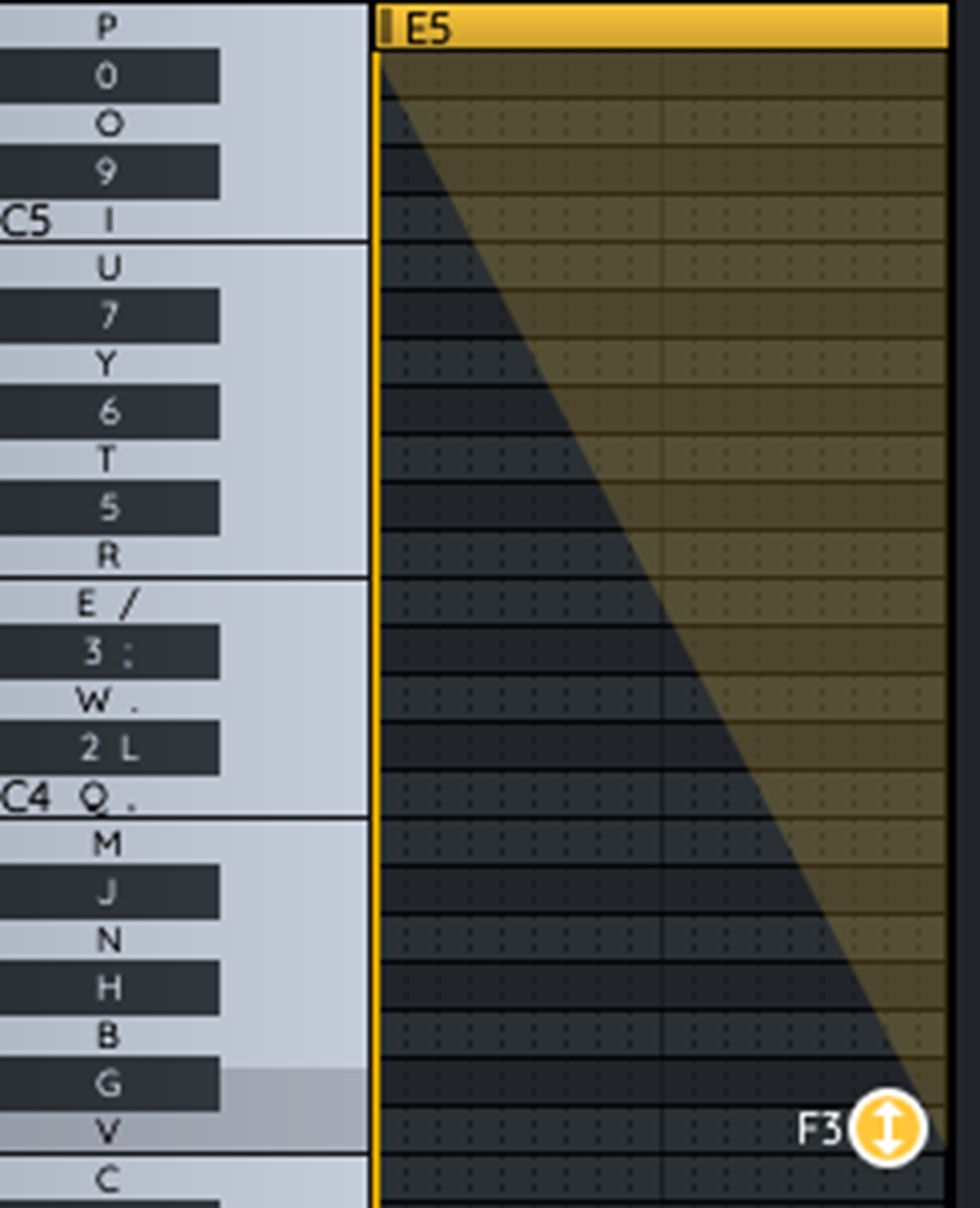
E5 note sliding to F3 equals a nice Zap sound.
Setup the details for our “Boom” sound effect.
Add notes for our “Boom” sound.
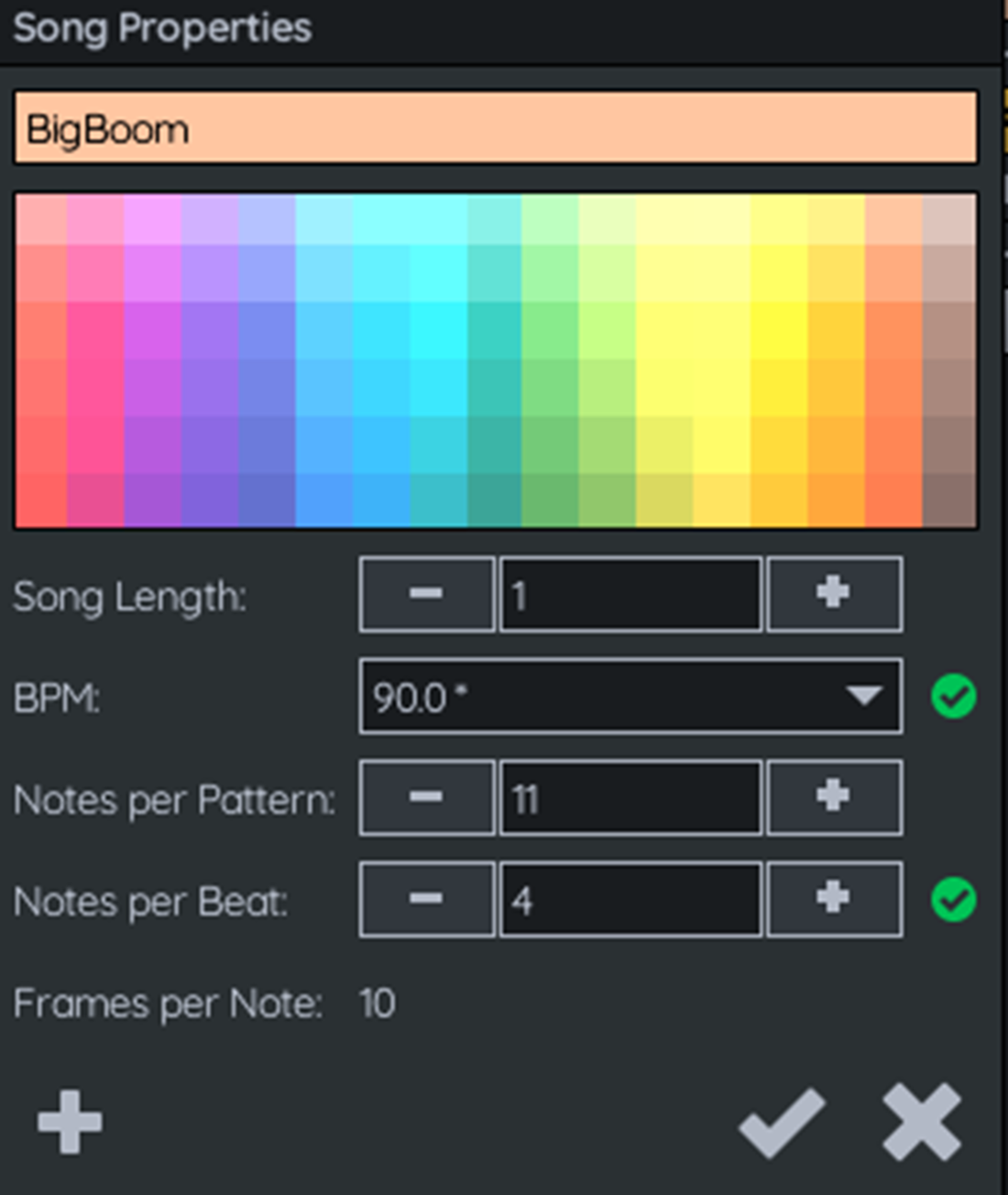
Setup the details for our “Big Boom” sound effect.
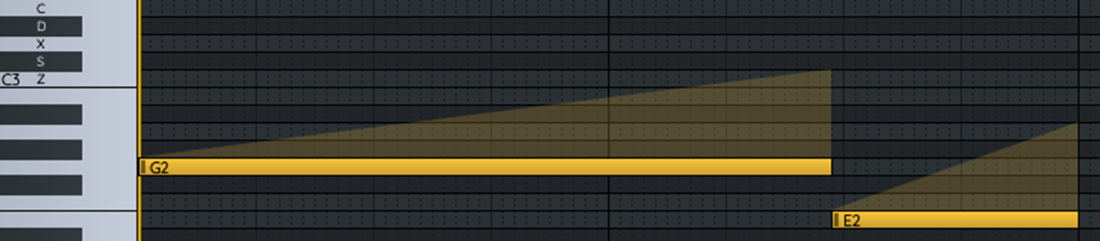
Add two notes to form the two parts of the explosion.
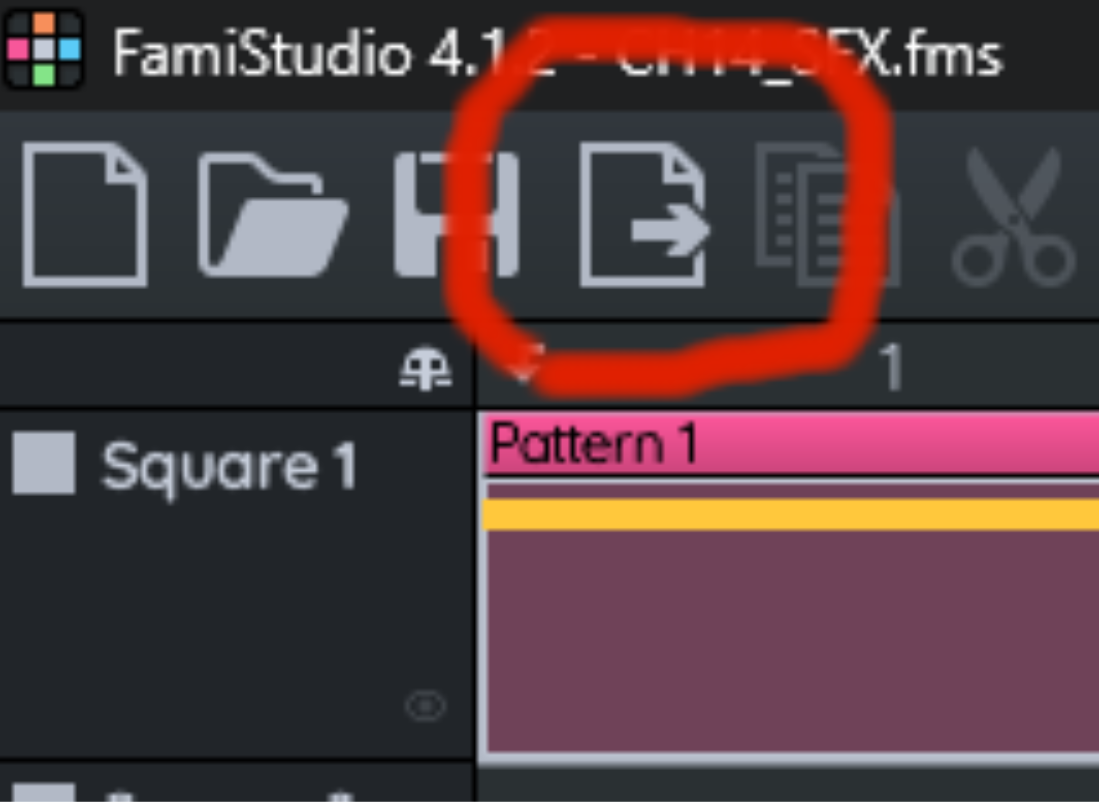
Export our sound effects in FamiStudio.
FamiStudio export SFX code.
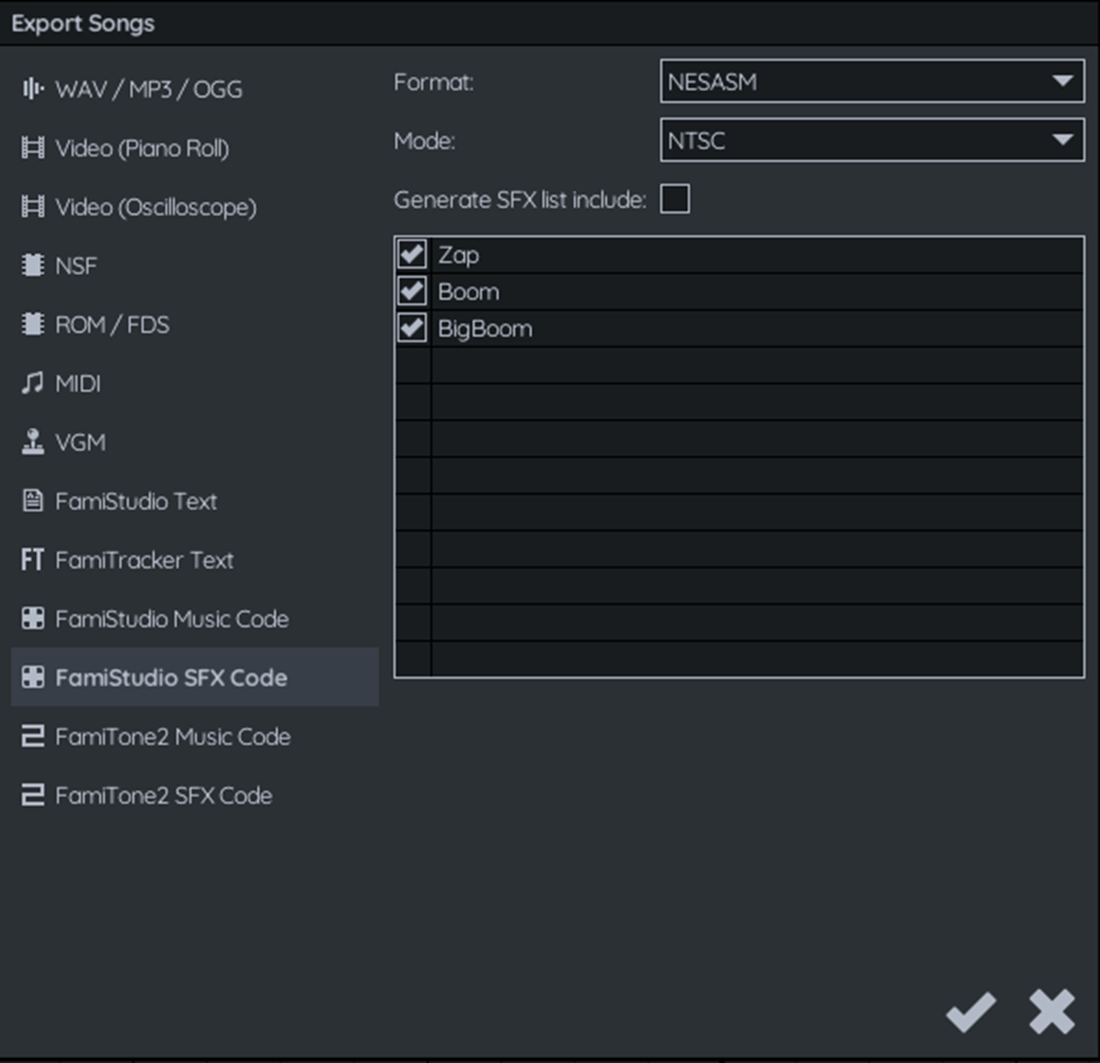
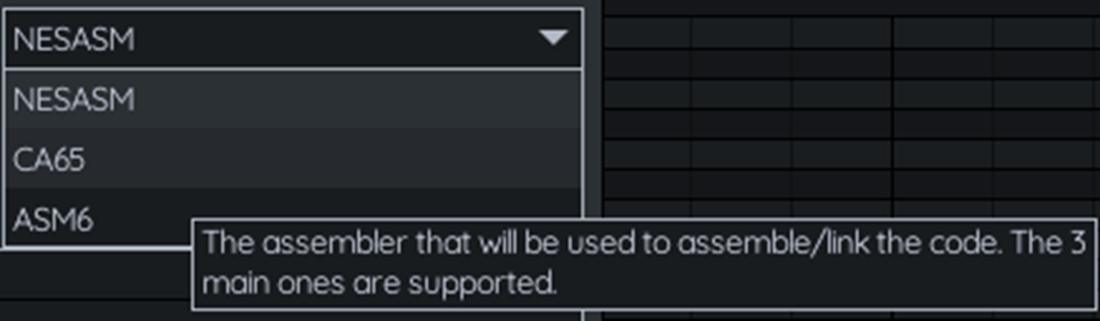
FamiStudio Export SFX Code – Select assembler.
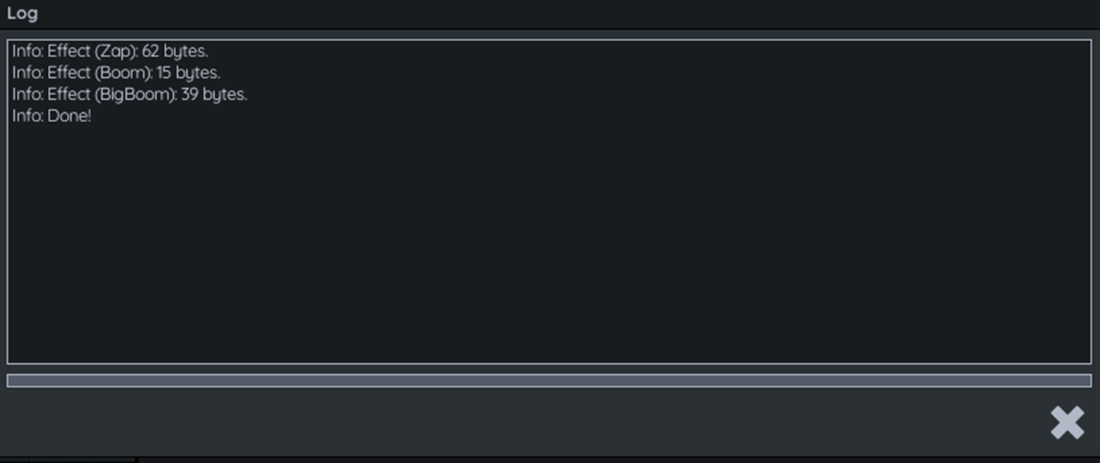
Exported sound effects log output.
Download the NES Sound Engine for the CA65 Assembler.
Summary
The NES hardware has five separate channels that will output sound with different basic waveforms.
The sound hardware can be programmed directly but it is much easier to use one of the sound and music creation tools and the playback engines they provide.
Use the sound engine code provided by the Music and Sound editing tool to output the sound and music.
Spread sound effects across multiple logical channels so they can be played at the same time.
FAQ
What sound channels does the NES APU provide, and what are they typically used for?The NES APU has five channels: two pulse (square) waves for lead/melody and effects, one triangle wave often used for bass (no direct volume control), one noise channel for percussive/explosion sounds, and one DMC (delta modulation) channel for short digital samples (drums/speech). The APU supports features like envelopes, note length, and sweep, giving the NES its distinctive sound.How do envelope, length, and sweep shape a pulse (square) wave sound?Envelope controls volume over time (e.g., quick attack/decay vs. steady level). Length sets how long the note plays before the APU stops it. Sweep moves the pitch up or down during the note, useful for effects like sirens, zaps, and retro pitch bends.What’s special about the triangle and noise channels?The triangle channel’s pitch is an octave below the pulse channels and has no direct volume control; you can only set note length and indirectly halve its loudness using the PCM level (setting it to max roughly halves the triangle volume). The noise channel uses a pseudo‑random generator; with controllable envelope and length, it excels at “shhh,” rumbles, drums, and explosions.When should I consider using the DMC (sample) channel?Use DMC for short, distinctive samples like certain drum hits or brief speech. It outputs 7‑bit audio via a 1‑bit delta stream, can loop, and has configurable playback rates. The trade‑off is ROM size: samples consume notable space, so enable and use them sparingly.How do I create a simple “zap” laser effect in FamiStudio?Create a short song (1 pattern), set a fast tempo (e.g., 200 BPM) and short notes (e.g., 2 notes/beat and 2 notes/pattern, yielding ~9 frames/note on NTSC). On Square 1, add a high note (e.g., E5), toggle it to a Slide Note, and drag the slide end down (e.g., toward F3). The downward slide produces a classic laser “zap.”How can I design explosion sounds (“Boom” and “Big Boom”) with the noise channel?For a short “Boom,” place a few alternating low “notes” in the Noise track (e.g., E1/D#1/E1/D#1) with varying lengths to get a crackly pop. For a “Big Boom,” use fewer, longer Noise notes and make them Slide Notes that rise slightly (e.g., G2 sliding to C3, then E2 to A2), producing a larger, layered explosion.How do I export sound effects from FamiStudio for CA65 and include them in my project?In FamiStudio, choose Export → FamiStudio SFX Code and pick the CA65 format, then save (e.g., megablast-sfx.s). Include this file in your project alongside the engine source (famistudio_ca65.s). The export summary shows the byte size each SFX will use in your ROM.What configuration flags are important when adding the FamiStudio NES Sound Engine?Enable only what you need to save ROM/CPU. Common flags: SFX support and number of SFX streams (FAMISTUDIO_CFG_SFX_SUPPORT, FAMISTUDIO_CFG_SFX_STREAMS), DPCM support if using samples, and features used by your SFX (volume/pitch tracks, slide notes, vibrato, arpeggio, smooth vibrato, release notes). Also define your CA65 segments and DPCM offset if applicable.What are the essential runtime steps to make SFX play?Initialize the engine (famistudio_init), initialize SFX with the exported sounds pointer (famistudio_sfx_init), and call famistudio_update once per frame in your NMI. To play an SFX, choose an SFX stream (e.g., FAMISTUDIO_SFX_CH0 or CH1) and call famistudio_sfx_play with the SFX index (e.g., 0=Zap, 1=Boom, 2=Big Boom).How do I play multiple SFX without cutting each other off, and what about NTSC/PAL timing?Set FAMISTUDIO_CFG_SFX_STREAMS to allow multiple concurrent SFX (e.g., fire “Zap” on CH0 while “Boom” uses CH1). The engine temporarily overrides music on the channels it needs and resumes music afterward. Timing is frame-based: NTSC updates at 60 Hz, PAL at 50 Hz. If you design SFX with frame lengths (e.g., ~9 frames/note at given settings), they stay consistent relative to the console’s refresh rate.
pro $24.99 per month
access to all Manning books, MEAPs, liveVideos, liveProjects, and audiobooks!




 Classic Game Programming on the NES ebook for free
