Appendix A. Installation and setup
This appendix provides a concise, cross-platform walkthrough for assembling a complete NES development environment. It outlines the essential components—cc65 (assembler/toolchain), an emulator for testing, a code editor with 6502 support, plus graphics and music tools—and explains how to install and configure them on Windows, Linux, and macOS. It also highlights small but important setup choices, such as where tools are placed on disk, ensuring executables are on your command path, and initial emulator configuration for input and storage.
On Windows, you obtain the cc65 snapshot, extract it to a standard location (for example, C:\cc65), and use Mesen as the emulator, which includes a first-run wizard to choose file locations and input mappings. Visual Studio Code is recommended with a ca65 extension for syntax highlighting and build integration. For content creation, the guide suggests NES Tile Editor for graphics and FamiStudio for music, and advises downloading the NES Sound Engine code compatible with ca65. On Linux, cc65 can be installed from a Debian package or built from source; if built locally, users may need to add the local bin directory to PATH. Mesen can be installed from a package or compiled, with dependencies such as GLib, Mono, and SDL2 noted. The same editor setup applies, while NES Lightbox and FamiStudio are suggested for graphics and music, respectively, along with the NES Sound Engine code.
On macOS, cc65 installation is streamlined via MacPorts, which adds the tools to the PATH automatically. Because a native Mesen build is not provided, the appendix recommends FCEUX as the emulator, installed by dragging into Applications. Visual Studio Code plus the ca65 extension provides editing, highlighting, and build integration; NES Lightbox serves as the graphics tool, and FamiStudio is used for music (with a note that the app may be unsigned and prompt warnings). Across all platforms, the appendix emphasizes verifying that cc65 is accessible from the command line, completing the emulator’s initial configuration, and including the NES Sound Engine for use with the ca65 toolchain.
Figure A.1 CC65 Install – Extract Files.
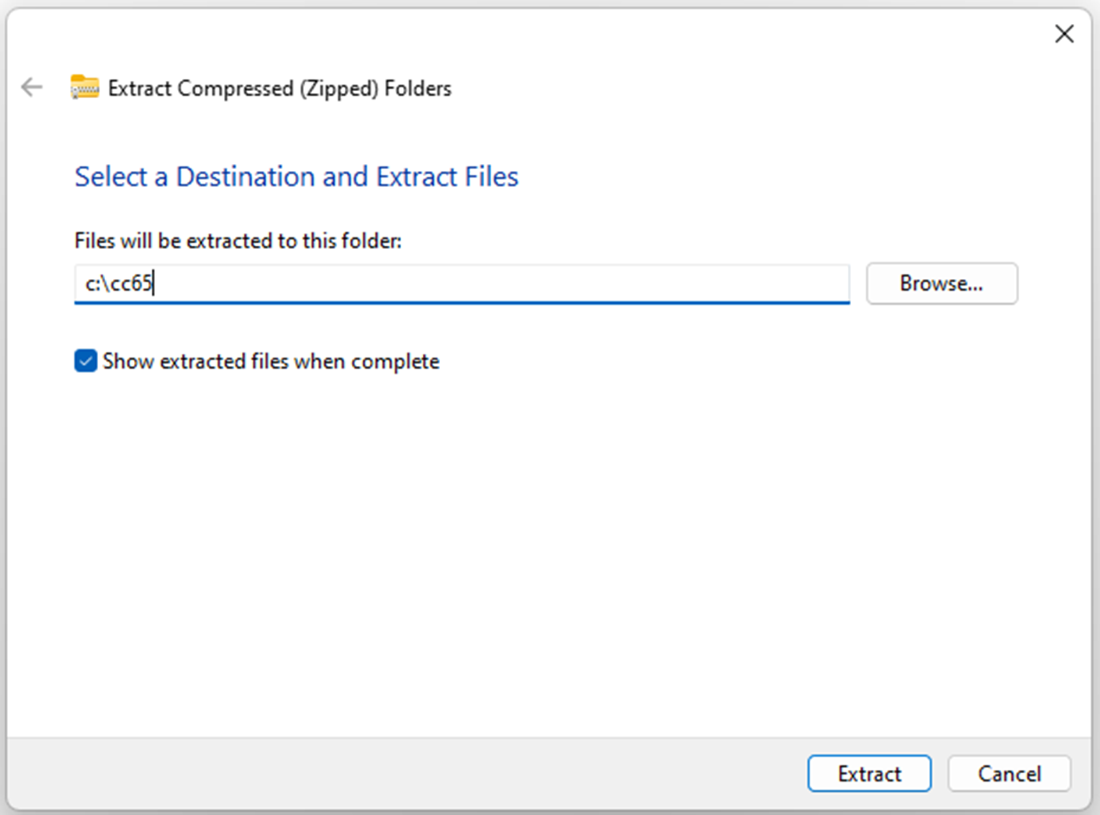
Figure A.2 CC65 folder contents.
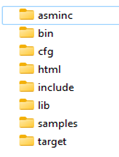
Figure A.3 Mesen – Configuration Wizard
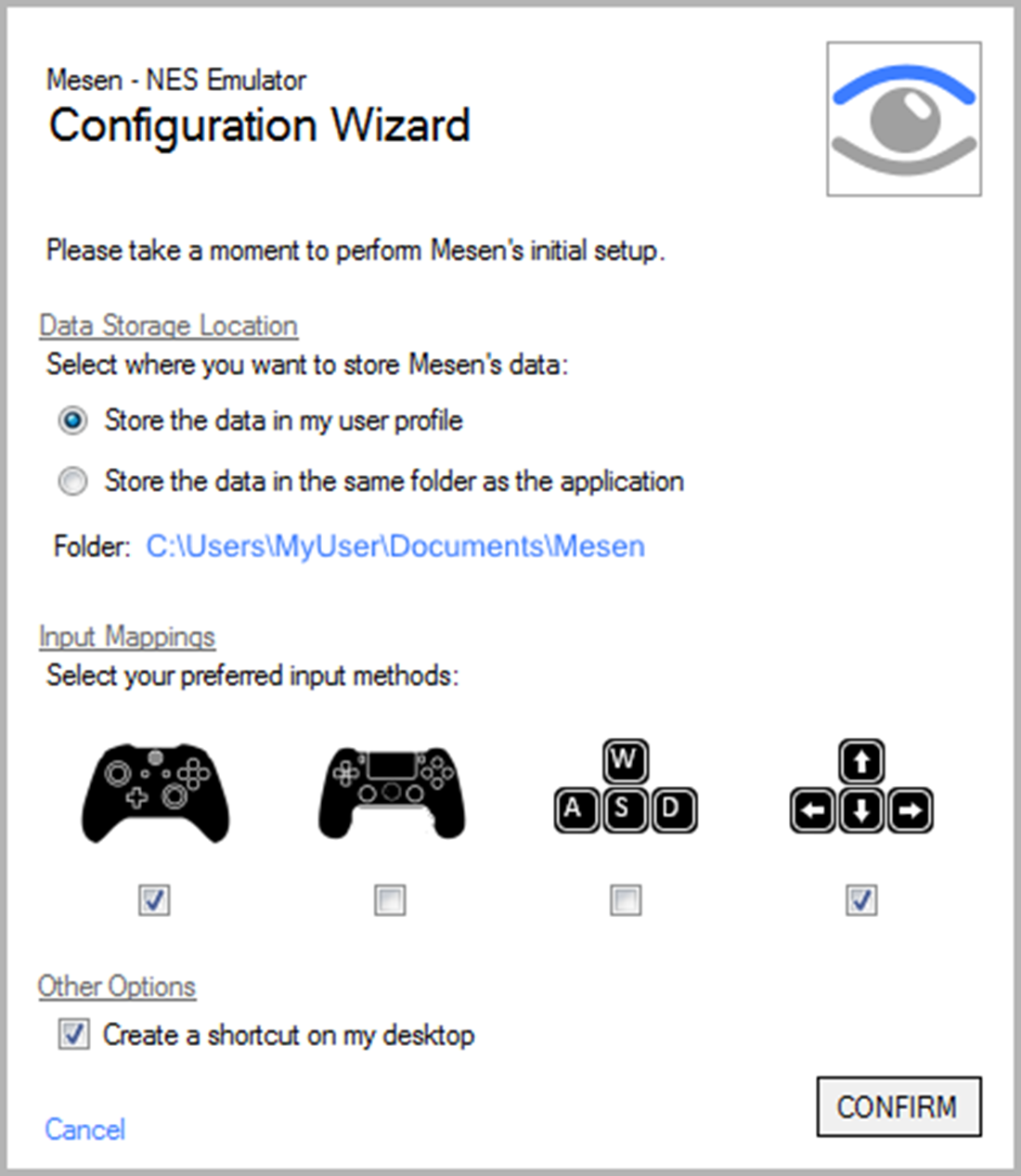
Figure A.4 ca65 Macro Assembler Extension
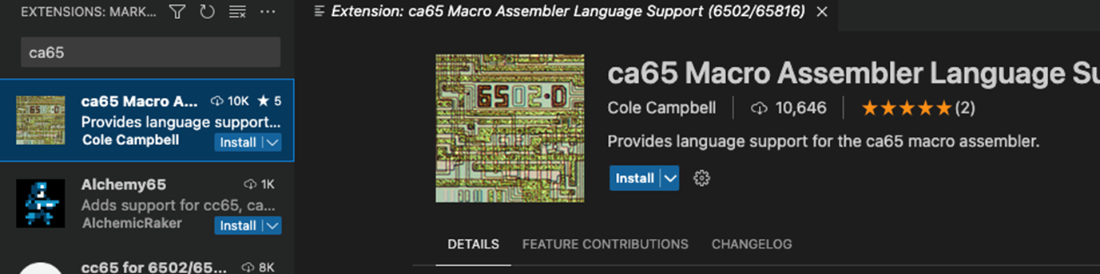
Figure A.5 Download the Windows Installer of Famistudio
Figure A.6 Download the NES Sound Engine for the CA65 Assembler
Figure A.7 Mesen – Configuration Wizard
Figure A.8 ca65 Macro Assembler Extension
Figure A.9 Download the Linux Installer of FamiStudio
Figure A.10 Download the NES Sound Engine for the CA65 Assembler
Figure A.11 Installing MacPorts
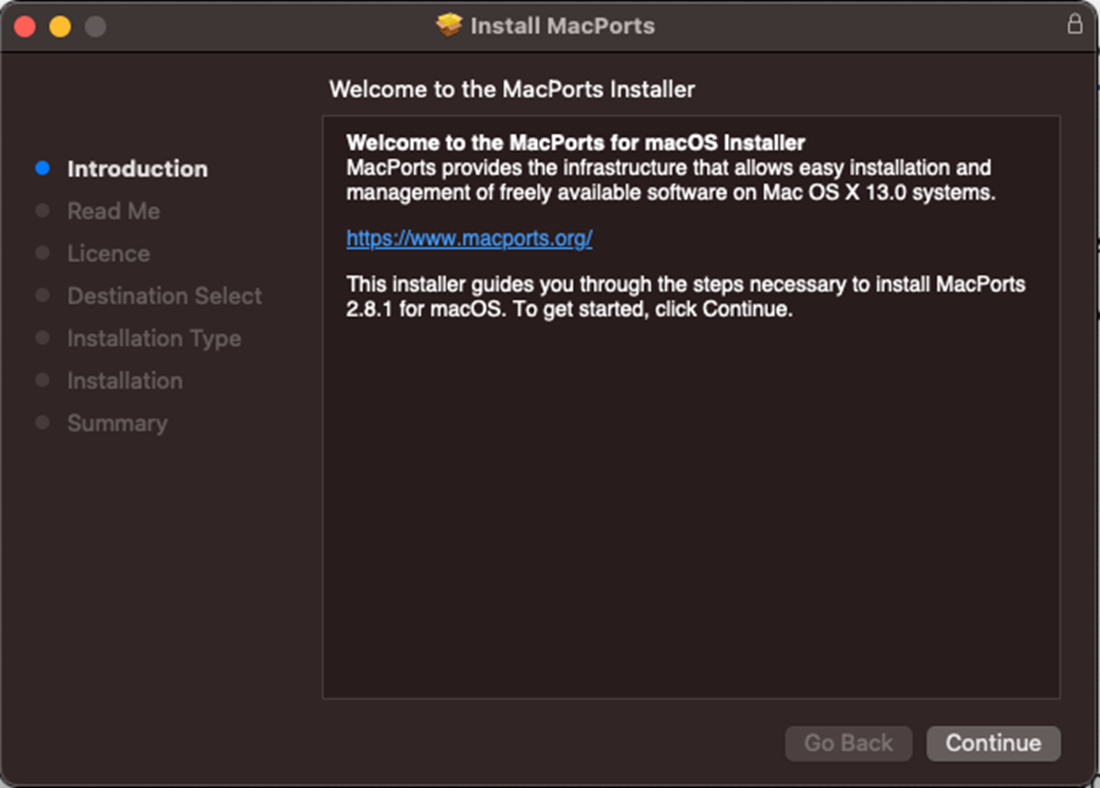
Figure A.12 ca65 Macro Assembler Extension
Figure A.13 Download the MacOS Installer of Famistudio
Figure A.14 Download the NES Sound Engine for the CA65 Assembler
FAQ
Which platforms does this setup guide cover?
The appendix walks through installing the toolchain on Windows (XP through 11), Linux (e.g., Debian/Ubuntu), and macOS. For each platform it covers the assembler (cc65), an emulator, a code editor (VS Code + ca65 extension), a graphics tool, and a music tool.How do I install the cc65 toolchain on Windows?
- Visit the cc65 home page and download the “Windows Snapshot.”- Save the file named cc65-snapshot-win32.zip.
- Right‑click the ZIP, choose “Extract All…”, and extract to C:\cc65.
- After extraction, you should have a C:\cc65 folder containing the tools.
How do I install and configure the Mesen emulator on Windows?
- Download the Windows build from https://www.mesen.ca/- Place the app in a folder such as C:\mesen.
- Launch Mesen and follow the configuration wizard: choose where to store Mesen’s data (user profile or app folder), set input mappings (controllers/keyboard), and optionally create a desktop shortcut.
How do I set up Visual Studio Code with 6502/ca65 support?
- Download VS Code from https://code.visualstudio.com/- In VS Code, open the Extensions view and search for “ca65”.
- Install “ca65 Macro Assembler Language Support (6502/65816)” by Cole Campbell: https://marketplace.visualstudio.com/items?itemName=tlgkccampbell.code-ca65
- Trust the publisher when prompted. The extension adds 6502 syntax highlighting and can wire VS Code’s build command to the cc65 toolchain.
What graphics (tile) tool should I use on Windows?
- Download “NES Tile Editor” from https://www.electricadventures.net/Pages/Category/34- Run the setup program; it will install the app and place a desktop shortcut.
How do I install FamiStudio on Windows and get the NES Sound Engine?
- Download the Windows installer from https://famistudio.org/ and run setup.exe. It adds a Start Menu shortcut and demo songs.- If Windows warns during install or the app crashes, see the documentation section on the FamiStudio website for fixes.
- Also download the “NES Sound Engine for the CA65 Assembler” from the FamiStudio site to integrate music into your cc65 projects.
What are my options to install cc65 on Linux, and how do I build from source?
Options:- Binary (Debian-based): Follow the instructions at https://spiro.trikaliotis.net/debian
- Build from source (Debian/Ubuntu example):
1) sudo apt install build-essential git
2) mkdir -p ~/develop && cd ~/develop
3) git clone https://github.com/cc65/cc65.git && cd cc65
4) nice make -j2
5) make install PREFIX=~/.local
6) Ensure ~/.local/bin is in your PATH (or call ~/.local/bin/cc65 directly).
Reference instructions: https://www.nesdev.org/wiki/Installing_CC65
How do I install and configure Mesen on Linux, and what are the prerequisites?
- Download the Linux build from https://www.mesen.ca/ or build from source: https://github.com/SourMesen/Mesen/- Ensure these components are installed: glibx 2.23+, Mono 5.18+, SDL2.
- Place the app in a folder such as ~/mesen, then run it.
- Complete the first‑run wizard to set data location, input mappings, and optional desktop shortcut.
How do I install cc65 on macOS?
- Install MacPorts by following https://www.macports.org/install.php- Open a new Terminal and run: sudo port install cc65
- Enter your admin password when prompted. MacPorts places the cc65 tools on your PATH automatically.
What emulator and art/music tools should I use on macOS, and how do I install them?
- Emulator: Download FCEUX for macOS from https://fceux.com/web/download.html, then drag it into Applications.- Graphics: Use NES Lightbox for macOS from https://github.com/kzurawel/neslightbox
- Music: Download FamiStudio for macOS from https://famistudio.org/; unzip and launch the app. It’s unsigned, so you may need to bypass Gatekeeper warnings (see the site’s notes). Also download the NES Sound Engine for CA65 from the FamiStudio site.

 Classic Game Programming on the NES ebook for free
