7 Controlling LLMs with the Ollama Python library
In this chapter, the reader moves from using a local LLM to programming one directly with Python through the Ollama library. After confirming the virtual environment is active and Ollama is running, the chapter introduces a simple script that imports the library, calls ollama.chat() with a chosen model, sends a user question, and prints the model’s reply. This first example establishes the basic request-and-response pattern and shows that a locally hosted model can be controlled entirely from code without internet access, API keys, or cloud services.
The chapter then explains how chat messages are structured around three roles: system, user, and assistant. The system message acts like a set of instructions that shapes personality, tone, and behavior, while user messages provide prompts and assistant messages preserve prior replies. By experimenting with different system prompts, the reader sees how the same model can behave very differently, such as answering like a science teacher or a Shakespearean actor. The key takeaway is that the system role is the most powerful tool for steering model behavior.
Finally, the chapter shows how to make local AI interactions feel more responsive and conversational. Streaming is introduced as a way to display generated text chunk by chunk instead of waiting for the entire answer, improving the user experience even though it does not make the model faster. The chapter closes by building a multiturn chatbot that maintains conversation history in a list, resending the full transcript on each turn so the model can respond in context. This demonstrates that LLMs do not truly remember past messages on their own; the program must manage history, and the chapter notes the limits of context windows while suggesting further experiments and extensions.
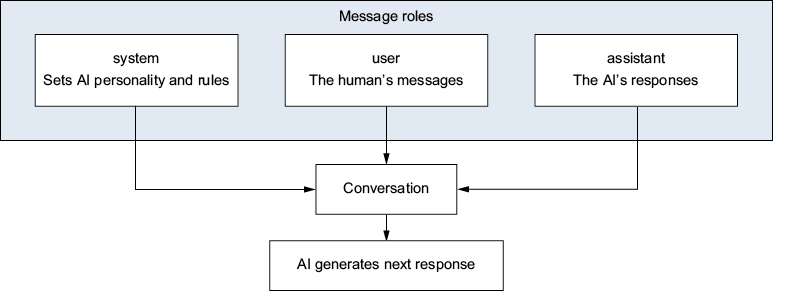
The three message roles. The system message sets the AI’s personality and rules. User messages provide the human’s input. Assistant messages are the AI’s previous responses. All three combine to form the conversation that the model reads before generating its next response.
The three components in your local AI setup. Your Python script communicates with the Ollama server, which manages the LLM. The LLM generates a response that flows back through the server to your script.

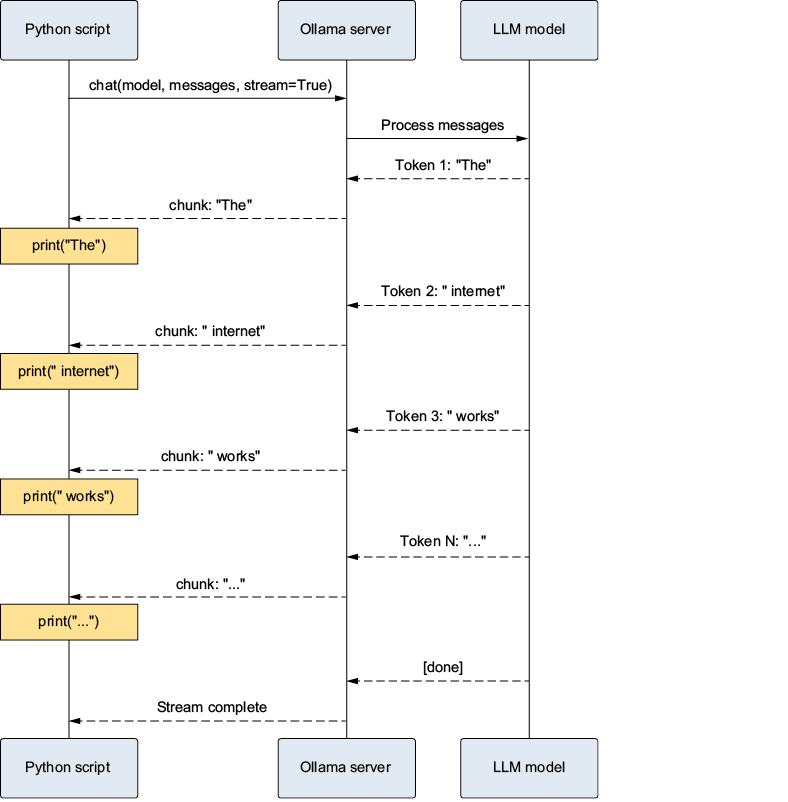
The streaming communication flow. Your Python script sends the request to the Ollama server, which passes it to the model. The model generates text one token at a time, and each token is immediately sent back through the chain to your script, which prints it instantly. The result is a smooth, real-time typing effect.
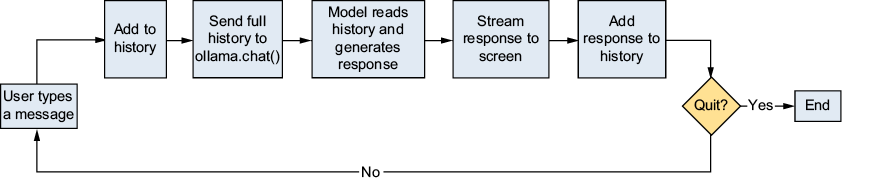
The conversation loop that powers every chatbot. The user’s message is added to the history list, the full history is sent to the model, the response is streamed to the screen and saved in the history, and the cycle repeats until the user exits.
Summary
ollama.chat()sends messages to a local LLM and returns its response as a Python dictionary.- The message format uses three roles:
system(personality/rules),user(human input), andassistant(AI responses). - System messages are your most powerful tool for controlling how the AI behaves. Change the system message to change the model’s personality.
- Streaming (
stream=True) displays responses in real time, token by token, instead of waiting for the complete answer. - Conversation history must be managed by your code; the model has no built-in memory. Append each user message and assistant response to a list, and send the full list with every request.
- Every modern chatbot uses this same fundamental loop: receive input, add it to the history, send it to the model, display the response, repeat.
FAQ
What is the simplest way to send a prompt to a local Ollama model from Python?
Use the Ollama Python library, callollama.chat() with a model name and a list of messages, then print the assistant’s reply from response["message"]["content"]. This chapter’s first example uses gemma3:4b and a single user message.What does the ollama.chat() function return?
It returns a Python dictionary for non-streaming calls. The assistant’s text is nested under response["message"]["content"], which is the part you usually print to the terminal.What are the three message roles used when chatting with an LLM?
system sets the AI’s behavior and rules, user contains the human’s input, and assistant stores the model’s previous replies. Together, they form the conversation history the model reads.Why is the system message so important?
The system message acts like the model’s job description. It shapes tone, personality, and constraints, so the same model can behave like a teacher, poet, translator, or coding assistant depending on how you write it.How do you make the model respond in a specific style?
Put instructions in thesystem message. For example, you can tell it to act like a friendly science teacher, a Shakespearean actor, or a strict professor, and the response style will change accordingly.What is streaming in Ollama, and why use it?
Streaming sends the response in small chunks instead of waiting for the entire answer first. This makes text appear in real time, creating a smoother and more responsive chat experience.How do you enable streaming in ollama.chat()?
Add stream=True to the function call. Then loop over the returned stream with for chunk in stream: and print each chunk’s content as it arrives.Why does streaming need end="" and flush=True in print()?
end="" prevents Python from adding a newline after each chunk, and flush=True makes the output appear immediately instead of being buffered. Together, they create the typing effect.How do you build a chatbot that remembers previous messages?
Keep ahistory list containing all messages, starting with a system message. After each user input, append the user message, send the full history to ollama.chat(), stream the response, then append the assistant’s reply back into the same list.
 Build Applications with Local AI Models on a Mac ebook for free
