Before installing any Python packages for a project, the chapter emphasizes that you should always create a virtual environment. This habit prevents different projects from interfering with one another when they need different versions of the same library, and it keeps your system Python clean. The core idea is simple: one project, one isolated toolbox, which makes development more predictable, easier to debug, and far more professional.
The chapter then walks through the practical steps of creating and using that isolated workspace on macOS. You move into your project folder, create a .venv directory with Python’s built-in venv module, and then activate it so that python3 and pip point to the environment instead of the global installation. The changed terminal prompt serves as a visible reminder that the environment is active, and commands like which python3 can confirm that you are working inside the project-specific setup.
Once the environment is active, the chapter explains how to install packages safely with pip, using the chatbot project’s dependencies as examples. It shows how installing packages like Ollama and Streamlit can also pull in many supporting dependencies, all of which stay contained inside the virtual environment. Finally, it demonstrates how to freeze those exact versions into requirements.txt so the environment can be recreated later with pip install -r requirements.txt, and it stresses that you should share the requirements file rather than the bulky .venv folder itself.
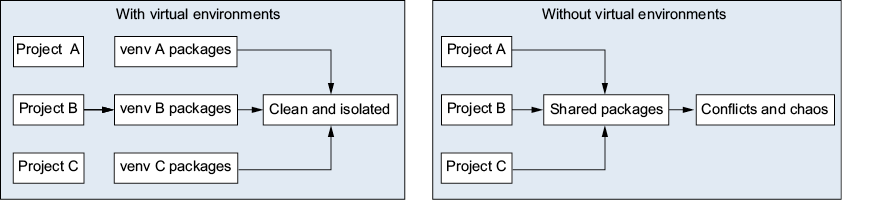
Without virtual environments (right), all projects share the same packages, which can cause version conflicts. With virtual environments (left), each project gets its own isolated set of packages, keeping everything clean and conflict-free.
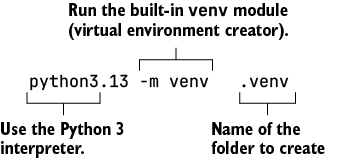
Anatomy of the python3.13 -m venv .venv command
Summary
- A virtual environment isolates each project’s Python packages, preventing conflicts between projects.
python3.13-mvenv.venvcreates a virtual environment in a folder called.venv.source.venv/bin/activateactivates the environment (look for the(.venv)prompt prefix).deactivatereturns you to the system installation of Python.pipinstalladds packages to the active virtual environment.pipfreeze>requirements.txtrecords all installed packages and their exact versions.pipinstall-rrequirements.txtre-creates an environment from a requirements file.- Never share the
.venvfolder; sharerequirements.txtinstead.
FAQ
Why should I use a virtual environment before installing any Python packages?
Virtual environments keep each project isolated so package versions do not conflict with one another. They also make your setup reproducible and easy to clean up later. In this chapter, using a virtual environment is treated as a non-negotiable best practice.What problems can happen if I install packages without a virtual environment?
Without isolation, all projects share the same global Python installation. That can cause version conflicts, broken projects, and difficult debugging when two projects need different versions of the same package.How do I create a virtual environment on macOS for this book?
First navigate to your project folder, then runpython3.13 -m venv .venv. This creates a folder named .venv that contains the isolated Python environment for the project.What does the python3.13 -m venv .venv command mean?
The first venv is the built-in Python module that creates virtual environments. The second venv is the folder name you choose. The -m flag tells Python to run a module as a command.How do I activate a virtual environment on macOS?
Usesource .venv/bin/activate in the project directory. After activation, your terminal prompt usually shows (.venv), which means Python and pip are using the isolated environment.How can I tell whether my virtual environment is active?
Check for the(.venv) prefix in your terminal prompt, and run which python3. If the environment is active, the path should point inside your project’s .venv/bin/ directory.How do I deactivate a virtual environment?
Run the commanddeactivate. This returns your terminal to the system-wide Python installation and removes the (.venv) prefix from the prompt.How do I install packages inside the virtual environment?
After activating the environment, usepip install <package-name>. In this chapter, examples include pip install ollama and pip install streamlit.What is requirements.txt and why should I use it?
requirements.txt is a file that records the exact packages and versions in your environment. It lets you recreate the same setup on another machine or later in the same project using pip install -r requirements.txt.Should I share the .venv folder with others or commit it to Git?
No. The .venv folder is large, platform-specific, and can be recreated from requirements.txt. Share requirements.txt instead, and add .venv/ to .gitignore if you use Git.
 Build Applications with Local AI Models on a Mac ebook for free
