To begin building real applications with local AI models, the chapter shifts from quick terminal-based model interactions to a proper Python development workflow. It emphasizes that while basic Python concepts may be unfamiliar at first, they become manageable when learned gradually, and that a code editor is essential for writing, reading, and running code efficiently. VS Code is introduced as the central workspace because it combines editing, command execution, and helpful coding tools in one place.
The setup process installs and verifies VS Code and Python 3.13 on a Mac using Homebrew, then adds the Microsoft Python extension to turn the editor into a more capable Python environment. The extension provides syntax highlighting, auto-completion, error detection, debugging support, and one-click execution, all of which help catch mistakes early and make code easier to understand. The chapter also shows how to use VS Code’s integrated terminal so commands like Homebrew, Ollama, and Python can be run without leaving the editor.
Once the environment is ready, the chapter walks through creating a dedicated project folder, opening it in VS Code, and writing a first Python script that prints simple messages. Running that script from the integrated terminal confirms the full workflow: create a project, write code, save it, and execute it from the same window. The chapter closes by encouraging practice with keyboard shortcuts, the command palette, and other VS Code features so the development process becomes faster and more comfortable as the project grows.
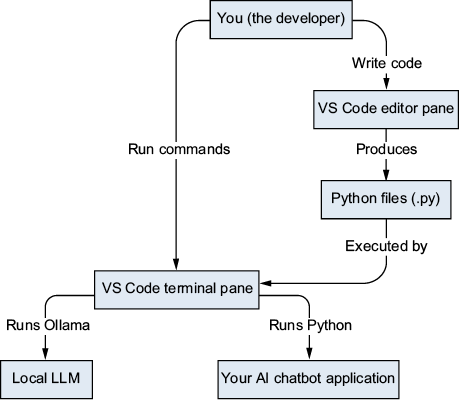
How VS Code fits into your development workflow. The editor pane (top) is where you write Python code. The terminal pane (bottom) is where you run commands, including Ollama and your Python scripts. Both live in a single window, so you never need to switch applications.
Summary
- VS Code is a free, powerful code editor used by professional developers worldwide. You will not outgrow it.
- Homebrew Cask installs graphical desktop applications with
brewinstall--cask. - The Python extension adds syntax highlighting, auto-completion, error detection, and debugging support to VS Code.
- The integrated terminal (Ctrl-`) lets you run commands without leaving VS Code.
- Project folders keep your code organized. Create a dedicated folder for each project.
- The command palette (Cmd-Shift-P or Ctrl-Shift-P) is the universal search bar for VS Code features.
FAQ
What is VS Code, and why do developers use it?
VS Code (Visual Studio Code) is a free, open source code editor made by Microsoft. Developers use it because it is lightweight, customizable with extensions, includes syntax highlighting and error detection, and has an integrated terminal for coding and running commands in one place.How do I install VS Code on a Mac using Homebrew?
Open the terminal and runbrew install --cask visual-studio-code. Homebrew uses the --cask flag for full desktop applications like VS Code. If it is already installed, you can skip the install step and verify it instead.How can I verify that VS Code installed correctly?
Runcode --version in the terminal. If VS Code is installed properly, you should see version information, including the version number and architecture (for example, arm64 on Apple Silicon Macs).How do I open VS Code from the terminal?
After installation, Homebrew sets up thecode command. Just type code in the terminal to open VS Code. You can also open it from Finder by double-clicking the app in Applications.Why do I need Python 3.13 for this book?
This book uses Python 3.13 for the project environment. Some compiled AI and audio packages may not work reliably with newer Python versions, so the chapter recommends using Python 3.13 specifically.How do I install Python 3.13 on a Mac?
Use Homebrew withbrew install python@3.13. Then confirm the install with python3.13 --version. You should see output beginning with Python 3.13.What does the Python extension add to VS Code?
The Microsoft Python extension adds syntax highlighting, IntelliSense code completion, error detection, a debugger, one-click run support, and helpful hover documentation for Python code.How do I install the Python extension in VS Code?
Click the Extensions icon in the left sidebar, search forPython, find the extension published by Microsoft, and click Install. After installation, the Install button changes to a gear icon.How do I use the integrated terminal in VS Code?
PressCtrl-` to toggle the terminal panel, or use View > Terminal. To create a new terminal, use Ctrl-Shift-` or Terminal > New Terminal.How do I create and run my first Python program in the project folder?
Create a folder such as~/my-ai-chatbot, open it in VS Code, create a file named hello.py, add a few print() statements, save with Cmd-S, and run it in the integrated terminal with python3.13 hello.py.
 Build Applications with Local AI Models on a Mac ebook for free
