3 Installing and setting up Ollama
Ollama is introduced as the key local AI runtime for the rest of the book: a tool that lets you download, manage, and run large language models directly on your Mac. Rather than being the AI itself, it functions like the player in a music setup, turning model files into usable assistants that can answer questions, write text, and generate code. The chapter emphasizes why this approach is appealing: it is simple to use, optimized for Apple Silicon, easy to manage, offers API access for future projects, and keeps conversations private because everything stays on your machine.
The chapter also explains how Ollama works under the hood. When started, it runs as a server process that waits for requests from the terminal, a browser, or a Python script, then loads the model from disk and uses the Mac’s hardware to generate responses. This makes it a clear example of local AI, in contrast to cloud AI, where prompts and responses travel over the internet to external servers. The book positions local AI as the better choice for learning and building, while noting that many developers still use both local and cloud tools depending on the task.
Installation and setup are presented as a practical process centered on Homebrew. First, you update Homebrew, then install Ollama, verify the installation with version and package information, and start the service with a command that listens on localhost port 11434. The chapter shows how to confirm the service is running from the terminal or browser, explains what happens during startup, and covers common problems such as an already-running process, missing command paths, or a browser that cannot connect. It ends by reinforcing how to stop and restart the service and prepares the reader for downloading and using their first model next.
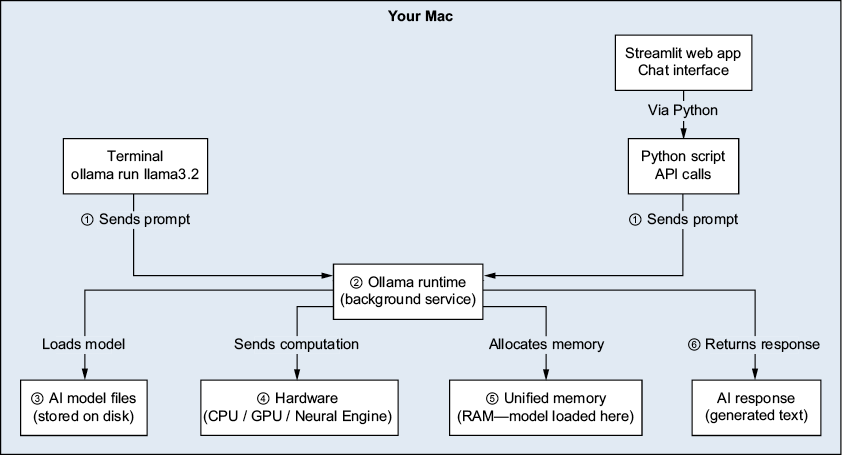
Ollama’s architecture on your Mac. When you send a prompt (step 1), Ollama loads the model from disk (step 3), processes the input using the Mac’s hardware components (step 4), and generates a response (step 6). All the processing happens inside the “Your Mac” boundary; nothing is sent over the internet.
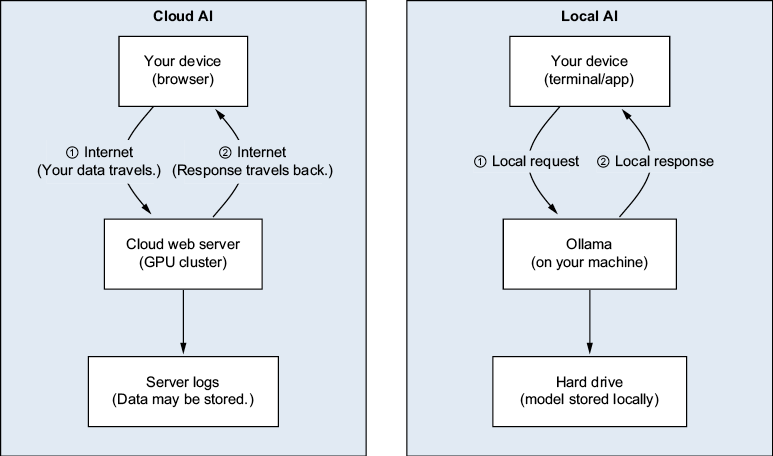
Cloud AI (left) versus local AI (right). With cloud AI, your prompt and the response both travel across the internet, and your data may be stored on the company’s servers. With local AI, everything stays on your machine: there is no network hop, no cloud AI server, and no data leaving your control.
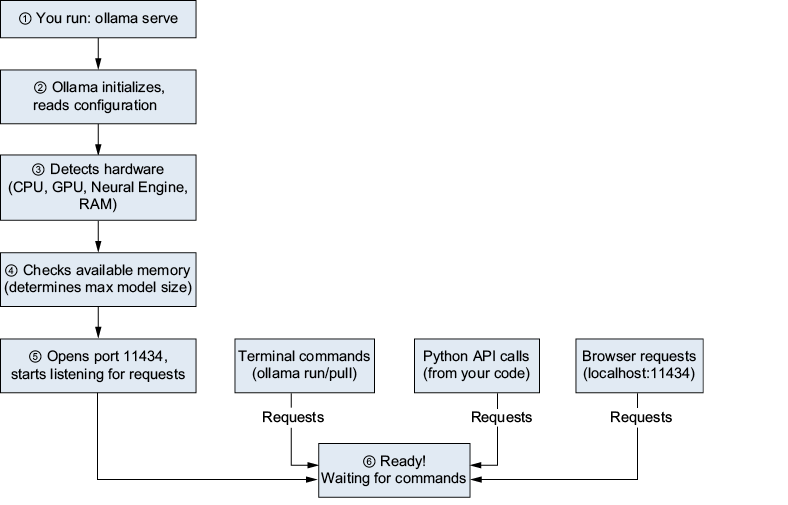
The Ollama startup sequence. Steps ①–⑥ happen in order when you run ollama serve. Once Ollama reaches the “Ready!” state, it can receive requests from three different sources simultaneously: terminal commands, Python scripts, and browser requests.
Summary
- Ollama is a runtime that downloads, manages, and runs LLMs on your local machine.
- Ollama is not the AI itself—it is the engine that makes AI models work.
- Ollama is optimized for Apple Silicon (M1/M2/M3/M4 chips), taking advantage of the Neural Engine and unified memory.
- Cloud AI sends your data over the internet; local AI keeps everything on your machine. The tradeoff is model size and recency, but local models are highly capable and improving rapidly.
- Install Ollama with
brewinstallollama. - Start the service with
ollama serve, which listens on port 11434 (localhost). - Verify the service by visiting
http://localhost:11434in your browser. - Keep one terminal window running
ollamaserve, and use a second window for commands.
FAQ
What is Ollama, and why do I need it to run AI models on my Mac?
Ollama is a runtime that lets you download, manage, and run large language models directly on your own computer. It acts like the “player” for AI model files, turning them into something you can actually use for chat, writing, or code generation.How is local AI with Ollama different from cloud AI?
Cloud AI sends your prompt to a provider’s server over the internet, while local AI with Ollama keeps the prompt, model, and response on your Mac. That means no network hop, more privacy, and offline use once everything is set up.Why is Ollama a good choice for beginners?
Ollama is beginner-friendly because running a model is simple: you download it withollama pull and start it with ollama run. It also makes model management and local AI experimentation straightforward.What hardware features does Ollama use on Apple Silicon Macs?
On modern Apple Silicon Macs, Ollama is optimized to use the chip’s hardware acceleration, including the GPU and Neural Engine, along with unified memory. This helps it generate responses faster on supported Macs.How do I install Ollama on macOS using Homebrew?
First update Homebrew withbrew update, then install Ollama with brew install ollama. Using Homebrew keeps the tool in the same package-management workflow as your other developer tools.How can I verify that Ollama installed correctly?
You can confirm the installation by runningollama --version. You can also check details with brew info ollama, which should show the installed version and package information.How do I start the Ollama service?
Runollama serve in a terminal window. Ollama will start as a foreground server process and listen on 127.0.0.1:11434 for requests from the terminal, browser, or programs.How do I check whether the Ollama service is running?
You can open a new terminal and runollama --version, or visit http://localhost:11434 in your browser. If the service is running, the browser should show “Ollama is running.”How do I stop Ollama when I’m done using it?
PressCtrl-C in the terminal window where ollama serve is running. After that, refreshing http://localhost:11434 should fail to connect.What should I do if Ollama does not start or I get a common error?
If you see “Address already in use,” another Ollama process is probably running; stop it withpkill ollama or Activity Monitor. If you get “Command not found,” restart the terminal or run brew link ollama. If the browser cannot connect, make sure ollama serve is still running.
 Build Applications with Local AI Models on a Mac ebook for free
