2 Installing and using Homebrew
The chapter introduces Homebrew as the essential package manager for macOS developers and explains why it is preferable to installing tools manually. It frames package managers as developer equivalents of app stores: they handle version compatibility, dependencies, and updates automatically, saving time and reducing setup problems. This foundation matters because many of the tools used later in the book, such as Python, Ollama, and VS Code, are installed through Homebrew.
It then walks through installing Homebrew from the terminal using the official installation command, explaining each part of the command so the process feels less intimidating. The chapter emphasizes safe usage by noting that downloading and executing scripts should only be done from trusted, official sources. After installation, it shows how to add Homebrew to the shell path so the terminal can find it, how to verify the setup with brew --version and brew doctor, and how to interpret the expected success messages.
Finally, the chapter demonstrates Homebrew in action by installing and testing wget, then summarizes the commands readers will use repeatedly: installing, searching, listing, inspecting, updating, upgrading, uninstalling, and diagnosing packages. It also explains where Homebrew stores files on Apple Silicon Macs, with packages kept in the Cellar and shortcuts placed in /opt/homebrew/bin/ so commands work from anywhere. The chapter closes with practice exercises that reinforce installation, exploration, package research, and routine maintenance.
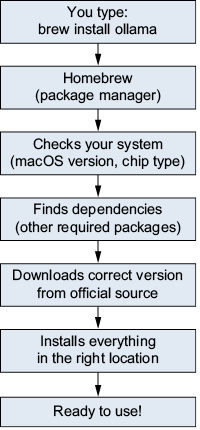
The Homebrew installation flow for a single package. Homebrew automatically handles version detection, dependency resolution, downloading, and installation. Updating installed packages is covered in section 2.5.
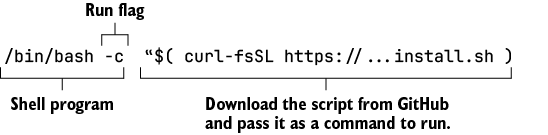
The Homebrew installation command broken into its three parts. Reading from right to left in execution order, curl downloads the installer script, $( ) captures its output and passes it to the shell, and /bin/bash -c executes the result.
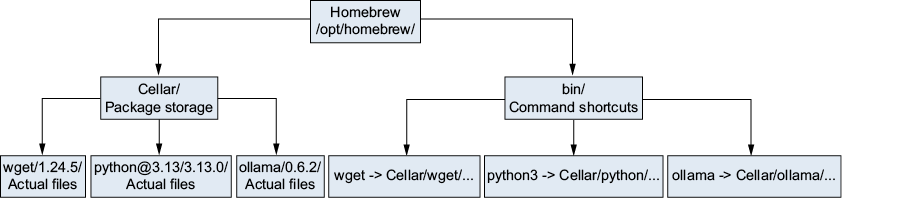
Homebrew’s directory layout under /opt/homebrew/. Each package is stored in its own versioned folder inside Cellar/. The bin/ directory contains symbolic links (shortcuts) that point back to the actual program files in Cellar/. When you type a command such as wget, the shell finds its shortcut in bin/ and follows the link to the real program.
Summary
- A package manager handles the downloading, installing, updating, and removing of software for you.
- Homebrew is a widely used package manager for macOS.
- You can install Homebrew with a single command that downloads and runs the official installation script, and you can verify the installation with
brew --versionandbrewdoctor. - You can install packages with
brewinstall<name>—one command handles dependencies and version compatibility. - You can use
brewinfo<name>to see a package’s version, description, and dependencies. - Eight key Homebrew commands (
install,uninstall,search,list,info,update,upgrade,doctor) cover everything you will need. - You can keep your software up to date periodically by running
brewupdatefollowed bybrewupgrade. - Homebrew organizes packages in
/opt/homebrew/Cellar/with shortcuts in/opt/homebrew/bin/.
FAQ
What is Homebrew, and why do I need it in this book?
Homebrew is a package manager for macOS. It lets you install developer tools from the terminal with one command, while automatically handling downloading, dependencies, and updates. In this book, it is used to install tools like Ollama, Python, and VS Code.What is a package manager?
A package manager is like an app store for the terminal. Instead of clicking Install in a graphical store, you type commands to install packages such as programs, libraries, or development tools.Why is installing software manually on macOS less convenient than using Homebrew?
Manual installation can create problems with version compatibility, dependencies, and updates. You may need to figure out the right version for your Mac, install missing supporting software yourself, and check multiple websites for updates. Homebrew handles those tasks automatically.What is the Homebrew installation command?
The installation command is/bin/bash -c "$(curl -fsSL https://raw.githubusercontent.com/Homebrew/install/HEAD/install.sh)". It downloads the official installer script from Homebrew and runs it.What do the curl flags -f, -s, -S, and -L mean?
-f fails silently if the download fails, -s makes the download silent, -S shows errors if something goes wrong, and -L follows redirects to the final URL.Why does the installer ask for my password?
The installer may usesudo, which needs temporary elevated permission to place files in system-managed locations. When you type your password, nothing appears on screen, which is normal and intentional for security.Why doesn’t the brew command work immediately after installation?
Homebrew is installed, but your terminal may not yet know where to find it. You need to add Homebrew’s location to your PATH by running the post-installation commands shown by the installer.How do I verify that Homebrew was installed correctly?
Runbrew --version to confirm Homebrew responds, then run brew doctor. If everything is set up properly, brew doctor should report Your system is ready to brew.How do I install and test a package with Homebrew?
Usebrew install <package_name>. For example, brew install wget installs wget, and you can test it with a command like wget --version or by using it to download a file.Where does Homebrew store installed packages on an Apple Silicon Mac?
Homebrew installs everything under/opt/homebrew/. Each package is stored in its own folder inside /opt/homebrew/Cellar/, and symbolic links in /opt/homebrew/bin/ let you run commands like wget from anywhere.
 Build Applications with Local AI Models on a Mac ebook for free
