15 Common errors and troubleshooting
Every programmer runs into errors, and this chapter reframes them as useful clues rather than signs of failure. It builds confidence by showing that the real skill is learning to diagnose problems quickly, and it introduces a practical toolkit for doing that across local AI apps built with Ollama and Streamlit. The overall message is that debugging is a normal part of development, and systematic habits matter more than luck.
It first surveys the six most common problems you are likely to hit, including missing models, connection failures, memory shortages, port conflicts, missing Streamlit installations, and Python version mismatches. For each one, it explains what the error usually means, how to confirm the cause, and the most direct fix, such as pulling the model, starting the Ollama service, switching to a smaller model, freeing a port, activating the right virtual environment, or upgrading Python. It also emphasizes reading traceback messages correctly by looking at the last line first, finding the line in your own code, and understanding the chain of calls that led to the failure.
The chapter then moves from recognizing errors to handling them well in code and in daily troubleshooting. It recommends defensive programming with specific try/except blocks, step-by-step verification of the environment and server, temporary print statements for quick insight, and logging for longer-term maintainability. It closes with a structured troubleshooting roadmap, advice on asking for help with a minimal reproducible example, and the reminder that developers improve by investigating problems methodically, one check at a time, until the issue is isolated and solved.
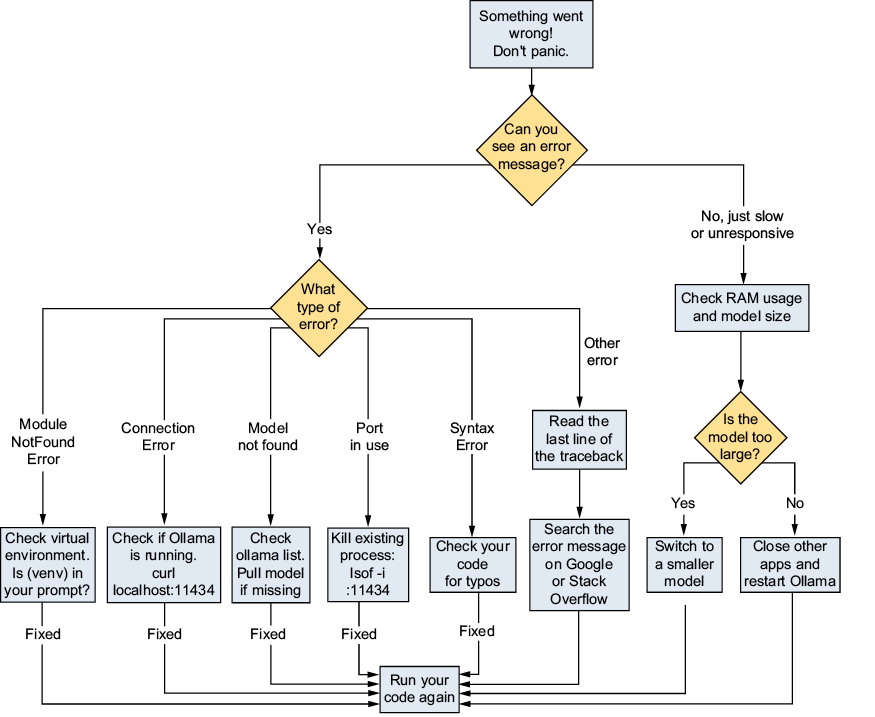
A troubleshooting flowchart for diagnosing common problems with Ollama and Streamlit, organized by error category
Summary
- For the six common errors discussed in this chapter (model not found, connection refused, out of memory, port conflicts,
ModuleNotFoundError, and Python version problems), there are simple solutions. Pull the correct model, start ollama serve, switch to a smaller model, kill the conflicting process, activate your virtual environment, or upgrade Python, respectively. - You can read error messages effectively using the three-step method: read the last line first, find your code, and understand the chain.
- Four useful debugging techniques are try/except blocks, step-by-step verification, print debugging, and logging.
- A systematic troubleshooting checklist includes four levels to check: environment, Ollama, code, and Streamlit.
- To ask for help effectively, provide minimal reproducible examples of the problem.
FAQ
What is the first thing to check when Ollama says a model is not found?
Confirm that you downloaded the model withollama pull <model_name> and then verify it appears in ollama list. If the model still does not show up, recheck the spelling and the tag.Why does Ollama return “connection refused” when I call it from Python?
This usually means the Ollama server is not running. Start it withollama serve, or open the Ollama desktop app on macOS, then test with curl http://localhost:11434.What causes an “out of memory” error when running a local model?
The model is too large for your available RAM, or your Mac is already using too much memory. Try a smaller model, stop other loaded models withollama stop, and close memory-heavy apps.How do I fix “port already in use” on port 11434?
Another Ollama process is probably already using the port. Find it withlsof -i :11434, stop the process if needed, and then start Ollama again. In many cases, you should reuse the existing Ollama instance instead of starting a second one.Why does Streamlit say ModuleNotFoundError: No module named 'streamlit'?
Streamlit is likely not installed in the Python environment you are currently using. Activate the correct virtual environment, check which python3, and install Streamlit in that environment with pip install streamlit.What Python version should I use for Streamlit and the Ollama Python library?
Use Python 3.9 or later; Python 3.12 or 3.13 is a safe choice for this book. If your version is older, install a newer Python and create a fresh virtual environment with it.How do I read a Python traceback effectively?
Start with the last line first to identify the error type and short message. Then find the line in your own code, and finally read upward to understand the chain of calls that led to the failure.What should I do if I get an error that is not one of the six common ones?
Use a systematic troubleshooting process: check your environment, check Ollama, check your code, and check Streamlit-specific issues. Break the problem into small tests and verify each prerequisite separately.What is the safest way to add error handling to a chatbot app?
Wrap risky calls likeollama.chat() in try/except blocks, catch specific errors first, and show user-friendly messages instead of a raw traceback. Use a general Exception handler only as a fallback.
 Build Applications with Local AI Models on a Mac ebook for free
