10 Building a voice-enabled AI chat application
The chapter brings together everything learned earlier to build a private, voice-enabled AI chat app that runs entirely on a Mac. The user speaks into the microphone, the browser captures audio, MLX Whisper transcribes it locally, and Ollama generates a streamed response that appears in a Streamlit chat interface. Because all processing stays on-device after model downloads, the system emphasizes privacy while showing how multiple AI components can be combined into one workflow.
The application is developed in stages so each part can be tested before adding the next. First, the app is wired to accept microphone input and transcribe WAV audio by writing it to a temporary file for Whisper, then deleting that file after use. Next, the transcript is connected to Ollama so the model can respond using the conversation history, with Streamlit session state preserving the dialogue across reruns. Finally, the code is refactored into helper functions, a sidebar is added for selecting Whisper and Ollama models and adjusting temperature, and a text input fallback is provided so the app remains usable even when voice input is inconvenient.
The completed app also includes practical setup and testing guidance. A helper script starts Ollama and pulls the needed model automatically, while the chapter explains how to run Streamlit, verify microphone permissions, and troubleshoot common issues such as missing speech, transcription errors, or an unavailable Ollama server. It closes by examining latency: voice apps feel slower than text apps because audio must be captured and transcribed before the first token can stream, so responsiveness depends on model size, hardware, and user expectations. The result is a robust local voice assistant foundation that can be extended in future chapters and projects.
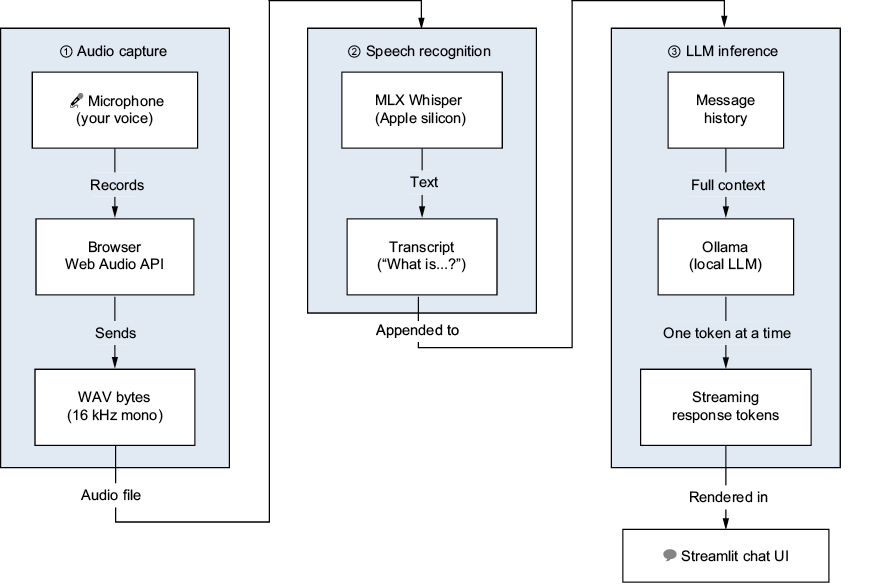
The voice AI pipeline. Audio captured by the browser travels through MLX Whisper for transcription. The resulting text is then fed into Ollama with the full conversation history, and the streaming response is rendered in the Streamlit chat interface. All three stages run locally on your Mac.
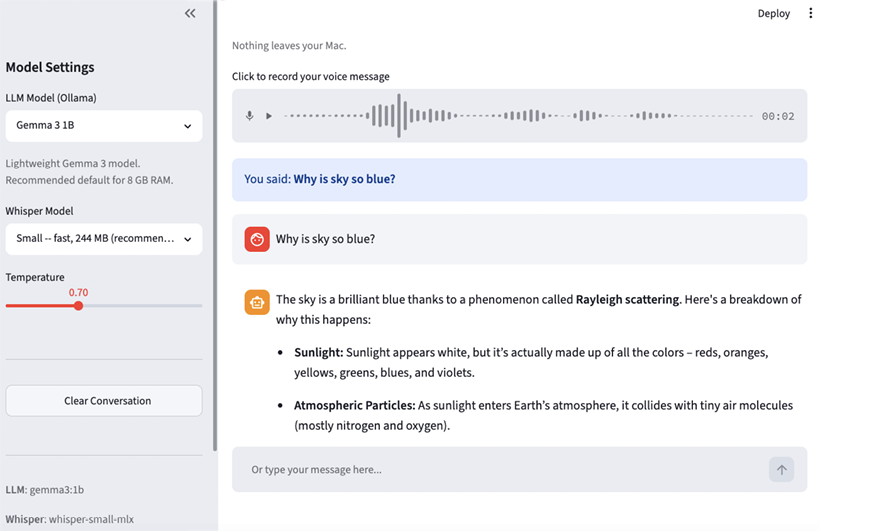
The completed voice chat app running locally with gemma3:1b. The sidebar shows the Ollama model, Whisper model, and temperature controls. The main panel shows the transcribed voice input, the user message, and the streamed LLM response.
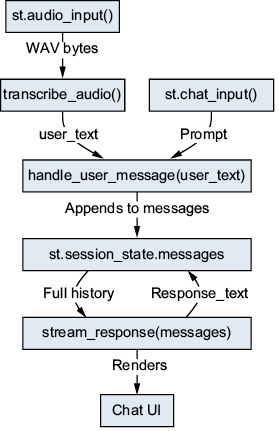
Both input paths converge on handle_user_message(). The function appends the user text, calls stream_response() with the full history, and stores the response. The chat UI always reflects the current state of st.session_state.messages.
Summary
- Our voice AI pipeline has three stages: audio capture (browser), speech recognition (MLX Whisper), and LLM inference (Ollama). All three run locally on your Mac: nothing leaves your machine.
st.audio_input()captures audio from the browser and returns an in-memory object whose WAV bytes can be read with file-style methods.- This chapter passes a file path to MLX Whisper’s
transcribe(); usetempfile.NamedTemporaryFile()to bridge between in-memory WAV bytes and the filesystem. Always delete temporary files in afinallyblock. - Refactoring the streaming and message handling into named functions (
transcribe_audio,stream_response,handle_user_message) makes multi-input apps clean and maintainable. - Both voice and text input paths converge on
handle_user_message(), a single function that is agnostic to the source of the text. - The latency of roughly two seconds to the first response word felt responsive in this chapter’s example. Acceptable latency will depend on the application and user expectations.
FAQ
What are the main stages in the voice AI pipeline described in this chapter?
The pipeline has three stages: audio capture in the browser, speech recognition with MLX Whisper, and LLM inference with Ollama. The output from each stage becomes the input to the next, all running locally on your Mac.Why does the chapter use st.audio_input() for recording voice?
st.audio_input() provides a microphone record button in the browser and returns the recorded audio as WAV bytes to Python. This makes it easy to collect voice input directly inside a Streamlit app without extra audio-handling code.Why does the app write audio to a temporary WAV file before transcribing it?
MLX Whisper’stranscribe() function in this chapter expects a file path, not raw bytes. The temporary file acts as a bridge: the app writes the WAV bytes to disk, passes the file path to Whisper, and then deletes the file right away.Why is delete=False used with tempfile.NamedTemporaryFile()?
delete=False keeps the temporary file on disk after the with block ends, so Whisper can still read it. Without it, the file might be removed too early, before transcription finishes.Why does the chapter recommend incremental development for the app?
Incremental development lets you build and test the application in stages: first transcription, then LLM response streaming, and finally the full interface. This reduces debugging complexity and helps verify each part before moving on.How does the app keep chat history between reruns in Streamlit?
It stores conversation messages inst.session_state.messages. That way, the chat history persists across reruns and the LLM can use the full conversation context.Why does the complete app include a text input fallback in addition to voice input?
The text fallback makes the app usable when voice input is inconvenient or when transcription is inaccurate. Both voice and text inputs are sent through the same message handler, so the experience stays consistent.What is the purpose of the stream_response() function?
stream_response() wraps the Ollama call and updates the UI as tokens arrive. It creates the assistant chat bubble, streams the response in real time, and returns the full response text when finished.How does the app let users choose different models from the sidebar?
The sidebar uses select boxes for both the Ollama model and the Whisper model, plus a temperature slider for response behavior. The Ollama options come frommodel_config.json, which lets you change models without editing the UI code.What are the most common issues when running the voice chat app, and how are they fixed?
Common issues include no speech being detected, inaccurate transcription, Ollama not running, or microphone permission problems. The chapter suggests speaking longer, using a larger Whisper model, startingollama serve, and allowing microphone access in macOS privacy settings.
 Build Applications with Local AI Models on a Mac ebook for free
