5 Ensure effective navigation and interaction
Effective navigation and interaction begin with helping people orient themselves quickly and move through content without friction. Clear, unique page titles and properly structured headings give users a reliable sense of place, support screen reader navigation, and make browsing with tabs, bookmarks, or browser history easier. The chapter emphasizes using semantic HTML for headings and landmarks so the document structure is understandable to both sighted users and assistive technology users.
Consistency is a major theme throughout the chapter: navigation menus, labels, icons, and page regions should appear and behave predictably across pages. Repeated blocks such as headers, search forms, and menus should be easy to skip with well-placed skip links, while modal dialogs and other dynamic components must manage focus carefully so users do not get trapped or lose their place. The chapter also stresses that keyboard users need a logical focus order, visible focus indicators, and protection from overlays that obscure the focused element.
Links and pointer targets must be understandable and forgiving. Links should be clearly identifiable, have descriptive text or accessible names, and warn users when they open in a new window; image-only or icon-only links need strong semantics and visible alternatives. Finally, the chapter explains that touch, mouse, and gaze input are imprecise, so controls should be large enough, well spaced, and easy to activate without accidental errors, especially in high-stakes interactions like confirmations or pagination. Together, these practices make web experiences more predictable, operable, and inclusive.
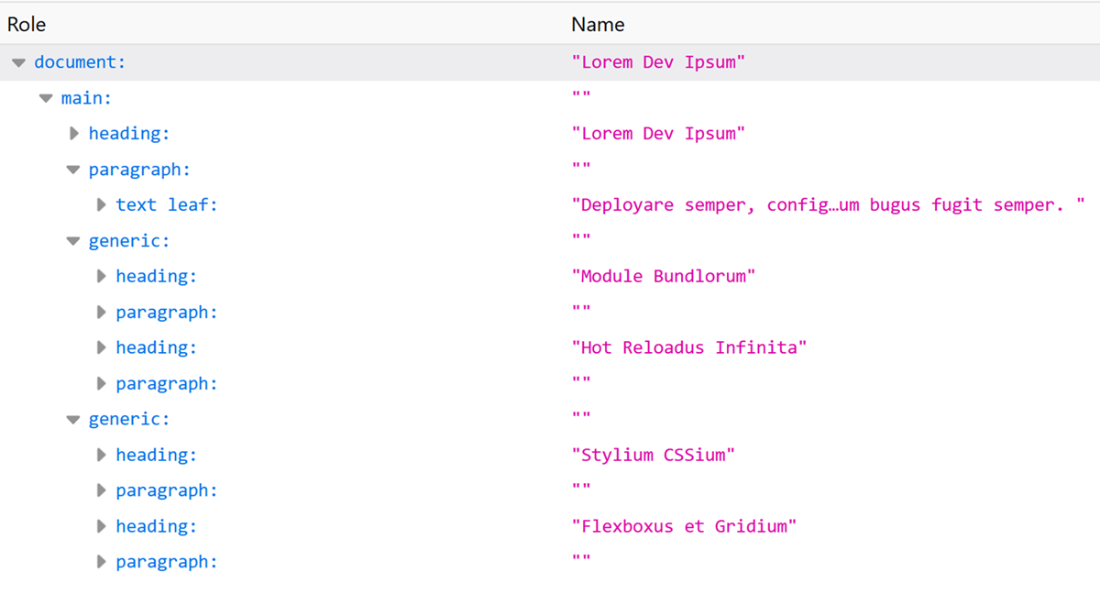
Headings in semantically correct HTML are automatically added to the accessibility tree. This way assistive technology users can understand the structure of the page, as well as individual sections.
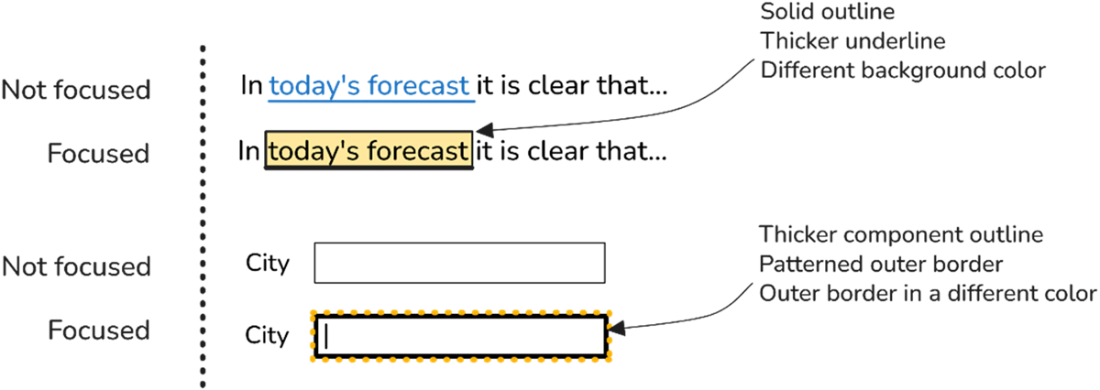
Custom focus indicators should not just meet minimum conformance requirements, but should also improve the overall experience for all users. In this case, two interactive components are shown: a link and an input text field. The link’s focus indicator includes a solid outline, a thicker underline, and a shaded background. The text field’s indicator includes a thicker outline and a patterned outer border in a different bright color. The idea is to offer sufficient contrast across all backgrounds, while making it easier to perceive.
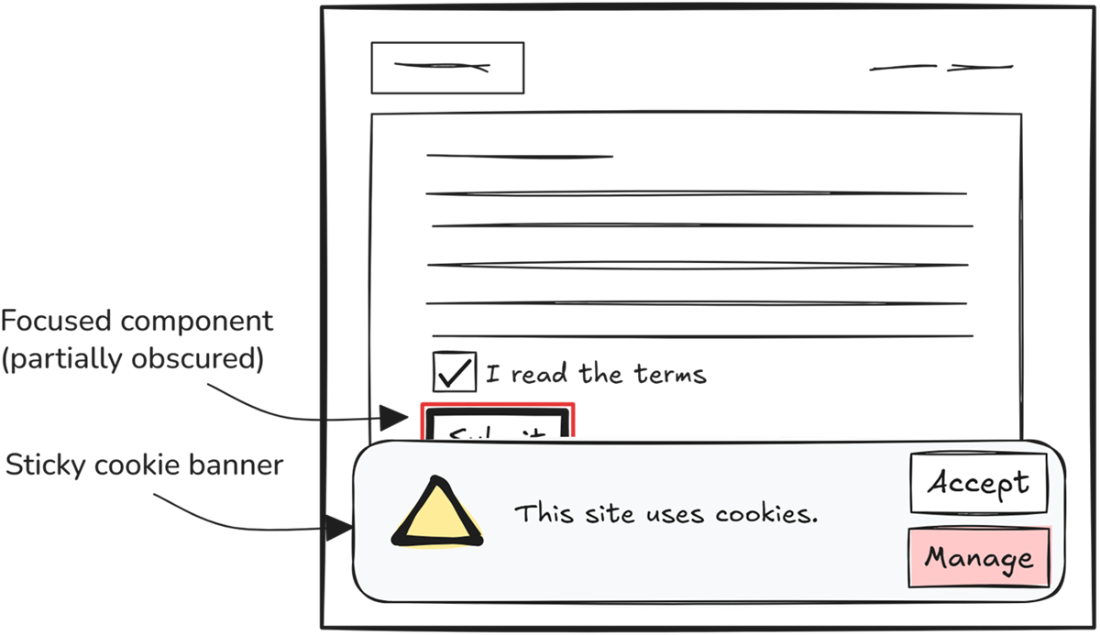
This image shows a sticky cookie banner overlapping interactive page content. The Submit button, which currently has focus, is partially obscured by the banner.
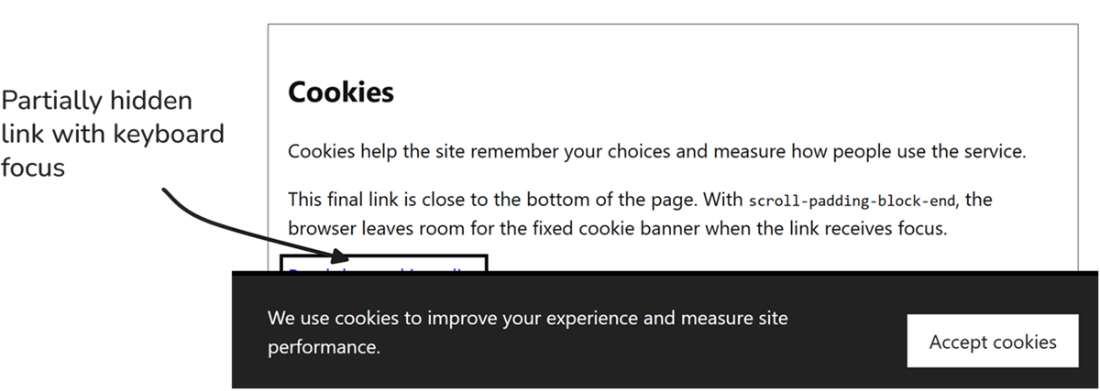
A link with keyboard focus is partially hidden by the cookie banner. This happens when fixed elements are placed at the top or bottom without applying scroll padding CSS rules.
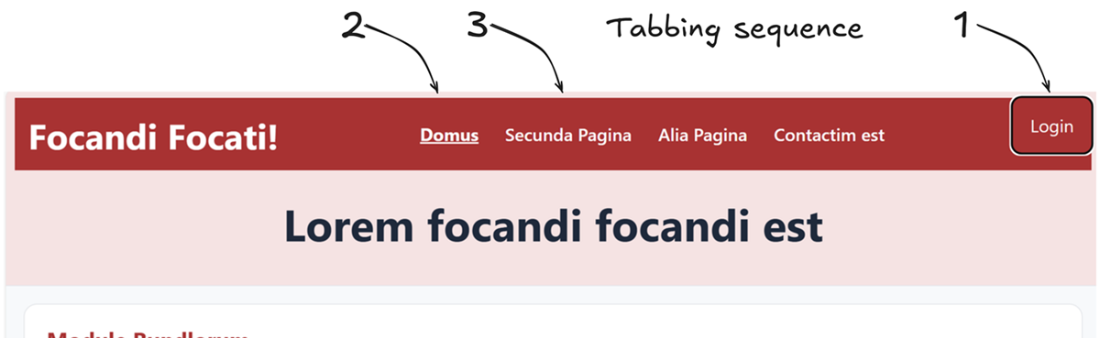
Focus order can seem illogical if elements are moved around using CSS rather than having the tabbing sequence match the underlying DOM structure. This image shows the tab sequence starting from the right-most element, and then skipping to the first.
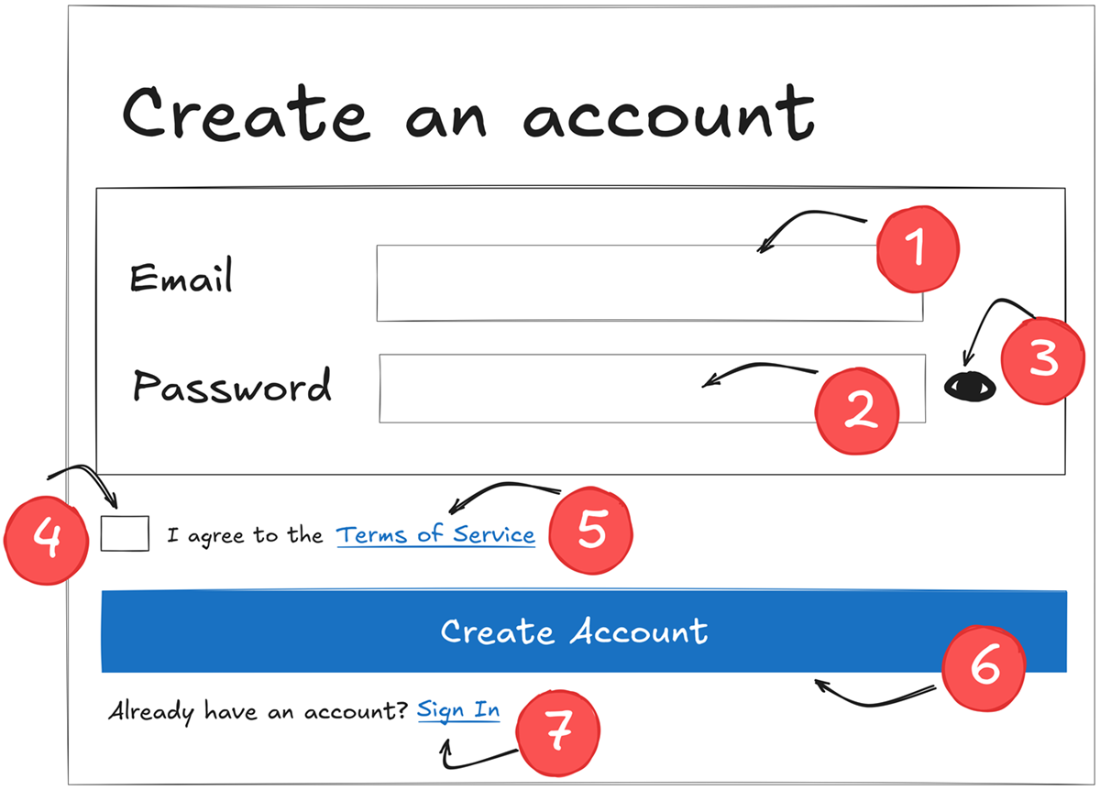
Focus order should be logical everywhere, including form elements. This image shows a focus order typically expected in a sign-up form,
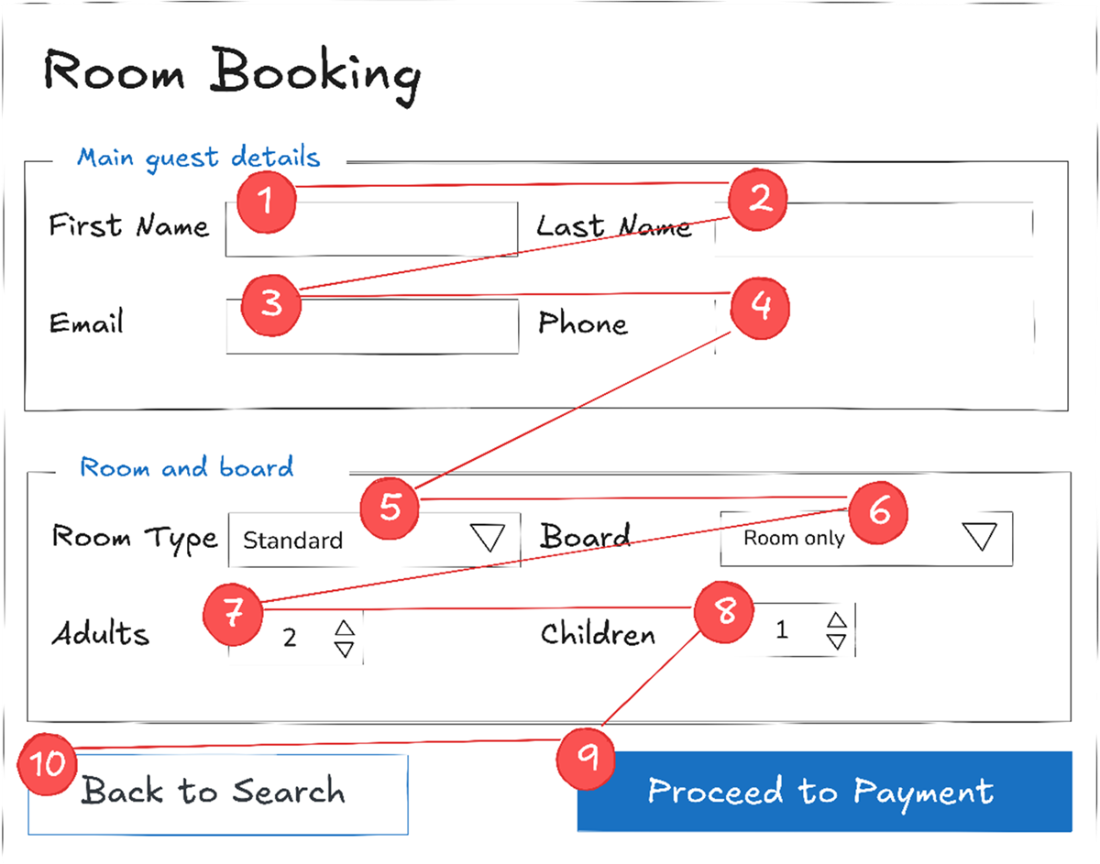
Focus order in a horizontal form. The flow should be logical to your intended audience. For instance, in this case, English readers will expect a left-to-right top-down flow. Also note that although the last two buttons are placed next to each other, the main action “Proceed to Payment” is taking precedence over the secondary action “Back to Search”. This is a logical and usable design.
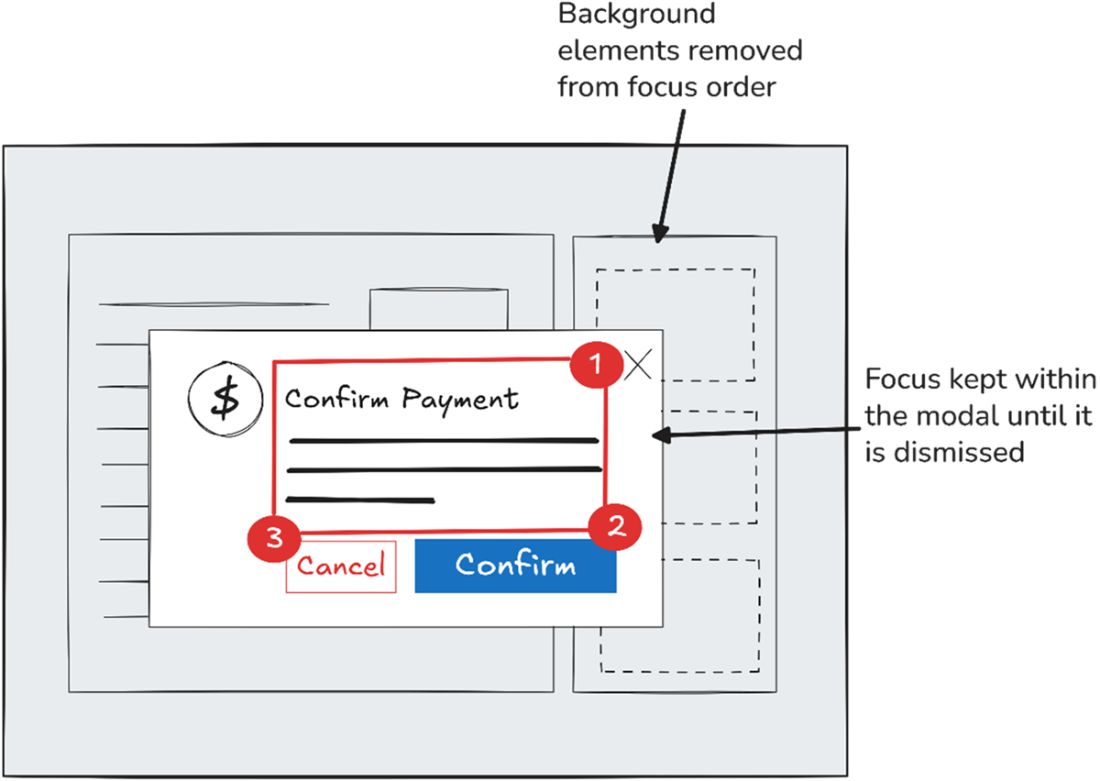
In modal dialogs, keyboard focus should remain inside the dialog until it is dismissed, rather than moving to background content.
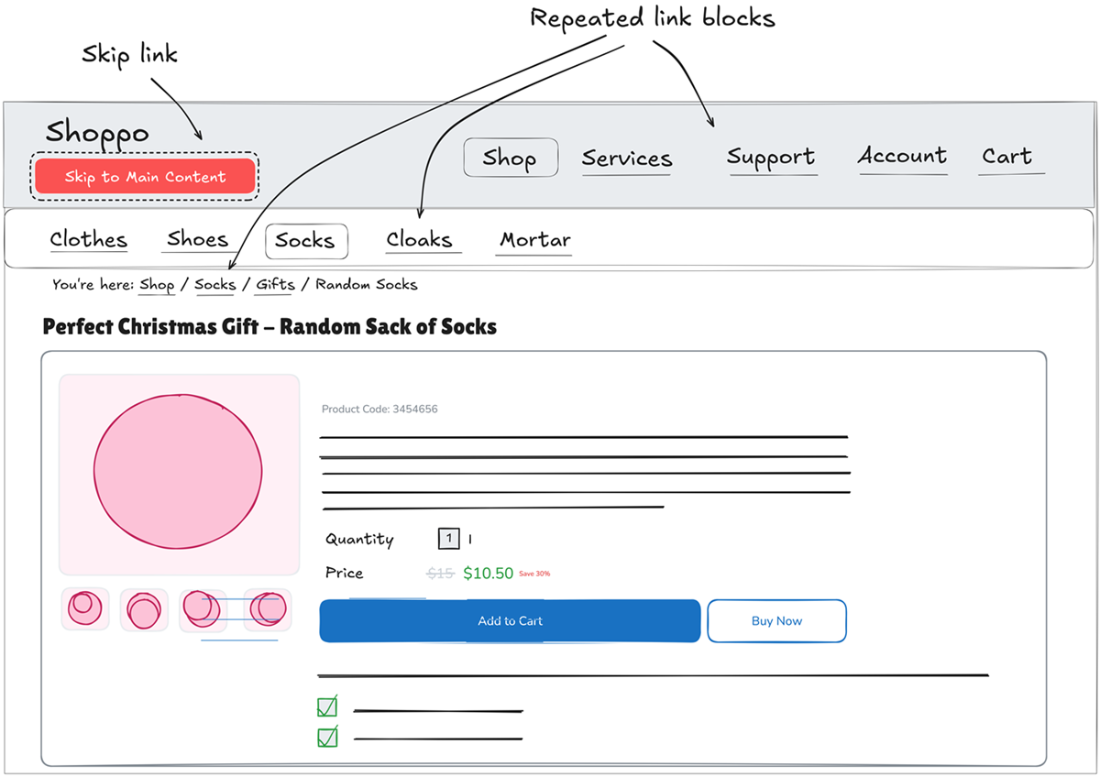
Skip links, placed at the top of a page, allow users to bypass blocks of repeated content, such as link blocks repeated at the top of each page.
Default browser link styling as applied to the word “codebase”. Links are typically shown in dark blue with an underline.

Links without any visual cues are indistinguishable from their surrounding text. The word “codebase” is a link, but there is no way of identifying it.

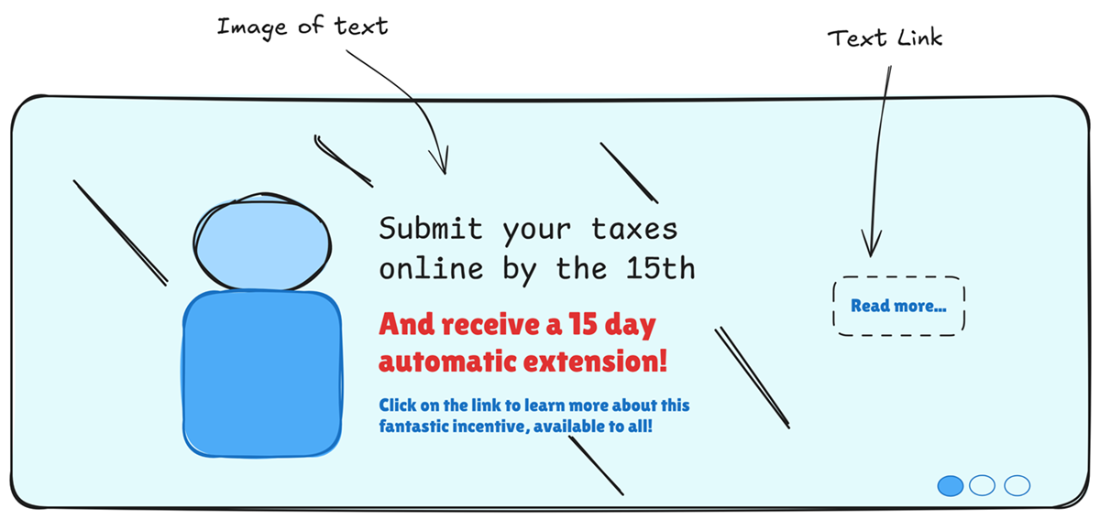
An image of text, along with a clickable “Read more...” link placed on top of it. This pattern is very common in carousels, making it extremely hard for assistive technology users to discern what the link is referring to. Context, as conveyed by the surrounding text, is lost.
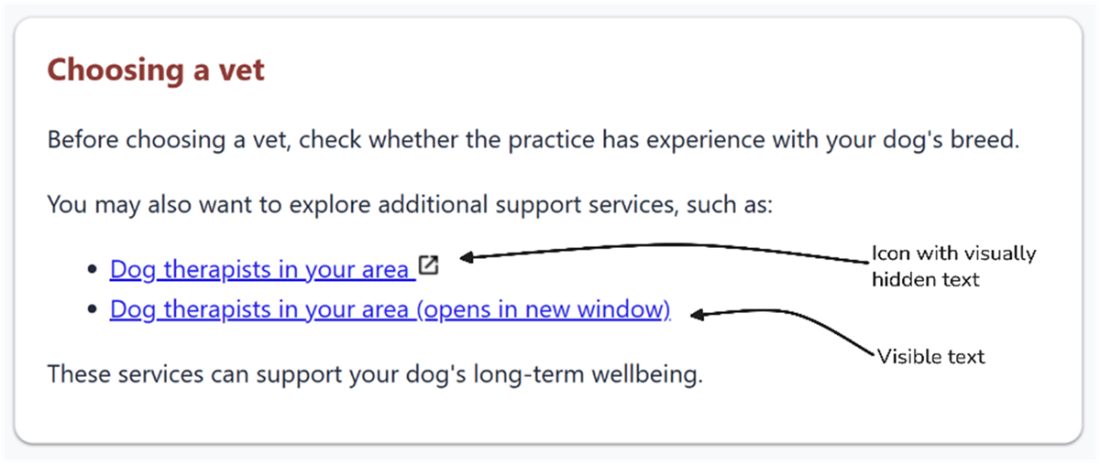
This image shows two links, both of which inform users that they open content in a new window. The first approach uses an icon with visually hidden text for assistive technology users, while the second approach shows the same link alongside visible text indicating that a new window or tab will open.
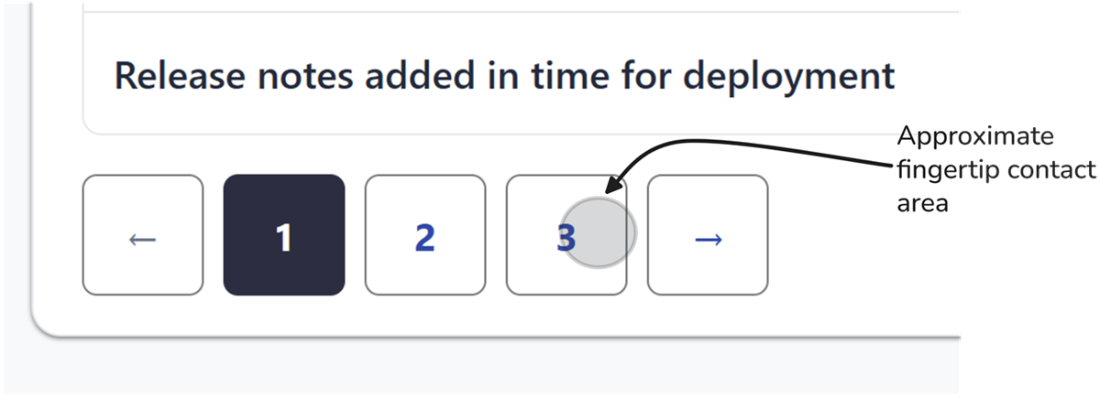
This image shows a typical pagination control with small targets placed close to each other. The darker circle approximates the fingertip contact area, which covers multiple targets simultaneously.
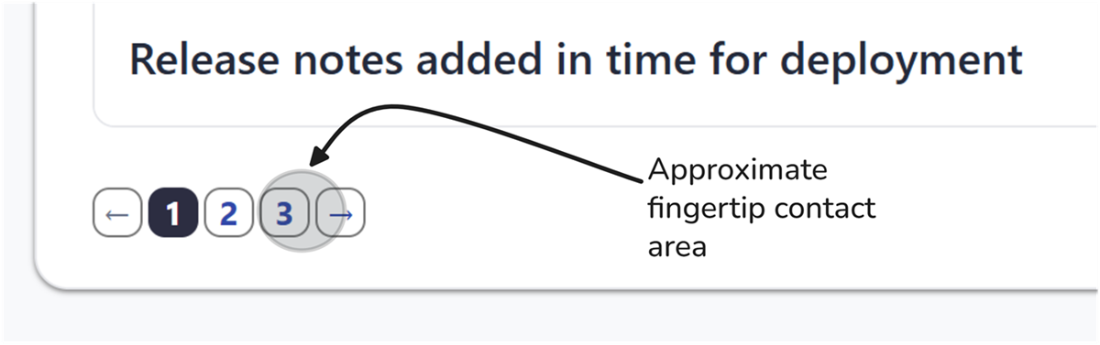
This image shows the same pagination control with larger target areas and better spacing between targets. This improves usability and accessibility for people with different abilities using any input modality. The darker circle approximates the fingertip contact area, which fits well within a single target.
Summary
- All web pages need to have titles that clearly describe their purpose. These are what browsers use to label tabs, history entries, and bookmarks. Users therefore rely on them to stay oriented. This also matters to screen reader users who rely on page titles to distinguish between different pages.
- Headings are a core part of your content structure, and when used well, they enhance navigability and understanding.
- Consistency is important in any web application. This includes any aspect, from navigation to action names. Navigation mechanisms that are repeated across pages should appear in a consistent location and order. Actions and functionality should also be consistently named, and if icons are used, these should also be consistent throughout the application.
- Assistive technology users will typically explore and navigate pages using programmatically defined page landmarks. Semantic HTML elements such as <header>, <main>, <nav>, and <footer> provide a programmatic way to communicate regions on a page. They come with built-in meaning, allowing assistive technology users to identify key regions within a page.
- All functionality on a website should be accessible to keyboard-only users. Any pointer or touch action needs to also have a keyboard equivalent - wherever possible.
- Unlike mouse users, keyboard users rely on sequential navigation, and their current position on the page can only be identified through a focus indicator. Every interactive component should have a clearly visible indicator when it receives keyboard focus. Browsers come with default indicators; however, one can also implement custom indicators for more visibility.
- We need to ensure that when users navigate content sequentially using a keyboard, all interactive elements – such as links, buttons, and form fields – receive focus in a predictable order that matches the visual presentation.
- Skip links help keyboard and screen reader users bypass repeated blocks of interactive links - such as a navigation bar at the top of each page.
- Keyboard traps block keyboard users, making them a severe accessibility barrier. This happens when keyboard focus is trapped on a single element, or within a part of the page, preventing the user from progressing through the interface. With simple and quick tests, keyboard traps can be detected and resolved.
- Links are fundamental for any web application as they move people around through a site, point to related information, trigger downloads, open documents, and sometimes take people away from the current page entirely. That makes link design an accessibility concern, not just a visual design detail. Links need to be visually distinct from surrounding text, expose a visible keyboard focus state, and communicate their purpose clearly. If a link opens a new tab or is represented by an image, users, and particularly those using assistive technology, should not have to guess what will happen.
- Designing for imprecision is essential. We cannot assume that our users can point with pixel-perfect accuracy. Small targets may be difficult to activate with a finger, mouse, eye tracker, or other pointing methods. Error traps can be created if they are also crowded. Target size is therefore not just a mobile or touchscreen issue – people using a mouse may experience tremors or limited dexterity. People using eye trackers may experience calibration issues due to involuntary movements. In either case, small and crowded controls increase effort and the likelihood of errors.
FAQ
Why are unique page titles important for accessibility?
Unique page titles help users understand where they are, distinguish between tabs and bookmarks, and return to pages more easily. They are especially important for screen reader users and people who rely on browser history, bookmarks, or multiple tabs.
What should a good page title include?
A good page title should describe the page’s subject, be short but meaningful, place the most important information first, and usually include the site or organization name at the end. It should also align with the page’s <h1> where possible.
Why should headings use proper HTML elements instead of styled text?
Proper heading elements (<h1> to <h6>) provide real structure that assistive technologies can understand. Styling a <div> or <span> to look like a heading does not create meaningful navigation or document hierarchy.
What is the best practice for heading structure on a page?
Headings should follow a logical hierarchy, moving through levels in order and avoiding skipped levels. It is fine to use multiple <h2> headings for main sections, but nested sections should descend naturally, such as <h2> to <h3> to <h4>.
Why is consistent navigation across pages important?
Consistent navigation reduces cognitive load and helps users predict where controls will appear and how they behave. If menu order, labels, or placement change unexpectedly, users may become disoriented, especially screen reader, magnifier, and cognitive accessibility users.
When should landmarks like <main>, <nav>, and <header> be used?
Use semantic landmarks to define important regions of a page so users can jump around efficiently. These landmarks are especially helpful for screen reader, keyboard, and voice-control users, and should be labeled when there are multiple similar regions.
What makes a website keyboard-friendly?
A keyboard-friendly website allows users to access all content and functionality without using a mouse. That means interactive elements must be reachable, focus must be visible, focus order must be logical, and users must be able to exit components like dialogs and menus.
Why should developers avoid hiding keyboard focus indicators?
Focus indicators show users where keyboard focus currently is. Removing them with CSS such as outline: none makes navigation much harder and can violate accessibility requirements because users lose the visual cue needed to operate the interface confidently.
How can a link be made understandable and accessible to everyone?
A link should use real <a> markup, have a clear purpose, and be visually distinct from surrounding text. Descriptive link text is best, and if a link opens in a new tab or window, users should be warned in visible or programmatically available text.
How should controls be designed for touch, gaze, and imprecise mouse input?
Interactive targets should be large enough and spaced well enough to avoid accidental activation. Small, crowded controls create error traps, so designers should aim for forgiving target sizes, adequate spacing, and clear separation for important actions.

 Architecting Accessibility ebook for free
