4 Make text easy to understand
The chapter focuses on making written content easier for people to perceive, process, and act on. It emphasizes that accessibility is not only about whether text is visible, but whether it is understandable, readable, and adaptable for people with different cognitive, language, and visual needs. Clear writing, thoughtful structure, and supportive tone reduce mental effort and make interfaces more usable for everyone, including experienced users who may be tired or under stress.
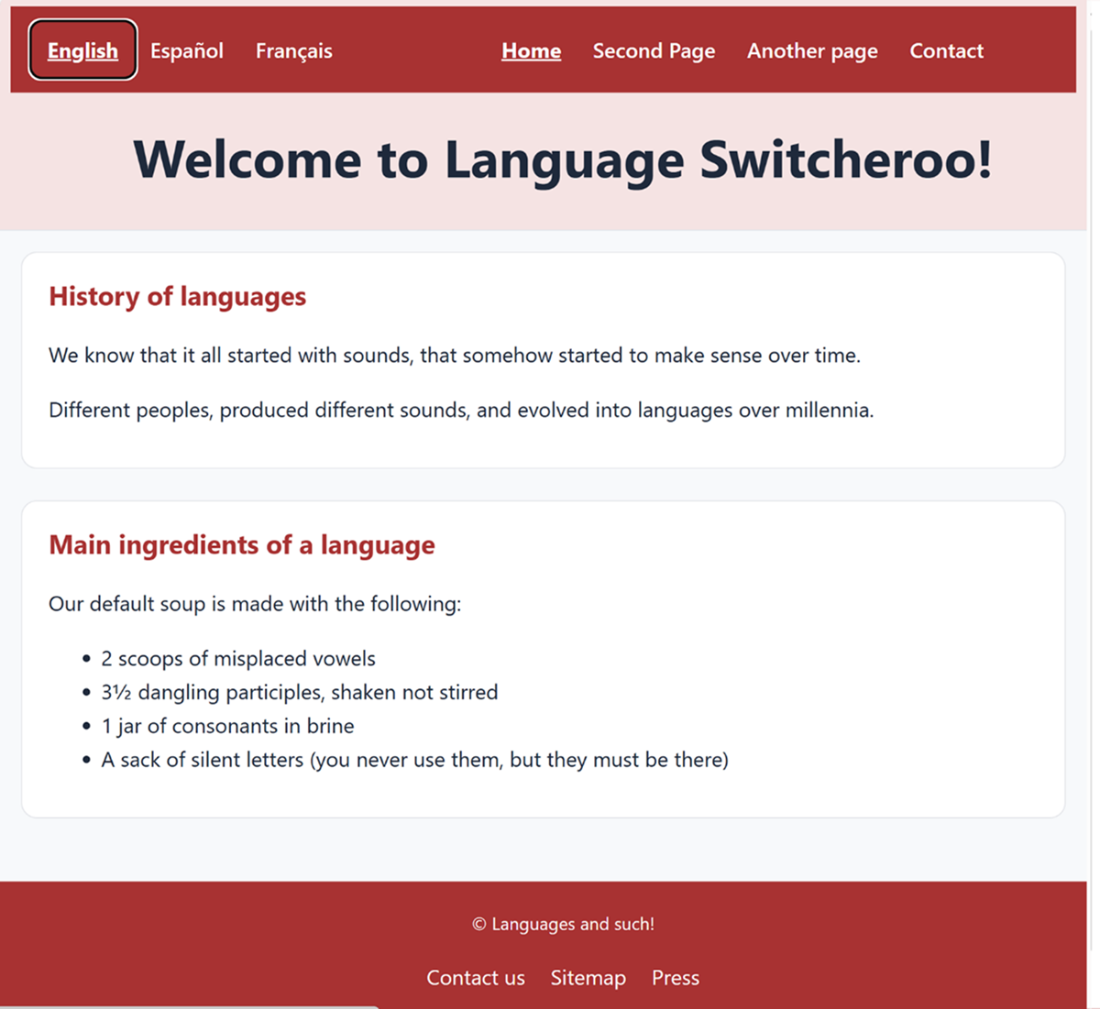
To improve comprehension, the text recommends using plain language, short paragraphs, headings, definitions, and expanded abbreviations, while avoiding jargon, figurative phrasing, double negatives, and unnecessary complexity. It also highlights the importance of identifying the language of the page and of individual parts so assistive technologies can pronounce content correctly. For multilingual interfaces, well-marked language selectors, proper language attributes, and visible and programmatic indicators of the active language help users switch between versions without confusion.
The chapter also covers readability in the visual sense, advising the use of legible fonts, adequate size, good contrast, and flexible layouts that respond to zoom, text scaling, and user spacing preferences. It warns against practices that block resizing or reflow, such as fixed pixel sizing, hard-coded widths, hidden overflow, and text inside images. Instead, it encourages relative units, responsive layouts, accessible typography, and real text that can be resized, spaced, and read by assistive technologies without loss of content or functionality.
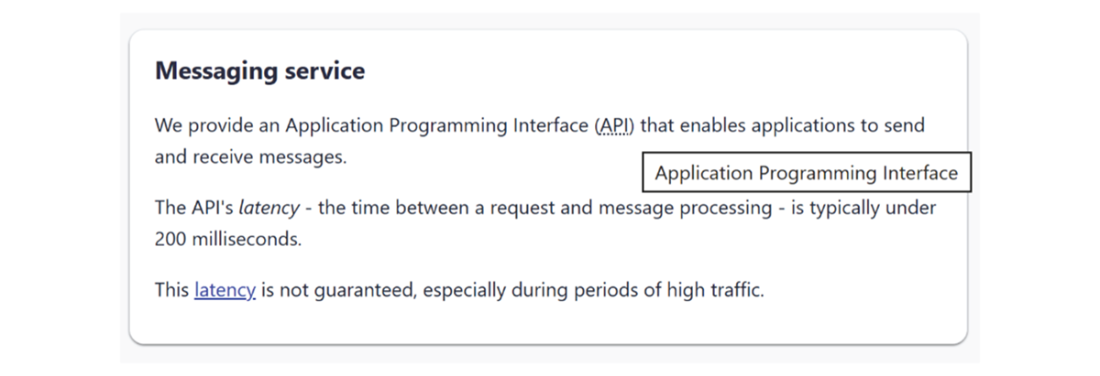
Rendering of semantically marked-up content, which is organized in sections, including headings and paragraphs. It is also optimized for readability, with expanded abbreviations and definitions for complex terms that can be linked elsewhere in the content.
A page showing a language selector with three languages – English, Spanish, and French. A number of best practices are applied, such as showing the language in its native form rather than using icons or English, indicating the active language visually and programmatically, and ensuring that all of them are keyboard-accessible.
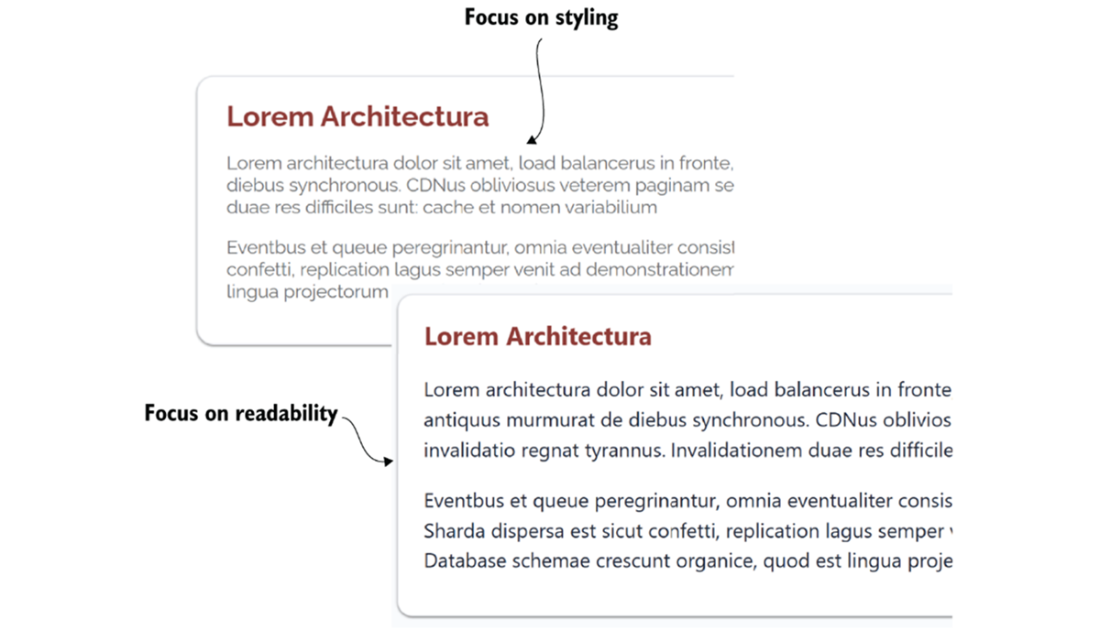
The same body text is shown in two ways: the first version (top) is based on a thin-stroked font, while the second (bottom) emphasizes readability with a darker and heavier sans-serif font.
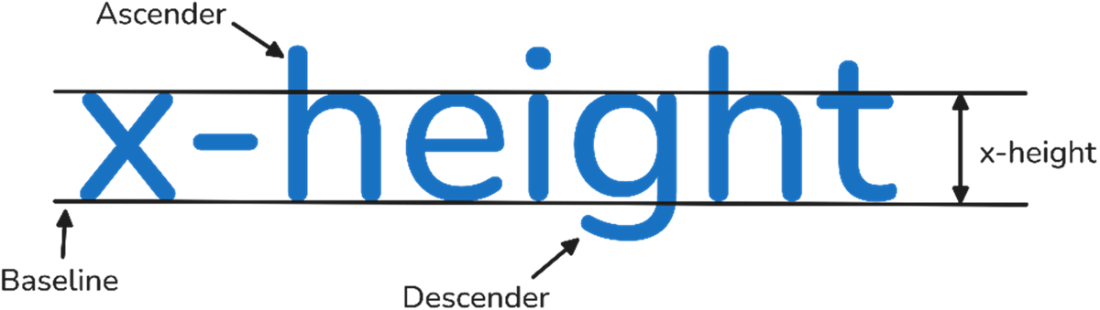
This image shows how x-height is measured. This is the distance between the baseline and the top of a lowercase letter “x” in any given typeface. Fonts with a larger x-height make lowercase letters without ascenders or descenders (such as a, e, s, c, o) appear larger relative to the font size and more legible.
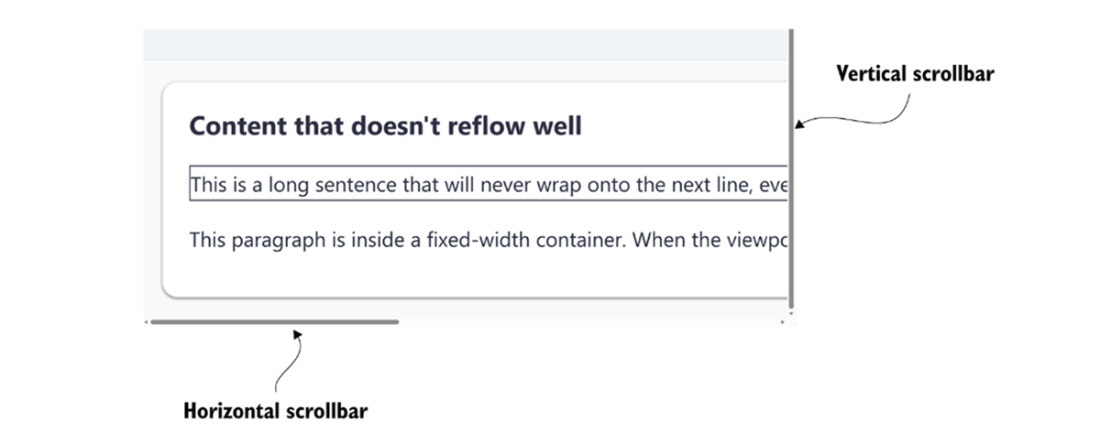
Content should reflow without introducing horizontal scrolling. This image shows a page rendered in a 1280px-wide viewport at 200% page zoom. Notice that to access the content, the user must scroll horizontally and vertically because the line width exceeds the available viewport width.
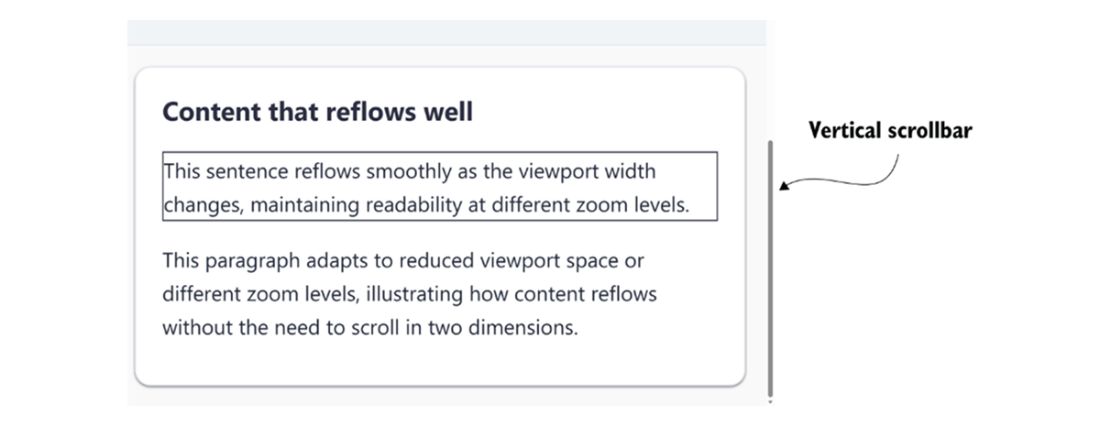
This image shows content that reflows in a single direction, rendered at 200% page zoom within a 1280-pixel-wide viewport.
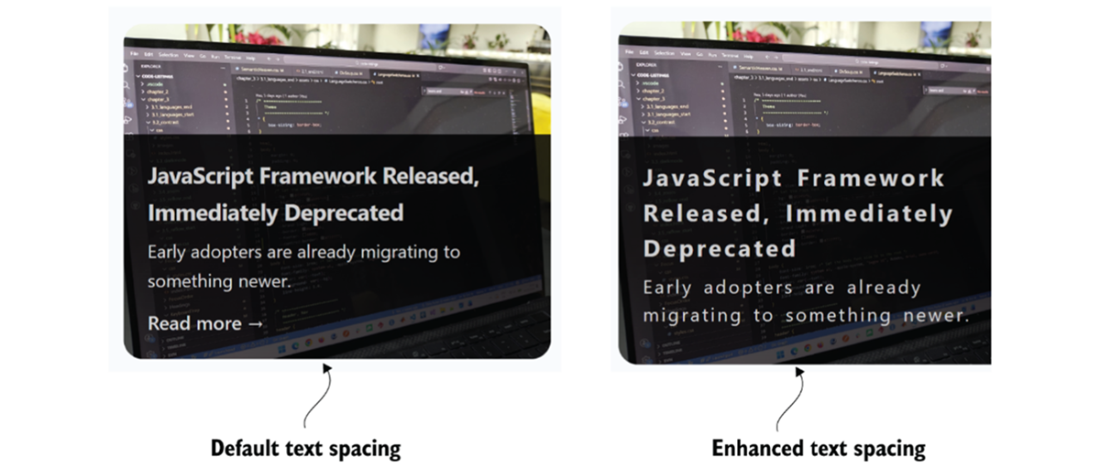
Content and functionality should not be cut off when users modify font settings, such as increasing line height, character, word, or paragraph spacing. This image shows that some content, in this case, the “read more” link, is no longer visible after applying custom spacing.
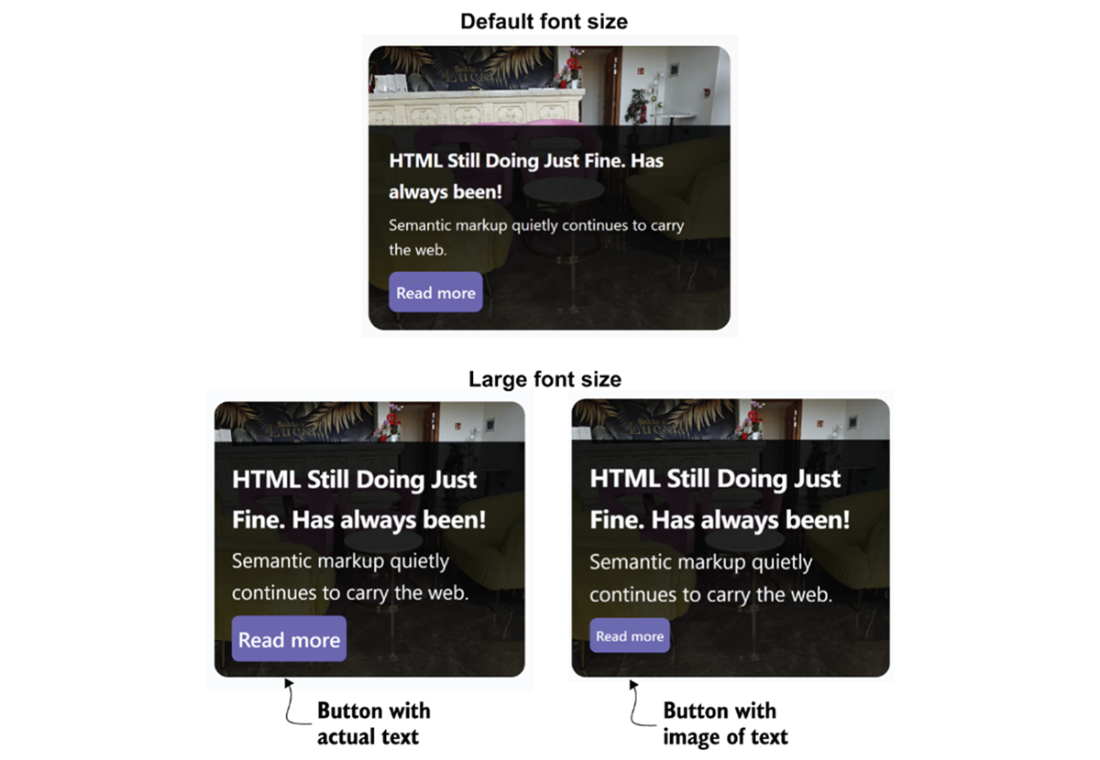
Comparison of two “Read more” button implementations: a styled semantic button with text value (bottom-left) and an image-based button (bottom-right). Text embedded in images does not scale with the user's font size preferences.
Summary
- Content can make or break any website or web application. It must respect human capabilities and limitations to ensure users can perceive and understand it. Content needs to be simple to understand, authored using the correct semantics, and well-structured. Complex terms should be defined, and abbreviations expanded in full.
- The lang attribute is often overlooked, and yet, it has an important role in accessible web applications. It communicates the language used for the page, as well as for parts of the page, such as individual quotes. Assistive technologies use this attribute to ensure content is communicated correctly, using the right pronunciation in the case of screen readers. Search engines also use this attribute to index pages correctly.
- Accessible typography requires us to make text easy to read for the broadest range of users. For this reason, we need to adopt clean, legible web-safe fonts, particularly for body text and UI controls. Fancy, decorative, or thin-stroked fonts may work well for branding, but they shouldn't carry the weight of your content. Font color and weight are also important considerations when styling text to ensure readability, while maintaining sufficient contrast against its background. Default system UI fonts can be used, as they are typically designed for on-screen readability across different resolutions. Other fonts that perform well from an accessibility perspective include Inter, Noto Sans, and Source Sans Pro, while widely available fonts like Arial and Verdana are also good choices.
- Text needs to be elastic and adaptive enough to respond to text scaling, zooming, device orientations, and text spacing settings. This requires us to use relative measurement units, avoid fixed container widths and heights, and avoid placing text inside images, as this would take away the flexibility many users require. Content should not be cut off or hidden when viewed on smaller displays or when page zoom or text scaling is used.
FAQ
Why should web app text be written for humans instead of sounding overly technical?
Because content is only useful if people can understand it. Plain, empathetic language reduces cognitive load, helps more users read quickly, and supports people with cognitive, learning, or language limitations as well as tired or busy technical users.What kinds of wording can make text harder to understand?
Rare or unusual words, jargon, figurative language, abbreviations, and words that mean different things in different contexts can all confuse readers. When possible, use simpler language and define specialized terms the first time they appear.How can I make long content easier to read?
Break it into smaller, meaningful chunks using paragraphs, headings, and lists. Short sections improve scanning, comprehension, and recall, and they help reduce cognitive load for everyone.Do I need to define abbreviations like API or ETA?
Yes. Expand abbreviations on first use so users understand them in context. If needed, also provide a definition or link to one, especially for technical terms or abbreviations that may not be familiar.Why is the lang attribute important on web pages?
The lang attribute tells browsers and assistive technologies which language to use. This helps screen readers pronounce text correctly and improves support for braille translation and search indexing.How should language be marked on multilingual sites?
Set the main language on the<html> element, and add lang to any sections or links that use a different language. Also use hreflang for linked localized pages when appropriate.What font choices support better readability?
Use clear, legible fonts for body text, with adequate size, weight, spacing, and contrast. Avoid thin, decorative, or overly stylized fonts for main content, and prefer readable sans-serif or accessibility-aware fonts when possible.Why should body text use relative units instead of fixed pixel sizes?
Relative units likerem, em, and % adapt better to user font-size preferences and zoom settings. Fixed pixel sizes can prevent text from scaling properly and can make accessibility settings less effective.
 Architecting Accessibility ebook for free
