3 Make content easy to perceive
This chapter emphasizes that accessibility starts with perceivability: people must be able to receive content through sight, hearing, or touch in ways that work across devices, environments, and assistive technologies. It argues that accessibility is not about building separate experiences, but about designing content so it remains usable for people with permanent, temporary, or situational limitations. The chapter then frames the practical work ahead: avoiding the common barriers that stop users from perceiving text, interface elements, images, and media.
A major focus is contrast. Text, controls, icons, focus indicators, and meaningful graphics need enough visual separation from their backgrounds to remain readable in real-world conditions such as glare, low vision, zooming, and responsive layouts. The chapter explains both WCAG contrast ratios and APCA as ways to evaluate contrast, noting that WCAG remains the standard for conformance while APCA can help design for better readability. It also stresses that color should not be the only way to communicate meaning, and that labels, patterns, icons, and other cues must supplement color in forms, charts, statuses, and other data-heavy interfaces.
The chapter also covers images and media. It distinguishes decorative, informative, functional, complex, and interactive images, explaining how each should be handled with appropriate alternative text, accessibility tree treatment, or long descriptions. For audio and video, it recommends captions, transcripts, and audio descriptions so that information is available regardless of whether users can hear or see the media. Finally, it warns against auto-playing audio and overusing sound as feedback, urging teams to provide visible and programmatic equivalents such as live regions, while testing carefully with both automated tools and manual checks across themes, zoom levels, orientations, and assistive technologies.
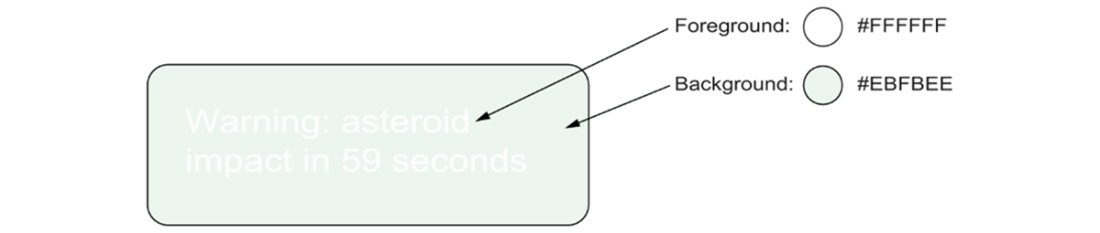
An alert with insufficient contrast. Text with insufficient contrast can lead people to miss it entirely or struggle to make sense of it. This becomes particularly hard in direct sunlight or on smaller devices.
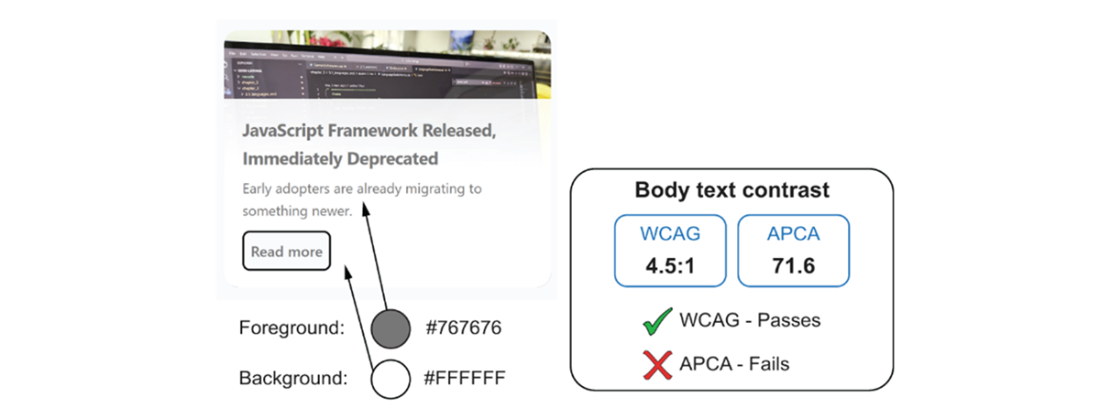
Example of contrast calculation using both WCAG contrast ratios and APCA. The WCAG contrast ratio (4.5:1) is sufficient, but according to APCA, the Lc score (71.6) is insufficient, as the contrast for body text should be at least 75.
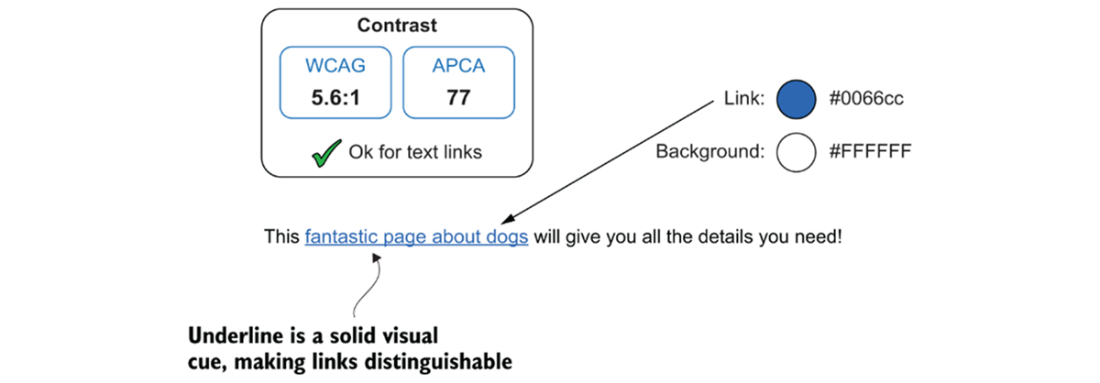
Links must be clearly distinguishable from surrounding text. Underlines are added to links by default to provide a visual cue that does not rely solely on color.
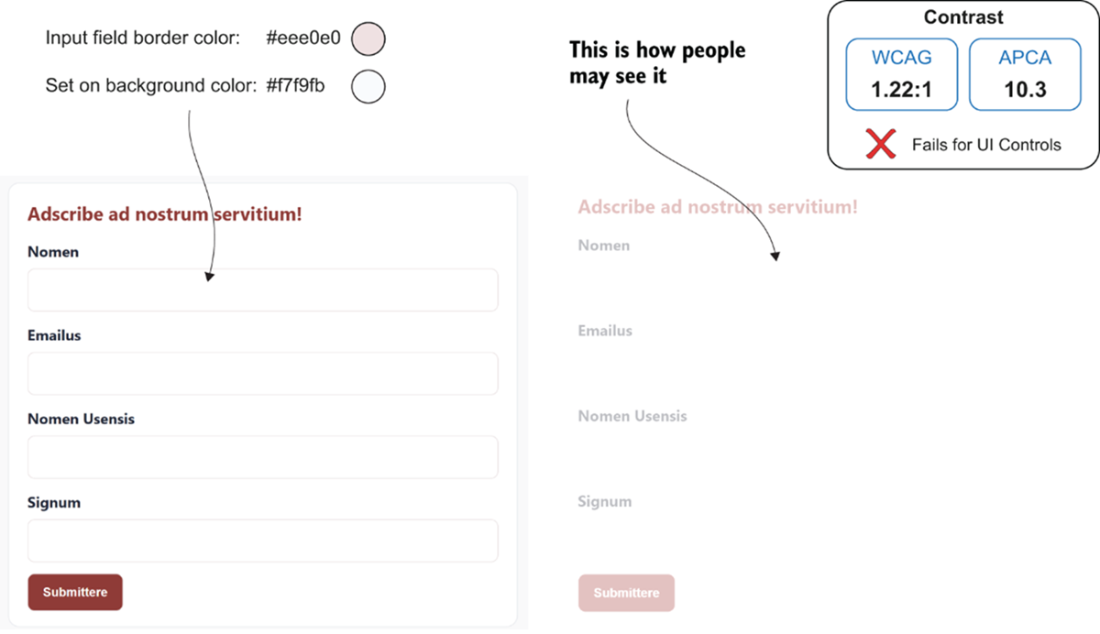
When input fields do not have sufficient contrast with their background, users may fail to notice them entirely, particularly in bright environments like direct sunlight or for people with vision impairments.
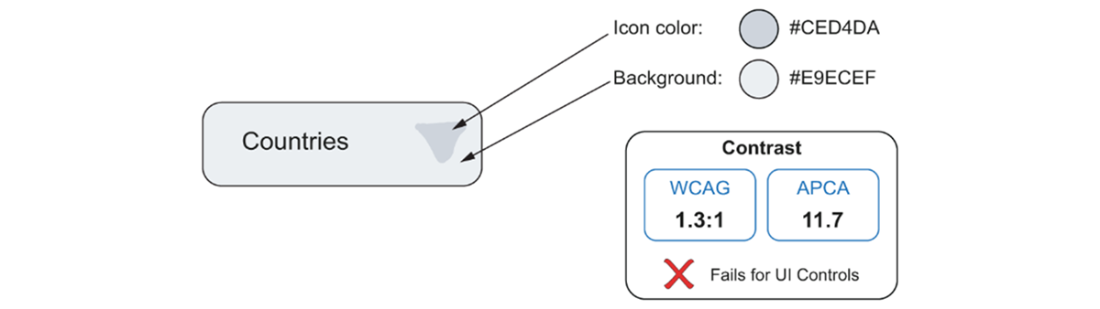
Icons within UI components must be clearly visible against the component’s background. In this example, the arrow in the drop-down component lacks sufficient contrast and may be missed entirely, making it harder for some users to understand the component's purpose.
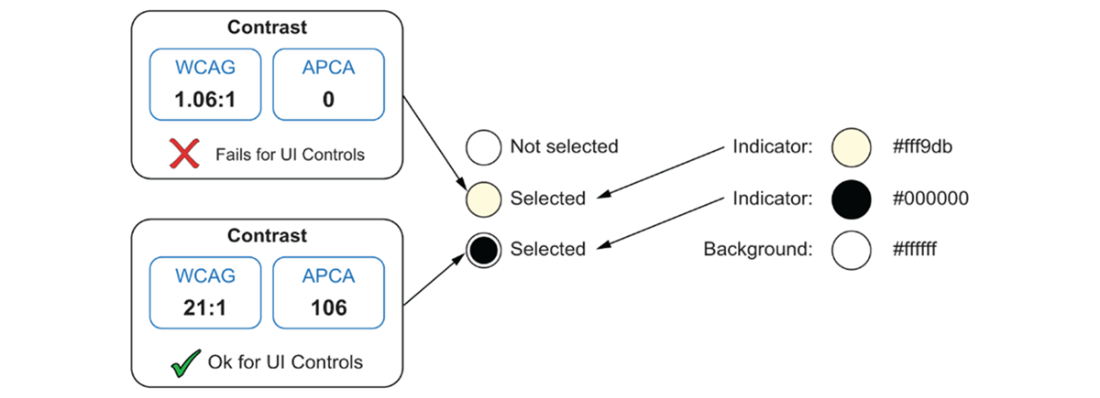
The selected state of radio buttons and checkboxes must be clearly indicated. In this example, two options are shown: one with insufficient contrast and one with sufficient contrast against the component’s white background.
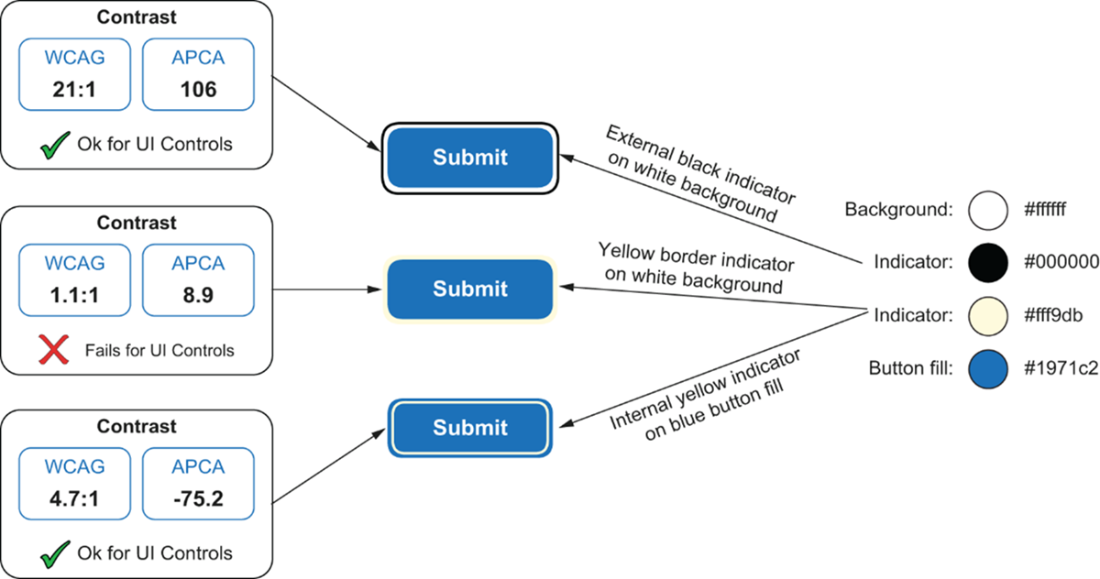
This image shows three examples of a focus indicator on a button component. The first indicator shows an external black focus indicator that has sufficient contrast against the white background. The second example shows a border focus indicator that has sufficient contrast with the button’s fill color but lacks sufficient contrast against the white background. The third example shows an internal focus indicator that provides sufficient contrast with the button’s fill color, making the focus state clearly visible.
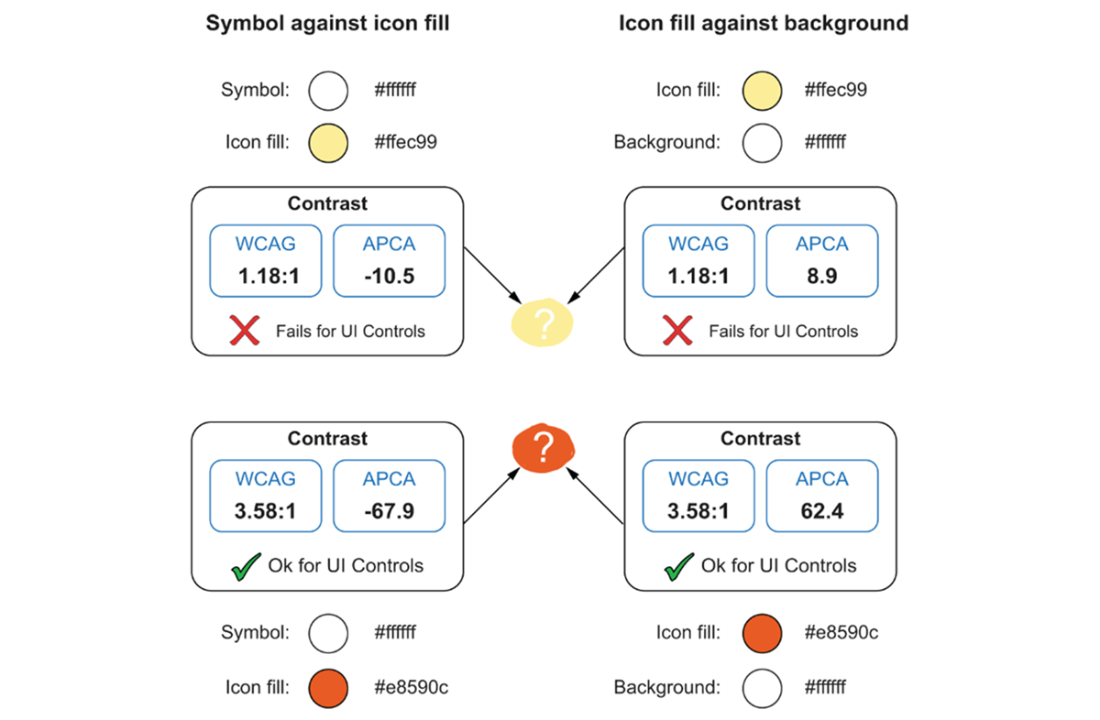
This image shows two examples of help icon buttons. In the first, there is insufficient contrast between the symbol and the icon fill, and between the icon fill and its background. Symbols in icons must be clearly distinguishable from the icon’s fill color, and the icon as a whole must also maintain sufficient contrast against the background on which it appears.
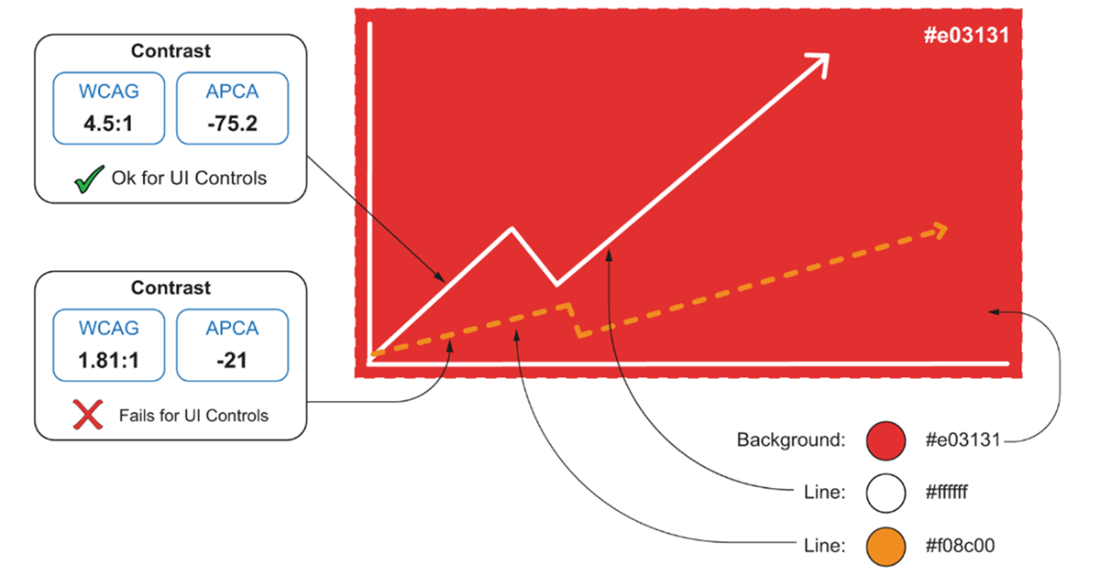
This image shows a line graph with two data series. The top series (solid) has sufficient contrast against the graph background, while the second series does not. Although the two series are differentiated using different line styles, the dotted line lacks sufficient contrast and is therefore difficult to perceive.
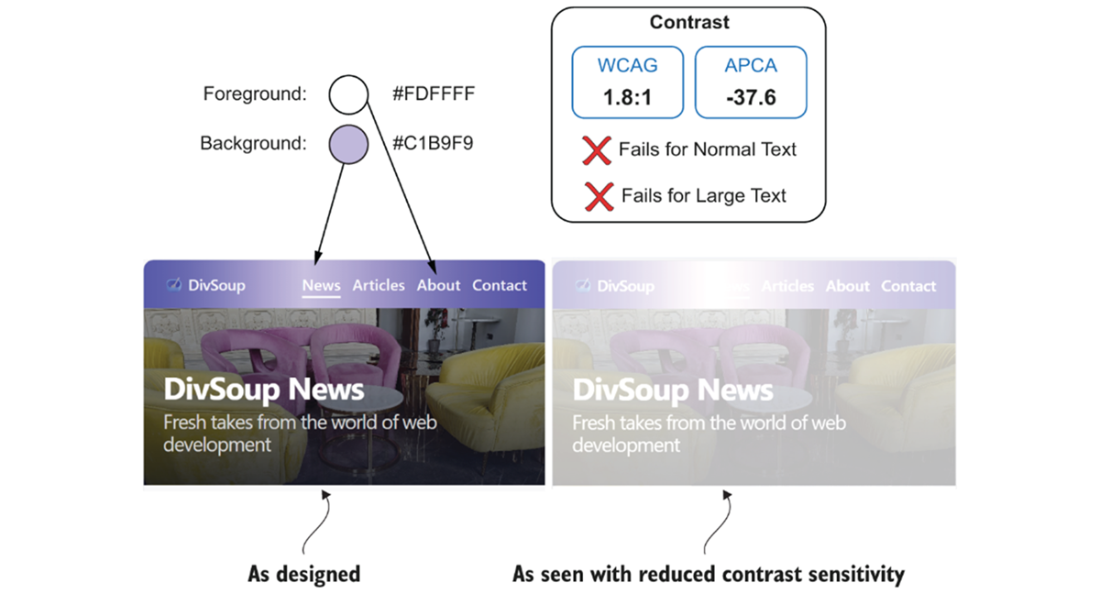
This image shows a section of a page as rendered on a mobile device. The left side shows the default rendering, while the right side illustrates how it may appear to people with reduced contrast sensitivity. The navigation area uses a gradient background, and on smaller screens, some links shift onto a lighter portion of it, where they no longer have sufficient contrast.
A simple page rendered in light mode, with dark text on a light background. There is sufficient contrast between the text and its background.
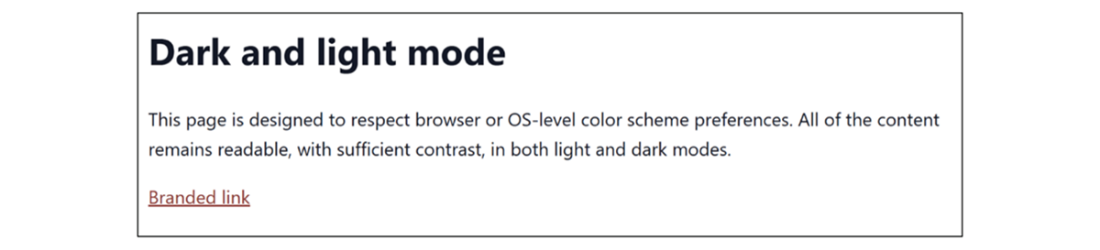
A simple page rendered in dark mode, with light colors on a dark background. There is sufficient contrast between the text and its background.

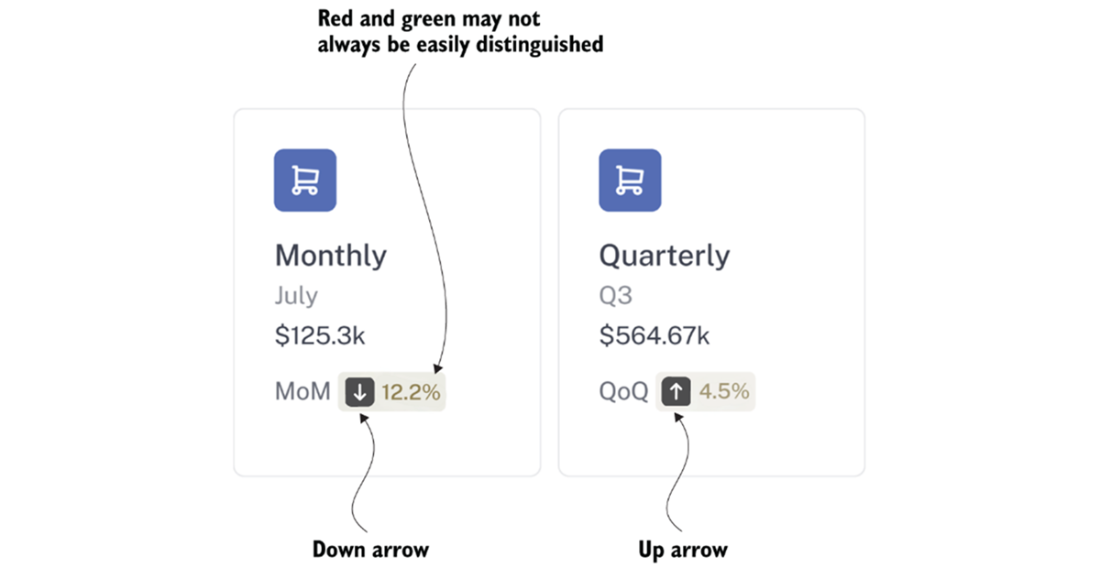
Typical sales figures showing upward and downward trends over comparable time periods. Red and green are used to indicate trend direction.
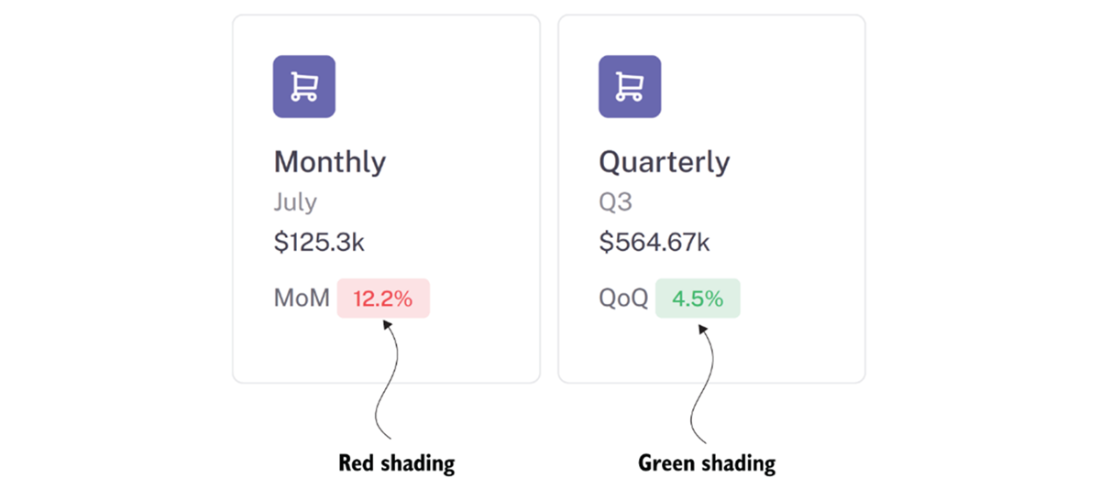
For persons with red-green color blindness, the sales trends may be hard to distinguish. To avoid missing critical information and to ensure that color alone is not used to communicate meaningful information, symbols can be added to communicate upward and downward trends.
Summary
- Content is useless if people cannot see it. Text and UI elements need to stand out against their background. This also applies to graphics, where important data needs to be clearly distinguishable from its background. We need to ensure we provide sufficient contrast so that content remains perceivable for as many people as possible across different lighting conditions, devices, zoom levels, color schemes, and viewport sizes.
- WCAG defines contrast using a luminance-based ratio between foreground and background colors, with minimum thresholds that need to be met for accessibility conformance. For instance, a contrast ratio of 4.5:1 is required for normal text, and 3:1 for large text and UI components.
- The Accessible Perceptual Contrast Algorithm (APCA) takes a different approach. APCA measures contrast using a Lightness Contrast (Lc) value that accounts for factors such as color, text size, font type, weight, and polarity (for example, dark-on-light and light-on-dark themes). Improving on WCAG’s relative luminance-based approach, APCA models contrast more closely with human visual perception. This can further assist designers in achieving optimal contrast rather than merely conforming to traditional minimum thresholds. While not yet required for compliance, it provides more perceptually accurate guidance and is shaping future accessibility standards.
- The use of color to communicate important information needs attention. Using color as the only means to convey information may cause problems for many people, especially people with color blindness. For this reason, additional visual cues, such as text labels or symbols, will help ensure the information is received.
- Some browsers come with tools to help you test layouts across viewport sizes, orientations, and zoom levels. This can help you spot cases where content falls into low-contrast areas. Some browsers also provide tools to emulate vision conditions, such as color blindness and reduced contrast, helping you identify accessibility issues early.
- Images are used in almost any application. It is important to distinguish among the different types of images we can use, including decorative, informative, functional, complex, and interactive images. Each case requires specific approaches to ensure accessibility without overwhelming users while conveying meaningful content.
- Audio and video are also highly relied upon in most modern web applications. We need to ensure that access to this content does not depend on a single sensory channel and that the user is given some control over how it behaves. Alternatives are necessary to ensure that different users receive all the necessary information, including captions, transcripts, and audio descriptions for both pre-recorded media and live events. Sound notifications should be handled with care and communicated visually and programmatically so that assistive technologies can announce them.

 Architecting Accessibility ebook for free
