2 People, technologies, and fundamental techniques
The chapter introduces accessibility as a people-centered discipline grounded in real-world use, not just standards or checklists. It presents a range of personas whose permanent, temporary, or situational limitations affect vision, hearing, cognition, speech, and movement, showing how small design choices can become major barriers. By emphasizing impairment versus disability, the text reframes accessibility as removing barriers in the environment and technology, and it highlights how personas can help teams reason about user needs more concretely.
It then explains the difference between adaptive strategies and assistive technologies. Adaptive strategies are ways people use mainstream tools and built-in features to make content easier to use, such as reading mode, larger text, captions, dark mode, or keyboard-only navigation. Assistive technologies are specialized tools like screen readers, braille displays, magnifiers, captioning software, voice control, and switch systems. The chapter stresses that both approaches aim to restore access, but inaccessible interfaces make the job harder and can compound the effort required from users.
The final major themes argue strongly against accessibility overlays and in favor of semantic HTML as the foundation for accessible design. Overlays may offer surface-level tweaks, but they cannot fix structural problems such as missing labels, broken heading structure, keyboard traps, or images of text, and they may even interfere with existing assistive technology. The chapter shows that browsers create an accessibility tree from well-authored HTML, exposing roles, names, states, and relationships to assistive tech. When semantic HTML is insufficient for complex custom interfaces, ARIA and JavaScript can help, but only when used carefully and with correct behavior; otherwise, native elements remain the most reliable and efficient path to accessibility.
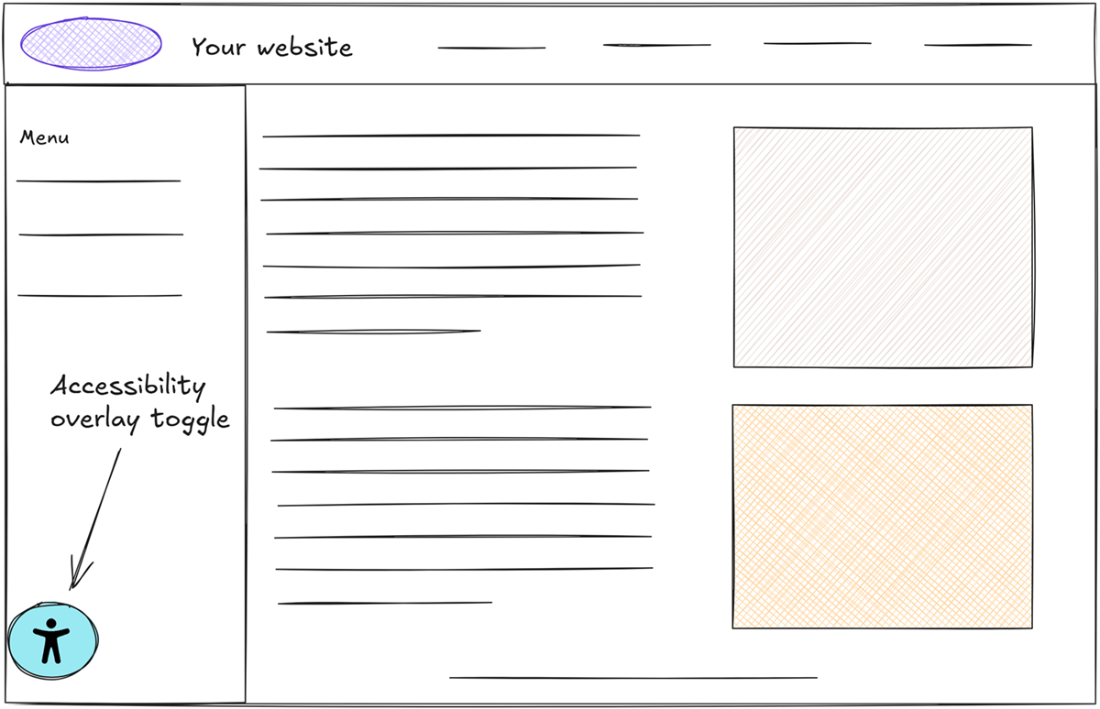
```Accessibility overlays are added to websites by developers and are typically activated by users using a toggle icon at the left-hand corner of the screen. These would, in turn, display a configuration overlay containing various accessibility features, such as text resizing, a screen reader, and others.
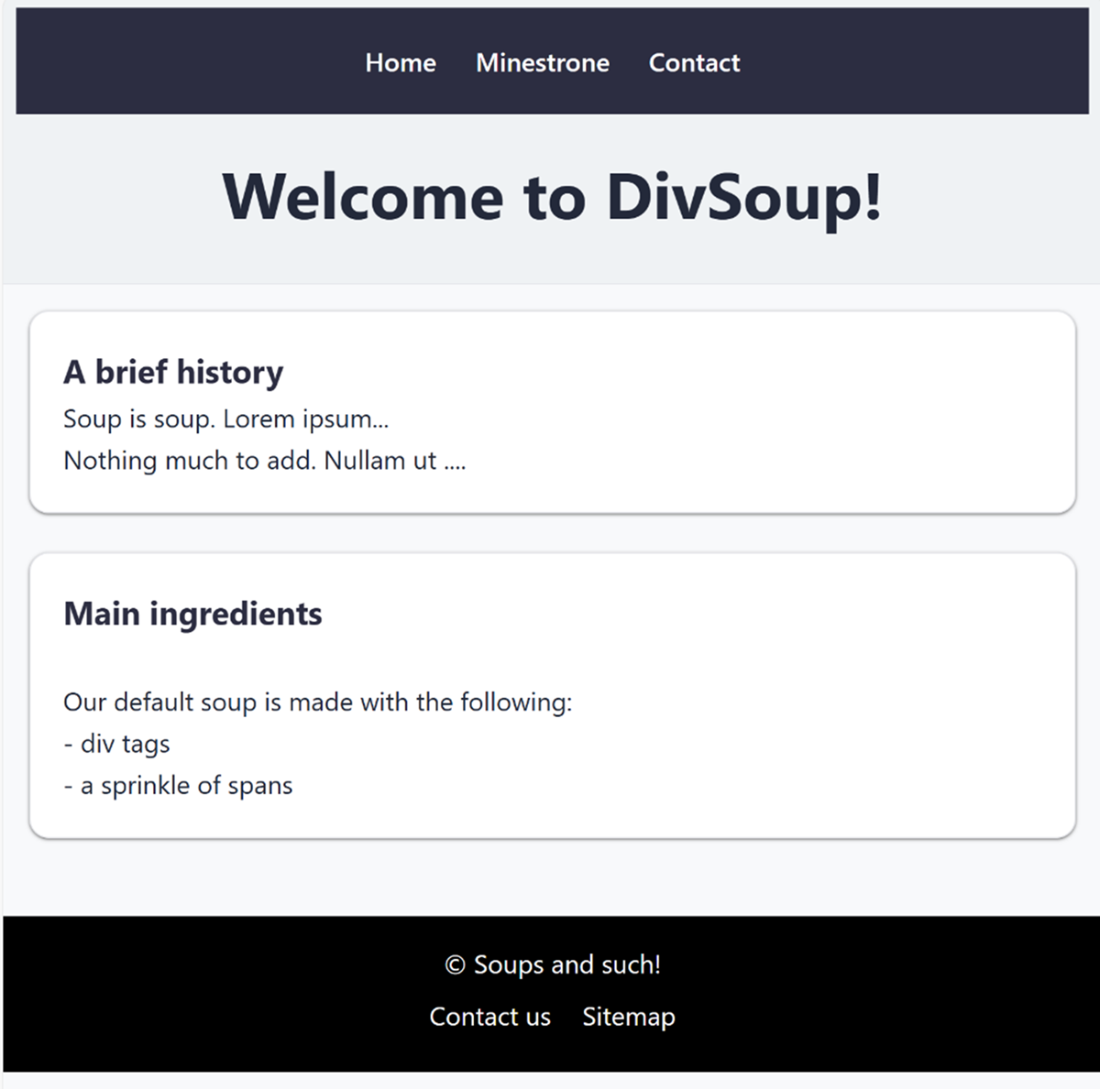
A screenshot of a web page with typical structural elements, including a header area with navigation links, a few sections containing text and lists, and a footer area.
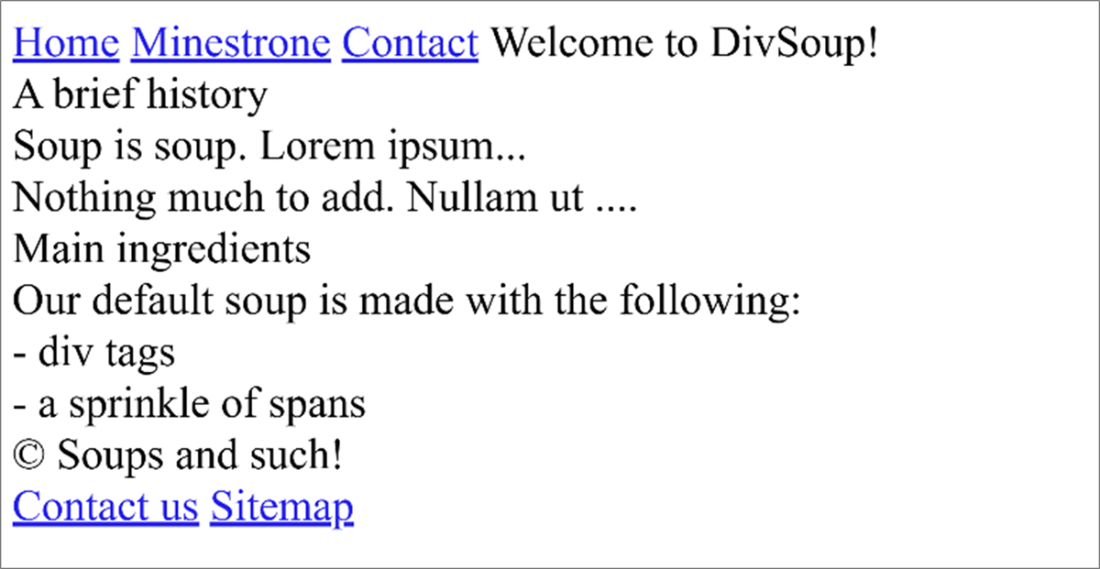
Without any HTML semantics, the browser will process and render all of the page content as if it were plain text, without differentiating between headings, paragraphs, and so on. Built-in styles are also not applied to the various elements on the page, since these cannot be discerned.
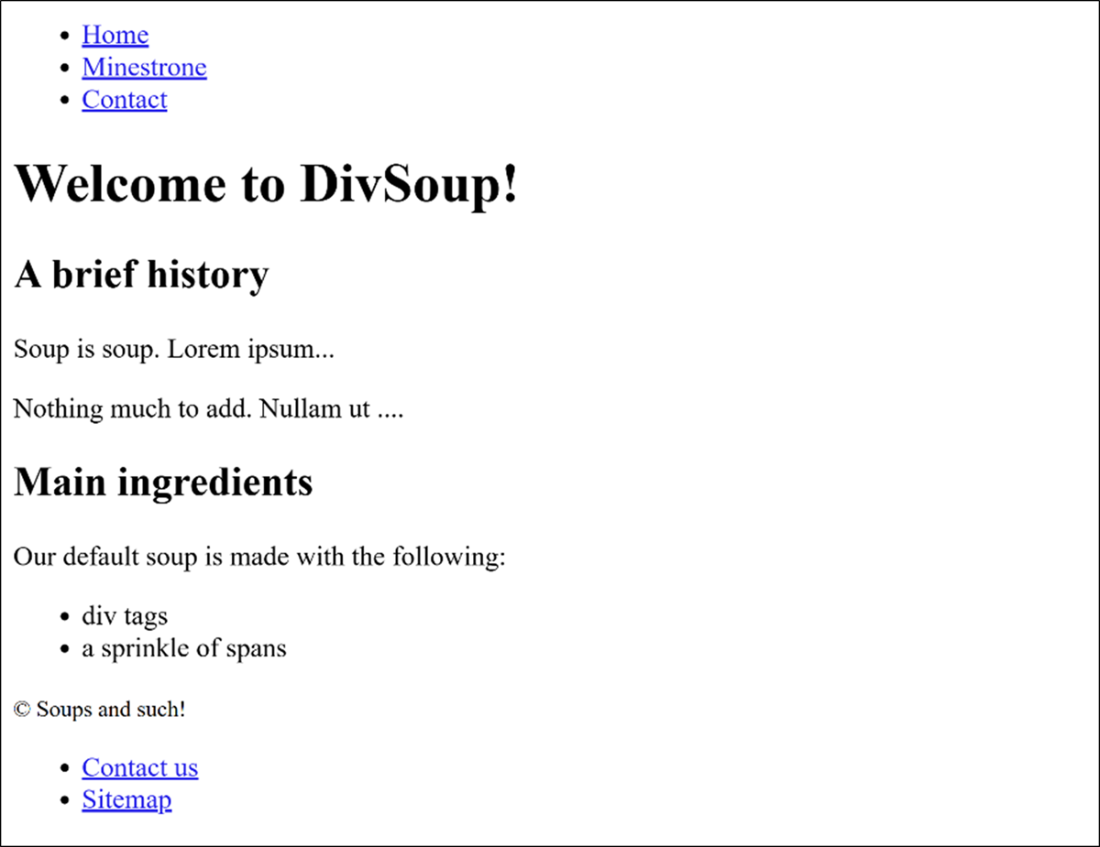
Even without CSS, semantic HTML is rendered with basic visual cues. This is because browsers ship with built-in styles that is applied to semantic elements.
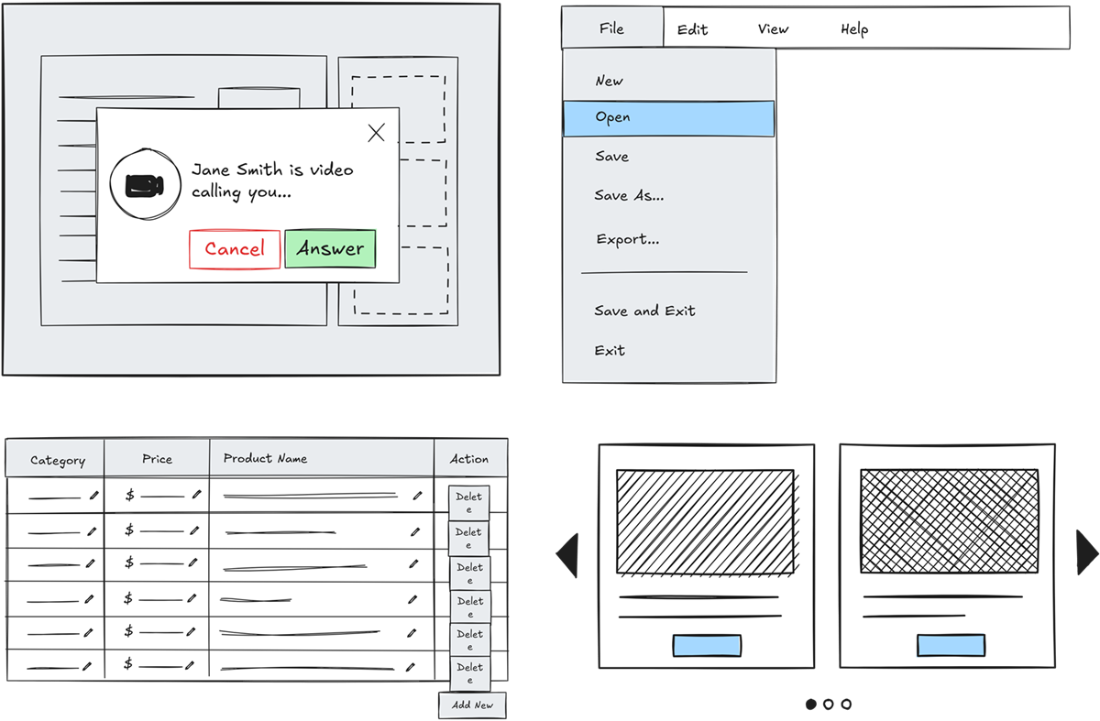
Modal dialogs (top left), menu bars (top right), data grids (bottom left), and carousel components (bottom right) are used extensively in modern web apps, although they are not native HTML elements. Their implementation relies on proper use of ARIA and adherence to specific behaviors. Otherwise, accessibility blockers may be introduced.
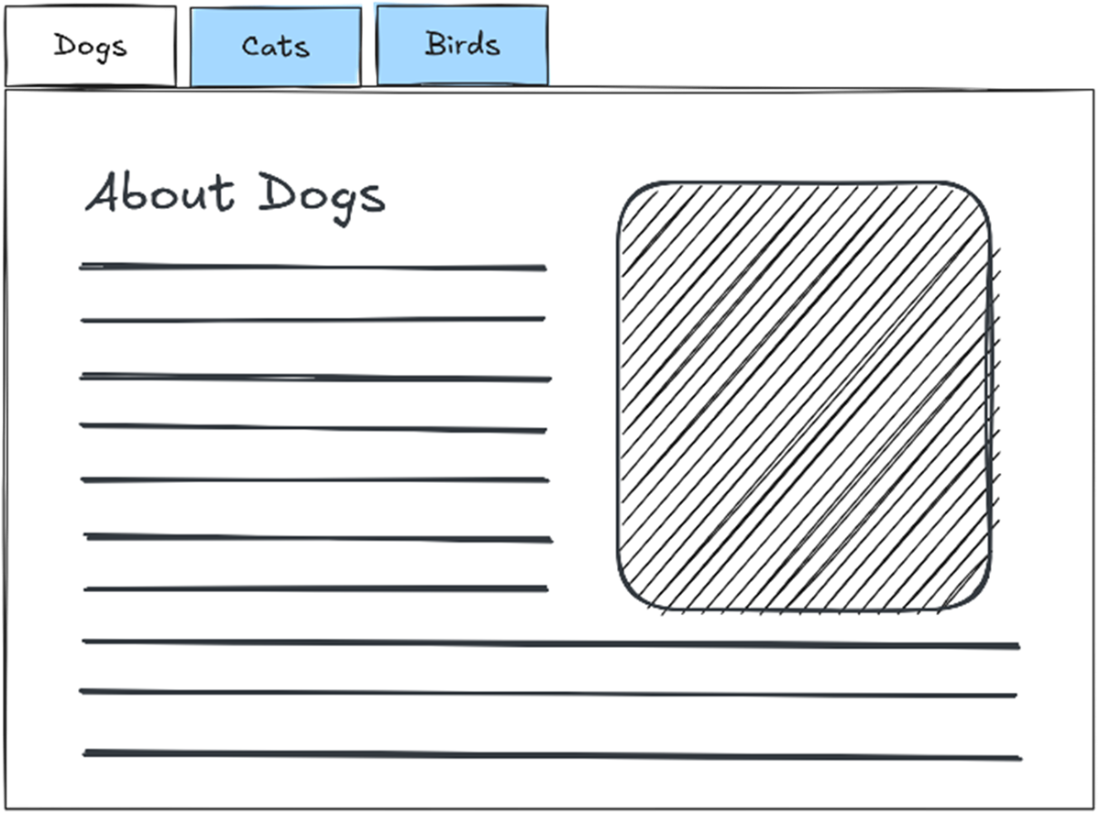
Tabbed interfaces are common in web applications, even though there is no native HTML element for them. Selecting a tab reveals its associated content panel while hiding the others. When implemented incorrectly, tabbed interfaces can create significant accessibility barriers.
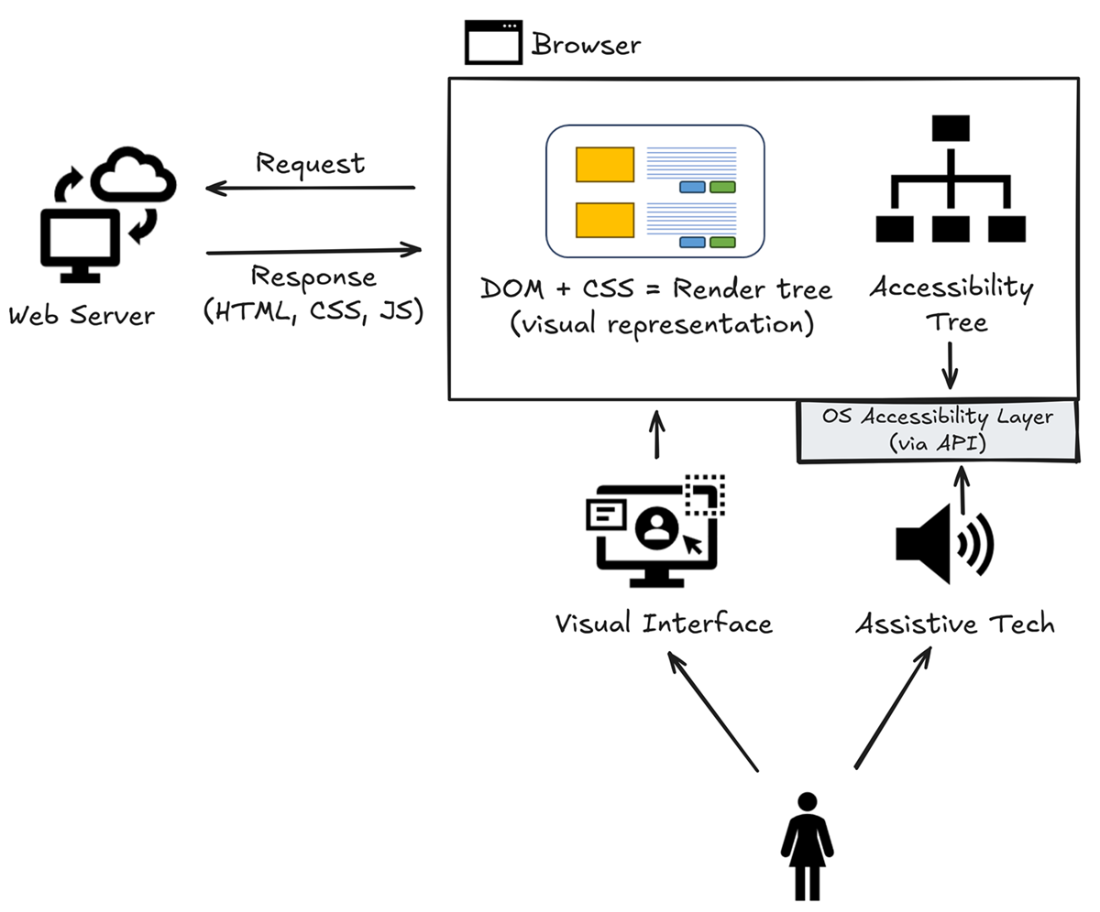
After receiving a response from a server, the browser builds several internal representations of any web page, including a Document Object Model (DOM) tree, a layout and rendering structure, and an accessibility tree. The accessibility tree exists specifically for assistive technologies. It is derived from the DOM, but consists only of essential elements that matter for understanding and interaction, stripping away decorative elements and purely visual details that don’t convey meaningful content, structure, or functionality.
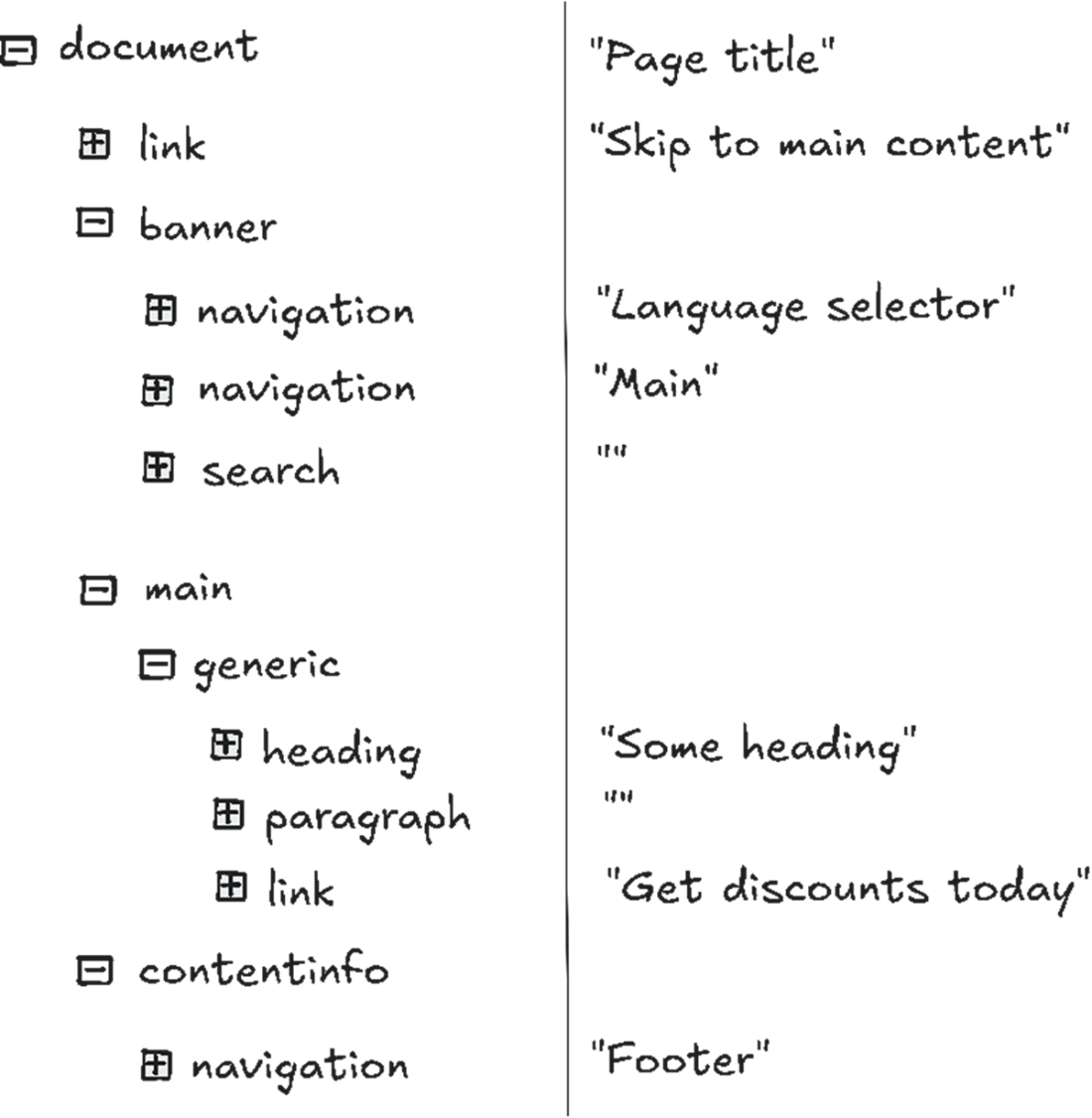
This tree shows an accessibility tree constructed from a semantically rich HTML document, as visible within most major browsers’ element inspector. The various page regions are clearly indicated, along with their accessible name.
Summary
- Web accessibility benefits a wide range of people, and it is important to understand that people’s needs are varied, along with their challenges. Many of our users will be using our systems using adaptive strategies or assistive technologies – often in combination.
- Adaptive strategies are ways users configure or use mainstream devices and software, along with their built-in accessibility features, to make digital content easier to use – without relying on specialized software or hardware.
- Assistive technologies (AT) are specialized tools – typically software, sometimes hardware, or both – that help people with disabilities perceive, understand, and interact with digital content more effectively.
- There are no magical tools for accessibility. Accessibility overlays cannot fix foundational accessibility issues, and may also interfere with users’ existing assistive technologies or adaptive strategies. Respecting users means building accessibility into our systems, not patching it on.
- Always start with clean, purposeful, and semantically correct HTML. Semantic HTML uses the right element for the job, following standard authoring rules to express the meaning and structure of your content. Native HTML elements also ship with built-in and tested accessibility semantics and behavior.
- Semantic HTML separates meaning from visual presentation. By clearly describing content structure and meaning, browsers, assistive technologies, search engines, and developers can accurately and efficiently understand and interpret content.
- When native HTML elements cannot adequately meet complex UI requirements, such as tabbed interfaces, ARIA can be used to retrofit accessibility semantics into custom components through specific roles, states, and properties. You must still implement the correct HTML structure and expected interaction behaviors to ensure an accessible experience, including full keyboard support.
- Browsers support accessibility out of the box. For instance, they generate an accessibility tree for use by assistive technologies. While the DOM represents all page content, the accessibility tree distills important information, including structures, elements, their roles, states, and names, and exposes it to assistive technologies, such as screen readers, via the platform’s accessibility API. This effectively conveys what matters to users who don’t rely on visual presentation.
FAQ
Who are the main groups of users described in this chapter?
The chapter introduces users with visual, cognitive/learning, physical/motor, speech, auditory, and low-resource technology needs. It also notes that users may have temporary, situational, or co-occurring disabilities.
What is the difference between an impairment and a disability?
An impairment is a difference in a person, such as reduced vision, that may lead to functional limitations. A disability is the barrier created when an environment or technology does not accommodate that difference. The chapter also says the term “handicap” is outdated.
What are adaptive strategies in accessibility?
Adaptive strategies are ways people configure or use mainstream tools and built-in accessibility features to make digital content easier to access without specialized hardware or software. Examples include enlarging pointer size, using dark mode, increasing font size, or turning on captions.
What are assistive technologies?
Assistive technologies are specialized software, hardware, or both, designed to help people with disabilities access digital content. Examples include screen readers, Braille displays, magnification tools, captioning software, voice control, switch devices, eye tracking, and AAC systems.
Why are accessibility overlays often discouraged?
Overlays are not a cure for inaccessible code. They can miss major blockers like keyboard traps, missing labels, fake headings, and images of text, and they may interfere with users’ existing assistive technologies or browser/OS settings.
Why is semantic HTML so important for accessibility?
Semantic HTML gives content meaning and structure that browsers, assistive technologies, search engines, and users can understand. It provides built-in accessibility benefits such as headings, lists, buttons, landmarks, keyboard behavior, and accessible names without needing extra code.
When should ARIA be used?
ARIA should be used when native HTML cannot express the required interaction or structure, such as for custom widgets like tabs or modals. It should not replace semantic HTML; native elements should be used first, and ARIA should be added carefully with matching behavior.
What is the accessibility tree?
The accessibility tree is a browser-generated representation of the page specifically for assistive technologies. It is derived from the DOM and includes meaningful roles, names, states, and relationships, while ignoring decorative or purely visual elements.
Why can native HTML elements be better than custom div-based controls?
Native elements like <button> already include keyboard support, focus handling, correct roles, and accessible names. Rebuilding those behaviors with <div> requires extra code, testing, and maintenance, and increases the risk of accessibility bugs.
What should developers check when reviewing a page for semantic accessibility?
Developers should check page title and language, landmarks, heading order, lists, links, buttons, labels, roles, names, and states. They should also verify that visible labels match accessible names, and that the rendered output makes sense in the accessibility tree.

 Architecting Accessibility ebook for free
