7 Emails and instant messaging in the workplace
This chapter explains how generative AI can transform everyday workplace communication—email and instant messaging—from a source of overload into a productivity advantage. By acting like a personal assistant embedded in the tools people already use, AI helps organize inboxes, surface priorities, draft and refine messages, and automate routine follow-ups. The authors emphasize practical, real-world use in modern and remote settings, balancing the promise of speed and clarity with the need for accuracy, security, and human judgment.
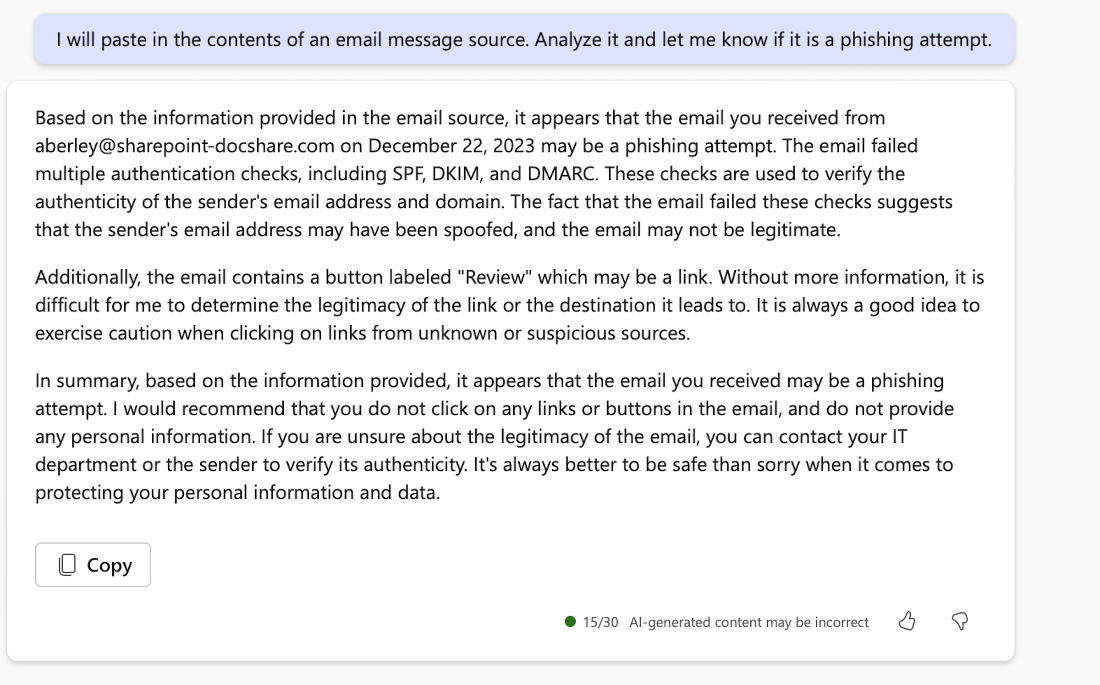
For email, the chapter shows how tools such as Microsoft Copilot, Google Gemini, and ChatGPT summarize long threads, extract action items and deadlines, tailor tone, and translate technical jargon for diverse audiences. It highlights hands-on examples of drafting clear announcements from technical notes and checking tone and professionalism with in-line assistants like Grammarly and Apple’s Writing Tools. The authors also cover email security, demonstrating how AI can analyze headers and source to flag phishing via SPF, DKIM, and DMARC issues. Present limitations remain: inconsistent retrieval across large inboxes, constrained prompt control in some clients, weak calendar creation, and the absence of robust rule and folder management—areas flagged as near-term opportunities.
For instant messaging, the focus is on Microsoft Teams, where transcription and AI recaps help capture meetings, decisions, and next steps; when initial summaries are brief, iterative prompts yield deeper, training-ready documentation. The chapter explores sentiment analysis and conflict resolution, noting conservative constraints in some enterprise tools and offering practical workarounds using Teams Workflows, Power Automate, and webhooks to route insights, send meeting reminders, or post ticket queues. Throughout, the authors urge critical thinking, privacy-aware use of AI, and organizational guardrails. They close by looking ahead to tighter, device-level integration and more capable assistants that can autonomously manage schedules, rules, and routine communications.
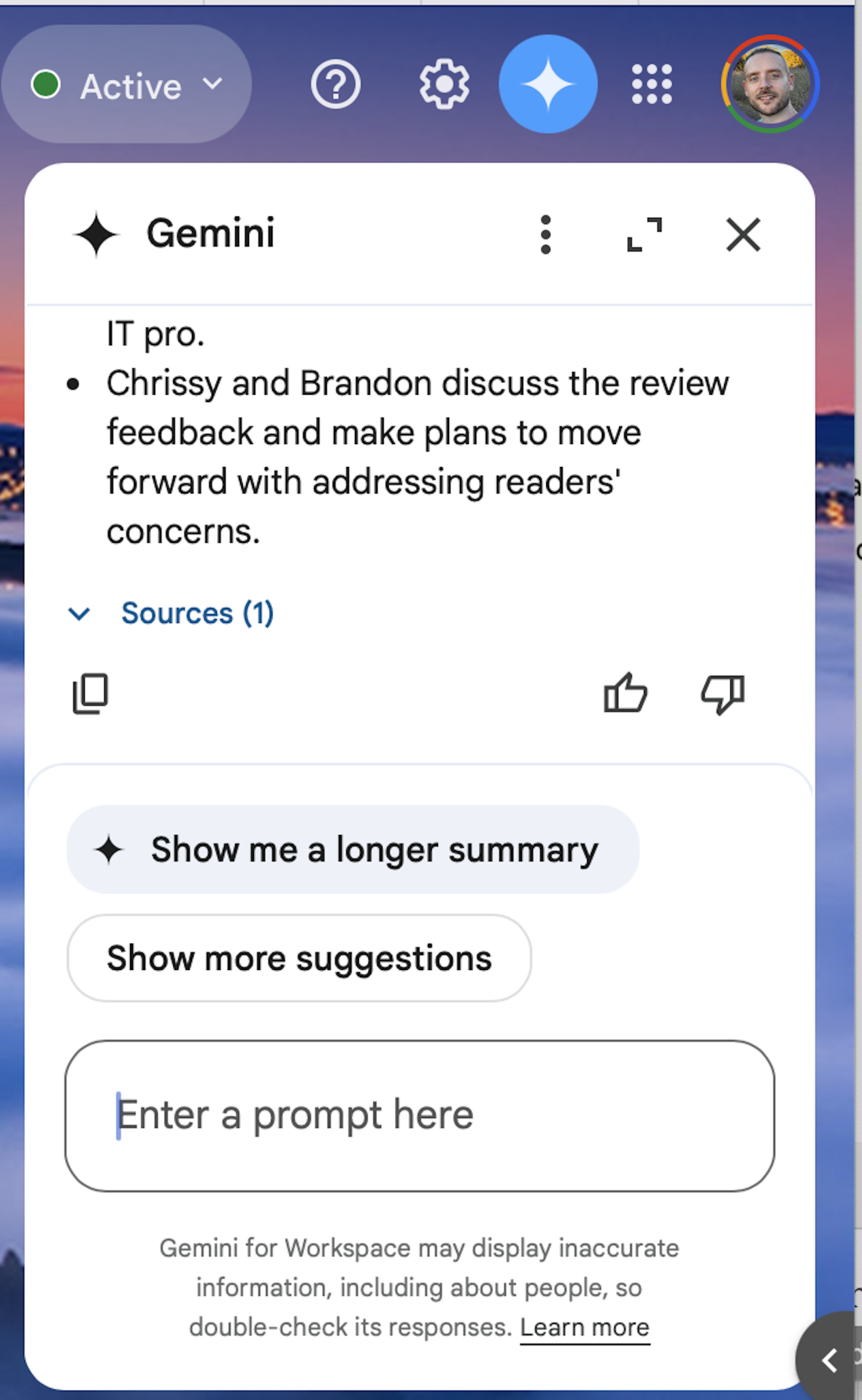
Gemini chat integrated into GMail
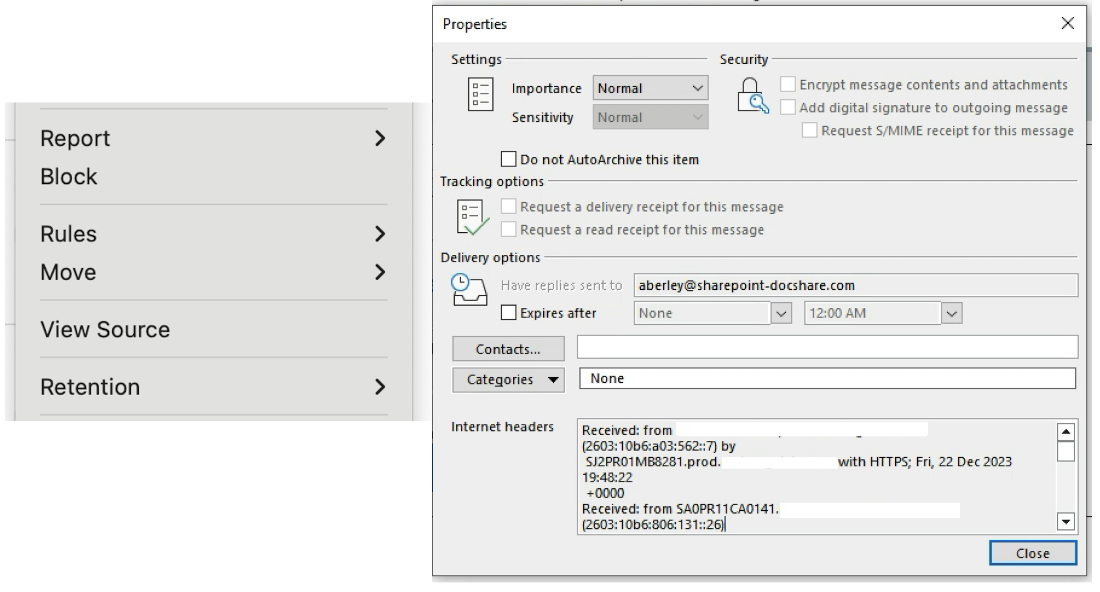
Finding the source text and headers of an email
M365 Copilot analysis of email source text
Prompts used to write this chapter
- Generate prompts for using AI in email drafting.
- Create an example of an email with a lot of technical jargon and bullet points. Think of a complicated IT issue, such as the implementation of a new IPS. State the steps that have been completed and those that remain.
- Condense the technical email into an example that a network engineer may send to another.
- Based on the email provided, draft a new email suitable for general communication.
FAQ
How can AI make workplace email easier to manage?
AI can summarize long threads, draft and tailor responses, check tone and clarity, decode technical jargon, surface unread or follow-up items, and help you maintain an organized inbox. Integrated tools (e.g., Copilot for Outlook, Gemini in Gmail) can work directly on messages; general chatbots can help if you paste the email content.Which AI tools should I use for email, and how do they differ?
- Microsoft 365 Copilot (Chat and Copilot for Outlook): Convenient in-suite access; concise, guided actions; fewer custom prompts in Outlook.- Google Gemini (Gmail/Workspace): In-inbox chat integration; strong for summarizing and drafting across your mail.
- ChatGPT/Claude: No direct inbox access but very flexible; paste content for detailed drafting and review.
What’s a good way to prompt AI to summarize an email conversation?
Be specific. Include timeframe, sender/domain, and what you need: “Summarize messages from [sender/domain] over the last week. Focus on main points, decisions, action items, and deadlines.” Note that large inboxes can reduce accuracy; always scan results for misses.How do I turn a technical email into a clear, non-jargon announcement?
1) Ask AI to identify and explain the jargon in plain language. 2) Provide the key details (date/time, audience, responsibilities) and ask for a concise, professional announcement tailored for a general audience. 3) Adjust tone and length; verify accuracy before sending.What can’t current email AIs do well yet?
- Searching across very large inboxes can be spotty, dropping relevant items.- Limited custom prompting inside some email clients (e.g., Outlook’s buttons vs full chat).
- Rule/folder management and advanced organization help are still immature.
- Calendar creation/sending invites is restricted due to privacy controls.

 AI for Everyday IT ebook for free
