Appendix B. Python development environment
This appendix provides a practical guide to setting up a consistent Python development environment that works seamlessly with the book’s examples. It acknowledges that “experienced Python developer” can mean different things and standardizes on a toolchain to minimize friction. The focus is on acquiring the source code, installing a Python 3.10 runtime, using Visual Studio Code with key extensions, creating isolated environments per chapter, and leveraging Docker-based Dev Containers for safe, reproducible development.
Getting started involves installing git, cloning the repository locally, and opening the relevant chapter folder in VS Code. The recommended runtime is the standard Python 3.10 installation, with the note that multiple Python versions can coexist and the setup is validated within VS Code. A stable VS Code build is paired with a curated set of extensions: Python, Python Extension Pack, Python Environment Manager, Python Indent, Flake8, Prompt Flow, Semantic Kernel Tools, Docker, and Dev Containers. The appendix advises evaluating extensions by install counts and ratings and reminds that extensions are installed per environment, including within containers.
For dependency isolation, it recommends creating a fresh environment for each chapter via the command palette (Python: Create Environment), choosing Venv or Conda, selecting an appropriate Python interpreter (3.10 or later), and applying the chapter’s requirements.txt to install dependencies. As an alternative or complement, Dev Containers offer stronger isolation—especially advisable for agents that generate and execute code—by installing Docker Desktop, confirming it runs, ensuring VS Code’s Docker tooling is present, and then opening a folder in a container or starting a new Dev Container. This workflow reduces OS risk, streamlines setup, and better aligns local development with deployment practices.
Figure B.1 Installing VS Code extensions
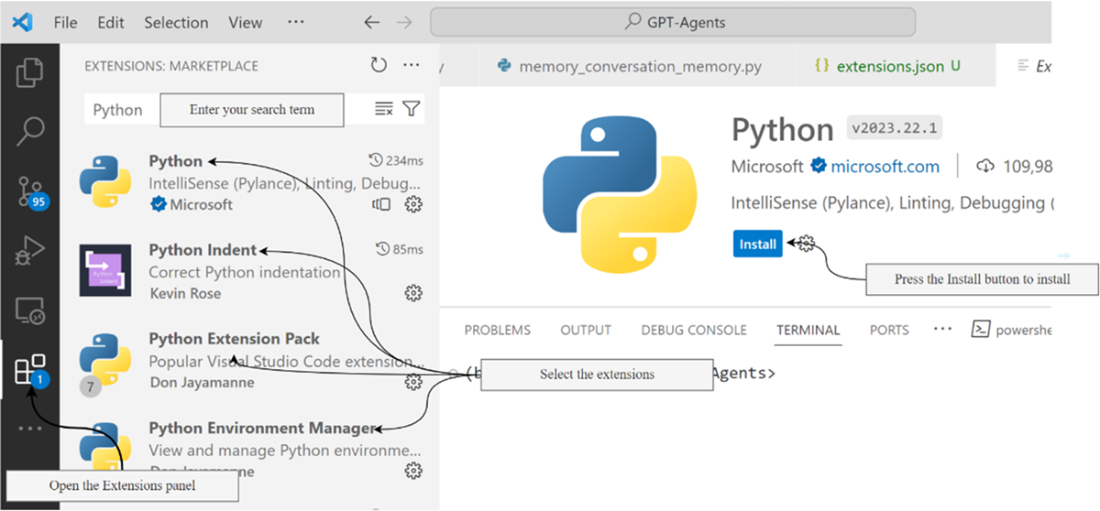
Figure B.2 The steps to set up the virtual environment for a chapter
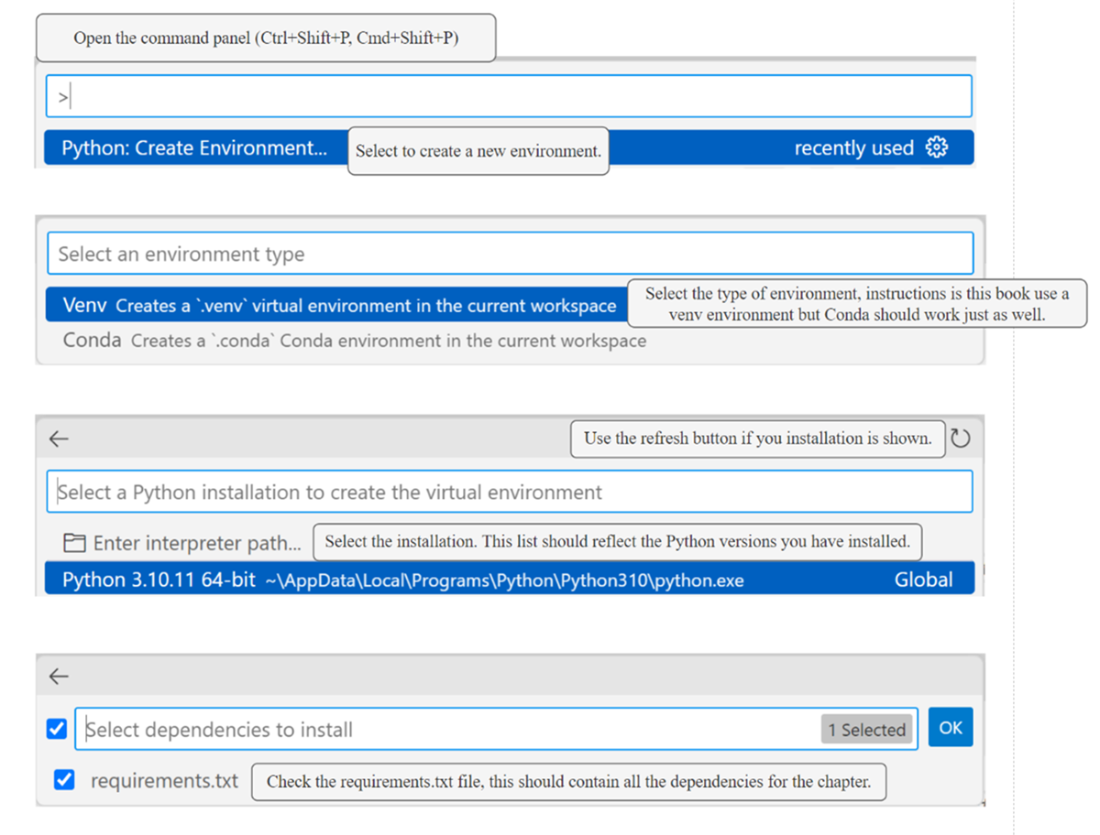
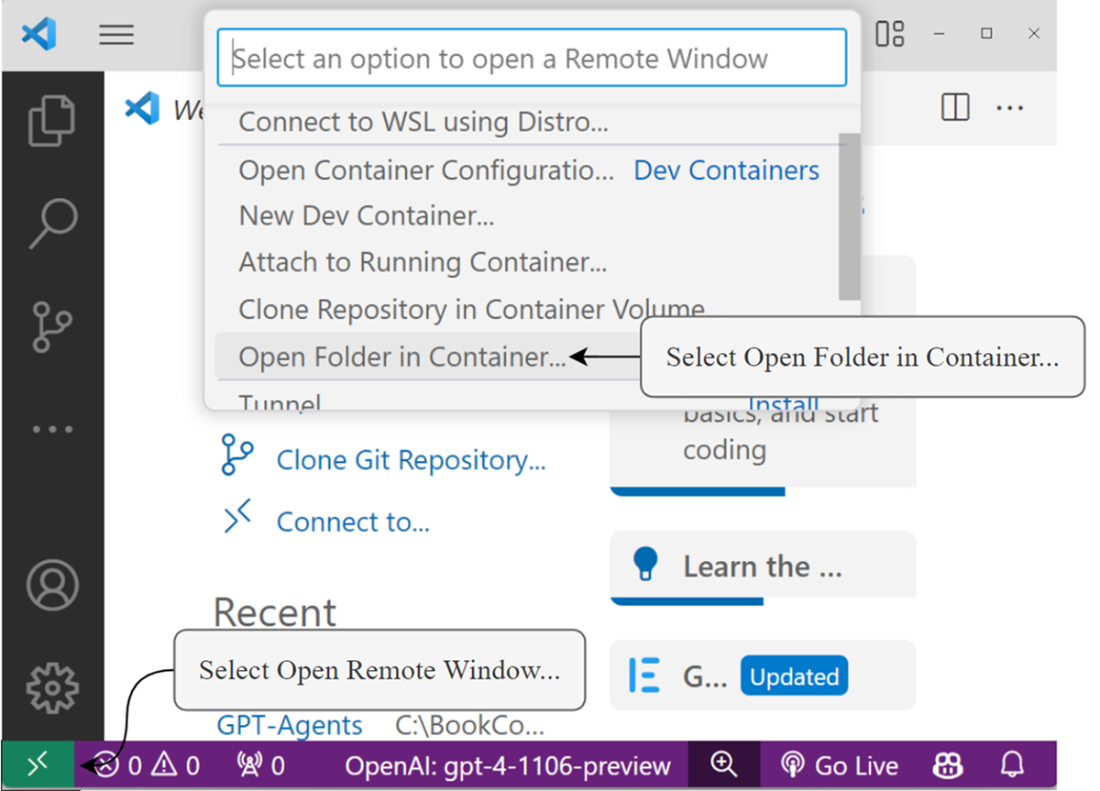
Figure B.3 Opening a remote window to a container in VS Code
FAQ
How do I download the book’s source code?
1) Install Git from https://git-scm.com/downloads and follow the OS-specific installer. 2) Open a terminal in the folder where you want the code. 3) Run: git clone https://github.com/cxbxmxcx/GPT-Agents.git. 4) Open the chapter folder you want to work on in VS Code.
Which Python version do I need, and how do I verify it?
The book uses the standard Python 3.10 from Python.org. Verify with python --version in a terminal. If it’s not 3.10, you may have multiple versions installed; you’ll pick the correct interpreter when creating the VS Code environment.
Can I use Anaconda/Conda instead of the standard Python installer?
Yes. The book demonstrates using venv with Python 3.10, but Conda should also work. Ensure your environment uses Python 3.10 or later and installs the chapter’s requirements.
How do I install Visual Studio Code?
1) Go to https://code.visualstudio.com/. 2) Download a stable release for your OS. 3) Install it following the OS guidance. 4) Launch VS Code; if you see errors, try restarting your machine or reinstalling.
Which VS Code extensions are recommended for this appendix?
Install: Python; Python Extension Pack; Python Environment Manager; Python Indent; Flake8; Prompt Flow; Semantic Kernel Tools; Docker; Dev Containers. Check install counts and ratings; extensions under 4 stars are generally best avoided.
Do I need to install extensions inside containers too?
Yes. Extensions are scoped to the environment. If you open a project in a Dev Container, install the needed extensions in that container’s VS Code session as well.
How do I create a new Python virtual environment for a chapter in VS Code?
1) Press Ctrl+Shift+P (Cmd+Shift+P on macOS) and run “Python: Create Environment.” 2) Choose Venv (or Conda). 3) Select a Python 3.10+ interpreter. 4) Ensure the chapter’s requirements.txt is selected so all dependencies install. Repeat these steps for each chapter.
Where do I get Python 3.10?
Download from https://www.python.org/downloads/, choose the latest 3.10 release for your OS, and follow the installer instructions.
Why use Docker/Dev Containers for the agent examples?
Agents that can generate and execute code are best run in isolated containers to prevent OS disruption or corruption and to provide a clean, reproducible base that’s also useful for deployment.
How do I set up Docker and open a Dev Container in VS Code?
1) Install Docker Desktop from https://www.docker.com/products/docker-desktop/ and launch it. 2) In VS Code, make sure the Docker and Dev Containers extensions are installed. 3) Open a new VS Code window, choose “Open a Remote Window,” then select “Open Folder in Container” (or “New Dev Container”) to start working inside a container.
