Appendix B. Setting up a Jupyter Notebook environment
This appendix provides a practical, high-level guide to getting a Jupyter Notebook environment ready for experimenting with AI prompts and examples. It begins by framing notebooks as an interactive space for writing and running code with immediate feedback, and recommends using Python 3.11 or newer for the smoothest experience. It then outlines three ways to install Python: a lightweight standalone interpreter, the full Anaconda distribution with extensive data science tools and an easy GUI, and the slimmer Miniconda option focused on environment management. The remaining instructions assume a standard Python installation, while conda users can adapt the steps as needed.
Next, the appendix walks through creating an isolated project setup using venv to prevent package conflicts across projects. You create a project folder, initialize a virtual environment, activate it so the shell reflects the environment name, and upgrade pip to ensure reliable package installation. This isolation keeps dependencies clean and reproducible, making it easier to manage versions and avoid interference with other work on the same machine.
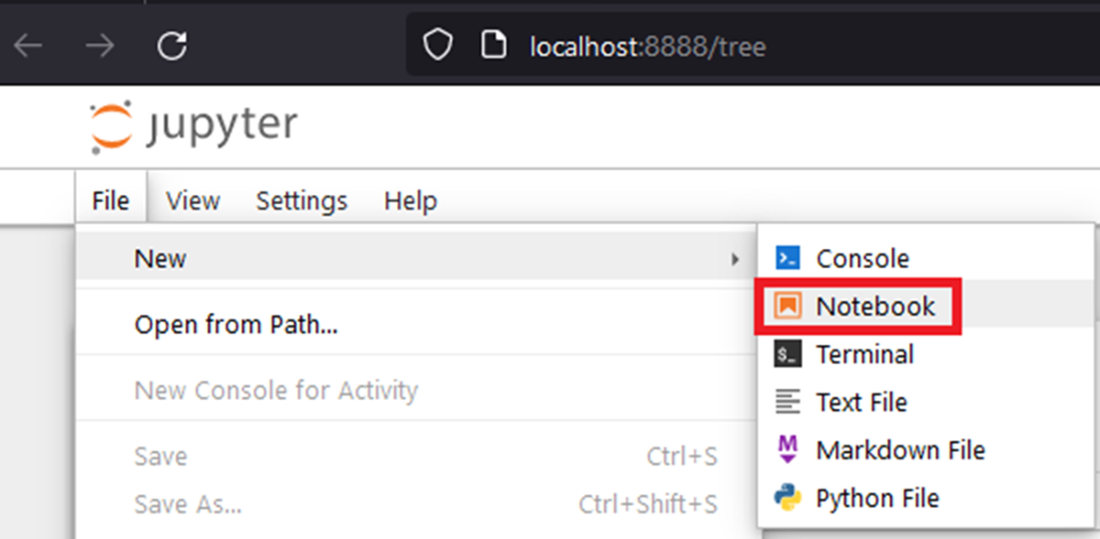
With the environment active, you install Jupyter along with the required libraries (including those used for LangChain examples) from a requirements file, optionally verifying the installation with a package list. You then launch Jupyter from the terminal, which starts a local server and opens the notebook interface in your browser. From there, you create a new notebook, rename it to prompt_examples.ipynb, and begin entering code into cells—remembering that Ctrl+Enter executes the current cell—so you’re ready to run prompts and iterate on examples immediately.
Figure B.1 Creating a new Jupyter notebook: create the notebook with the menu File > New > Notebook and then rename the file to langchain_examples.ipynb
FAQ
What Python version is recommended for these Jupyter notebooks?
The examples are version-agnostic, but Python 3.11 or newer is recommended for the smoothest experience.Should I install standalone Python, Anaconda, or Miniconda?
- Standalone Python: Lightweight install from python.org; ideal if you just want Python without extra tools.- Anaconda: Full data science stack (Python + many libraries + Navigator); great if you have disk space and want an all-in-one setup.
- Miniconda: Lightweight conda with just the essentials; add only what you need via environments.
How do I create and activate a virtual environment with venv?
1) In a terminal, create/navigate to your project folder (for example, ch01).2) Create the environment:
python -m venv env_ch013) Activate it (Windows):
.\env_ch01\Scripts\activateWhen activated, your prompt will show
(env_ch01) at the beginning.Why should I upgrade pip and how do I do it?
Upgrading pip helps avoid installation issues with newer packages. Run:python -m pip install --upgrade pip inside your activated environment.Where can I find official guidance on pip and virtual environments?
See the Python Packaging guide: https://packaging.python.org/en/latest/guides/installing-using-pip-and-virtual-environments/.How do I install Jupyter and the book’s required libraries?
With your environment active, run:pip install -r requirements.txt. Use the requirements file from the book’s repository: https://github.com/roberto-inf/building-llm-applications.How can I verify that packages installed correctly?
Runpip list in the activated environment to see installed packages and versions.How do I start Jupyter Notebook and access it in the browser?
Start it withjupyter notebook. The terminal will show a URL like http://localhost:8888/tree?token=.... A browser window should open automatically; if not, copy that URL into your browser.I see a token in the terminal. What is it and how do I use it?
The token is an access key for your local Jupyter session. Either click the full URL printed in the terminal (which includes the token) or paste that URL into your browser. You can stop the server anytime with Ctrl+C in the terminal.How do I create and rename my notebook file, and run code cells?
In Jupyter: File > New > Notebook, then File > Rename… and name itprompt_examples.ipynb. To execute a cell, press Ctrl+Enter.
 AI Agents and Applications ebook for free
