This appendix explains how to open and run the sample Java projects included with the book so you can follow along with the troubleshooting examples. These projects are built for Java 17 and are used throughout the book to demonstrate practical tools and techniques for working with JVM applications.
To get started, you need a compatible IDE, such as IntelliJ IDEA, Eclipse, or Apache NetBeans, along with JDK 17 or newer installed on your system. The examples in the appendix are shown using IntelliJ IDEA, but any Java distribution should work as long as it supports the required JDK version.
Once the development environment is ready, opening a project is done through the IDE’s file menu by selecting the existing project from the file system and confirming the choice. After the project loads, you can run the application by right-clicking the class that contains the main() method, which in these examples is the Main class, and choosing Run; if you want to debug instead, you can select Debug from the same menu.
Figure B.1 To open an existing project in IntelliJ IDEA, select Open in the File menu.

Figure B.2 After selecting Open in the File menu, a pop-up window appears. In this window, select the project you want to open from the file system and click the OK button.
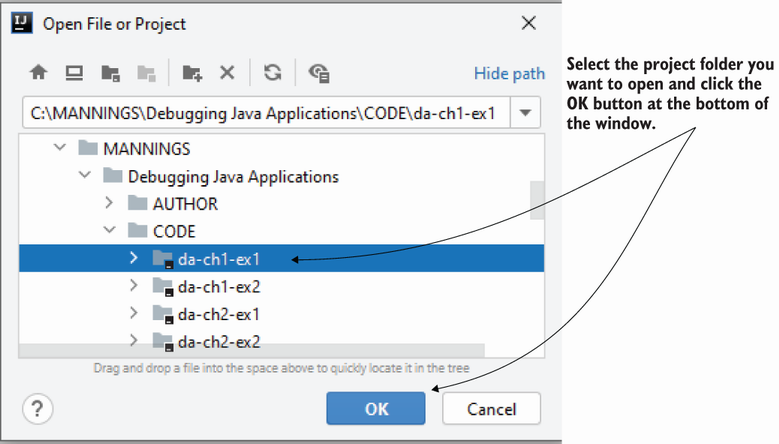
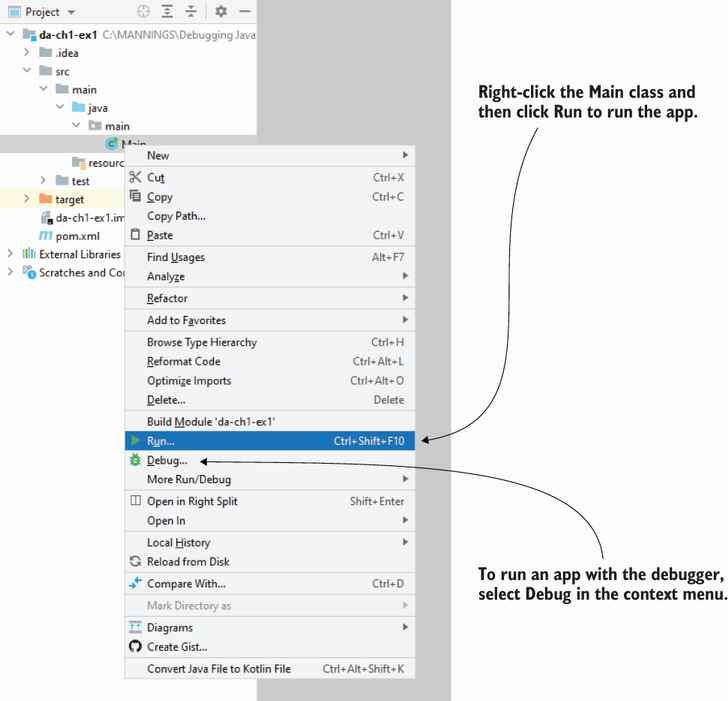
Figure B.3 Once you open an app, you can run it. To run the app, right-click the Main class and select the Run menu item. If you want to run the app with a debugger, click Debug.
FAQ
What do I need installed before opening the book’s sample Java projects?
The appendix says you need an IDE such as IntelliJ IDEA, Eclipse, or Apache NetBeans, and you also need JDK 17 or higher to run the projects.What Java version do the projects in this book use?
The projects provided with the book are Java applications that use Java 17.Can I use any Java distribution to run the examples?
Yes. You can use any Java distribution, as long as it provides JDK version 17 or higher.Which IDE does the appendix use for the examples?
The appendix uses IntelliJ IDEA for the examples.How do I open an existing project in IntelliJ IDEA?
In IntelliJ IDEA, go to File > Open, then choose the project from the file system and confirm the selection.What happens after I select File > Open in IntelliJ IDEA?
A pop-up window appears where you can browse the file system, select the project you want to open, and click OK.How do I find the class to run in the book’s sample projects?
For the book’s projects, themain() method is defined in a class named Main.How do I run the application after opening the project?
Right-click the class that contains themain() method, which is the Main class in these projects, and select Run.How do I start the application in debug mode?
Right-click theMain class and select Debug instead of Run.